
ORDRO B320
ORDRO B320 Camcorder User Manual
Model: B320
Introduction
The ORDRO B320 is a versatile 1080P Full HD video camera recorder designed for capturing high-quality videos and photos. Featuring a 30MP sensor, 18X digital zoom, infrared night vision, and a 3.0-inch flip screen, it is suitable for various recording needs, including vlogging and general use. This manual provides comprehensive instructions for setup, operation, maintenance, and troubleshooting to ensure optimal performance of your camcorder.
What's in the Box
Upon opening the package, please verify that all the following items are included:
- ORDRO B320 Camcorder
- Two 3.7V 1000mAh Lithium Batteries
- 16GB Memory Card
- Lens Cap
- Charger
- Charging Cable
- Remote Control
- Camera Bag
- User Manual (this document)

Image: The ORDRO B320 camcorder along with its accessories, including batteries, memory card, remote control, and cables.
Product Overview
Familiarize yourself with the various parts and controls of your ORDRO B320 camcorder.

Image: A detailed diagram showing the various buttons and interfaces on the ORDRO B320 camcorder, including the hot shoe interface, zoom in/out, photo button, record/stop button, USB/MIC output, menu, mode/OK, power/IR, up button, and down button.
Key Features:
- HD Recording: 1920x1080 resolution at 30FPS with a 5MP CMOS sensor, supporting up to 30 million megapixels for still images.
- 3.0-inch Flip Screen: A rotatable display for easy viewing from various angles, ideal for self-recording.
- 18X Digital Zoom: Allows for magnification of distant subjects.
- Infrared Night Vision: Captures clear black and white footage in low-light or dark conditions.
- Webcam Mode: Connects to a computer for use as a webcam.
- Face Detection & Anti-Shake: Enhances image quality and stability.
- External Microphone Support: Features a MIC output for improved audio recording.
Setup
1. Battery Installation and Charging
- Open the battery compartment cover located on the bottom of the camcorder.
- Insert one of the provided 3.7V 1000mAh lithium batteries, ensuring the correct polarity.
- Close the battery compartment cover securely.
- Connect the camcorder to the charger using the charging cable. Plug the charger into a power outlet. The charging indicator light will illuminate.
- Allow the battery to fully charge before first use. A full charge typically takes approximately 2-3 hours.
Note: The camcorder supports recording while charging via a power bank, extending operational time. Battery life may be reduced when using night vision mode.
2. Memory Card Installation
The ORDRO B320 uses SD flash memory cards. A 16GB memory card is included.
- Locate the SD card slot on the side of the camcorder.
- Insert the 16GB memory card into the slot with the gold contacts facing down until it clicks into place.
- To remove the card, gently push it inward until it springs out.

Image: Close-up of the included 16GB memory card and two rechargeable batteries, essential for camcorder operation.
Operating Instructions
Powering On/Off
- To power on, open the flip screen. The camcorder will automatically turn on.
- To power off, close the flip screen. The camcorder will automatically turn off. Alternatively, press and hold the Power/IR button.
Recording Videos
- Ensure the camcorder is in video recording mode. If not, press the Mode/OK button to cycle through modes until the video icon is displayed on the screen.
- Frame your shot using the 3.0-inch flip screen.
- Press the Record/Stop button to start recording. A red indicator will typically appear on the screen, and a timer will start.
- To stop recording, press the Record/Stop button again.
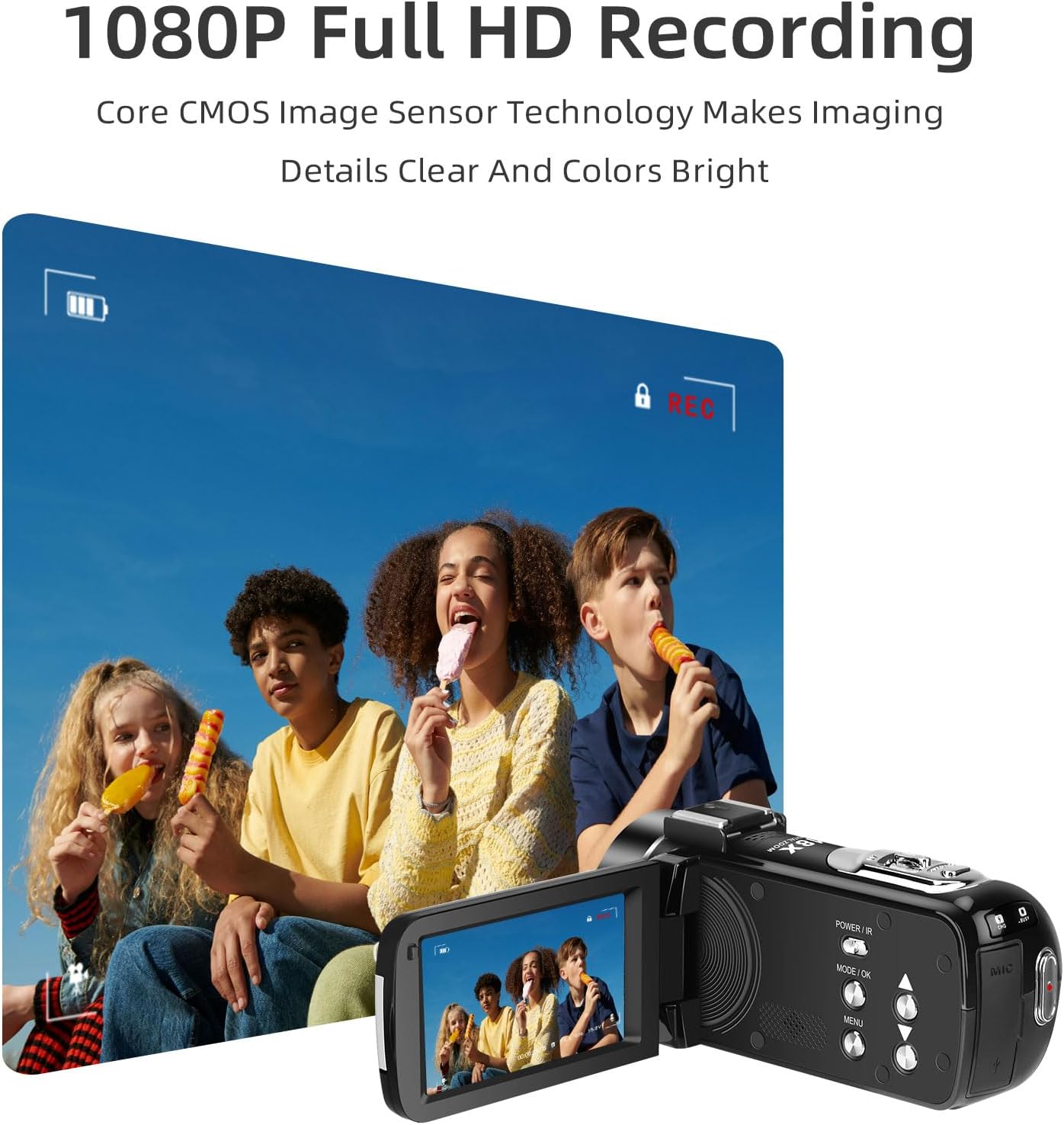
Image: The ORDRO B320 camcorder in use, displaying a live video feed on its flip screen, demonstrating its 1080P Full HD recording capability.
Taking Photos
- Switch to photo mode by pressing the Mode/OK button until the camera icon is displayed.
- Compose your shot.
- Press the Photo Button (usually a dedicated button or the same as Record/Stop in photo mode) to capture an image.
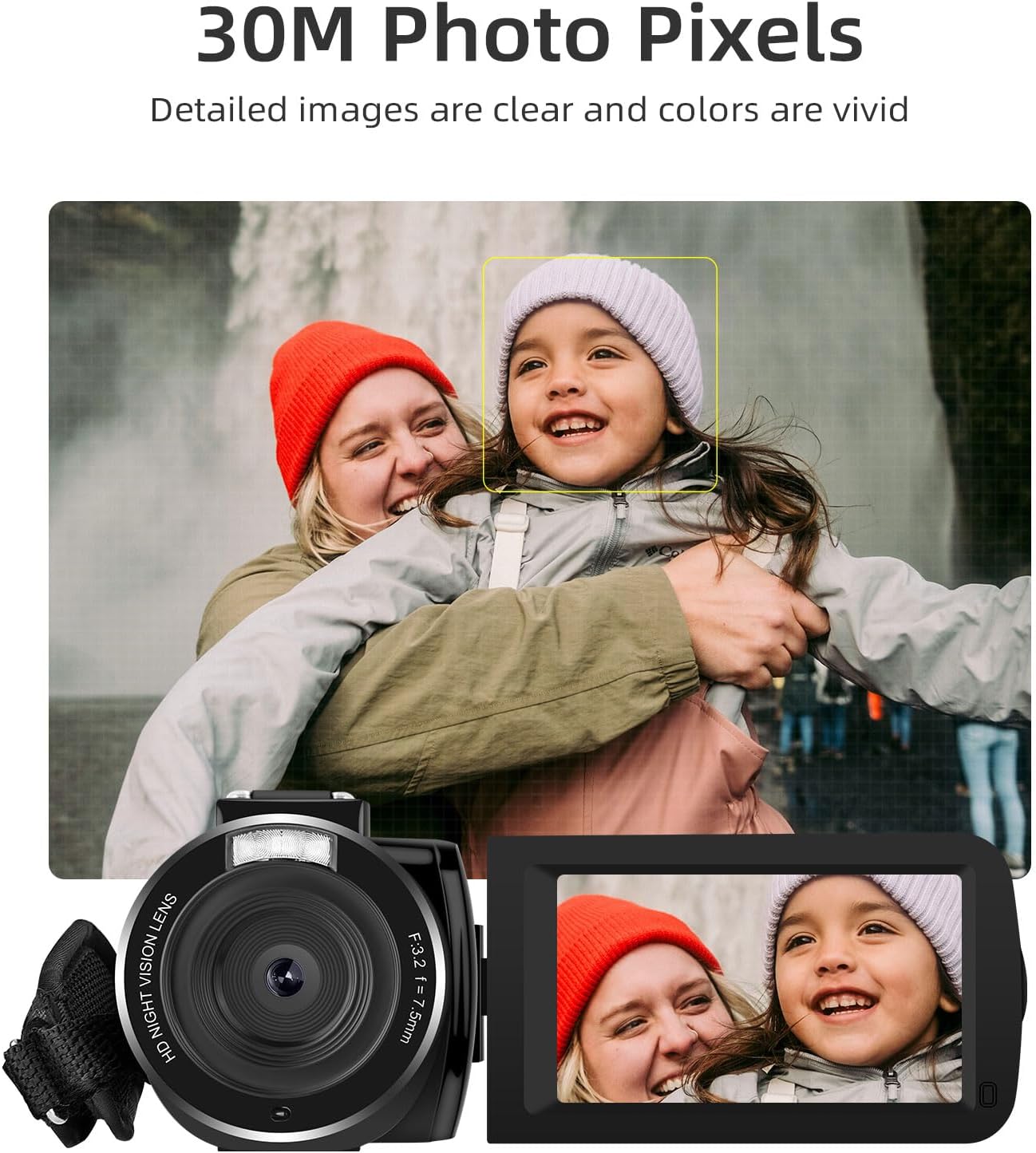
Image: The ORDRO B320 camcorder capturing a still image, highlighting its 30-megapixel photo capability and face detection feature.
Using Digital Zoom
- While in video or photo mode, use the Zoom In/Out buttons (often labeled W/T or with magnifying glass icons) to adjust the digital zoom.
- Press 'T' (Telephoto) to zoom in and 'W' (Wide) to zoom out.
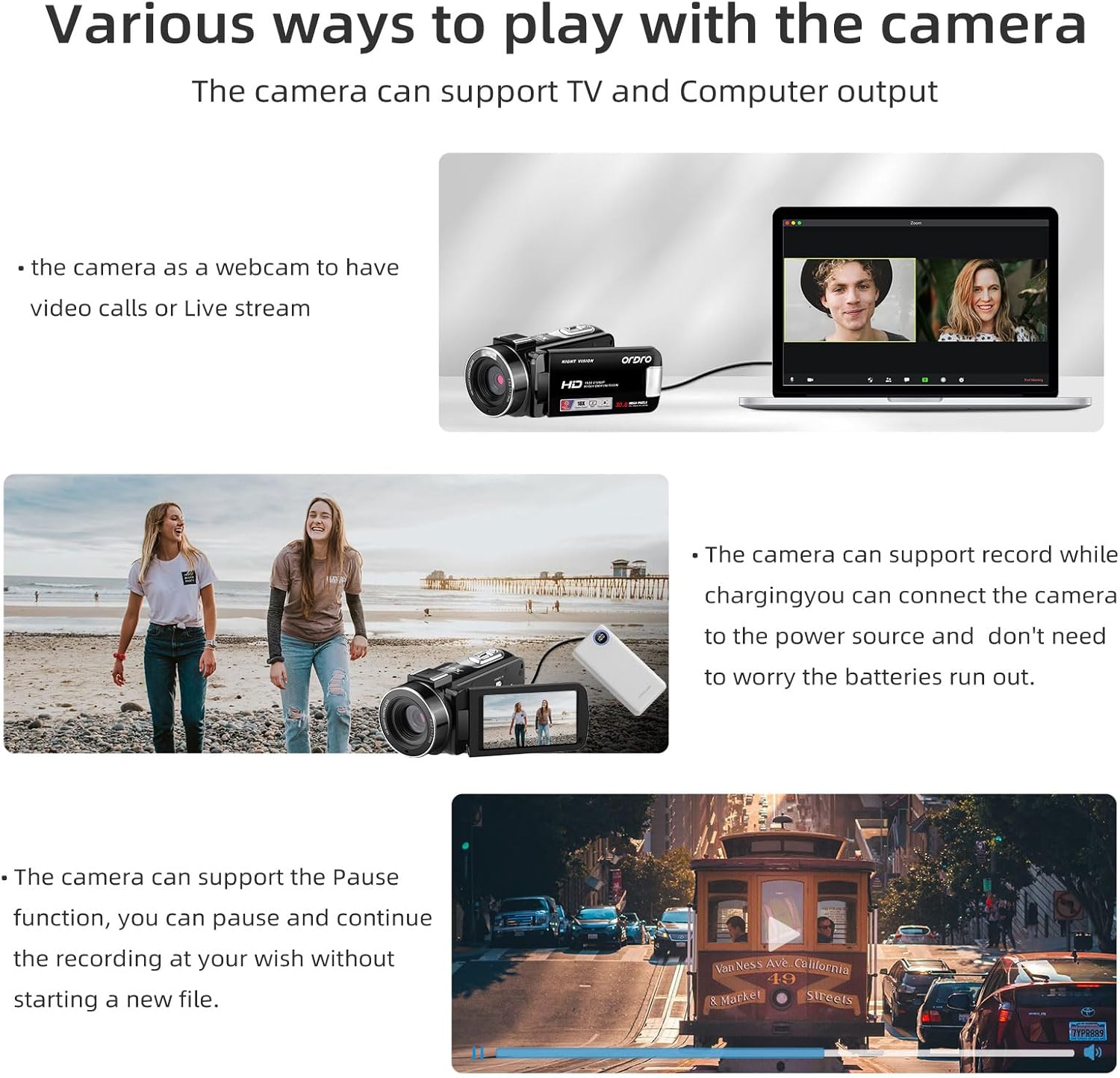
Image: The ORDRO B320 camcorder showcasing its 18X digital zoom feature, with an inset showing the magnified view of a distant lighthouse.
Infrared Night Vision
- To activate infrared night vision, press the Power/IR button briefly while the camcorder is on.
- The screen will display black and white images, indicating night vision is active.
- Press the Power/IR button again to deactivate.

Image: A side-by-side comparison demonstrating the effectiveness of the ORDRO B320's IR Night Vision, showing a clear black-and-white image in low light versus a dark, unlit scene.
Webcam Mode
- Connect the camcorder to your computer using the provided USB cable.
- On the camcorder screen, select "PC Camera" or "Webcam Mode" if prompted.
- Your computer should recognize the camcorder as a webcam, allowing its use with video conferencing software.

Image: The ORDRO B320 camcorder connected to a laptop, illustrating its functionality as a webcam for video calls or live streaming.
Menu Settings
- Press the Menu button to access the camcorder's settings.
- Use the Up and Down buttons to navigate through options.
- Press Mode/OK to select an option or confirm a setting.
- Settings include video resolution, photo quality, white balance, exposure, date/time, and more.
Maintenance
- Cleaning the Lens: Use a soft, lint-free cloth specifically designed for camera lenses. Avoid using abrasive materials or harsh chemicals.
- Cleaning the Screen: Wipe the flip screen gently with a microfiber cloth. For stubborn smudges, a small amount of screen cleaner can be applied to the cloth (not directly to the screen).
- General Cleaning: Use a soft, dry cloth to wipe the body of the camcorder. Do not expose the camcorder to water or excessive moisture.
- Storage: When not in use for extended periods, remove the batteries and store the camcorder in a cool, dry place, preferably in its camera bag, away from direct sunlight and extreme temperatures.
- Battery Care: Store batteries in a cool, dry place. Recharge them periodically if not used for a long time to maintain their lifespan.
Troubleshooting
| Problem | Possible Cause | Solution |
|---|---|---|
| Camcorder does not power on. | Battery is dead or not inserted correctly. | Ensure battery is charged and correctly inserted. Try using the second battery. |
| Cannot record video/take photos. | Memory card is full, not inserted, or corrupted. Incorrect mode selected. | Check memory card status, ensure it's inserted. Format the card (this will erase data). Switch to correct mode. |
| Poor video/photo quality. | Insufficient lighting, dirty lens, or incorrect settings. | Ensure adequate lighting. Clean the lens. Adjust exposure or white balance settings in the menu. |
| Camcorder freezes or becomes unresponsive. | Software glitch or temporary error. | Remove the battery for a few seconds, then reinsert it and power on again. |
| Webcam mode not working. | Incorrect USB connection mode or driver issue. | Ensure "PC Camera" mode is selected on the camcorder. Try a different USB port or cable. Check computer's device manager for driver issues. |
Specifications
| Feature | Detail |
|---|---|
| Brand | ORDRO |
| Model Number | B320 |
| Video Capture Resolution | 1080p (1920x1080 30FPS) |
| Photo Sensor Technology | CMOS (5MP) |
| Maximum Photo Pixels | 30 Million Megapixels |
| Digital Zoom | 18X |
| Screen Size | 3.0 inches (Flip Screen) |
| Special Features | Face Detection, Lightweight, Night Vision, Anti-Shake |
| Batteries | 2 x 3.7V 1000mAh Lithium Batteries (included) |
| Video Format | AVI |
| Flash Memory Type | SD |
| Item Weight | 275 grams (0.6 lbs) / 1.23 pounds (packaged) |
| Dimensions (Package) | 6.69 x 5.63 x 3.98 inches |
Warranty and Support
ORDRO provides a 12-month warranty for the B320 camcorder. For any questions, technical assistance, or warranty claims, please contact ORDRO customer service.
Customer Service: Refer to the contact information provided on the ORDRO official website or the packaging for the most up-to-date support channels.
You can also visit the ORDRO Store on Amazon for more product information and support resources.
Related documentsB320


Ask a question about this manual
Ask about setup, troubleshooting, compatibility, parts, safety, or missing instructions. Manuals+ will review the question and use this page’s manual context to help answer it.