
1. Introduction
Welcome to the user manual for your new plimpton PlimPad P70 Android 14 Tablet. This guide provides essential information on setting up, operating, and maintaining your device to ensure optimal performance and user experience. Please read this manual thoroughly before using your tablet.
1.1 Package Contents
Verify that all items are present in your product package:
- 1 x plimpton PlimPad P70 Tablet
- 1 x USB Adapter
- 1 x User Manual (this document)
- 1 x Quick Guide
- 1 x Type-C Cable (1.8M)

2. Product Overview
The plimpton PlimPad P70 is a 10-inch Android 14 tablet designed for versatile use. It features an octa-core processor, 12GB RAM (4GB physical + 8GB virtual), 128GB internal storage, a 6000mAh battery, and a 1280x800 HD IPS Incell screen.

2.1 Physical Components
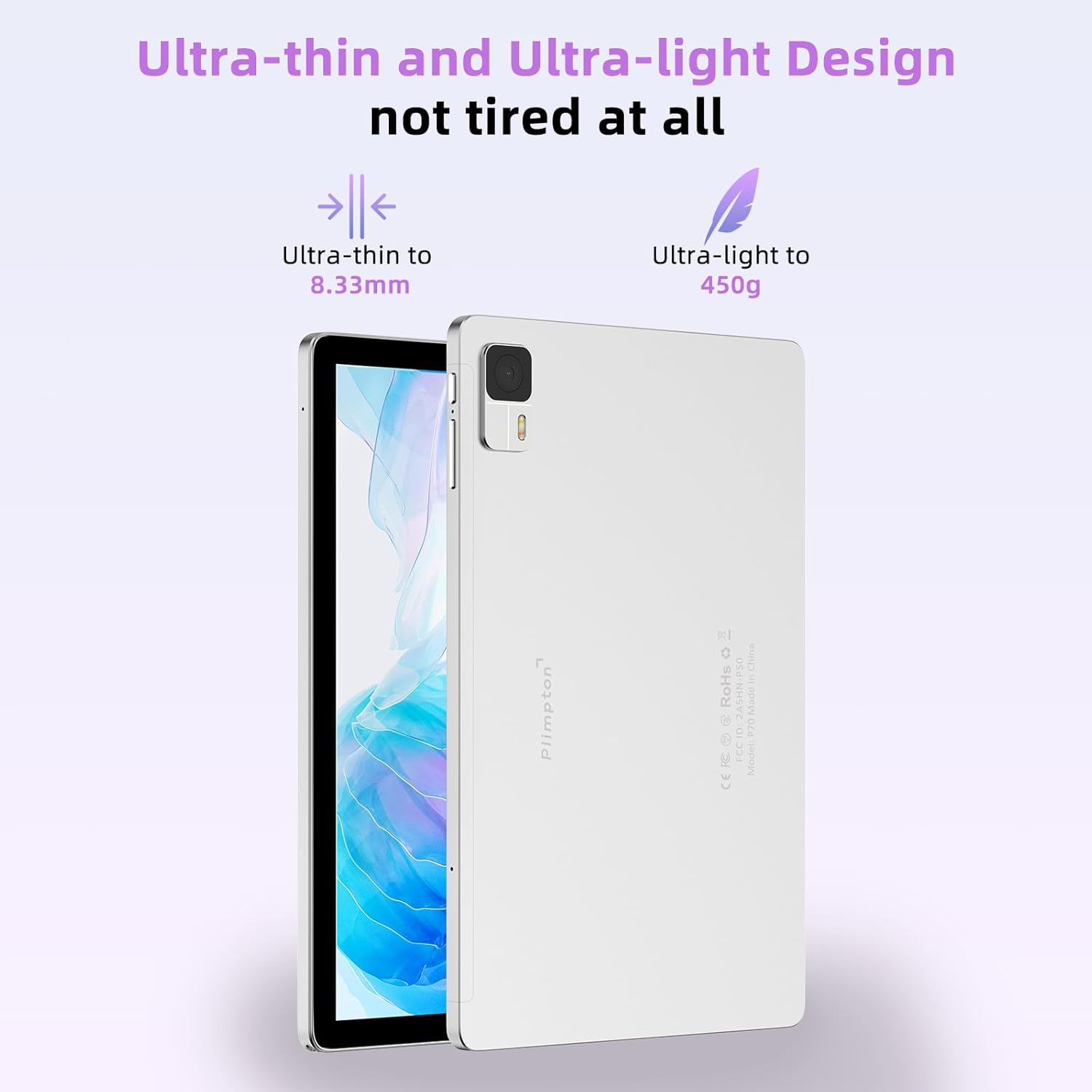
Familiarize yourself with the tablet's physical layout:
- Power Button: Located on the side, used to turn the tablet on/off or wake/sleep the screen.
- Volume Buttons: Adjust the audio output level.
- USB Type-C Port: For charging and data transfer.
- Headphone Jack: Connect wired headphones.
- MicroSD Card Slot: Expand storage capacity.
- Front Camera: For video calls and selfies.
- Rear Camera: For taking photos and videos.
- Speakers: Audio output.
3. Getting Started (Setup)
3.1 Charging the Tablet
Before first use, fully charge your tablet. Connect the provided USB Type-C cable to the tablet's charging port and the USB adapter to a power outlet. The battery indicator on the screen will show charging status.
3.2 Powering On/Off
- To Power On: Press and hold the Power button until the plimpton logo appears.
- To Power Off: Press and hold the Power button until the power options menu appears, then select "Power off."
- To Restart: Press and hold the Power button, then select "Restart."
- To Sleep/Wake: Briefly press the Power button.
3.3 Initial Setup
Upon first power-on, the tablet will guide you through the initial setup process:
- Select your preferred language.
- Connect to a Wi-Fi network.
- Sign in with your Google account or create a new one. This is necessary to download apps from the Google Play Store.
- Follow the on-screen prompts to set up security, privacy settings, and other preferences.
3.4 Inserting a MicroSD Card
To expand your tablet's storage, you can insert a MicroSD card (up to 1TB, not included) into the designated slot. Ensure the tablet is powered off before inserting or removing the card.
4. Basic Operations
4.1 Navigating Android 14
Your PlimPad P70 runs on Android 14, offering an intuitive user interface. Key navigation methods include:
- Swipe Up from Bottom: Access the app drawer.
- Swipe Down from Top: Access quick settings and notifications.
- Tap: Select items or open apps.
- Long Press: Access contextual menus or move app icons.

4.2 Connecting to Wi-Fi
- Go to Settings > Network & internet > Internet.
- Turn on Wi-Fi.
- Select your desired network from the list and enter the password if required.
The PlimPad P70 supports WiFi 6 for faster and more stable wireless connections.

4.3 Bluetooth Pairing
- Go to Settings > Connected devices > Connection preferences > Bluetooth.
- Turn on Bluetooth.
- Select "Pair new device" and choose your device from the list.
The tablet supports Bluetooth 5.3 for reliable connections with accessories.
4.4 Managing Apps
- Install Apps: Open the Google Play Store app, search for your desired app, and tap "Install."
- Uninstall Apps: Long-press an app icon on the home screen or in the app drawer, then drag it to "Uninstall" or select "App info" and then "Uninstall."
4.5 Split-Screen Functionality
Android 14 allows you to use two apps simultaneously in split-screen mode:
- Open the first app.
- Swipe up from the bottom of the screen and hold to access recent apps.
- Tap the app icon at the top of the first app's card, then select "Split top."
- Choose the second app from your recent apps or app drawer to fill the other half of the screen.

4.6 Camera Usage
The tablet is equipped with a 2MP front camera and a 5MP rear camera. Open the Camera app to take photos or record videos. Tap the screen to focus and press the shutter button to capture.
5. Storage and Performance
The PlimPad P70 offers robust performance for daily tasks and entertainment.
5.1 RAM Management
The tablet features 12GB RAM, composed of 4GB physical RAM and 8GB virtual RAM. Virtual memory can be activated in the settings to enhance multitasking capabilities.
5.2 Internal Storage
With 128GB of internal storage, you have ample space for apps, photos, and documents. This can be expanded further using a MicroSD card.

5.3 Octa-Core Processor
The tablet is powered by an Allwinner A523 8-core processor, providing smooth performance for applications and gaming.

6. Display and Multimedia
The PlimPad P70 features a high-quality display and multimedia capabilities.
6.1 10.1-inch HD IPS Incell Screen
The 10.1-inch display utilizes Incell technology, integrating the touch screen and display for improved clarity, color saturation, and responsiveness. The 1280x800 resolution provides a clear viewing experience.

6.2 Widevine L1 Support
With Widevine L1 certification, the PlimPad P70 ensures secure access to high-definition streaming content from platforms like Netflix, Hulu, and Amazon Prime Video, allowing for clear HD and higher resolutions.

7. Battery Management
The PlimPad P70 is equipped with a 6000mAh battery for extended usage.
7.1 Charging Best Practices
- Use only the provided charger and cable.
- Avoid extreme temperatures during charging.
- Do not leave the tablet charging for excessively long periods after it reaches 100%.
7.2 Optimizing Battery Life
- Adjust screen brightness to a comfortable level.
- Turn off Wi-Fi and Bluetooth when not in use.
- Close background apps that are not needed.
- Enable battery saver mode in settings.

8. Troubleshooting
This section addresses common issues you might encounter with your PlimPad P70 tablet.
| Problem | Possible Solution |
|---|---|
| Tablet does not turn on | Ensure the battery is charged. Connect the charger and wait a few minutes before attempting to power on. If unresponsive, perform a forced restart by holding the power button for 10-15 seconds. |
| Screen is unresponsive | Restart the tablet. If the issue persists, ensure the screen is clean and free of debris. |
| Wi-Fi connection issues | Check if Wi-Fi is enabled in settings. Restart your router and the tablet. Forget the network and reconnect. |
| Apps are crashing or freezing | Clear the cache and data for the problematic app (Settings > Apps > [App Name] > Storage > Clear cache/Clear data). Update the app or uninstall and reinstall it. Ensure sufficient storage space. |
| Battery drains quickly | Reduce screen brightness, disable unused features (Wi-Fi, Bluetooth, GPS), close background apps, and check for app updates. |
| Low audio volume | Ensure volume is turned up using the physical buttons and in software settings. Check if headphones are connected. Clean speaker grilles if obstructed. |
If you encounter issues not listed here or if the suggested solutions do not resolve the problem, please contact plimpton customer support.
9. Specifications
Detailed technical specifications for the plimpton PlimPad P70 tablet:
| Feature | Specification |
|---|---|
| Model Name | PlimPad P70 |
| Operating System | Android 14 |
| Processor | Octa-Core (Allwinner A523) |
| RAM | 12GB (4GB physical + 8GB virtual) |
| Internal Storage | 128GB ROM |
| Expandable Storage | MicroSD up to 1TB |
| Screen Size | 10.1 Inches |
| Display Type | HD IPS Incell |
| Resolution | 1280 x 800 Pixels |
| Battery Capacity | 6000mAh Lithium Ion |
| Wireless Connectivity | WiFi 6 (802.11ax) |
| Bluetooth | Bluetooth 5.3 |
| Cameras | Front: 2MP, Rear: 5MP |
| Dimensions (LxWxH) | 9.3 x 6.18 x 0.32 inches |
| Weight | 15.9 ounces (approx. 450g) |
| Color | Silver |
| Video Streaming Support | Widevine L1 |
10. Maintenance and Care
To ensure the longevity and optimal performance of your plimpton PlimPad P70 tablet, follow these maintenance guidelines:
- Cleaning: Use a soft, lint-free cloth to clean the screen and body. Avoid abrasive cleaners or solvents.
- Temperature: Operate the tablet within recommended temperature ranges. Avoid extreme heat or cold.
- Water Exposure: The tablet is not waterproof. Avoid exposure to liquids.
- Software Updates: Regularly check for and install system updates to ensure security and performance improvements.
- Storage: Avoid overfilling the internal storage. Periodically clear unnecessary files and app caches.
11. Warranty and Support
plimpton is committed to providing quality products and customer service.
11.1 Warranty Information
plimpton officially provides a 2-year free replacement policy for non-human factor damage from the date of purchase.
11.2 Technical Support
plimpton offers lifetime technical support for your PlimPad P70 tablet. If you have any questions, encounter issues, or require assistance, please contact our customer support team. Refer to the contact information provided in your quick guide or on the official plimpton website.
