
1. Introduction and Overview
The MSI MAG 274PFW is a 27-inch Full HD (1920x1080) gaming monitor designed for an immersive gaming experience. Featuring a RAPID IPS panel, it delivers vibrant colors and wide viewing angles. Its high refresh rate and fast response time ensure smooth, tear-free gameplay. This manual provides comprehensive instructions for setting up, operating, maintaining, and troubleshooting your monitor.

Figure 1.1: The MSI MAG 274PFW gaming monitor, showcasing its sleek design and key features like 27-inch Full HD display, RAPID IPS panel, 180Hz refresh rate, 1ms GTG response time, and HDR support.
Key Features:
- Display Size: 27 inches, 16:9 Aspect Ratio, Full HD (1920 x 1080) resolution.
- High Refresh Rate: Up to 180Hz for incredibly smooth visuals.
- Rapid Response Time: 1ms (GTG) for minimal motion blur.
- Panel Type: RAPID IPS for superior color reproduction and wide viewing angles.
- Surface Type: Non-glare display.
- Color Gamut: 99% sRGB / 92% DCI-P3 coverage.
- Display Colors: Approximately 1.07 billion colors.
- Viewing Angle: 178° (H) x 178° (V).
- Ergonomic Stand: Features tilt (-5° ~ 20°), height adjustment (0 ~ 130mm), swivel (-45° ~ 45°), and pivot (-90° ~ 90°) for optimal viewing comfort.
- Advanced Features: Anti-Flicker, Anti-Motion Blur, Night Vision, Blue Light Cut, AI Vision, Adaptive-Sync, HDR.
- VESA Mount: VESA75 compatible (with included spacer screws).
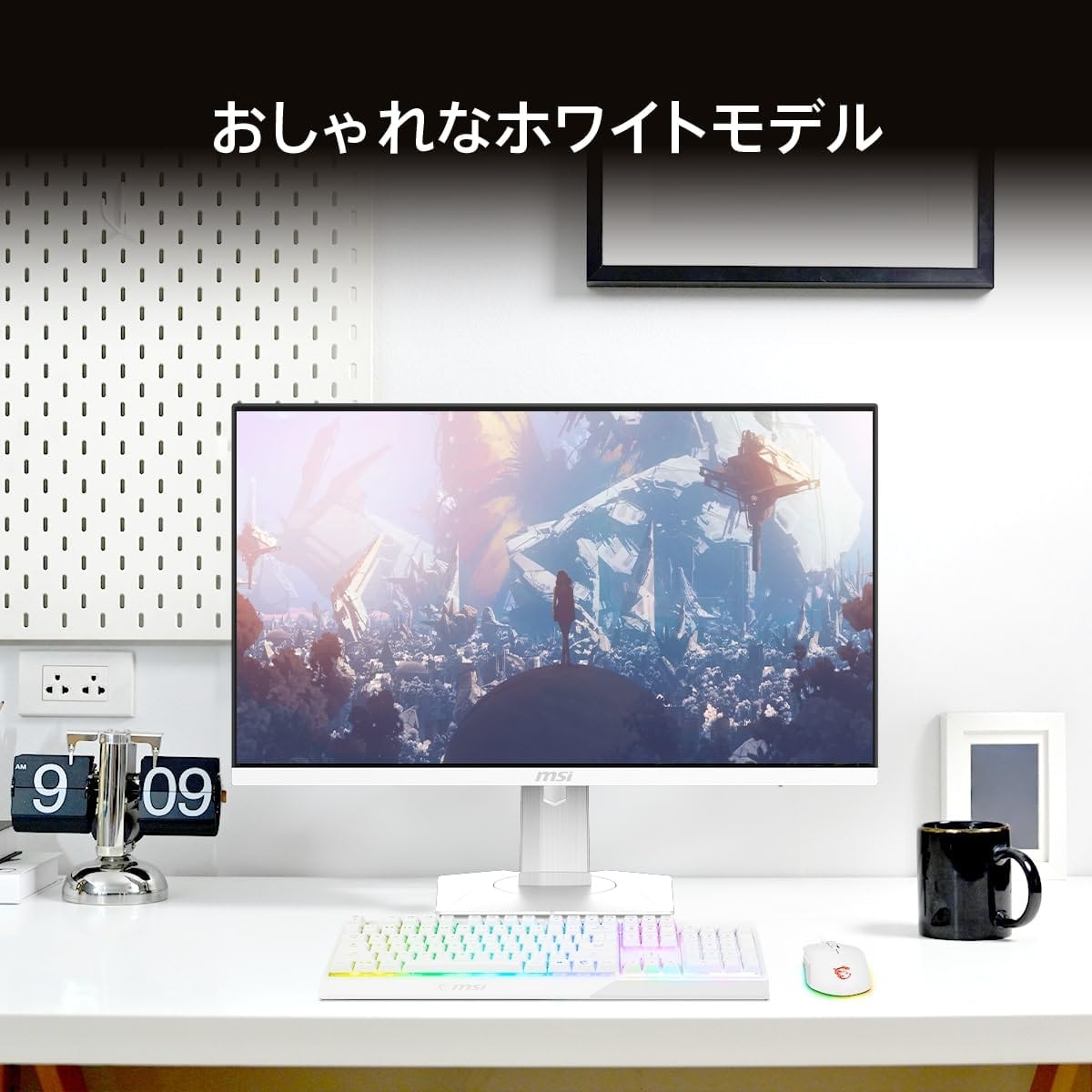
Figure 1.2: The MSI MAG 274PFW monitor in a typical desk setup, highlighting its stylish white design that complements modern workspaces.
2. Setup
2.1 Unpacking and Package Contents
Carefully remove all components from the packaging. Ensure all items listed below are present. If any items are missing or damaged, contact your retailer.
- MSI MAG 274PFW Monitor
- Monitor Stand (Base and Neck)
- HDMI Cable x 1
- Power Cable x 1
- AC Adapter x 1
- VESA Mount Spacer Screws x 4
- Quick Start Guide x 1

Figure 2.1: Illustration of the accessories included with the MSI MAG 274PFW monitor, such as HDMI cable, power cable, AC adapter, VESA mount screws, and quick start guide.
2.2 Stand Assembly
- Place the monitor face down on a soft, clean surface to prevent scratches.
- Attach the stand neck to the back of the monitor until it clicks into place.
- Secure the stand base to the bottom of the stand neck using the captive screw.
- Carefully lift the assembled monitor and place it on a stable, flat surface.
2.3 VESA Mount Installation (Optional)
The monitor supports VESA 75x75mm mounting standards. If you wish to use a VESA-compatible arm or wall mount, follow these steps:
- Remove the pre-attached stand from the monitor.
- Attach the VESA mount adapter plate (if required by your mount) to the monitor's VESA holes using the provided VESA mount spacer screws.
- Secure the monitor to your VESA-compatible arm or wall mount according to the mount's instructions.

Figure 2.2: Diagram illustrating the VESA 75mm mounting points on the back of the monitor and the use of included spacer screws for proper installation with a VESA arm.
2.4 Connecting Cables
Connect the necessary cables to the monitor's input/output ports.
- Power: Connect the AC adapter to the monitor's power input and then plug the power cable into a wall outlet.
- Video Input:
- HDMI: Connect an HDMI cable from your computer or game console to one of the monitor's HDMI 2.0 ports (x2).
- DisplayPort: Connect a DisplayPort cable from your computer to the monitor's DisplayPort 1.2a port (x1).
- Audio Output: Connect headphones or external speakers to the 3.5mm headphone jack (x1) for audio output.

Figure 2.3: Rear view of the monitor showing the input/output ports: two HDMI 2.0 ports, one DisplayPort 1.2a, and one headphone output jack.

Figure 2.4: The monitor connected to a gaming console, demonstrating its compatibility with next-generation consoles for 1080p/120Hz display.
3. Operating Instructions
3.1 Power On/Off
Press the power button located on the monitor to turn it on or off. The power LED indicator will show the monitor's status.
3.2 On-Screen Display (OSD) Menu Navigation
The monitor features a 5-way joystick navigator on the back for easy OSD menu control. Push the joystick in to access the main menu, and move it up/down/left/right to navigate and adjust settings.
3.3 Display Settings
Adjust various display settings to optimize your viewing experience:
- Brightness/Contrast: Adjust these to suit your lighting conditions.
- Color Temperature: Select from various presets (e.g., Warm, Cool, User) or customize RGB values.
- Game Mode: Optimize settings for different game genres (e.g., FPS, RTS, RPG).
- Refresh Rate: Ensure your system is configured to utilize the monitor's full 180Hz refresh rate for the smoothest motion.
- Response Time (GTG): Set to 1ms for competitive gaming to minimize ghosting.
- HDR (High Dynamic Range): Enable HDR for enhanced contrast and color depth in compatible content.
- AI Vision: This feature automatically optimizes image scenes for improved visibility, brightness, contrast, and color.

Figure 3.1: An illustration detailing the RAPID IPS panel technology, showing the liquid crystal layer, LED backlight, color filter, and glass plate, which contribute to the monitor's high image quality and fast response.

Figure 3.2: Visual representation of the 180Hz refresh rate (180 frames per second) compared to 60Hz, and the 1ms GTG (Gray-to-Gray) response time, demonstrating the monitor's high gaming performance and reduced motion blur.

Figure 3.3: A comparison showing the enhanced clarity and contrast of images with HDR (High Dynamic Range) enabled versus normal mode, providing more distinct light and dark areas.

Figure 3.4: A visual demonstration of the AI Vision feature, showing how it automatically optimizes image scenes to improve visibility, brightness, contrast, and color, compared to when AI Vision is off.
3.4 Stand Adjustments
The monitor's ergonomic stand allows for various adjustments to achieve optimal viewing comfort:
- Tilt: Adjust the screen angle from -5° to 20° (up/down).
- Height Adjustment: Raise or lower the monitor by up to 130mm.
- Swivel: Rotate the monitor horizontally from -45° to 45° (left/right).
- Pivot: Rotate the screen 90° for portrait mode viewing (-90° to 90°).

Figure 3.5: Diagram illustrating the full range of adjustments available with the monitor's high-performance stand, including tilt, height, swivel, and pivot capabilities.
4. Maintenance
4.1 Cleaning the Monitor
- Always unplug the monitor from the power outlet before cleaning.
- Use a soft, lint-free cloth slightly dampened with water or a mild, non-abrasive screen cleaner.
- Do not spray cleaner directly onto the screen.
- Wipe the screen gently to remove dust and smudges.
- For the monitor casing, use a dry, soft cloth. Avoid harsh chemicals.
4.2 General Care
- Avoid placing the monitor in direct sunlight or near heat sources.
- Ensure adequate ventilation around the monitor.
- Do not block the ventilation openings.
- Avoid placing heavy objects on the monitor or its cables.
- If the monitor will not be used for an extended period, unplug it from the power outlet.
5. Troubleshooting
If you encounter issues with your monitor, refer to the following common troubleshooting steps:
| Problem | Possible Cause / Solution |
|---|---|
| No image on screen |
|
| Image is blurry or distorted |
|
| No sound from headphones/speakers |
|
| Monitor flickering |
|
If the problem persists after trying these steps, please refer to the Warranty and Support section for further assistance.
6. Specifications
Detailed technical specifications for the MSI MAG 274PFW monitor:
| Feature | Detail |
|---|---|
| Brand | MSI |
| Model Number | MAG-274PFW |
| Screen Size | 27 inches |
| Resolution | 1920 x 1080 (Full HD) |
| Aspect Ratio | 16:9 |
| Panel Type | RAPID IPS |
| Refresh Rate | 180Hz (Max) |
| Response Time | 1ms (GTG) |
| Surface Treatment | Non-glare |
| Color Gamut | 99% sRGB / 92% DCI-P3 |
| Display Colors | Approx. 1.07 Billion |
| Viewing Angle | 178° (H) / 178° (V) |
| HDMI Ports | 2 (HDMI 2.0) |
| DisplayPort | 1 (DisplayPort 1.2a) |
| Headphone Output | 1 |
| Power Type | 36W AC Adapter |
| Product Dimensions (W×D×H) | Approx. 614 × 197 × 403 (mm) |
| Product Weight | Approx. 6.05 kg |
| Tilt Adjustment | -5° ~ 20° |
| Height Adjustment | 0 ~ 130mm |
| Swivel Adjustment | -45° ~ 45° |
| Pivot Adjustment | -90° ~ 90° |
| VESA Compatibility | 75x75mm (with spacer screws) |

Figure 6.1: Detailed dimensions of the MSI MAG 274PFW monitor, including width, depth, and height, for planning desk space or mounting solutions.
7. Warranty and Support
7.1 Warranty Information
MSI monitors come with a 3-year domestic warranty from the date of purchase in Japan. This warranty covers defects in materials and workmanship under normal use.

Figure 7.1: Visual representation of MSI's 3-year domestic warranty, ensuring peace of mind after purchase with prompt support from domestic repair centers.
Electronic Warranty Card Download:
After purchasing the product, you can download the electronic Warranty Card by scanning the QR code printed on the included Quick Start Guide. You can also download it from the MSI website:
https://account.msi.com/services/warrantybook
7.2 Customer Support
For inquiries, FAQs, latest software, drivers, manuals, utility downloads, and product registration, please visit the MSI support site:
Contact Information:
For product-related questions, please contact MSI Customer Service:
- Phone: 0570-093-700
- Operating Hours: 10:00 - 19:00 (excluding company-designated holidays)
- Email: supportjp@msi.com
Note: Support is applicable only for products sold and shipped by Amazon.co.jp. Products sold by other sellers, used products, or similar models are not covered under this warranty.


