
1. Introduction
The Lawmate PV-RC400UW is a compact 4K Ultra HD Wi-Fi enabled keychain fob camera designed for discreet video recording. This device integrates advanced recording capabilities into a common key fob design, making it suitable for various monitoring needs. It features P2P Wi-Fi functionality for real-time viewing and control via a mobile application, and provides vibration feedback for operational cues.

Image 1.1: Overview of the Lawmate PV-RC400UW Key Fob Camera's key features, including its 66-degree field of view, up to 75 minutes of recording time, and 4K Ultra HD resolution with time and date overlay.
2. What's in the Box
Please verify that all items listed below are included in your package:
- PV-RC400UW Key Fob Camera
- 128GB Micro SD Card
- USB Cable
- Protective Case
- User Manual (this document)

Image 2.1: The complete contents of the product package, showing the key fob camera, memory card, USB cable, protective case, and the user manual.

Image 2.2: A closer look at the Lawmate PV-RC400UW Key Fob Camera, its protective case, and the included USB charging/data cable.
3. Product Overview
The PV-RC400UW is designed to resemble a standard car key fob, with all operational controls and ports discreetly integrated.
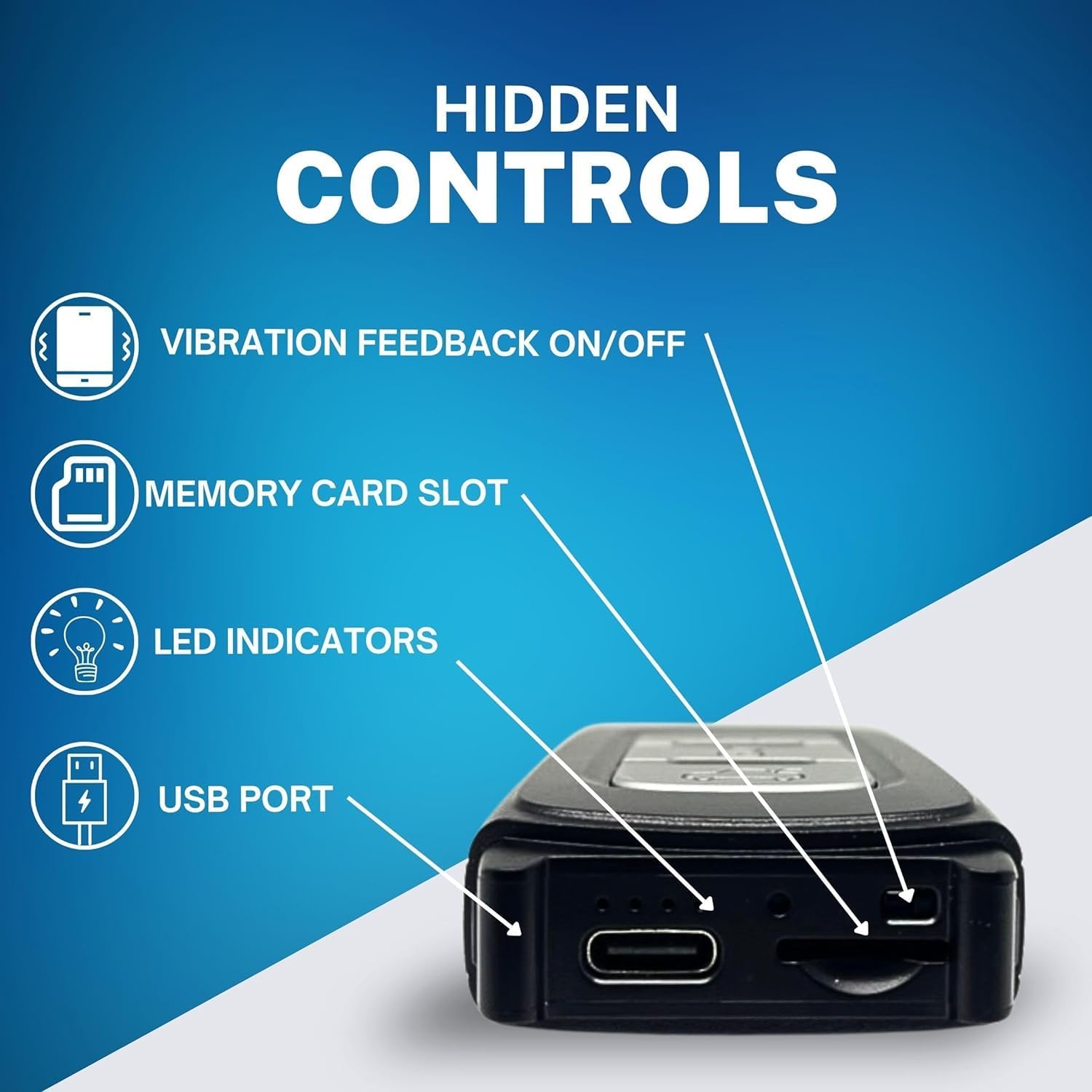
Image 3.1: Detailed view of the hidden controls and ports on the PV-RC400UW, including the vibration feedback switch, memory card slot, LED indicators, and USB port.
Key Components:
- Camera Lens: Discreetly located on the front edge of the device.
- Control Buttons: Integrated into the key fob design for power, recording, and Wi-Fi functions.
- Memory Card Slot: Supports Micro SD cards up to 256GB (128GB included).
- USB Port: For charging and data transfer.
- LED Indicators: Provide status feedback (charging, recording, Wi-Fi status).
- Vibration Feedback Switch: Toggles vibration alerts for discreet operation.
4. Setup
4.1. Charging the Device
Before first use, fully charge the PV-RC400UW. Connect the device to a USB power source (e.g., computer USB port or USB wall adapter) using the provided USB cable. The LED indicator will show charging status and turn off or change color when fully charged.
4.2. Inserting the Micro SD Card
Locate the memory card slot (refer to Image 3.1). Gently insert the included 128GB Micro SD card into the slot until it clicks into place. Ensure the card is inserted in the correct orientation. The device supports Micro SD cards up to 256GB.
4.3. Mobile App Installation (PV Cam Viewer)
To utilize the Wi-Fi features and live view, download the 'PV Cam Viewer' application on your smartphone. Search for 'PV Cam Viewer' in your device's app store (iOS App Store or Google Play Store) and install it.

Image 4.1: The PV Cam Viewer mobile application interface, illustrating its capabilities for live camera viewing up to 50 feet and saving recorded files directly to your phone.
5. Operating Instructions
5.1. Power On/Off
To power on the device, press and hold the designated Power On button (refer to Image 5.1) until the device vibrates and/or the LED indicator illuminates. To power off, press and hold the Power Off button until the device vibrates and/or the LED indicator turns off.
5.2. Recording Video
Once powered on, press the Record button (refer to Image 5.1) to start video recording. The device will vibrate and/or the LED indicator will change to confirm recording has started. Press the Record button again to stop recording. Videos are saved to the Micro SD card in 4K Ultra HD resolution.
5.3. Taking Photos
While the device is powered on, a quick press of a specific button (consult the quick start guide for exact button mapping, typically a dedicated photo button or a short press of the record button) will capture a still image. The device will vibrate to confirm a photo has been taken.

Image 5.1: The key fob's one-touch stealth controls, indicating the functions of the WiFi On/Off, Power Off, and Power On/Record buttons.

Image 5.2: A user demonstrating the operation of the key fob camera by pressing one of its control buttons.
5.4. Wi-Fi Connectivity and Live View
To activate Wi-Fi, press the Wi-Fi On/Off button (refer to Image 5.1). The LED indicator will signal Wi-Fi activation. On your smartphone, go to Wi-Fi settings and connect to the device's Wi-Fi network (SSID typically starts with 'PV-RC400UW'). Open the 'PV Cam Viewer' app to access live video feed, adjust settings, and manage recordings. The P2P connection allows control within a 50ft range.
5.5. Vibration Feedback
The device provides silent vibration alerts for various actions (e.g., power on/off, start/stop recording). This feature can be enabled or disabled using the vibration feedback switch (refer to Image 3.1) for discreet operation.
5.6. Time and Date Overlay
The PV-RC400UW automatically overlays the current time and date onto recorded video footage. This feature is crucial for evidence gathering and can be configured via the mobile application.
6. Maintenance
6.1. Battery Care
- Charge the device regularly, even if not in use, to maintain battery health.
- Avoid extreme temperatures, which can degrade battery performance.
6.2. Data Management
- Regularly transfer recorded files from the Micro SD card to a computer or other storage device.
- Format the Micro SD card periodically (via the app or computer) to ensure optimal recording performance and prevent data corruption.
6.3. Cleaning
- Use a soft, dry cloth to clean the device's exterior.
- For the camera lens, use a specialized lens cleaning cloth to avoid scratches.
- Do not use liquid cleaners or solvents.
7. Troubleshooting
| Problem | Possible Solution |
|---|---|
| Device does not power on. | Ensure the device is fully charged. Connect to a USB power source and check LED indicator. |
| Cannot connect to Wi-Fi. | Ensure Wi-Fi is enabled on the device. Check that you are within 50ft range. Restart both the device and your smartphone's Wi-Fi. |
| No video recording. | Check if the Micro SD card is correctly inserted and has sufficient free space. Format the SD card if necessary. Ensure the device is powered on. |
| Poor video quality. | Ensure the camera lens is clean. Check lighting conditions. Verify settings in the mobile app for resolution. |
| Vibration feedback not working. | Check the vibration feedback ON/OFF switch (refer to Image 3.1) to ensure it is enabled. |
8. Specifications
| Feature | Detail |
|---|---|
| Model Name | PV-RC400UW |
| Video Capture Resolution | 4K Ultra HD |
| Connectivity Technology | Wireless (Wi-Fi) |
| Storage | Supports Micro SD up to 256GB (128GB included) |
| Power Source | Battery Powered |
| Video Capture Format | MOV |
| Compatible Devices | Smartphone |
| Controller Type | Push Button |
| Indoor/Outdoor Usage | Indoor |
| Water Resistance Level | Not Water Resistant |
| Item Dimensions | 3 x 2 x 1 inches |
9. Warranty Information
This Lawmate product is covered by a manufacturer's warranty against defects in materials and workmanship. The specific terms and duration of the warranty may vary by region and retailer. Please retain your proof of purchase for warranty claims. For detailed warranty information, refer to the documentation provided with your purchase or contact Lawmate customer support.
10. Customer Support
If you encounter any issues or have questions not covered in this manual, please contact Lawmate customer support. Visit the official Lawmate website for contact details, FAQs, and additional resources.


