
MOBI 70665
MOBI MobiCam PRO Home Monitoring Camera User Manual
Model: 70665
Brand: MOBI
1. Introduction
The MOBI MobiCam PRO is an advanced home monitoring camera designed to provide comprehensive surveillance and peace of mind. Featuring Full HD video, pan and tilt capabilities, color night vision, and intelligent motion tracking, this camera is ideal for monitoring your home, children, or pets. It also includes integrated temperature and humidity sensors, two-way audio, and support for both cloud and SD card storage.
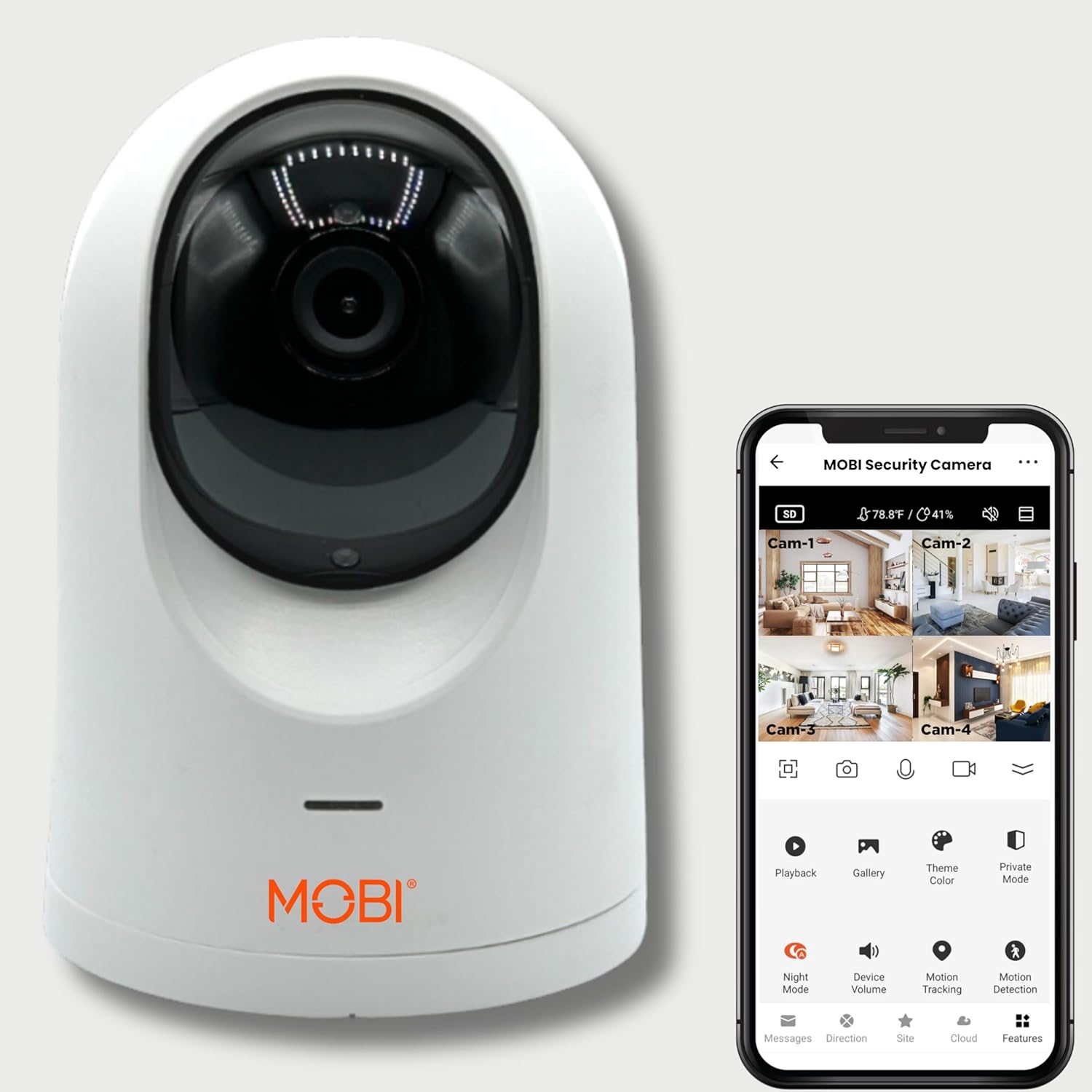
Figure 1: MOBI MobiCam PRO Home Monitoring Camera
2. What's in the Box
- Smart Baby Monitor Camera (1 unit)
- Power Adapter
- Power Cord
- Wall Mount and Screws
- User Manual
3. Key Features
Full HD with Pan & Tilt
Experience exceptional monitoring with Full HD video quality. Effortlessly view the entire room with 355° Pan and 120° Tilt, ensuring comprehensive coverage with a wide 110° Field of View.

Figure 2: Pan & Tilt functionality with Motion Tracking
Color Night Vision & Environmental Sensors
Enhanced monitoring with color night vision, providing clear visuals up to 40 ft in darkness. The built-in temperature and humidity sensors help maintain optimal environmental conditions.

Figure 3: Comparison of Regular Night Vision vs. Color Night Vision
Two-Way Audio & Expandable System
Stay connected with two-way audio. Expand your camera system to monitor up to 16 rooms effortlessly, ensuring comprehensive coverage.
Motion Tracking & Pre-Set Locations
The camera intelligently follows movement, keeping you aware of any activity. Easily switch between pre-set camera locations for a comprehensive view of any space.

Figure 4: Programmable Multiple Preset Areas for quick panning and tilting
Baby Crying Detection & Lullabies
Automatically alerts you when your baby cries. Soothe your little one with 10 pre-loaded lullabies, creating a calm atmosphere.
4. Setup Guide
4.1. Download the MOBI Smart App
- Search for "MOBI Smart" in your device's app store (App Store for iOS, Google Play Store for Android).
- Download and install the app.
- Open the app and create a new account or log in if you already have one.
- Grant all requested permissions (Bluetooth, Location, Notifications) for optimal functionality.
4.2. Pair Your MobiCam PRO
- Plug in your MobiCam PRO camera.
- In the MOBI Smart app, tap on "Add Device" or the '+' icon in the top right corner.
- Select "MobiCam PRO" from the list of devices.
- Reset the Camera: Rotate the camera lens upwards to locate the reset button. Press and hold the reset button until you hear a confirmation sound. The camera will then rotate. Wait for a second prompt indicating it's ready to connect.
- Tap "Next Step" and then "Next" in the app.
- Enter your Wi-Fi network username and password. Ensure your phone is connected to a 2.4GHz Wi-Fi network (5GHz is not supported).
- The app will display a QR code. Point your smartphone screen towards the MobiCam PRO's camera lens (15-20 cm away) until you hear a third prompt confirming the QR code has been scanned.
- Tap "I Heard a Prompt" in the app. The camera will begin connecting to your Wi-Fi network. This process may take up to 2 minutes.
- Once connected, the app will confirm successful pairing. Tap "Done" in the top right corner.
Video 1: Detailed guide on setting up the MOBI MobiCam PRO Home Monitoring Camera, including app download, pairing, and initial configuration steps.
5. App Interface Overview
The MOBI Smart app provides a user-friendly interface to control and monitor your MobiCam PRO. After successful setup, you will see the live camera feed on the main screen.
5.1. Top Bar Indicators
- HD/SD Icon: Toggle between High Definition (HD) and Standard Definition (SD) video quality.
- Temperature & Humidity: Displays real-time temperature and humidity readings from the camera's sensors.
- Wi-Fi Signal Strength: Indicates the strength of the camera's Wi-Fi connection.
5.2. Live View Controls
- Horizontal View Icon: Switch your smartphone's viewing angle to horizontal for a wider display.
- Camera Icon: Capture a screenshot of the live feed.
- Phone Icon: Enable two-way audio communication.
- Video Recorder Icon: Start or stop recording video footage.
- Downwards Arrows: Collapse or expand the bottom option menu.
5.3. Bottom Option Menu
- Playback: Access past recordings (requires SD card or cloud storage).
- Gallery: View and manage saved screenshots and video clips.
- Theme Color: Switch between light and dark mode for the app interface.
- Private Mode: Disable or turn off the camera for privacy.
- Night Mode: Enable/disable night vision or set to auto.
- Device Volume: Adjust the camera's sound output volume.
- Motion Tracking: Enable the camera to automatically follow detected movement.
- Motion Detection: Receive smart notifications when motion is detected.
- Temperature: Adjust temperature settings and set alarms.
- Humidity: Set alarms for specific humidity levels.
- Lullaby: Play from 10 pre-selected lullabies.
5.4. Navigation Bar
- Messages: View in-app notifications.
- Directions: Enable the touchpad to control camera pan/tilt.
- Site: Add a name for the camera's location (e.g., Kitchen, Living Room).
- Cloud: Subscribe to cloud storage or view cloud footage.
- Features: Access advanced usage options and settings.
6. Operating Instructions
6.1. Pan and Tilt Control
Use the 'Directions' option in the navigation bar to access the touchpad. Drag your finger across the touchpad to remotely adjust the camera's viewing angle (355° pan, 120° tilt).
6.2. Two-Way Audio
Tap the 'Phone Icon' in the live view controls to initiate two-way communication. Hold the talk button to speak, and release to listen.
6.3. Night Vision Modes
From the bottom option menu, select 'Night Mode'. You can choose 'Auto' for automatic switching between color and night vision based on light levels, 'On' for always-on night vision, or 'Off'.
6.4. Motion Tracking and Detection
Enable 'Motion Tracking' for the camera to automatically follow detected movement. Activate 'Motion Detection' to receive push notifications on your smartphone when activity is detected.

Figure 5: Real-time home monitoring with instant alerts on motion detection
7. Storage Options
7.1. Micro SD Card Storage
The MobiCam PRO supports local storage via a micro SD card (up to 128 GB, not included). Insert the card into the designated slot. In the app settings, navigate to 'Storage Settings' to view remaining capacity and format the card if needed. You can also configure recording settings (non-stop or event recording).
7.2. Cloud Storage
For enhanced security and accessibility, subscribe to MOBI's cloud storage service. This allows you to save motion-detected footage without an SD card and access it from anywhere. Manage your cloud subscription and view footage via the 'Cloud' option in the app.
8. Specifications
| Feature | Value |
|---|---|
| Indoor/Outdoor Usage | Indoor |
| Compatible Devices | Smartphone (Android, iOS) |
| Power Source | Corded Electric |
| Connectivity Protocol | Wi-Fi (2.4GHz) |
| Video Capture Resolution | 1080p, 720p |
| Pan & Tilt | 355° Pan, 120° Tilt |
| Field of View | 110° |
| Night Vision Range | Up to 40 ft |
| Two-Way Audio | Yes |
| Motion Tracking | Yes |
| Environmental Sensors | Temperature, Humidity |
| Local Storage | Micro SD Card (up to 128 GB) |
| Dimensions (L x W x H) | 3.2 x 3.2 x 4.2 inches |
| Item Weight | 2.9 pounds |
9. Troubleshooting
- Camera not connecting to Wi-Fi: Ensure your Wi-Fi network is 2.4GHz. Check your Wi-Fi password for accuracy. Make sure the camera is within range of your router. Try resetting the camera and repeating the pairing process.
- Poor video quality: Switch to HD mode in the app. Ensure a strong Wi-Fi signal. Reduce interference from other devices.
- Motion detection not working: Check that motion detection is enabled in the app settings. Adjust sensitivity levels. Ensure the camera's view is clear of obstructions.
- Two-way audio issues: Ensure your device's microphone and speaker permissions are granted to the app. Check device volume settings.
10. Maintenance
- Cleaning: Use a soft, dry cloth to clean the camera lens and body. Avoid abrasive cleaners or solvents.
- Placement: Place the camera on a stable surface or mount it securely using the provided hardware. Avoid placing it in direct sunlight or near heat sources.
- Software Updates: Regularly check for and install firmware updates via the MOBI Smart app to ensure optimal performance and security.
11. Warranty and Support
For warranty information, technical support, or further assistance, please refer to the official MOBI website or contact customer service directly. Keep your purchase receipt for warranty claims.
Video 2: An overview of the MOBI Home Security & Monitoring Camera, highlighting its features and benefits for home surveillance.
Related documents70665


Ask a question about this manual
Ask about setup, troubleshooting, compatibility, parts, safety, or missing instructions. Manuals+ will review the question and use this page’s manual context to help answer it.