
1. Introduction
This manual provides detailed instructions for the installation, operation, and maintenance of your Loddery 9.7 inch Android 13.0 Car Stereo Radio. This unit is designed to integrate seamlessly with Nissan Frontier and Xterra models from 2009 to 2014, offering advanced features such as Android Auto, Apple CarPlay, GPS navigation, Bluetooth connectivity, and a high-definition touch screen.
Please read this manual thoroughly before installation and use to ensure proper functionality and to maximize your experience with the product.
2. Setup and Installation
Before beginning installation, ensure your vehicle is compatible with this unit (Nissan Frontier/Xterra 2009-2014). It is recommended to disconnect the vehicle's battery before starting any electrical work.
2.1 Package Contents
The package typically includes the main head unit, a wiring harness, a backup camera, and an external microphone.

Image 2.1: The Loddery 9.7 inch Car Stereo Radio unit along with its primary accessories, including the wiring harness, external microphone, and backup camera.
2.2 Wiring and Connection
Refer to the detailed wiring diagram provided with your product for specific connections. The wiring harness supplied with the radio should be used. Some vehicles may require an additional wiring harness for proper installation.
- Power Connection: Connect the yellow wire (constant 12V), red wire (accessory 12V), and black wire (ground) to the corresponding vehicle wires.
- Speaker Connections: Connect the speaker wires (typically color-coded) to your vehicle's speaker system. Ensure correct polarity.
- Antenna Connection: Connect the radio antenna.
- GPS Antenna: Mount the GPS antenna in a location with a clear view of the sky, typically on the dashboard.
- Backup Camera: Connect the backup camera video input and power wires as per the diagram.
- USB Ports: Connect any external USB devices or cables.

Image 2.2: The Loddery 9.7 inch Car Stereo Radio seamlessly integrated into the dashboard of a compatible Nissan Frontier/Xterra vehicle.
3. Operating Instructions
3.1 Power On/Off and Basic Navigation
Press the power button to turn the unit on or off. The 9.7-inch capacitive touch screen allows for intuitive navigation through menus and applications. Swipe left or right to access different home screens and tap icons to launch applications.
3.2 Android Auto & Apple CarPlay
The unit supports both wired and wireless Android Auto and Apple CarPlay. This feature allows you to integrate your smartphone with the car stereo, providing access to navigation, music, calls, and messages directly from the touchscreen display.

Image 3.1: Visual representation of Apple CarPlay and Android Auto integration, showing how smartphones connect to the car stereo for enhanced functionality.
- Connection: Connect your iPhone (for CarPlay) or Android phone (for Android Auto) via a USB cable or wirelessly (if supported by your phone and the unit).
- Features: Access navigation apps (e.g., Google Maps, Apple Maps), stream music, make calls, send messages, and use voice commands.
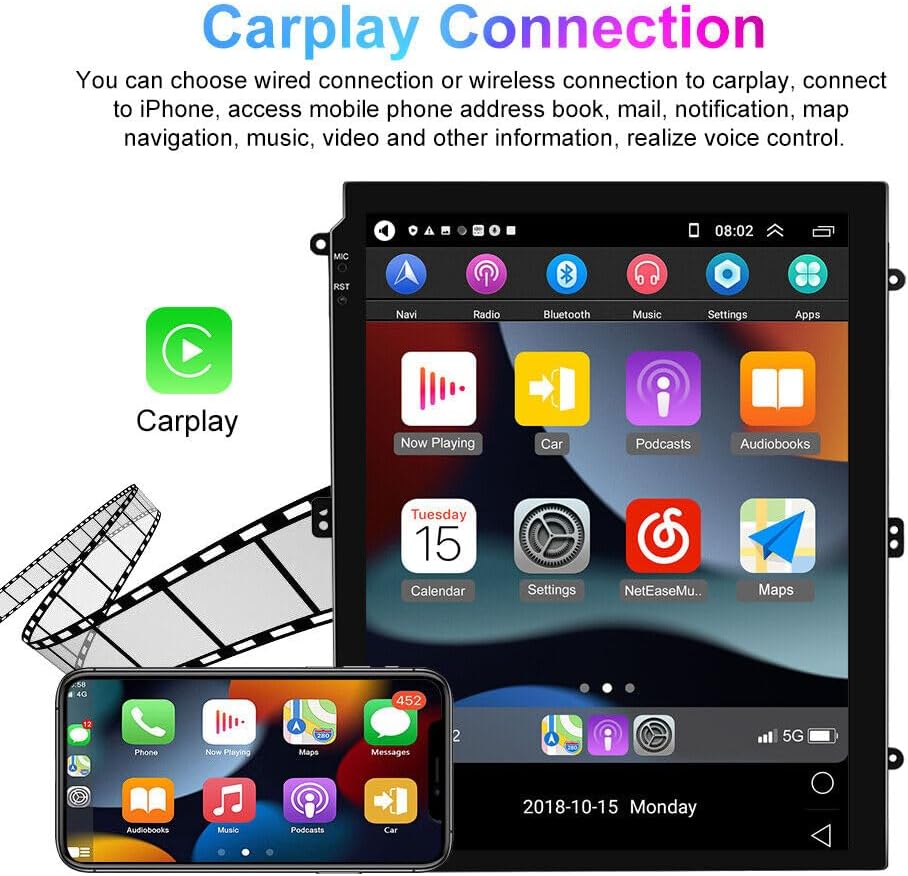
Image 3.2: The CarPlay interface shown on the Loddery car stereo screen, mirroring an iPhone's display for navigation, music, and communication.
3.3 Bluetooth Stereo Music and Hands-Free Calling
The unit supports Bluetooth A2DP for streaming stereo music and hands-free calling.
- Pairing: Go to the Bluetooth settings on the unit and your phone to pair devices.
- Music Control: Play, pause, skip tracks directly from the unit's screen.
- Phonebook: Download your phone's contacts for easy access. Search contacts using the first letter.
- Calling Records: View dialed, received, and missed calls.
- Settings: Configure auto-answer, auto-connect, and device name in Bluetooth settings.
3.4 FM Radio
Access the FM Radio application to listen to your favorite stations.

Image 3.3: The FM Radio interface displayed on the Loddery car stereo, illustrating frequency tuning and station selection options.
- Tuning: Use the on-screen controls to manually tune or scan for stations.
- Saving Stations: Long-press on a frequency to save it as a preset.
- FM Tuning Range: 87.5-108MHz.
3.5 GPS Navigation
The unit supports various navigation applications, including IGO, Sygic, and Google Maps.
- Voice Guidance: Receive turn-by-turn voice directions.
- Map Views: Support for 2D/3D map views.
- Dual Zone Function: Navigate while simultaneously playing music or other audio.
- Online Navigation: Utilize Google Maps for online navigation (requires internet connection).
3.6 Split Screen Function
The split-screen feature allows you to run two applications simultaneously on the 9.7-inch display. For example, you can view navigation on one side and control music playback on the other, enhancing convenience for both driver and passengers.
3.7 Rear View Camera
When the vehicle is shifted into reverse gear, the unit automatically displays the feed from the connected backup camera, aiding in safe parking and maneuvering.

Image 3.4: A split image demonstrating the rear view camera display with parking guidelines on the left, and the steering wheel control setup interface on the right.
3.8 Steering Wheel Control
The unit supports integration with your vehicle's steering wheel controls. This allows you to manage audio, calls, and other functions without taking your hands off the wheel. Configuration options are available in the unit's settings menu.
4. Maintenance
- Screen Cleaning: Use a soft, lint-free cloth to clean the touchscreen. Avoid abrasive cleaners or solvents.
- Software Updates: Periodically check for software updates to ensure optimal performance and access to new features. Follow the instructions provided with the update package.
- General Care: Avoid exposing the unit to extreme temperatures, direct sunlight for prolonged periods, or excessive moisture.
5. Troubleshooting
- No Power: Check all power connections (yellow, red, black wires). Ensure the vehicle's fuse for the radio is intact.
- No Sound: Verify speaker connections. Check volume levels and ensure the mute function is not active.
- Poor Radio Reception: Check the antenna connection. Ensure the antenna is properly extended or mounted.
- GPS Not Working: Ensure the GPS antenna is connected and has a clear view of the sky. Check GPS settings in the unit.
- Bluetooth Connection Issues: Ensure Bluetooth is enabled on both the unit and your phone. Try unpairing and re-pairing the devices.
- Unit Freezes/Unresponsive: Perform a soft reset by pressing the reset button (if available) or by temporarily disconnecting the vehicle's battery.
- Backup Camera Not Displaying: Check the camera's power and video connections. Ensure the reverse trigger wire is correctly connected.
6. Specifications
| Feature | Specification |
|---|---|
| Power Supply | DC 12V (10.8-14.5V) |
| Max. Current | 10A |
| Screen Size | 9.7 inches |
| Operation System | Android 13 |
| Extended USB Support | Up to 32GB USB Disk |
| Touch Screen Type | Capacitive |
| Resolution | 1024x768 |
| CarPlay/Android Auto | Supported (wired/wireless) |
| WiFi/3G/4G | Supported (via connector on back) |
| Audio Formats | MP3/WMA/MP2/OGG/AAC/MA4/FLAC/APE/WAV etc. |
| Audio IC | Top Global Cirrus IC, independent audio decoding |
| SNR | ≥90dB |
| Video Playback | Up to 1920x1080 Pixels, 30Mb |
| Supported Maps | IGO, Sygic, Google Map etc. |
| FM Tuning Range | 87.5-108MHz |
| Item Weight | 4.52 pounds |
| Package Dimensions | 14.96 x 11.81 x 6.3 inches |
| Model Number | QA1777X-5974-1634473502 |
7. Customer Support
For any questions regarding installation, operation, or troubleshooting, please refer to the detailed wiring diagram and instructions provided. If you encounter any issues that cannot be resolved using this manual, please contact Loddery customer service for assistance. We are committed to helping you solve any problems you may experience with your product.