
1. Overview
The EDISION HDMI Modulator 3-in-1 Pro is a single-channel Full HD digital HDMI modulator designed for converting HDMI signals into terrestrial DVB-T, ISDB-T, or DVB-C MPEG4 digital signals. It features an HDMI LOOP for connecting the HDMI signal to a TV and an integrated IR emitter for remote control extension. This device allows you to convert HDMI input from various sources such as satellite receivers, TV Boxes, CCTV, DVDs, and Digital Signage systems up to 1080p resolution. The output signal operates in the VHF/UHF band, providing excellent quality, reliability, ease of use, and quick configuration via its LCD screen, ensuring stable operation in diverse installation scenarios.
2. Package Contents
Upon opening the package, please verify that all items listed below are present and in good condition:
- EDISION HDMI Modulator 3-in-1 Pro Unit
- Jack to IR Tx Cable
- Mounting Screws (4x)
- PSU 5V/2A EU/UK Universal Power Supply
- User Manual

Image: Contents of the EDISION HDMI Modulator 3in1 pro package, including the HDMI Modulator unit, Jack to IR Tx cable, mounting screws (4x), PSU 5V/2A EU/UK universal power supply, and User Manual.
3. Product Features
- Digital HDMI modulator with 3 selectable modulation signals: DVB-T, DVB-C, and ISDB-T.
- HDMI pass-through (HDMI Loop) for simultaneous viewing on a local display.
- Integrated IR extension system via the IR Tx emitter for remote control of the HDMI source.
- Input Signal: 1 x HD; Output Signal: Terrestrial DVB-T, ISDB-T, or DVB-C MPEG4 cable.
- Supports high video resolution up to 1080p at 60 FPS.
- Frequency Range DVB-T: VHF (CH.5-12) & UHF (CH.21-69).
- Frequency Range ISDB-T: VHF (CH.7-13) & UHF (CH.14-69).
- Frequency Range DVB-C: 47-862 MHz.
- High-quality modulation output with MER > 35 dB.
- Adjustable output signal level, preset to 90dBμV.
- Quick preset function with 50 selectable IDs.
- LCD screen with standby function for easy configuration.
- Ideal for coaxial cable distribution in various environments including hotels, supermarkets, betting shops, sports bars, restaurants, gyms, hospitals, and residential settings for distributing CCTV or other HDMI sources.
4. Product Layout
4.1 Front Panel

Image: Front panel of the EDISION HDMI Modulator 3in1 pro, with dimensions and labeled buttons and indicators.
- Lock Button: Used to lock/unlock the device settings.
- Menu/OK Button: Accesses the menu and confirms selections.
- Left/Right Buttons: Navigates horizontally through menu options.
- Up/Down Buttons: Navigates vertically through menu options or adjusts values.
- Power Identification LED: Indicates the power status of the device.
- Display Lock Identification LED: Indicates if the display is locked.
- LCD Display: Shows current settings, channel information, and menu options.
- HDMI Input/Output Signal Identification LED: Indicates the presence of HDMI input or output signals.
4.2 Rear Panel Connections

Image: Rear panel of the EDISION HDMI Modulator 3in1 pro, showing all connection ports.
- RF IN: Coaxial input for existing RF signals (e.g., antenna).
- RF OUT: Coaxial output for the modulated DVB-T, DVB-C, or ISDB-T signal.
- IR OUT: Infrared output jack for connecting the IR Tx cable to control the HDMI source.
- USB Port: For firmware updates or configuration file loading.
- HDMI IN: HDMI input for connecting your video source.
- HDMI OUT (Loop-through): HDMI output for connecting to a local display (e.g., TV).
- DC 5V/2.0A: Power input for the included power supply.
- Ground Point: For grounding the device to prevent electrical interference.
5. Setup and Installation
Follow these steps for a typical setup and installation of your EDISION HDMI Modulator:
- Connect HDMI Source: Connect your HDMI video source (e.g., satellite receiver, TV Box, DVD player) to the HDMI IN port on the modulator using an HDMI cable.
- Connect Local Display (Optional): If you wish to view the HDMI source on a local TV, connect an HDMI cable from the HDMI OUT (Loop-through) port on the modulator to the HDMI input of your TV.
- Connect RF Output: Connect a coaxial cable from the RF OUT port on the modulator to your existing coaxial distribution network or directly to the antenna input of your TV(s).
- Connect RF Input (Optional): If you have an existing terrestrial antenna signal you wish to combine with the modulated signal, connect your antenna cable to the RF IN port.
- Connect IR Tx Cable (Optional): For remote control extension, connect the Jack to IR Tx cable to the IR OUT port on the modulator. Position the IR emitter head near the IR receiver of your HDMI source device.
- Power On: Connect the included 5V/2A power supply to the DC 5V/2.0A port on the modulator and then plug it into a power outlet. The device will power on.
- Configure Modulator: Use the front panel LCD and buttons to configure the modulation type (DVB-T, DVB-C, ISDB-T), channel number, and other settings according to your local broadcasting standards and network requirements.
- Scan for Channels: On your TV(s), perform a channel scan to find the newly modulated channel.
5.1 Installation Example
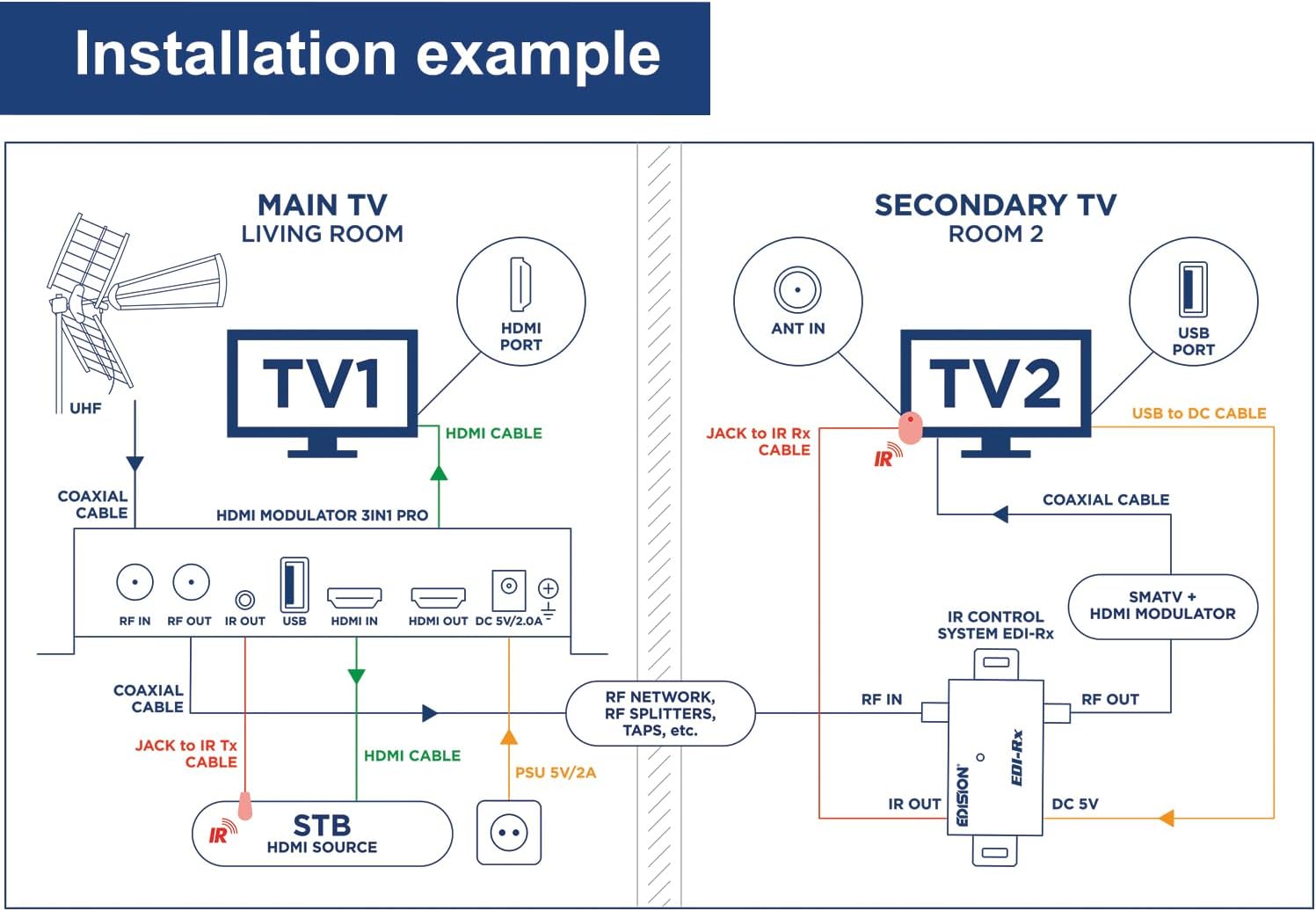
Image: Installation example diagram for the EDISION HDMI Modulator 3in1 pro, showing connections for a main TV in a living room and a secondary TV in another room. It details HDMI and coaxial cable routing, and the use of an IR control system.
6. Operating Instructions
Once installed, the EDISION HDMI Modulator operates by converting your HDMI input into a broadcast-ready RF signal. Use the front panel controls to manage its settings.
6.1 Menu Navigation
- Press the Menu/OK button to enter the main menu.
- Use the Up/Down buttons to scroll through menu options.
- Use the Left/Right buttons to change values or navigate sub-menus.
- Press Menu/OK again to confirm a selection or enter a sub-menu.
- To exit a menu or return to the previous screen, press the Menu/OK button repeatedly until you are back to the main display.
- The Lock Button can be used to prevent accidental changes to the settings. Press and hold to toggle lock/unlock.
6.2 Application Example

Image: Application example diagram for the EDISION HDMI Modulator 3in1 pro, illustrating how to connect an HDMI source (STB, PC, CCTV, TV Box) to the modulator and distribute the signal via a MATV network to multiple TVs. It also shows an outdoor antenna connection.
7. Maintenance
To ensure the longevity and optimal performance of your EDISION HDMI Modulator, follow these simple maintenance guidelines:
- Cleaning: Use a soft, dry cloth to clean the exterior of the device. Do not use liquid cleaners or aerosol sprays, as they may damage the unit.
- Ventilation: Ensure that the ventilation openings on the device are not blocked. Proper airflow is crucial to prevent overheating.
- Environment: Operate the device in a dry environment, away from direct sunlight, excessive heat, and moisture.
- Cables: Periodically check all connected cables for any signs of damage or loose connections.
- Firmware Updates: Check the manufacturer's website periodically for any available firmware updates. Updates can improve performance and add new features.
8. Troubleshooting
If you encounter issues with your EDISION HDMI Modulator, refer to the table below for common problems and their solutions.
| Problem | Possible Cause | Solution |
|---|---|---|
| No power/Device not turning on | Power cable not connected; Faulty power adapter; Power outlet issue. | Ensure power cable is securely connected. Test power adapter with another device or use a different outlet. |
| No signal on TV (modulated channel) | Incorrect modulation settings; TV not scanned for channels; Loose coaxial cable; HDMI input signal issue. | Verify modulation type and channel settings on the modulator. Perform a channel scan on your TV. Check all coaxial cable connections. Ensure HDMI source is active and connected correctly. |
| Poor picture quality/Interference | Weak input signal; Incorrect output level; External interference; Cable quality. | Check HDMI source signal quality. Adjust the modulator's output signal level. Ensure proper grounding. Use high-quality coaxial cables. |
| IR remote control not working | IR Tx cable not connected; IR emitter not positioned correctly; HDMI source IR receiver issue. | Ensure IR Tx cable is securely plugged into the IR OUT port. Reposition the IR emitter head directly in front of the HDMI source's IR receiver. Verify the HDMI source's remote control functionality. |
| LCD display is blank or frozen | Device malfunction; Power issue. | Unplug the power adapter, wait 10 seconds, then plug it back in to restart the device. If the problem persists, contact customer support. |
9. Specifications
| Feature | Detail |
|---|---|
| Brand | Edision |
| Model Number | 07-06-0013 |
| Color | Black |
| Connectivity Type | Coaxial, HDMI |
| Compatible Devices | Televisions, Monitors, Projectors |
| Item Dimensions (L x W x H) | 17 x 11 x 5 centimeters |
| Number of Ports | 3 (RF IN, RF OUT, HDMI IN, HDMI OUT, IR OUT, USB, DC IN - counting main functional ports) |
| Number of Items in Package | 1 unit (modulator) |
| Power Plug Type | Type E/F – 2 pins (EU Hybrid) |
| Manufacturer | EDISION |
| Country of Origin | China |
| Specific Product Uses | Usage in hotels, supermarkets, betting shops, sports bars, bars, restaurants, gyms, hospitals, for home users who wish to feed their surveillance cameras (CCTV) into the existing distribution network, commercial and residential environments in general. |
| Spare Parts Availability | Information unavailable on spare parts |
| Software Updates Guaranteed Until | Information not available |
10. Warranty and Support
For information regarding warranty coverage, technical support, or service, please refer to the warranty card included with your product or visit the official EDISION website. You may also contact EDISION customer support directly for assistance with product registration, troubleshooting, or spare parts inquiries.
Please retain your proof of purchase for warranty claims.


