
Introduction
The Gustard N18 PRO is a high-fidelity audio network switch designed to optimize audio streaming performance. It features multiple Ethernet ports, an SFP optical fiber input, and support for an external 10MHz clock, all integrated with advanced power supply and isolation technologies to ensure a clean audio signal. This manual provides essential information for the proper setup, operation, and maintenance of your N18 PRO.
Safety Information
- Ensure the device is connected to a power source with the correct voltage as indicated on the unit.
- Do not expose the device to moisture, rain, or extreme temperatures.
- Avoid placing the device near heat sources or in direct sunlight.
- Do not open the casing; refer all servicing to qualified personnel.
- Disconnect power before cleaning or making any connections.
Setup
Package Contents
Verify that all items are present in the package:
- Gustard N18 PRO Network Switch
- Power Cable
Physical Connections
Refer to the diagram below for an overview of the rear panel connections.
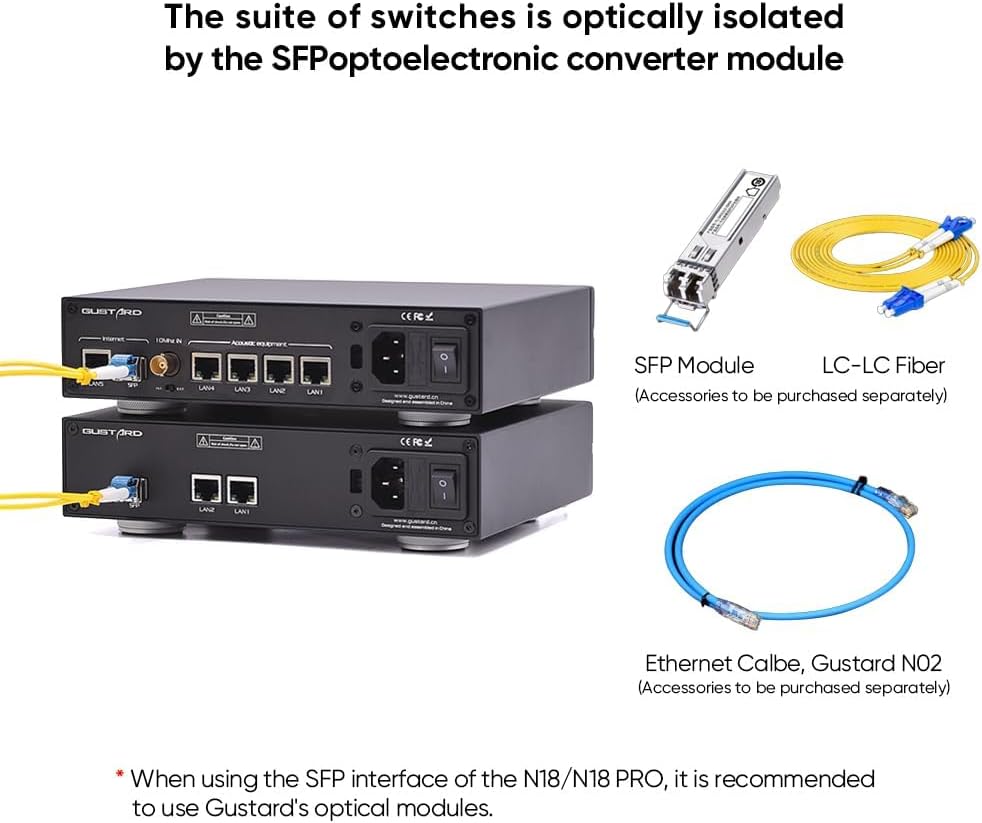
Figure 1: Rear panel of the Gustard N18 PRO, showing Ethernet ports, SFP port, Clock In, Clock selection, Voltage selection, AC power input, and Fuse.
- Power Connection: Connect the provided power cable to the AC power input on the rear panel and then to a suitable wall outlet. Ensure the voltage selection switch is set correctly for your region (115V/230V).
- Ethernet Connections: The N18 PRO features 5 Gigabit Ethernet ports (LAN1-LAN5) and 1 SFP port. Connect your network devices (e.g., router, NAS, PC, audio streamers) to these ports using standard Ethernet cables.
- SFP Port: For enhanced optical isolation, insert a compatible SFP fiber module into the SFP port. It is recommended to use Gustard's optical modules for optimal performance. Connect an LC-LC fiber cable from the SFP module to your network.
- 10MHz Clock Input: For improved audio clarity and analog warmth, connect an external 10MHz clock source to the BNC 10MHz Clock In port. Use the adjacent switch to select between internal (INT) and external (EXT) clock sources.
Connectivity Options
The N18 PRO offers flexible integration into your audio network. Below are examples of typical setups.

Figure 2: Example connectivity diagram for N18 PRO, showing connections to a router, NAS, PC, and various audio devices.

Figure 3: Illustration of optical isolation using an SFP module and LC-LC fiber cable with the N18 PRO.
Operating Instructions
Power On/Off
After all connections are made, flip the power switch on the rear panel to the 'ON' position. The device will power on and begin network operations.
Network Operation
The N18 PRO functions as a network switch, facilitating data transfer between connected devices. Its primary role is to provide a clean and stable network environment for audio streaming by minimizing interference and noise.
- Ethernet Ports: The 10/100/1000M adaptive Ethernet interfaces automatically detect and adjust to the speed of the connected device.
- Optoelectronic Isolation: When using the SFP fiber module, the network ripple is effectively isolated, contributing to a cleaner audio signal.
- External Clock: If an external 10MHz clock is connected and selected, it will synchronize the device, enhancing audio clarity and reducing jitter.
Maintenance
Cleaning
To clean the exterior of the device, use a soft, dry cloth. Do not use liquid cleaners or abrasive materials, as they may damage the finish or internal components.
Firmware Updates
Periodically check the official Gustard website for any available firmware updates. Follow the instructions provided with the update package carefully to ensure proper installation.
Troubleshooting
| Problem | Possible Cause | Solution |
|---|---|---|
| No power | Power cable not connected; Power switch off; Blown fuse; Incorrect voltage selection. | Ensure power cable is securely connected. Turn power switch ON. Check and replace fuse if necessary. Verify voltage selection switch is set correctly. |
| No network activity | Ethernet cables loose or faulty; Connected device is off or misconfigured. | Check all Ethernet cable connections. Ensure connected devices are powered on and configured correctly. Try different Ethernet cables. |
| Poor audio quality | Network interference; External clock not properly connected or selected. | Ensure SFP module is used for optical isolation if possible. Verify external 10MHz clock is connected and the 'EXT' option is selected. Check for other sources of electrical interference. |
Specifications
Figure 4: Gustard N18 PRO specifications and dimensions.
- Ethernet Interface: 1*SFP, 5*10/100/1000M adaptive Ethernet interfaces
- SFP: Supports GPON/EPON fiber modem, SFP RJ45 extension port, SFP fiber module
- Ethernet Protocol: 10Base-T, 100Base-T, 1000Base-T, 100Base-X, 1000Base-X
- 10M BNC Input: Input impedance 50 Ohm, 0dBm - 20dBm
- AC Power: 115V/230V 50/60Hz
- Power Consumption: <10W
- Dimensions (excluding protruding parts): W220mm*H50mm*D170mm
- Package Size: W285mm*H85mm*D270mm
- Weight with Package: 2.5KG
Warranty Information
The Gustard N18 PRO comes with a warranty period of 1 year or more from the date of purchase, depending on the specific product and regional regulations. Please retain your proof of purchase for warranty claims. The warranty covers manufacturing defects and malfunctions under normal use. It does not cover damage caused by misuse, accidents, unauthorized modifications, or improper installation.
Support
For technical assistance, troubleshooting, or any inquiries regarding your Gustard N18 PRO, please contact our customer support. We offer 24-hour online service to assist you. Refer to the official Gustard website for contact details and additional resources.
