
1. Introduction
Thank you for choosing the ESSGOO 9-inch Wireless CarPlay & Android Auto Car Display. This device is designed to enhance your driving experience by integrating your smartphone's features directly into your vehicle's dashboard. It supports wireless Apple CarPlay and Android Auto, Mirror Link, hands-free calls, voice control via Siri and Google Assistant, and offers multiple audio output options. Please read this manual carefully before use to ensure proper installation and operation.
2. Safety Information
- Always operate the device responsibly and in accordance with local traffic laws. Distracted driving can lead to accidents.
- Do not attempt to disassemble or modify the device. This may cause damage and void the warranty.
- Ensure the device is securely mounted and does not obstruct your view or interfere with vehicle controls.
- Avoid exposing the device to extreme temperatures, direct sunlight for prolonged periods, or excessive moisture.
- Use only the provided power cable and accessories. Using unauthorized accessories may cause damage or malfunction.
3. Package Contents
Please check the package for the following items:
- ESSGOO 9-inch Wireless Car Display
- Adjustable Suction Cup Mount
- Cigarette Lighter Power Cable (2.5m)
- AUX Cable (1.5m)
- Adhesive Mount
- Round Gasket
- User Manual
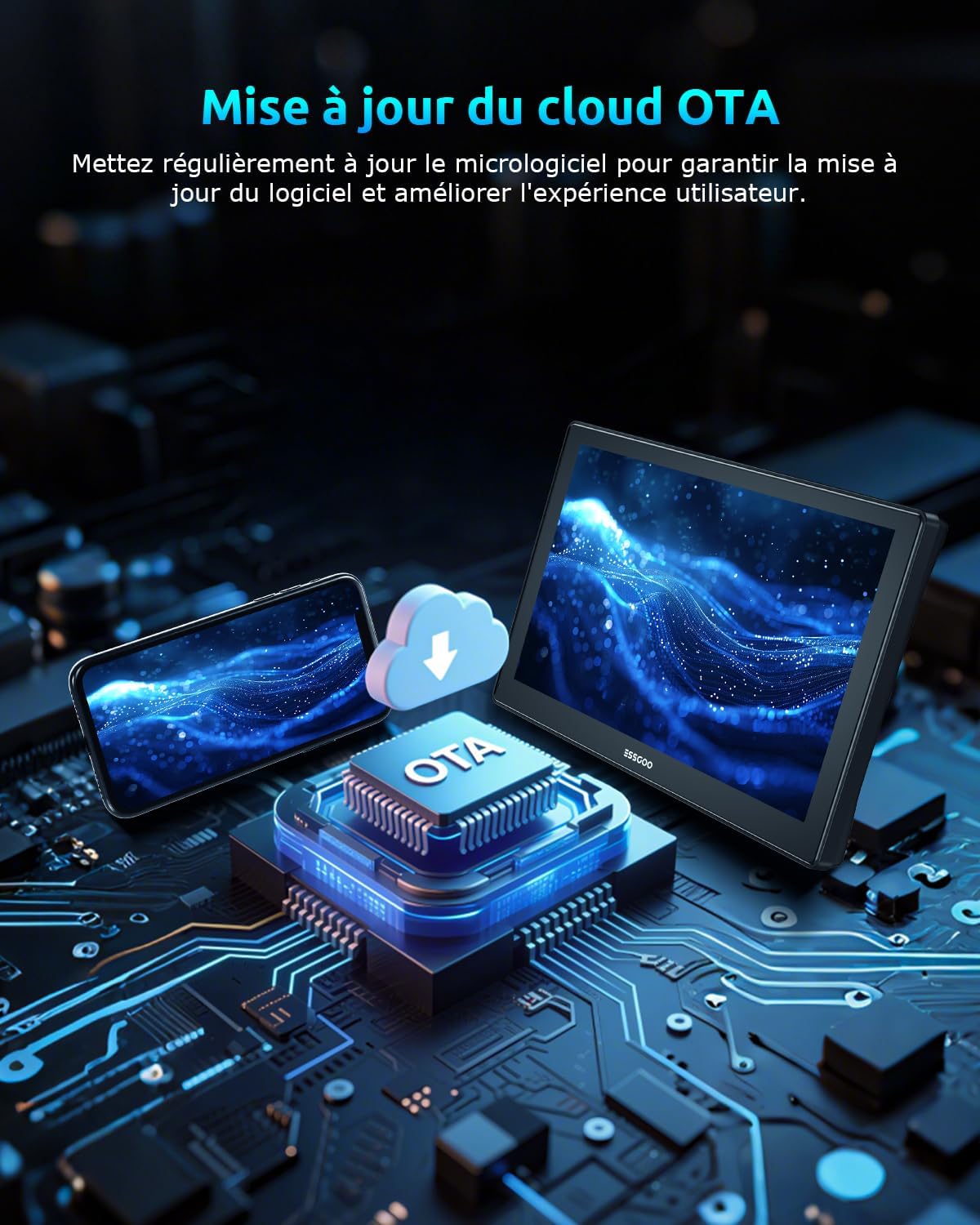
Image: All items included in the ESSGOO 9-inch Wireless Car Display package.
Important: Do not use your own charger. Only use the original charger provided. Otherwise, the device may restart due to voltage instability.
4. Compatibility
The ESSGOO car display is widely compatible with various applications and vehicles (12-24V). Before purchasing or using, please verify if your preferred applications or car are compatible with the CarPlay screen.

Image: Compatibility information for Apple CarPlay and Android Auto, including QR codes for checking vehicle and app compatibility.
For detailed compatibility information, please visit:
5. Setup
5.1 Mounting the Display
The device comes with an adjustable suction cup mount and an adhesive mount. Choose the most suitable option for your vehicle's dashboard or windshield.
- Clean the Surface: Ensure the mounting surface (dashboard or windshield) is clean and dry.
- Attach the Mount:
- Suction Cup Mount: Press the suction cup firmly onto the desired surface and engage the locking lever.
- Adhesive Mount: Peel off the protective film from the adhesive pad and firmly press the mount onto the surface for at least 30 seconds.
- Attach the Display: Slide the car display onto the mount until it clicks into place. Adjust the angle for optimal viewing.
5.2 Power Connection
Connect the provided cigarette lighter power cable to the device and then plug it into your vehicle's 12V/24V cigarette lighter socket.
5.3 Initial Power-On
Once connected to power, the device should automatically power on. If not, press the power button (if available) on the unit.

Image: Illustration highlighting the easy and quick installation of the wireless CarPlay display compared to complex traditional car stereo wiring.
6. Operating Instructions
6.1 Wireless CarPlay & Android Auto Connection
This device supports seamless wireless connection for both Apple CarPlay and Android Auto.
- Ensure Bluetooth and Wi-Fi are enabled on your smartphone.
- On the car display, navigate to the CarPlay or Android Auto icon.
- On your smartphone, search for the device's Bluetooth name (usually 'ESSGOO_XXXX') and pair with it.
- Confirm the pairing request on both your phone and the car display.
- Once paired via Bluetooth, the device will automatically establish a Wi-Fi connection for CarPlay or Android Auto.
6.2 Mirror Link Function
The wireless Mirror Link function allows you to cast your iOS or Android device's screen to the 9-inch car display.
- On the car display, select the 'Mirror Link' option.
- Follow the on-screen instructions to connect your smartphone. This typically involves connecting to a specific Wi-Fi network broadcast by the car display and/or enabling screen mirroring on your phone.
- Once connected, your phone's screen will be mirrored on the car display, allowing you to view videos, browse social media, or use other apps.

Image: The Mirror Link feature in action, showing content from both iOS and Android devices mirrored onto the car display.
6.3 Audio Output Options
The device offers multiple ways to output audio to your car's sound system:
- Bluetooth 5.3: Connect your phone via Bluetooth to the car display for high-quality audio streaming.
- AUX Connection: Use the provided 3.5mm AUX cable to connect the car display to your vehicle's AUX input.
- FM Transmitter: Tune the car display to an unused FM frequency, then tune your car's radio to the same frequency to transmit audio wirelessly.
- Built-in Speaker: The device has an integrated speaker for direct audio output.

Image: Visual representation of the four audio output methods available: Bluetooth 5.3, AUX connection, FM transmitter, and the device's built-in speaker.
6.4 Voice Control & Navigation
Utilize Siri or Google Assistant for hands-free control and navigation.
- Voice Commands: Activate Siri or Google Assistant (e.g., by saying "Hey Siri" or "Hey Google" or pressing the voice command button on the display/steering wheel if supported) to make calls, send messages, play music, or get directions.
- Navigation: Use popular navigation apps like Google Maps or Waze directly on the car display for real-time route guidance.

Image: Display illustrating voice control capabilities with Siri and Google Assistant, alongside various navigation and communication applications.
7. Maintenance
7.1 Cleaning
Wipe the screen and device body with a soft, dry cloth. Do not use abrasive cleaners or solvents.
7.2 Software Updates (OTA)
The device supports Over-The-Air (OTA) cloud updates. Regularly check for and install firmware updates to ensure optimal performance and access to new features.

Image: Representation of the OTA cloud update feature, indicating regular firmware updates for improved user experience.
8. Troubleshooting
If you encounter issues with your ESSGOO car display, please refer to the following common problems and solutions:
| Problem | Possible Cause | Solution |
|---|---|---|
| Device does not power on. | No power, loose connection, faulty power cable. | Check if the cigarette lighter socket is working. Ensure the power cable is securely connected. Use only the original power cable. |
| Cannot connect to Wireless CarPlay/Android Auto. | Bluetooth/Wi-Fi off, incorrect pairing, phone compatibility issue. | Ensure Bluetooth and Wi-Fi are on your phone. Forget previous pairings and try reconnecting. Check phone compatibility. |
| No sound or poor audio quality. | Incorrect audio output setting, loose AUX cable, FM interference. | Verify the selected audio output method (Bluetooth, AUX, FM). Ensure AUX cable is fully inserted. If using FM, try a different frequency. |
| Mirror Link not working. | Wi-Fi connection issue, phone settings. | Ensure your phone is connected to the device's Wi-Fi for Mirror Link. Check your phone's screen mirroring settings. |
| Device restarts unexpectedly. | Unstable power supply, non-original charger. | Use only the original cigarette lighter power cable. Ensure stable power from the vehicle. |
9. Specifications
| Feature | Detail |
|---|---|
| Brand | ESSGOO |
| Connectivity Technology | Auxiliary, Bluetooth, Wi-Fi |
| Controller Type | Apple Siri |
| Special Features | Apple CarPlay, Android Auto, Mirror Link, Siri Voice Assistant |
| Compatible Devices | Smartphone |
| Total HDMI Ports | 2 |
| Connector Type | HDMI, 3.5 mm Jack |
| Audio Output Mode | Stereo |
| Surround Sound Channel Configuration | 2.0 |
| Color | Black |
10. Customer Support
For any questions regarding installation, operation, or other inquiries, please do not hesitate to contact our customer service team via Amazon. We are committed to providing comprehensive after-sales support and will be happy to assist you.


