
1. Introduction
The Carlinkit Aibox-HDMI Adapter is designed to enhance your in-car entertainment and connectivity. This device converts your vehicle's existing wired Apple CarPlay or wired Android Auto system into a wireless experience, while also providing an HDMI output for connecting to external displays. Running on Android 13.0, it offers a versatile platform for various applications, video playback, and gaming. This manual will guide you through the setup, operation, and maintenance of your Aibox-HDMI Adapter.
2. Product Overview
The Carlinkit Aibox-HDMI Adapter integrates multiple functionalities into a compact device, offering a comprehensive solution for in-car multimedia. Key features include:
- HDMI Output: Connect to rear-seat displays, TV boxes, TV sticks, game controllers, or computers for extended entertainment options. Supports 1080P resolution for a rich visual experience.
- 3-in-1 System: Features an integrated Android 13.0 system, Wireless CarPlay, and Wireless Android Auto, allowing seamless switching between modes.
- High Performance: Equipped with a Qualcomm SM6225 8-core CPU for stable and efficient operation.
- Ample Storage: Comes with 8GB RAM and 128GB ROM, expandable via TF card (up to 512GB) for downloading various applications.
- Split-Screen Display: Supports simultaneous display of two applications, such as navigation and video playback.
- 4G Network Support: Compatible with Nano SIM cards for 4G connectivity, enabling network sharing via Wi-Fi.

Figure 2.1: Carlinkit Aibox-HDMI Adapter showcasing its 3-in-1 system capabilities.

Figure 2.2: The adapter features an HDMI port for external display connections.

Figure 2.3: High-performance Qualcomm SM6225 8-core CPU, 8GB RAM, 128GB ROM, and TF/SIM card slots.
3. Setup Guide
Follow these steps to properly connect your Carlinkit Aibox-HDMI Adapter to your vehicle and external devices.
3.1 Initial Connection to Vehicle
- First, insert the Carlinkit Aibox-HDMI Adapter into your car's USB port (the one that supports wired CarPlay/Android Auto).
- Ensure the adapter powers on and the car's infotainment system recognizes it.
- After the adapter has fully started, then connect any external HDMI devices or rear-seat monitors.
Important Note:
- If external HDMI devices are connected to the car's navigation system before the Aibox-HDMI Adapter is fully initialized, the screen may not display correctly. Always connect the adapter to the car first, then external HDMI devices.
3.2 Wireless CarPlay & Android Auto Connection

Figure 3.1: Steps for connecting Wireless CarPlay and Android Auto.
- Connect the Aibox-HDMI Adapter to your car's USB port and launch the "Auto-Kit" application on your car's screen.
- On your smartphone, turn on Bluetooth and Wi-Fi. Connect to the Aibox-HDMI Adapter's Bluetooth.
- Confirm the pairing request on your phone.
- After successful connection, you can start using Wireless CarPlay or Android Auto.
4. Operating Instructions
4.1 Switching Between CarPlay and Android Auto
The default system is CarPlay. To switch to Android Auto (for wired Android Auto compatible vehicles), insert a pin into the box's reset hole for 2-3 seconds, then switch to CarPlay, and then you can use Android Auto.
4.2 Using HDMI Output

Figure 4.1: Steps for connecting external devices via HDMI.
- Insert the external device's HDMI cable into the Aibox-HDMI Adapter's HDMI port.
- Connect the Aibox-HDMI Adapter to your car's navigation system and click on "Settings".
- Navigate to "HDMI Settings" and turn on the "HDMI Switch" and "HDMI Sound Switch".
- You can now use external devices like TV sticks or game boxes.
The HDMI screen option is off by default. You must enable it in the settings menu: Settings > HDMI Settings > HDMI Switch > ON and HDMI Sound Switch > ON.

Figure 4.2: Rear seat entertainment enabled by HDMI output.
4.3 Split-Screen Functionality
The adapter supports a 2-split screen display, allowing you to run two applications simultaneously. For example, you can have navigation on one side and a video player on the other without interrupting playback.
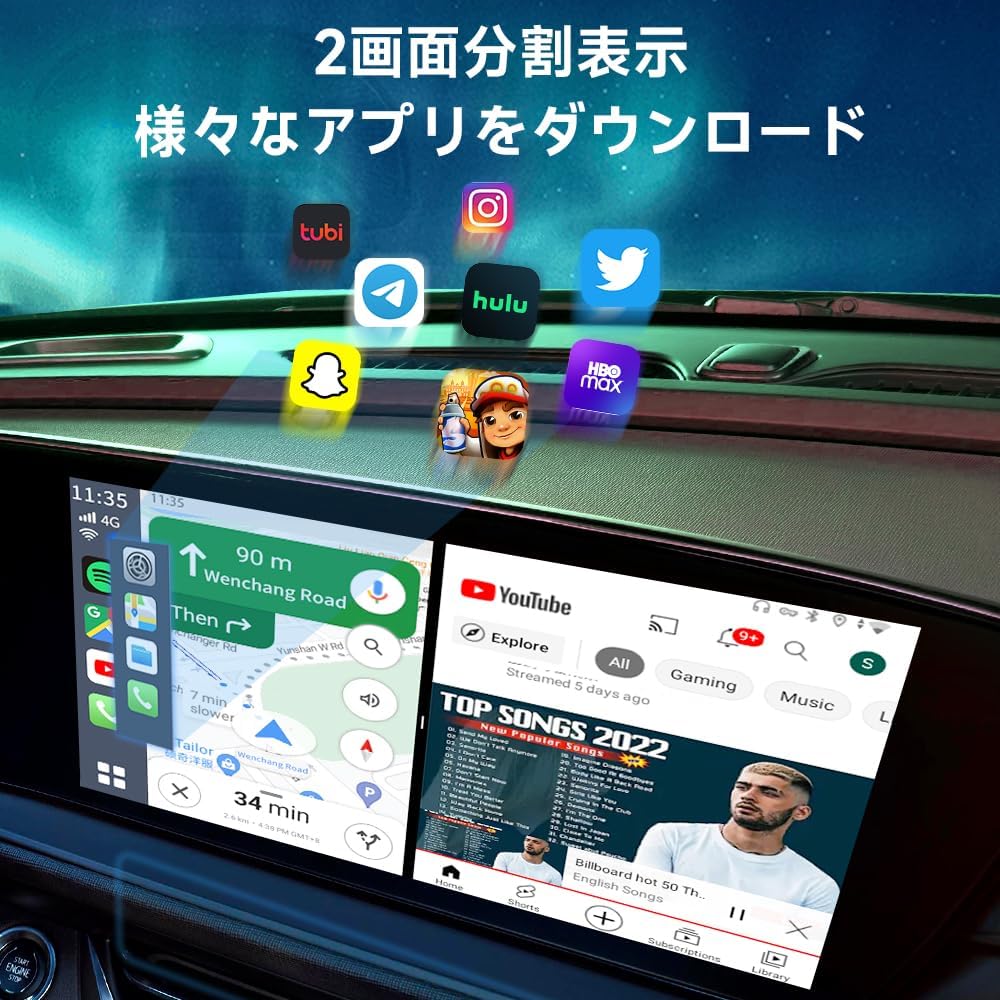
Figure 4.3: Example of split-screen display with navigation and video.
4.4 Supported Applications and Controls
You can download various applications from the Google Play Store. The device supports original car controls such as steering wheel buttons, knob controls, touch screen, and voice assistants.

Figure 4.4: The adapter supports various original car control methods.
5. Compatibility
The Carlinkit Aibox-HDMI Adapter is designed for vehicles equipped with genuine wired Apple CarPlay and wired Android Auto functionality.
5.1 Compatible Vehicles
Generally compatible with vehicles that have factory-installed wired Apple CarPlay or wired Android Auto. This includes many models from brands like Audi, Benz, Porsche, VW, Honda, Nissan (excluding specific models), Ford, Lexus, Volvo, Hyundai, and Chevrolet.
5.2 Incompatible Vehicles
This product is not compatible with the following vehicle models:
- BMW
- Nissan Murano
- Nissan GT-R
- Nissan Leaf
- Nissan Aiways
- BYD
It is also not compatible with non-third-party Android navigation systems.

Figure 5.1: Overview of compatible car brands and smartphone requirements.
5.3 Smartphone Compatibility
- Wireless CarPlay: Compatible with iPhone (iOS 10.0 or later).
- Wireless Android Auto: Compatible with Android smartphones (Android 11.0 or later).
6. Specifications
| Feature | Specification |
|---|---|
| Product Model Number | CPC200-Tbox |
| System | Android 13.0 |
| CPU | Qualcomm SM6225 8-core |
| Memory | 8GB RAM + 128GB ROM |
| Expandable Storage | TF/Micro SD Card (up to 512GB) |
| Dimensions | 15.8 x 13.8 x 4.9 cm |
| Weight | 0.23 kg (230 g) |
| Connection Methods | Bluetooth, HDMI, USB, Wi-Fi |
| Other Functions | Wired to Wireless Conversion |
| Supported Internet Services | Netflix, YouTube |
| Control Method | Touch |
| Included Accessories | Product Box x1, Product x1, USB Cable x2, Card Pin x1, HD Adapter x1, User Manual x1 |
| Japanese Radio Law Certification | R210-181448 |

Figure 6.1: Visual representation of product specifications and included items.
7. Troubleshooting
If you encounter issues with your Carlinkit Aibox-HDMI Adapter, please refer to the following common solutions:
- No Display on External HDMI Monitor: Ensure the Aibox-HDMI Adapter is fully initialized with the car's system before connecting external HDMI devices. Check that the "HDMI Switch" and "HDMI Sound Switch" are enabled in the adapter's settings (Settings > HDMI Settings).
- Android Auto Not Activating: If you are using wired Android Auto, you may need to insert a pin into the box's reset hole for 2-3 seconds, then switch to CarPlay, and then you can use Android Auto. The default system is CarPlay.
- Intermittent Connection/Performance Issues: Ensure your car's USB port provides stable power. Avoid connecting external devices to the car's navigation system before the Aibox-HDMI Adapter is connected and fully operational.
- Product Not Starting: If the product fails to start, try disconnecting and reconnecting it to the car's USB port. Ensure the car's ignition is on. If the issue persists, contact customer support.
- Software Updates: Updates are primarily for addressing specific vehicle compatibility issues. If your current experience is satisfactory, updates may not be necessary. Consult customer support if you believe an update is required.
8. Maintenance
To ensure the longevity and optimal performance of your Carlinkit Aibox-HDMI Adapter, follow these maintenance guidelines:
- Keep Clean: Regularly wipe the device with a soft, dry cloth to remove dust and debris. Avoid using liquid cleaners or abrasive materials.
- Avoid Extreme Temperatures: Do not expose the device to extreme heat or cold, as this can affect its internal components. Store it in a cool, dry place when not in use.
- Handle with Care: Avoid dropping the device or subjecting it to strong impacts.
- Proper Disconnection: When removing the device, always grasp the plug, not the cable, to prevent damage to the connectors.
9. Warranty and Support
The Carlinkit Aibox-HDMI Adapter complies with radio law and has obtained technical standard conformity certification (Certification Number: R210-181448), ensuring safe usage.
For any questions or concerns regarding the product, please contact customer support through your purchase platform:
- Go to [Account Service] > [Order History] > [Contact Seller].
Alternatively, you may find an email address for support listed in the product's packaging or documentation. Please provide your product model number and a detailed description of the issue for efficient assistance.


