
Techwonderz F199
Techwonderz F199 Drone User Manual
Model: F199 | Brand: Techwonderz
Introduction
This manual provides detailed instructions for the safe and effective operation of your Techwonderz F199 Drone. The F199 is a versatile quadcopter featuring 1080P HD dual cameras, intelligent obstacle avoidance, and a long flight time, designed for both beginners and experienced photographers. Its foldable design ensures portability and ease of storage.
What's in the Box
Carefully unpack all components and ensure all items are present and in good condition. If any items are missing or damaged, please contact customer support.
- Techwonderz F199 Pro Drone × 1
- 1080P High-Definition Camera
- Spare Propellers × 16
- Drone Smart Battery 1800mAh × 2
- Portable Handbag × 1
- Box x 1
- Remote Controller × 1
- Charging Cable × 1
- Specific Screws of Propeller Blades × 4
- Screwdriver of Propeller Blades × 1
- Manual x 2
- Landing Pad x 1

Figure 1: All components included in the Techwonderz F199 Drone package.
Setup
1. Unfolding the Drone
Gently unfold the drone arms until they lock into place. Ensure all four arms are fully extended before flight.
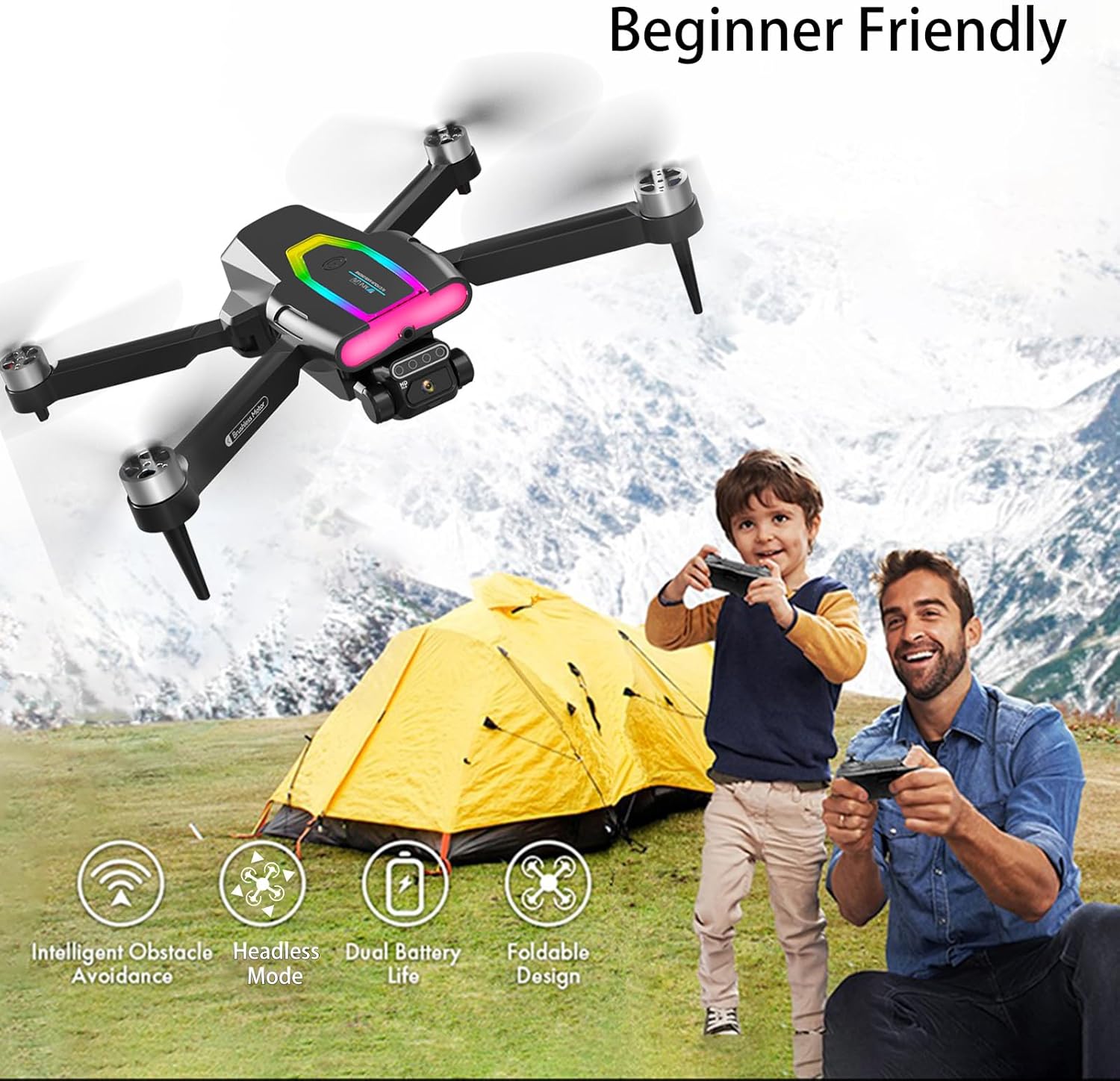
Figure 2: The drone in its folded and unfolded states, alongside the remote controller.
2. Battery Installation and Charging
Insert the fully charged 1800mAh smart battery into the drone's battery compartment. Ensure it clicks securely into place. Use the provided charging cable to charge the batteries. A full charge typically takes [Insert Charging Time if available, otherwise omit].
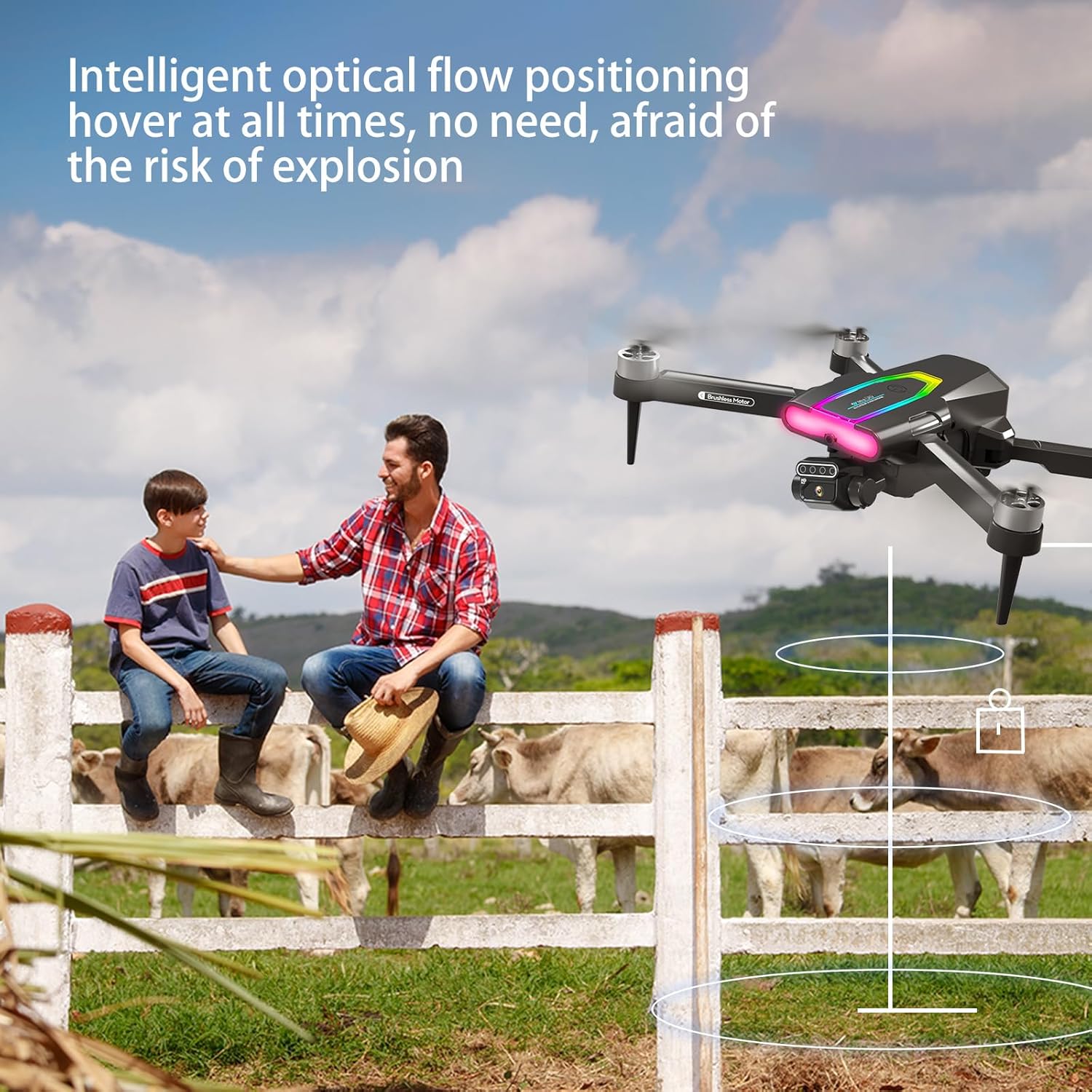
Figure 3: The two included 1800mAh smart batteries.
3. Camera Attachment
The 1080P HD dual camera is integrated into the drone. The front camera features double rudder electric adjustment for optimal viewing angles. Ensure the camera lens is clean and unobstructed before flight.
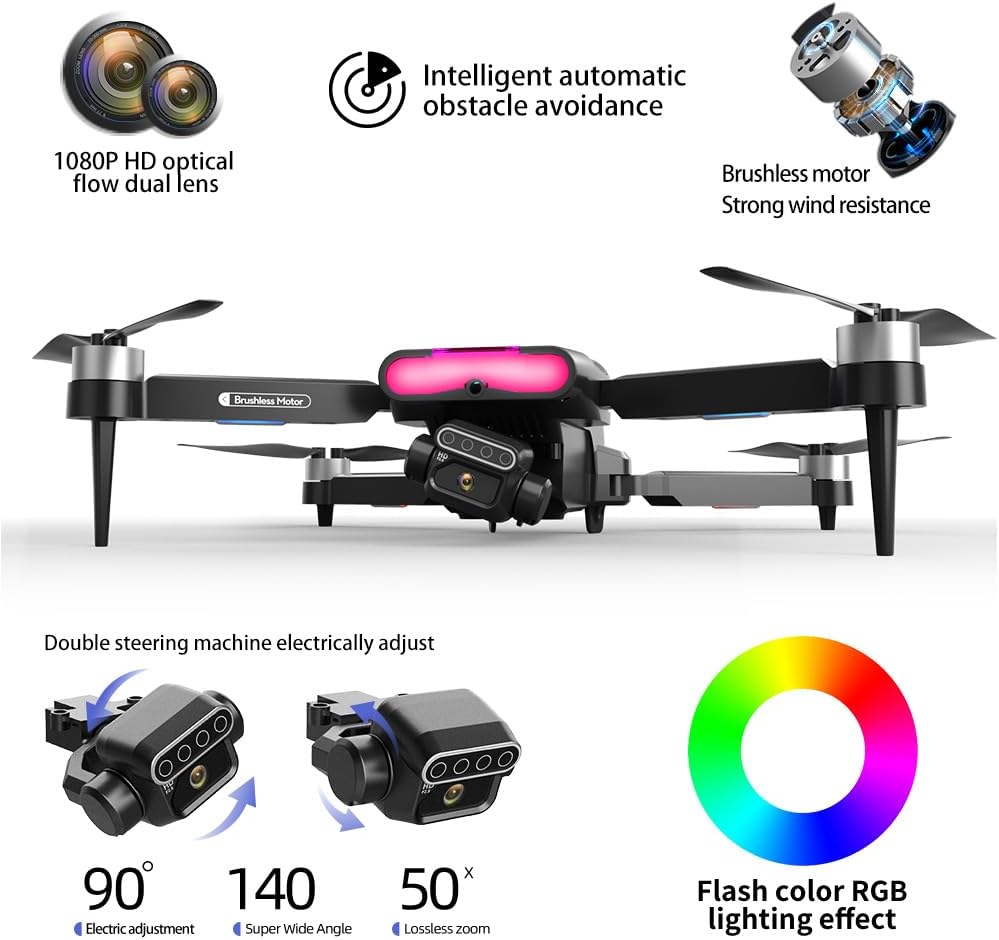
Figure 4: Detailed view of the drone's camera system.
4. Remote Controller Setup
Extend the phone mount on the remote controller and securely place your smartphone. Download the official Techwonderz drone application from your device's app store. Connect your smartphone to the drone's Wi-Fi network as instructed in the app.
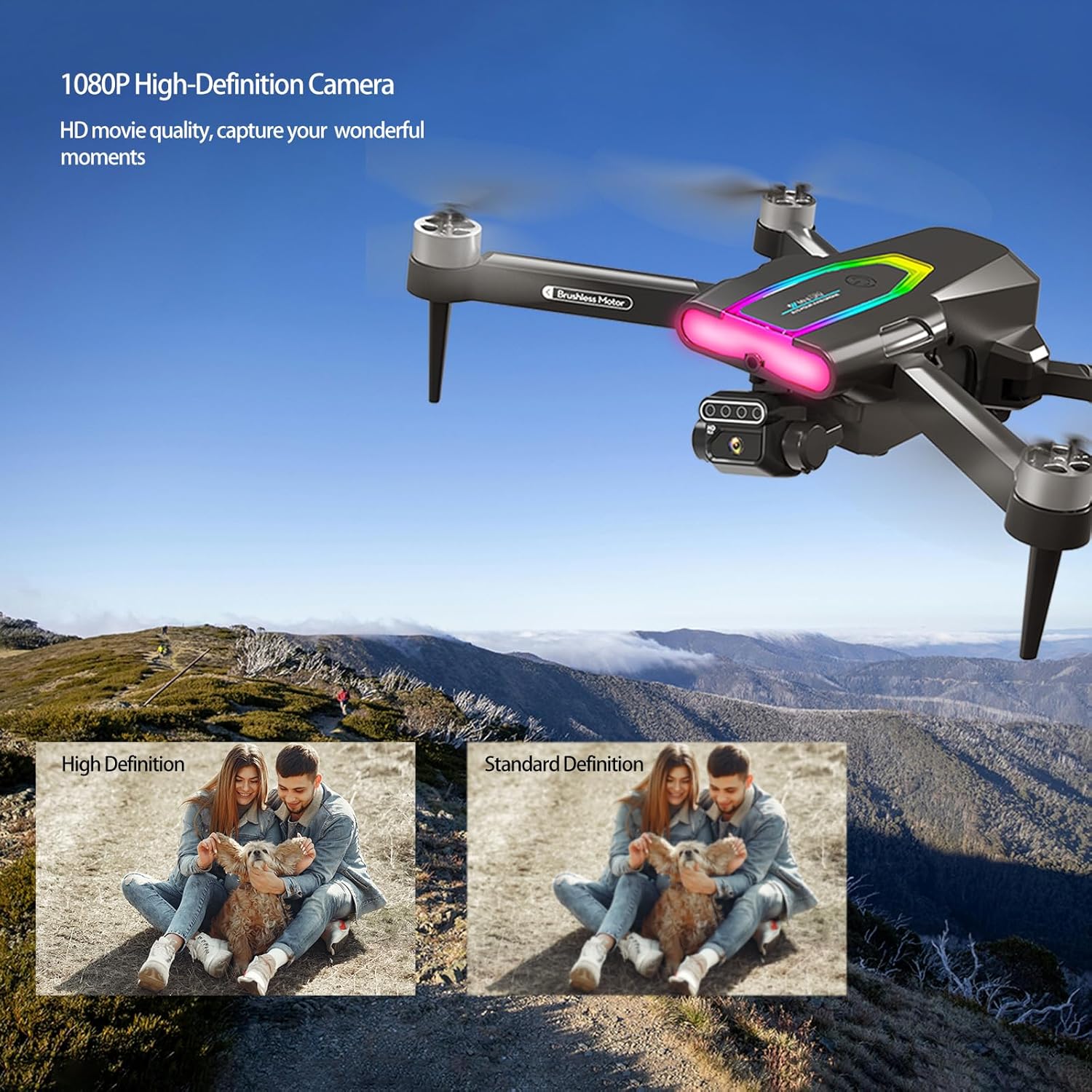
Figure 5: Remote controller with a smartphone mounted for FPV operation.
Operating Instructions
1. Take-off and Landing
Place the drone on a flat, open surface. Press the One Key Take-Off/Landing button on the remote controller or within the app to initiate automatic take-off or landing. For manual control, use the left joystick to control altitude.
2. Flight Modes and Features
- Altitude Hold Mode: The drone will maintain a stable altitude, allowing for steady photo and video capture.
- Headless Mode: Simplifies control by eliminating the need to adjust the drone's orientation relative to the pilot.
- Speed Adjustment: Switch between fast and slow gears, ideal for beginners to master control.
- 360° Flips and Rolls: Perform aerial acrobatics with a single button press for an exciting flight experience.
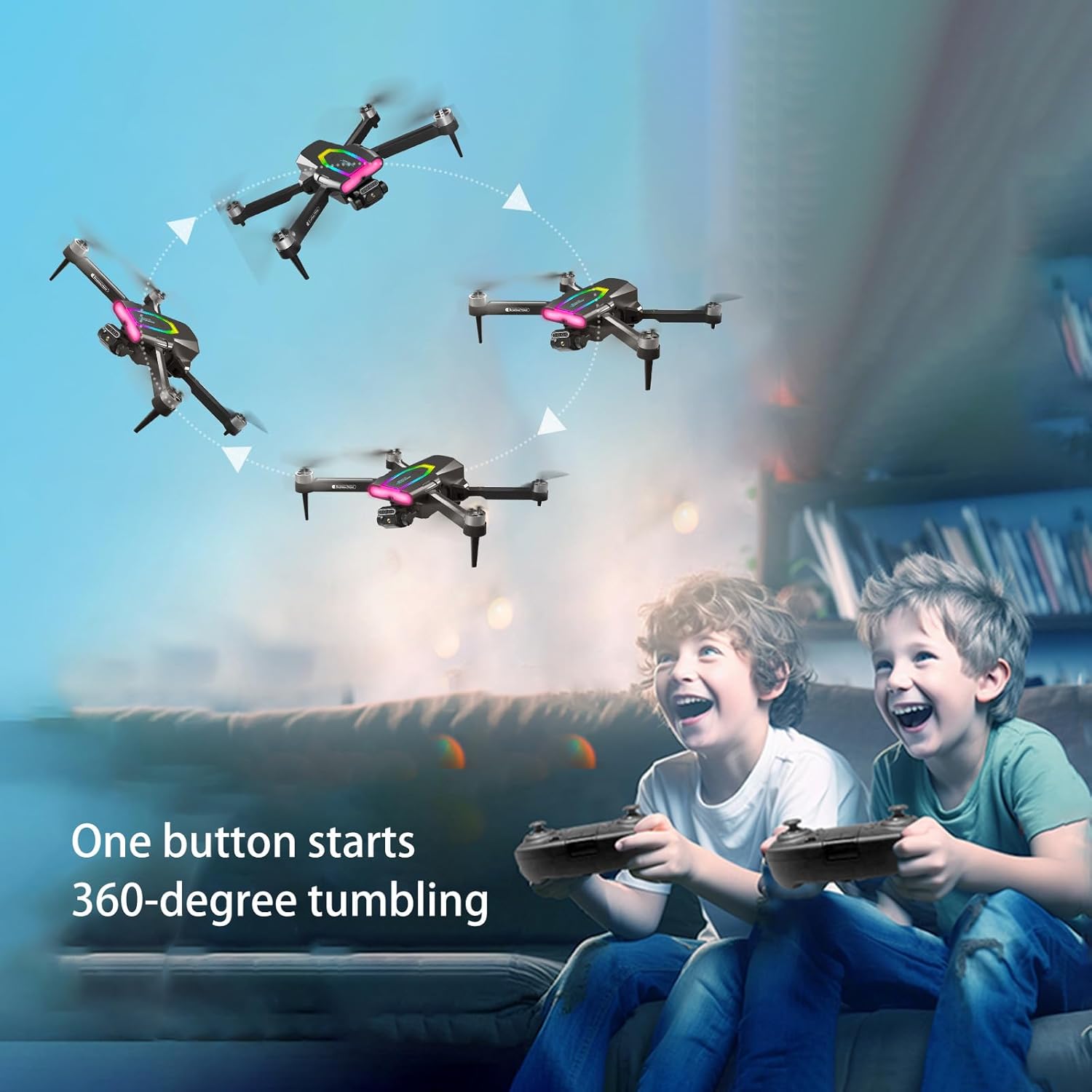
Figure 6: The drone executing a 360-degree flip.
3. Intelligent Obstacle Avoidance
The drone is equipped with intelligent 270° Front/Left/Right Obstacle Avoidance sensors. When obstacles are detected, the drone's radar system will deftly avoid them, enhancing flight safety.
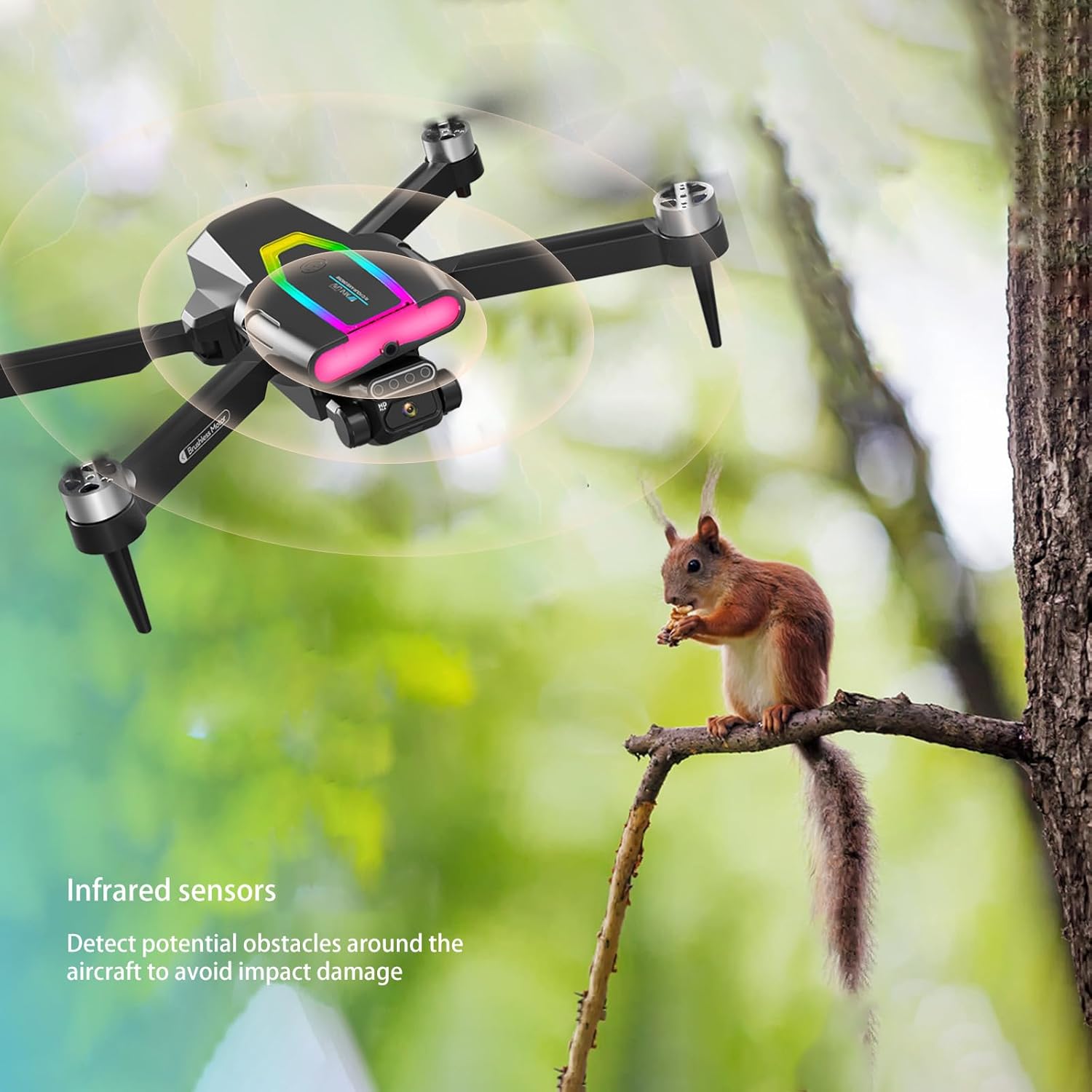
Figure 7: The drone's obstacle avoidance system in action.
4. Advanced Photography Features
- Waypoint Functions: Draw a precise flight path on the app map, and the drone will automatically fly along the defined route.
- Gesture Photography & Video: Make a "V" or "palm" gesture to prompt the camera drone to recognize you and take photos or videos automatically.
- Follow Me Mode: The drone can detect and focus the camera on moving people, keeping them in the frame.
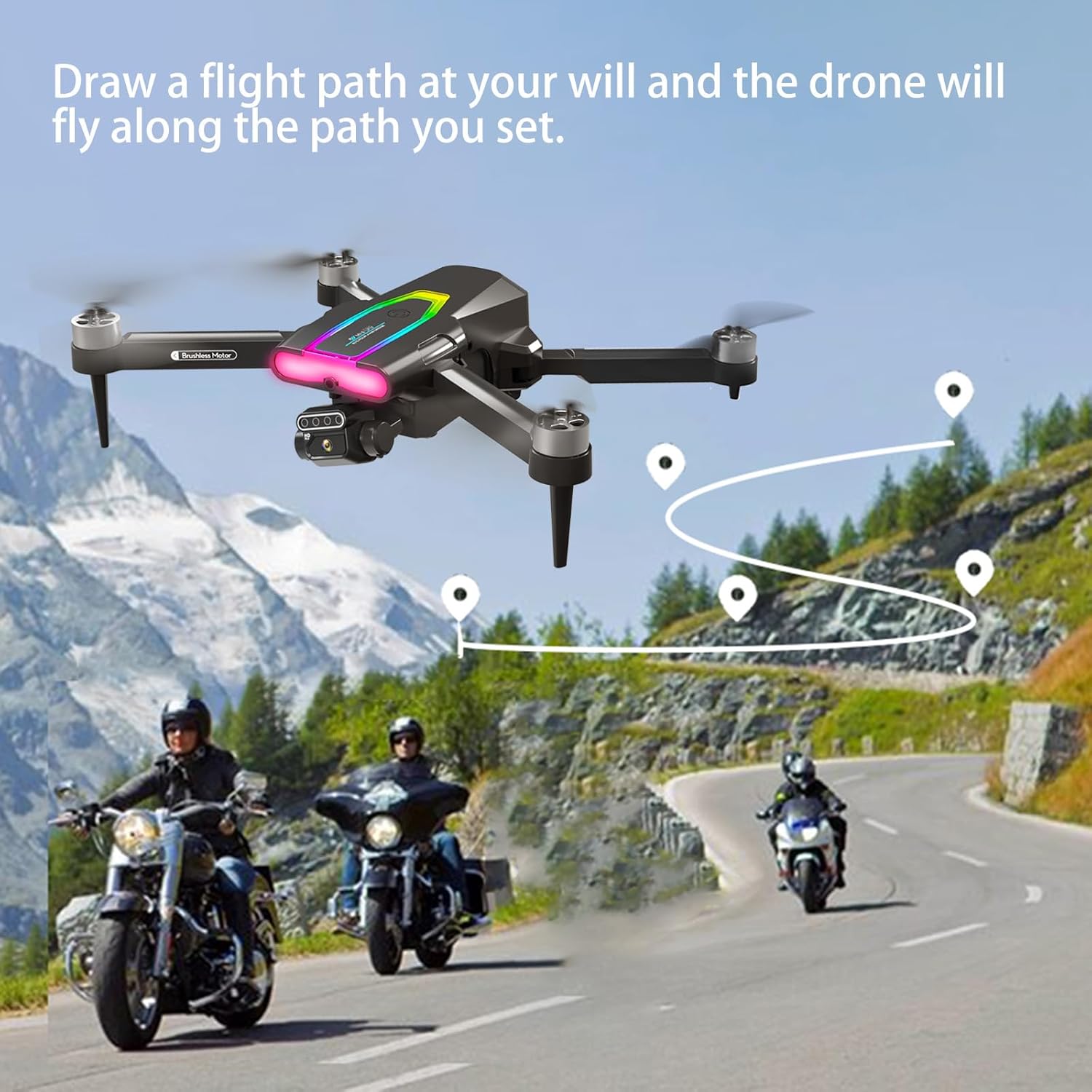
Figure 8: The drone following a pre-programmed flight path.
Maintenance
Regular maintenance ensures the longevity and optimal performance of your drone.
- Propeller Inspection: Regularly check propellers for any damage or cracks. Replace damaged propellers using the provided spare propellers and screwdriver.
- Battery Care: Always use the original charging cable. Do not overcharge or completely drain the batteries. Store batteries in a cool, dry place.
- Cleaning: Use a soft, dry cloth to clean the drone body and camera lens. Avoid using harsh chemicals.
Troubleshooting
If you encounter any issues with your Techwonderz F199 Drone, please refer to the following common solutions:
- Drone not powering on: Ensure the battery is fully charged and correctly inserted.
- No connection to remote/app: Verify that the drone and controller are powered on and that your device is connected to the drone's Wi-Fi network. Restart both the drone and the controller.
- Unstable flight: Perform a gyroscope calibration as instructed in the full manual. Check for any damaged propellers.
- Camera not working: Ensure the camera is properly attached and the app is open and connected.
For more complex issues, please consult the comprehensive manual or contact Techwonderz customer support.
Specifications
| Feature | Detail |
|---|---|
| Brand | Techwonderz |
| Model Name | F199 |
| Age Range (Description) | Kid, Beginner, Photographer |
| Color | Black |
| Video Capture Resolution | 1080p |
| Connectivity Technology | Wi-Fi |
| Skill Level | Beginner |
| Item Weight | 484 Grams (1.07 pounds) |
| Battery Capacity | 1800 Milliamp Hours |
| Video Capture Format | MP4 |
| Remote Control Technology | WiFi |
| Control Type | Remote Control |
| Material | Plastic |
| Product Dimensions | 9.45"L x 2.36"W x 10.63"H |
| UPC | 639393862423 |
Warranty & Support
Your Techwonderz F199 Drone comes with a standard manufacturer's warranty. For detailed warranty information, including terms and conditions, please refer to the warranty card included in your package or visit the official Techwonderz website. For technical support, troubleshooting assistance, or spare parts, please contact Techwonderz customer service through the contact information provided on our website or in your product documentation.
Ask a question about this manual
Ask about setup, troubleshooting, compatibility, parts, safety, or missing instructions. Manuals+ will review the question and use this page’s manual context to help answer it.