
Lawmate PV-DY40UWW
Lawmate PV-DY40UWW 4K Covert Camera DIY Kit
User Manual
Introduction
Welcome to the user manual for the Lawmate PV-DY40UWW 4K Covert Camera DIY Kit. This innovative kit provides the components necessary to create your own customized covert surveillance solution. Designed for versatility, it allows for discreet integration into various environments while capturing high-quality video footage.
This manual provides essential information for the proper setup, operation, and maintenance of your PV-DY40UWW kit. Please read it thoroughly before use to ensure optimal performance and to understand all features.
Package Contents

The image displays the primary components of the Lawmate PV-DY40UWW DIY Camera Kit. It includes the compact camera module with its ribbon cable, the main DVR unit, a small remote control, and a Micro SD card. These are the core elements for assembling your covert camera system.
- Lawmate PV-DY40UWW Main DVR Unit
- 4K Wide Angle Camera Module
- 128GB Micro SD Card (pre-installed or included separately)
- Remote Control
- USB Cable (for power/data transfer)
- Battery (if applicable, typically integrated or provided)
Product Features
The Lawmate PV-DY40UWW DIY Kit is equipped with advanced features for high-performance covert surveillance:
- 4K Ultra HD Video Resolution: Records crisp and clear video at 3840×2160 pixels at 25/30 frames per second (fps).
- Adjustable Resolutions: Supports recording in 1080p and 720p resolutions, with up to 120fps for 720p.
- Wide Angle Lens: Features a 96° Field of View (FOV) for broader coverage.
- Wi-Fi Connectivity: Enables remote viewing, control, and settings adjustment via a dedicated smartphone application.
- P2P Connectivity: Direct peer-to-peer connection up to 30 feet for local access without an internet router.
- Extensive Storage: Supports Micro SD cards up to 256GB (128GB card included).
- DIY Integration: Designed for easy integration into various objects to create custom hidden cameras.
- Motion Detection: Configurable alert type for motion-only recording.
Safety Information
Please adhere to the following safety guidelines to ensure safe and proper operation of your device:
- Do not expose the device to extreme temperatures, humidity, or direct sunlight.
- Avoid dropping or subjecting the device to strong impacts.
- Keep the device away from water and other liquids.
- Do not attempt to disassemble or modify the device beyond the intended DIY assembly. This may void the warranty and cause damage.
- Use only the provided or recommended power accessories.
- Ensure proper ventilation when the device is in operation.
- Legal Compliance: Always be aware of and comply with all local, state, and federal laws regarding audio and video recording, privacy, and surveillance. It is the user's responsibility to use this product legally and ethically.
Setup
Follow these steps to set up your Lawmate PV-DY40UWW DIY Camera Kit:
- Insert Micro SD Card: Locate the Micro SD card slot on the main DVR unit. Gently insert the included 128GB Micro SD card (or your own up to 256GB) until it clicks into place. Ensure the card is inserted in the correct orientation.

This image shows the main DVR unit of the Lawmate PV-DY40UWW kit with a Micro SD card positioned near its designated slot, illustrating where the storage card should be inserted for recording functionality.
- Connect Camera Module: Carefully connect the ribbon cable of the camera module to the corresponding port on the main DVR unit. Ensure a secure and proper connection.
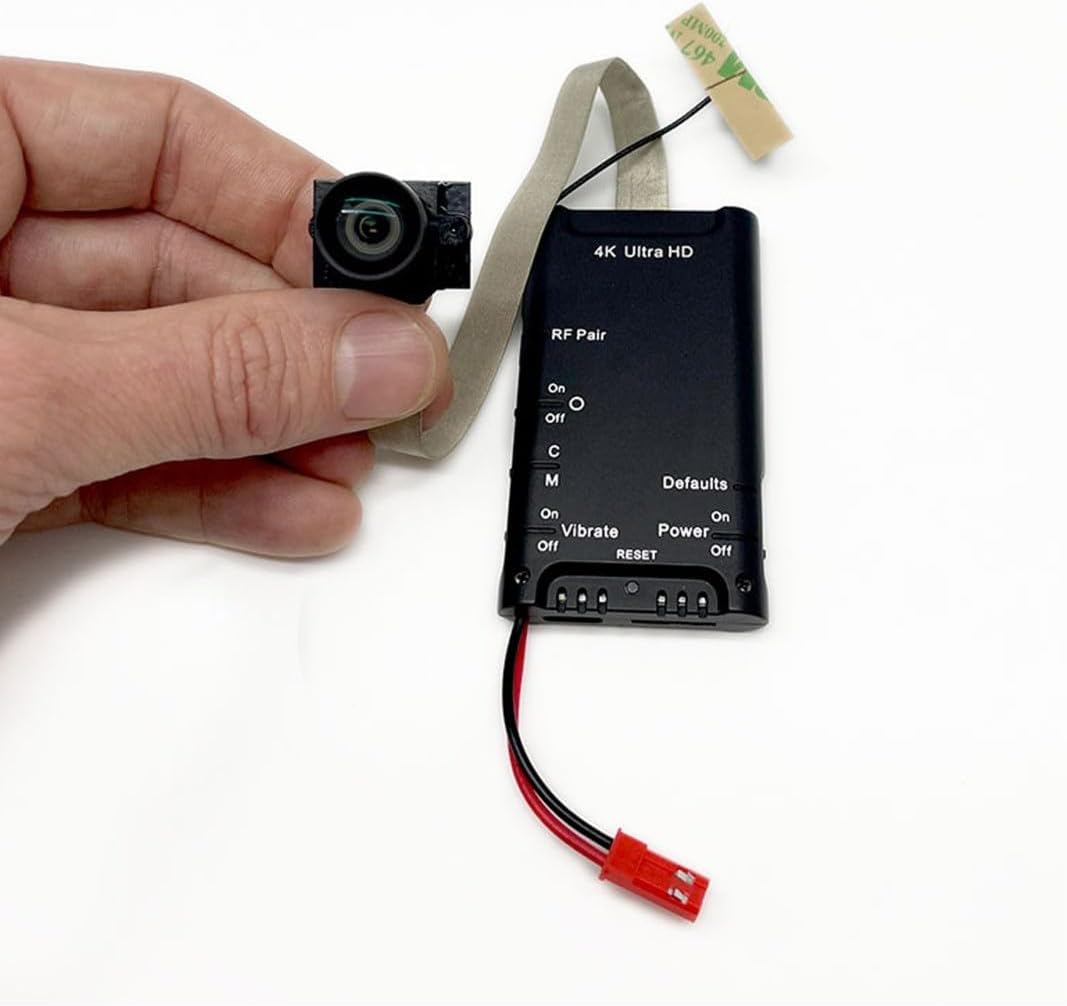
The image provides a close-up of the Lawmate PV-DY40UWW main DVR unit, highlighting the connection point for the camera module's ribbon cable. This view emphasizes the compact size of the components and the "4K Ultra HD" labeling on the unit.
- Power Connection: Connect the power cable to the DVR unit and a suitable power source (e.g., USB adapter, battery pack). The device will typically power on automatically or can be powered on using the remote control/switch.
- Download App: For Wi-Fi functionality, download the official Lawmate app (e.g., "PV Cam Viewer" or similar, check product packaging for exact name) from your smartphone's app store (iOS/Android).
- Initial Placement: Before final integration, test the camera's functionality and field of view in your desired covert location.
Operating Instructions
This section details how to operate your PV-DY40UWW camera kit.
Powering On/Off
- Power On: Connect the device to power. If it doesn't power on automatically, use the power button on the remote control or the physical switch on the DVR unit (if available). An indicator light will typically illuminate.
- Power Off: Press and hold the power button on the remote or switch off the physical power switch. Ensure recording has stopped before powering off to prevent data corruption.
Wi-Fi Connection and App Usage
- Activate Wi-Fi: On the DVR unit, locate the Wi-Fi switch or button and activate it. The Wi-Fi indicator light will flash.
- Connect to Camera Wi-Fi: On your smartphone, go to Wi-Fi settings and connect to the camera's Wi-Fi network (e.g., "PV-DY40UWW_XXXX"). The default password is usually "88888888" or found in the app/manual.
- Open App: Launch the Lawmate control app on your smartphone. The camera feed should appear, allowing live viewing and access to settings.
- Adjust Settings: Within the app, you can:
- Change video resolution (4K, 1080p, 720p).
- Configure recording modes (continuous, motion detection).
- Set date and time.
- Format the Micro SD card.
Recording Video
- Manual Recording: Press the record button on the remote control or within the app to start/stop recording.
- Motion Detection Recording: Enable motion detection via the app. The camera will automatically record when motion is detected within its field of view.
- Indicator Lights: Pay attention to the indicator lights on the DVR unit, which typically signal recording status (e.g., solid light for standby, flashing for recording).
Accessing Recordings
- Via App: Connect to the camera's Wi-Fi, open the app, and navigate to the playback or file management section to view or download recordings directly to your phone.
- Via Computer: Power off the device, remove the Micro SD card, and insert it into a computer's card reader. Video files will be accessible as standard video formats (e.g., .MOV, .MP4).
Maintenance
- Micro SD Card Management: Regularly back up important recordings and format the Micro SD card every few weeks to maintain optimal performance and prevent data corruption. Use the format function within the app or a computer.
- Cleaning: Use a soft, dry cloth to clean the camera lens and the main unit. Do not use liquid cleaners or abrasive materials.
- Battery Care: If using a rechargeable battery, avoid fully discharging it frequently. Store the device with a partial charge if not used for extended periods.
- Firmware Updates: Periodically check the manufacturer's website or the app for any available firmware updates to improve performance and add new features.
Troubleshooting
| Problem | Possible Cause | Solution |
|---|---|---|
| Device does not power on. | Low battery; power cable not connected; faulty power source. | Charge the battery; ensure power cable is securely connected; try a different USB port or power adapter. |
| Cannot connect to Wi-Fi. | Wi-Fi not enabled on device; incorrect password; too far from device. | Ensure Wi-Fi is enabled; verify Wi-Fi password; move closer to the device (within 30ft for P2P). |
| No recording or corrupted files. | Micro SD card full or faulty; card not formatted; device powered off during recording. | Format the Micro SD card; try a different card; ensure device remains powered during recording. |
| Poor video quality. | Lens dirty; low light conditions; incorrect resolution setting. | Clean the camera lens; ensure adequate lighting; set resolution to 4K in the app. |
| Remote control not working. | Remote battery low; remote not paired; obstruction. | Replace remote battery; refer to pairing instructions (if applicable); ensure clear line of sight. |
If you encounter issues not listed here, please refer to the manufacturer's support resources or contact customer service.
Specifications
| Feature | Detail |
|---|---|
| Brand | Lawmate |
| Model Number | PV-DY40UWW |
| Video Capture Resolution | 4K (3840x2160p), 1080p, 720p |
| Field of View (FOV) | 96° Wide Angle |
| Connectivity Technology | Wireless (Wi-Fi, P2P) |
| Maximum Range (P2P) | 30 Feet |
| Storage Support | Up to 256GB Micro SD Card (128GB included) |
| Power Source | Battery Powered (details not specified, typically internal rechargeable) |
| Control Method | App, Remote Control |
| Alert Type | Motion Only |
| Dimensions (Main Unit) | Approx. 3 x 2 x 1 inches (L x W x H) |
| Included Components | 128GB SD Card, DVR KIT (Main Unit, Camera Module, Remote) |
Warranty and Support
Specific warranty terms for the Lawmate PV-DY40UWW DIY Kit are typically provided by the retailer or manufacturer at the time of purchase. Please retain your proof of purchase for warranty claims.
For technical support, troubleshooting assistance beyond this manual, or warranty inquiries, please contact the authorized Lawmate distributor or the seller from whom you purchased the product. You may also visit the official Lawmate website for additional resources and contact information.
Note: Unauthorized modifications or improper use of the device may void the warranty.
Related documentsPV-DY40UWW


Ask a question about this manual
Ask about setup, troubleshooting, compatibility, parts, safety, or missing instructions. Manuals+ will review the question and use this page’s manual context to help answer it.