
1. Introduction
Thank you for purchasing the Generico 4051AI 1 DIN Car Radio. This manual provides detailed instructions for the installation, operation, and maintenance of your new car stereo. Please read this manual thoroughly before using the product to ensure proper functionality and to prevent damage.
Safety Information
- Do not operate the unit in a way that distracts you from driving. Always prioritize road safety.
- Ensure all wiring is correctly connected to prevent short circuits or damage. Consult a professional for installation if unsure.
- Do not expose the unit to extreme temperatures, direct sunlight, or moisture.
- Keep the volume at a level that allows you to hear outside traffic sounds.
2. Package Contents
Please check the contents of your package. If any items are missing or damaged, contact your retailer.
- Generico 4051AI Car Radio Unit
- Remote Control
- Wiring Harnesses
- User Manual (English)
3. Product Overview
Front Panel Layout
The front panel features a 4.1" TFT display, control buttons, USB and Micro SD card slots, and an AUX input.
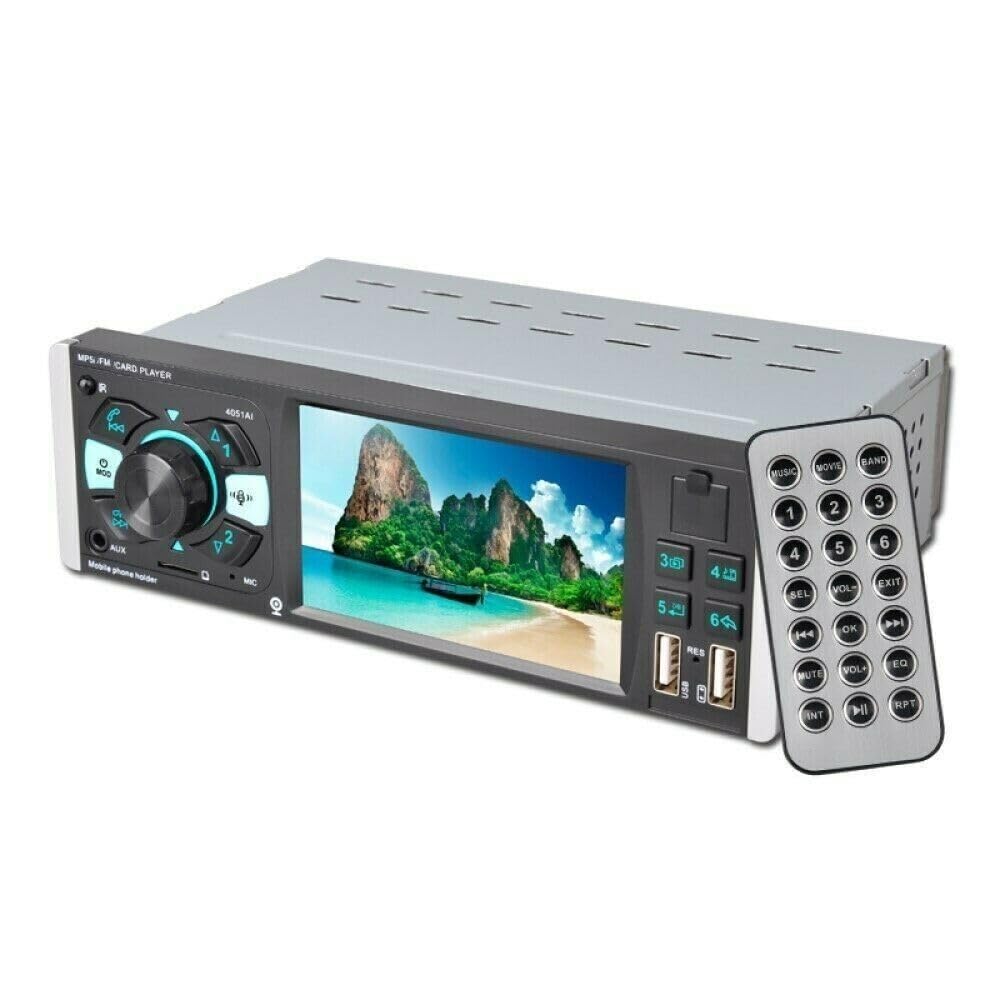
Figure 3.1: Front view of the Generico 4051AI car radio. This image displays the main unit with its 4.1-inch TFT screen, various control buttons for navigation and media playback, two USB ports, and an AUX input jack. The model number "4051AI" is visible on the unit.
Dimensions
The unit is a standard 1 DIN size. Refer to the diagram below for detailed dimensions to ensure compatibility with your vehicle's dashboard.

Figure 3.2: Dimensional drawing of the Generico 4051AI car radio. The image indicates a width of 17.8 cm, a height of 5.8 cm, and a depth of 13.5 cm, with the front panel extending slightly to 18.8 cm in width and 5 cm in height for the main body.
Rear Connections
The rear panel provides all necessary connections for power, speakers, antenna, and optional accessories like a reverse camera.

Figure 3.3: Rear view of the Generico 4051AI car radio. This image highlights the connection points: Power and horn cable interface, Left audio output, Right audio output, Reverse input, Video output, and Radio antenna jack. A fuse is also visible.
4. Setup and Installation
Wiring Diagram
Proper wiring is crucial for the correct operation of the car radio. Refer to the included wiring harnesses and the diagram below for connections.

Figure 4.1: Included wiring harnesses for the Generico 4051AI car radio. This image shows two multi-pin connectors with various colored wires, essential for connecting the car radio to the vehicle's power supply, speakers, and other electrical systems.
- Red Wire: ACC (Accessory Power)
- Yellow Wire: B+ (Constant Power)
- Black Wire: GND (Ground)
- Blue Wire: ANT (Antenna Remote)
- Speaker Wires: Typically pairs of solid and striped wires (e.g., White/White-Black for Front Left, Grey/Grey-Black for Front Right, Green/Green-Black for Rear Left, Purple/Purple-Black for Rear Right).
- Reverse Input Wire: Connect to the reverse light signal for automatic rear camera display.
Installation Steps
- Disconnect the vehicle's negative battery terminal before starting installation.
- Remove the existing car radio from the dashboard.
- Connect the Generico 4051AI wiring harnesses to the vehicle's wiring, matching colors and functions.
- Connect the radio antenna.
- If installing a rear camera, connect its video output to the "Reverse input" on the car radio and its power to the reverse light circuit.
- Slide the car radio into the dashboard opening until it locks securely.
- Reconnect the vehicle's negative battery terminal.
- Test all functions before fully reassembling the dashboard.
5. Operating Instructions
Basic Functions
- Power On/Off: Press the power button (usually marked with ⏻) to turn the unit on or off.
- Volume Control: Use the rotary knob or volume buttons on the front panel/remote control.
- Mode Selection: Press the "MODE" button to cycle through available sources (Radio, USB, SD, AUX, Bluetooth).
- Menu/Settings: Access system settings via the "Setting" icon on the display or a dedicated button.
Radio Operation (FM)
- Select "Radio" mode.
- Press the SCAN button for automatic station search and storage.
- Use the ◀◀ / ▶▶ buttons to manually tune or select preset stations.
- Frequency range: 87.5 - 108.00 MHz.
USB/Micro SD Playback
- Insert a USB drive into the USB port or a Micro SD card into the SD slot.
- The unit will automatically switch to USB/SD mode and begin playback. If not, select "USB" or "SD" from the mode menu.
- Supported audio formats: MP3, WMA, WAV, FLAC, OGG, APE.
- Supported video formats: RM, RMVB, VOB, VCD, MP1, MP2, DIVX, XVID, MP4, H263.
- Use the playback controls (Play/Pause, Next/Previous Track) on the unit or remote.
Bluetooth Function
- Pairing:
- Enable Bluetooth on your mobile device.
- Select "Bluetooth" mode on the car radio.
- Search for available devices on your phone. The unit's name will typically be "CAR BT" or similar.
- Select the unit to pair. A PIN (usually "0000") may be required.
- Hands-Free Calling: Once paired, you can make and receive calls directly through the car radio. Use the microphone on the unit and car speakers.
- Audio Streaming: Play music from your paired device wirelessly.
AUX Input
- Connect an external audio device (e.g., MP3 player) to the AUX input jack on the front panel using a 3.5mm audio cable.
- Select "AUX" mode on the car radio.
- Audio will play through the car speakers. Control playback from the external device.
Rear Camera Function
- If a rear camera is connected to the "Reverse input" and properly wired to the reverse light signal, the display will automatically switch to the camera view when the vehicle is put into reverse gear.
6. Maintenance
- Cleaning the Display: Use a soft, dry cloth to wipe the display. For stubborn marks, slightly dampen the cloth with water or a screen cleaner. Do not use abrasive cleaners.
- General Cleaning: Wipe the unit's exterior with a soft, dry cloth.
- Fuse Replacement: If the unit does not power on, check the fuse located at the rear of the unit (refer to Figure 3.3). Replace with a fuse of the same rating if blown.
- Avoid spilling liquids on the unit.
7. Troubleshooting
| Problem | Possible Cause | Solution |
|---|---|---|
| No power | Incorrect wiring; Blown fuse; Vehicle battery issue. | Check power connections (Red, Yellow, Black wires). Replace fuse if blown. Check vehicle battery. |
| No sound | Speaker wires disconnected; Volume too low; Mute function active. | Check speaker connections. Increase volume. Deactivate mute. |
| Radio reception is poor | Antenna not connected; Weak signal area; Damaged antenna. | Ensure antenna is securely connected. Try a different location. Inspect antenna for damage. |
| USB/SD not playing | Unsupported file format; Corrupted media; Incorrect mode selected. | Check file formats. Try a different USB/SD card. Select correct mode. |
| Bluetooth not connecting | Bluetooth not enabled on phone; Unit not in pairing mode; Incorrect PIN. | Ensure phone Bluetooth is on. Select Bluetooth mode on unit. Re-enter PIN "0000". |
8. Specifications
- Model: 4051AI
- Display: 4.1" TFT
- Power Output: 45W x 4
- Connectivity: Bluetooth, USB, Micro SD, AUX
- Audio Formats: MP3, WMA, WAV, FLAC, OGG, APE
- Video Formats: RM, RMVB, VOB, VCD, MP1, MP2, DIVX, XVID, MP4, H263
- Radio Frequencies: FM 87.5 - 108.00 MHz
- Special Features: Clock, Hands-free calling, Rear camera input
- Control Method: Remote, Front Panel Buttons
9. Warranty and Support
This product comes with a standard manufacturer's warranty. Please refer to your purchase documentation for specific warranty terms and duration. For technical support or warranty claims, please contact your retailer or the manufacturer directly.
Keep your proof of purchase for warranty purposes.
