
Introduction
This manual provides comprehensive instructions for the ARTIX CL750 On-Ear Headphones and Silent Wireless Mouse bundle. It covers setup, operation, maintenance, and troubleshooting to ensure you get the most out of your devices. Designed for productivity and comfort, this bundle is ideal for study, work, and everyday use.
What's in the Box
- ARTIX CL750 On-Ear Headphones
- Silent Wireless Mouse
- 3.5mm Audio Cable (for headphones)
- USB Receiver (for wireless mouse)
- User Manual
Product Overview
ARTIX CL750 On-Ear Headphones
The ARTIX CL750 headphones are designed for immersive audio with comfort and convenience. They feature 40mm drivers for rich bass and noise-blocking cushions for focused listening. A built-in microphone and inline controls allow for hands-free calls and easy volume adjustment.

Figure 1: ARTIX CL750 Headphones featuring a built-in microphone and inline volume controls on the cable.

Figure 2: The foldable design of the ARTIX CL750 Headphones allows for compact storage and portability.
Silent Wireless Mouse
The Silent Wireless Mouse offers a quiet clicking experience with an ergonomic design for comfortable, extended use. Its advanced optical sensors provide high-precision cursor control, and plug-and-play functionality ensures easy setup.
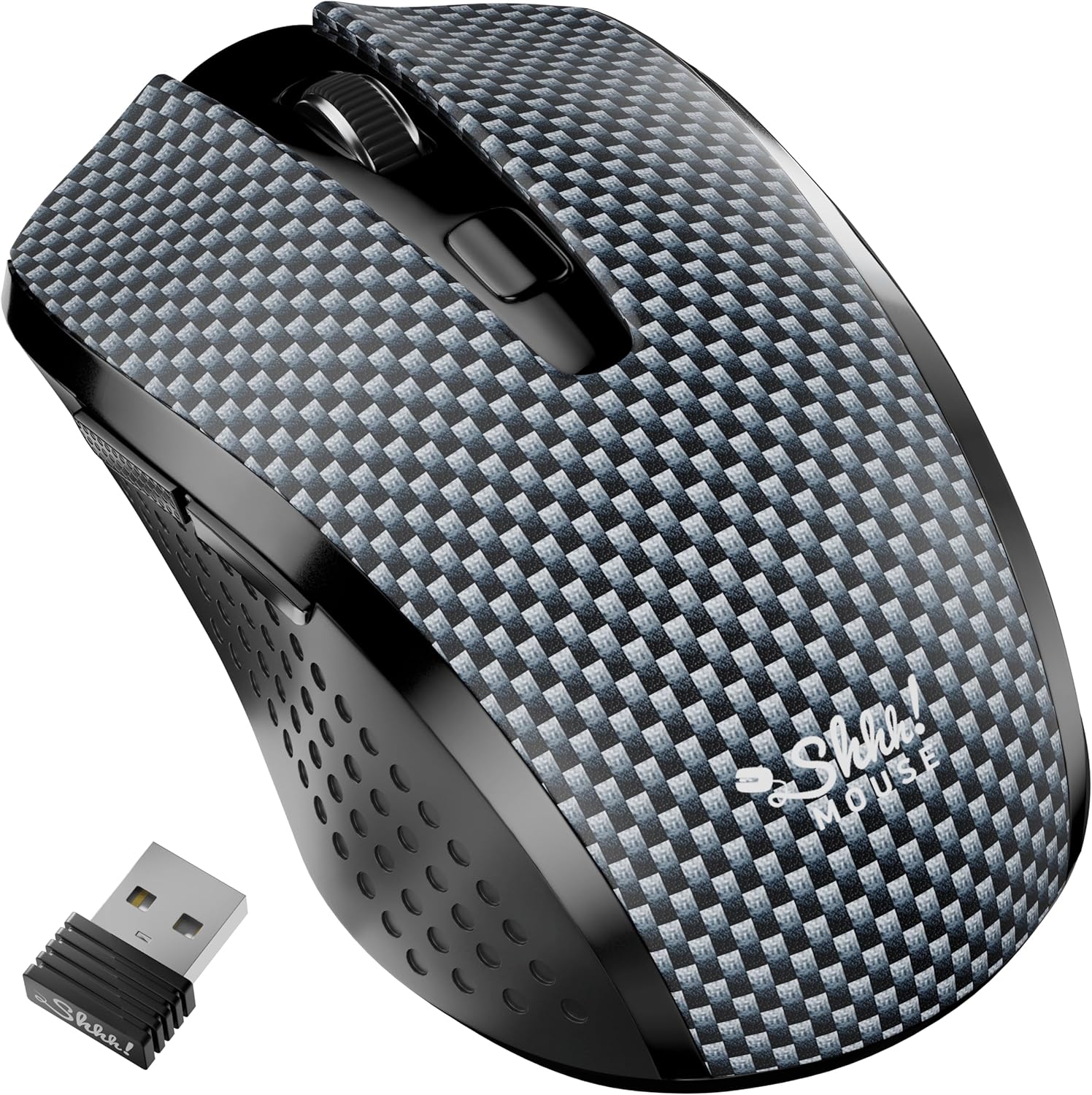
Figure 3: The Silent Wireless Mouse shown with its compact USB receiver for wireless connectivity.

Figure 4: An illustration highlighting the ambidextrous design and multi-function buttons of the Silent Wireless Mouse.
Setup
Headphones Setup
- Unpack: Remove the ARTIX CL750 headphones from their packaging.
- Connect: Plug the 3.5mm audio jack into the audio port of your laptop, computer, tablet, or smartphone.
- Adjust: Extend or retract the headband to achieve a comfortable fit over your ears.
Wireless Mouse Setup
- Insert Battery: Open the battery compartment on the underside of the mouse and insert the included AA battery (if not pre-installed).
- Connect USB Receiver: Plug the USB receiver into an available USB port on your computer or laptop.
- Power On: Turn on the mouse using the power switch located on its underside. The mouse is plug-and-play and should connect automatically.
Operating Instructions
Using the ARTIX CL750 Headphones
- Audio Playback: Once connected, audio from your device will play through the headphones.
- Volume Control: Use the inline controls on the cable to adjust the volume (+ for increase, - for decrease).
- Microphone: The built-in microphone allows for hands-free communication during calls or online meetings. Ensure your device's audio settings are configured to use the headphone microphone.
- Call Management: Use the central button on the inline control to answer/end calls or play/pause music.
Using the Silent Wireless Mouse
- Movement: Move the mouse on a flat surface to control the cursor on your screen.
- Clicking: The left and right buttons provide silent clicking for a quiet work environment.
- Scroll Wheel: Use the scroll wheel for vertical scrolling.
- DPI Switch: (If applicable) Some models may include a DPI switch to adjust cursor sensitivity. Refer to the mouse's specific markings for this feature.
- Auto-Sleep Feature: The mouse features an auto-sleep mode (e.g., after 13 minutes of inactivity) to conserve battery life. Move the mouse or click a button to wake it up.
Maintenance
- Cleaning Headphones: Use a soft, dry cloth to wipe down the ear cushions and headband. Avoid harsh chemicals or abrasive materials.
- Cleaning Mouse: Wipe the mouse surface with a soft, damp cloth. Ensure no liquid enters the internal components.
- Storage: When not in use, store the headphones folded in a protective bag to prevent damage. Store the mouse in a dry, cool place.
- Battery Replacement (Mouse): Replace the AA battery when the mouse performance degrades.
Troubleshooting
Headphones Issues
- No Sound:
- Ensure the 3.5mm jack is fully inserted into both the headphones and your device.
- Check your device's volume settings and the inline volume control on the headphone cable.
- Test the headphones with another device to rule out a device-specific issue.
- Microphone Not Working:
- Verify your device's audio input settings are configured to use the external microphone.
- Ensure the microphone is not muted via the inline controls or device settings.
Wireless Mouse Issues
- Mouse Not Responding:
- Check if the mouse is powered on.
- Ensure the USB receiver is securely plugged into a working USB port. Try a different USB port.
- Replace the AA battery.
- If the mouse has an auto-sleep feature, move it or click a button to wake it up.
- Intermittent Connection:
- Move the mouse closer to the USB receiver.
- Avoid using the mouse on highly reflective or transparent surfaces.
Specifications
| Feature | Detail |
|---|---|
| Brand | ARTIX |
| Model Name | CL750 |
| Headphones Jack | 3.5 mm Jack |
| Connectivity Technology | Wired (Headphones), Wireless (Mouse) |
| Audio Driver Size | 40 Millimeters (Headphones) |
| Special Features | Microphone Included, Noise Isolation (Headphones), Silent Click, Ergonomic Design (Mouse) |
| Compatible Devices | Laptops, Computers, Tablets, Smartphones |
| Mouse Battery Life | Up to 18 months |
Warranty & Support
For warranty information and customer support, please refer to the official ARTIX website or contact your retailer. Keep your purchase receipt for warranty claims.
Product Videos
ARTIX CL750 Wired Headphones Product Overview
This video provides a brief overview of the ARTIX CL750 Wired Headphones, showcasing their design and key features.
AILIHEN C8 Wired Headphones with Microphone and Volume Control
This video demonstrates the features of AILIHEN C8 Wired Headphones, including the microphone and volume controls, which are similar to the ARTIX CL750 model.
