
1. Introduction
Thank you for purchasing the Edifier R990BT Bluetooth Computer Speakers. These 2.0 active bookshelf speakers are designed to provide high-quality audio for your PC, smartphone, tablet, and other compatible devices. Featuring Bluetooth V5.4 connectivity and dual RCA inputs, the R990BT offers versatile audio options in a classic MDF enclosure. Please read this manual thoroughly to ensure proper setup and optimal performance of your speakers.
2. Package Contents
Please ensure all items are present in the package:
- Edifier R990BT Active Bookshelf Speakers (1 Pair)
- Speaker Connection Cable
- RCA to RCA Audio Cable
- 3.5mm to RCA Audio Cable
- Power Cable
- Quick Start Guide
3. Setup
3.1 Speaker Placement
Place the speakers on a stable, flat surface such as a desk or shelf. For optimal stereo imaging, position the speakers equidistant from your listening position, forming an equilateral triangle. Ensure there is adequate space behind the speakers for cable connections and ventilation.

Image: Edifier R990BT speakers positioned on a desk, demonstrating typical placement for computer use.
3.2 Connecting the Speakers
- Connect the Passive Speaker: Use the included speaker connection cable to link the active speaker (with controls) to the passive speaker. Ensure the correct polarity (+ to + and - to -) for proper sound reproduction.
- Connect to Power: Plug the power cable into the active speaker's power input and then into a wall outlet.
3.3 Connecting Audio Sources
The R990BT speakers support both wired (RCA) and wireless (Bluetooth) connections.
Wired Connection (RCA)
The speakers feature two sets of RCA input ports (Line In 1 and Line In 2) for connecting two different wired audio devices simultaneously.
- Use the RCA to RCA cable to connect devices with RCA outputs (e.g., CD player, turntable with pre-amp).
- Use the 3.5mm to RCA cable to connect devices with a 3.5mm audio jack (e.g., computer, smartphone, tablet).

Image: Close-up of the rear panel of the active speaker, highlighting the dual RCA input ports (Line In 1 and Line In 2) and the power input.
Bluetooth Connection
The R990BT features Bluetooth V5.4 for wireless audio streaming.
- Turn on the speakers.
- Press the volume/input knob on the rear panel to select the Bluetooth input. The indicator light will flash blue.
- On your audio device (smartphone, tablet, computer), enable Bluetooth and search for available devices.
- Select "EDIFIER R990BT" from the list to pair. The indicator light will turn solid blue once connected.

Image: A single Edifier R990BT speaker on a desk next to a laptop, symbolizing the ease of Bluetooth connectivity.
4. Operating Instructions
4.1 Power On/Off
The power switch is located on the rear panel of the active speaker. Flip the switch to the 'ON' position to power on the speakers. Flip to 'OFF' to power off.
4.2 Volume Control
The large knob on the rear panel of the active speaker controls the master volume. Rotate clockwise to increase volume and counter-clockwise to decrease volume.
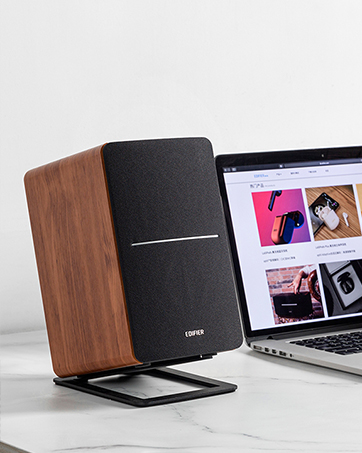
Image: Detailed view of the multi-function control knob on the rear of the speaker, used for volume adjustment and input selection.
4.3 Input Selection
Press the volume/input knob on the rear panel to cycle through the available audio inputs: Line In 1, Line In 2, and Bluetooth. The indicator light will change color or flash to indicate the selected input mode.
- Line In 1 / Line In 2: Solid green or red indicator (depending on model/firmware).
- Bluetooth: Flashing blue (pairing mode) or solid blue (connected).
4.4 Using the Edifier ConneX App
For enhanced control and customization, download the Edifier ConneX mobile application. The app allows you to adjust equalization settings and access additional features for your R990BT speakers.
- Download the Edifier ConneX app from your device's app store.
- Ensure your speakers are powered on and connected via Bluetooth to your mobile device.
- Open the app and follow the on-screen instructions to connect to your R990BT speakers.

Image: The official logo for the Edifier ConneX mobile application.
5. Maintenance
5.1 Cleaning
To maintain the appearance and performance of your speakers:
- Wipe the speaker cabinets with a soft, dry cloth.
- Do not use liquid cleaners, aerosols, or abrasive chemicals, as these may damage the finish or internal components.
- Gently brush dust from the speaker grilles using a soft brush or vacuum cleaner with a brush attachment.
5.2 Storage
If storing the speakers for an extended period, ensure they are powered off and disconnected from the power source. Store them in a cool, dry place away from direct sunlight and extreme temperatures.
6. Troubleshooting
If you encounter any issues with your Edifier R990BT speakers, please refer to the following common problems and solutions:
| Problem | Possible Cause | Solution |
|---|---|---|
| No sound |
|
|
| Distorted sound |
|
|
| Bluetooth not connecting/disconnecting |
|
|
| Difficulty switching inputs |
|
|
7. Specifications
Detailed technical specifications for the Edifier R990BT speakers:
- Model Name: R990BT
- Speaker Type: Bookshelf
- Mounting Type: Shelf Mount/Tabletop Mount
- Material: MDF (Medium-Density Fiberboard)
- Connectivity Technology: Bluetooth V5.4, Wired (Dual RCA)
- Audio Output Mode: Stereo (2.0)
- Speaker Maximum Output Power: 24 Watts (RMS)
- Woofer Diameter: 4 Inches
- Tweeter Diameter: 1 Inches
- Frequency Response: 18 KHz (Upper limit, typical for compact speakers)
- Signal-to-Noise Ratio: 85 dB
- Control Method: Touch (via rear knob)
- Power Source: Corded Electric (100-240V ~ 50/60Hz)
- Product Dimensions: 11.5"D x 7.5"W x 17"H (per speaker, approximate)
- Item Weight: 7.94 Pounds (per speaker, approximate)
- Color: Black
- Compatible Devices: Devices with Bluetooth technology, devices with RCA or 3.5mm audio output.
8. Warranty and Support
8.1 Warranty Information
The Edifier R990BT speakers come with a Limited Warranty. Please refer to the warranty card included in your package or visit the official Edifier website for detailed terms and conditions regarding your product's warranty coverage.
8.2 Customer Support
For technical assistance, troubleshooting, or general inquiries, please contact Edifier customer support. Contact details can typically be found on the official Edifier website or in your product's Quick Start Guide.
Online Support: Visit www.edifier.com for FAQs, support resources, and contact information.


