1. Introduction
Thank you for choosing the QZT S6 Mini WiFi Security Camera. This compact and versatile device is designed to provide reliable surveillance and peace of mind for your home, pets, children, or elderly family members. Featuring 4K UHD resolution, two-way audio, advanced AI human and motion detection, and invisible night vision, the S6 offers comprehensive monitoring capabilities. This manual will guide you through the setup, operation, and maintenance of your new camera.
2. Product Overview
2.1 Package Contents
- QZT S6 Mini WiFi Security Camera Unit
- USB Cable
- Bracket (with adhesive sheet)
- User Manual
2.2 Camera Components
Familiarize yourself with the camera's physical features and ports.

Image: Front view of the QZT S6 Mini WiFi Security Camera, showing the main lens, PIR sensor, and indicator lights.

Image: Side view of the QZT S6 Mini WiFi Security Camera, highlighting the MicroSD card slot, USB port, ON/OFF switch, and Wi-Fi/DV mode switch.
3. Setup
3.1 Initial Setup
- Charge the Camera: Connect the camera to a power source using the provided USB cable. The charging indicator will light up. A full charge takes approximately 4 hours.
- Insert MicroSD Card: Insert a MicroSD card (up to 256GB, sold separately) into the designated slot. Ensure it is inserted correctly.
- Power On: Slide the ON/OFF switch to the 'ON' position. The camera will power on and the indicator light will show its status.
3.2 App Installation and Wi-Fi Connection
To utilize all smart features, download and install the dedicated app on your smartphone or tablet.
- Download the App: Scan the QR code on the camera or in the manual to download the 'O-KAM Pro' app from your device's app store.
- Register/Login: Open the app and follow the on-screen instructions to register a new account or log in if you already have one.
- Add Device: In the app, tap the '+' icon to add a new device. Select the option to scan a QR code.
- Scan Camera QR Code: Use your phone's camera to scan the QR code located on the QZT S6 camera unit.
- Connect to Wi-Fi: Follow the app's prompts to connect the camera to your 2.4GHz Wi-Fi network. Enter your Wi-Fi password when requested. (Note: 5GHz Wi-Fi is not supported).
- AP Mode (No Wi-Fi): If no Wi-Fi is available, the camera supports AP mode, allowing direct connection to your smartphone for local viewing within a 5-8 meter range.
Once connected, you can access the camera's live feed and settings through the app.
4. Operating Instructions
4.1 Real-time Viewing
Open the 'O-KAM Pro' app and select your QZT S6 camera from the device list to view the live feed. You can zoom in/out, adjust resolution (4K, 1080P, 720P), and switch between single and dual-screen views.
Video: Demonstrates real-time viewing and dual-screen functionality on a tablet, showing both a wide and zoomed-in perspective of an entrance area. The user interacts with the app to switch views and activate the siren.
4.2 Two-Way Audio
The camera supports two-way voice communication. Tap the microphone icon in the app to speak through the camera, and listen through your smartphone's speaker.

Image: Illustration of the two-way audio feature, allowing communication with family members or visitors through the camera.
4.3 Motion Detection (PIR Sensor)
The built-in PIR human sensor detects movement and automatically starts recording. You can set the detection sensitivity and define specific detection areas within the app to avoid false alarms from pets or irrelevant movements.

Image: Visual representation of the motion detection feature, highlighting a detected human figure within the camera's view.
Video: Demonstrates the motion detection feature in action, showing the camera detecting a person and highlighting them with a green box on the screen.
4.4 Night Vision
The camera features invisible infrared night vision with a powerful illumination range of over 5m. It automatically switches to night vision mode in low-light conditions, providing clear black-and-white images without visible red glow from the LEDs.

Image: Depicts the invisible infrared night vision capability, showing a clear view of a room in complete darkness.
4.5 Recording Modes
- DV Recording Mode: Insert an SD card and slide the switch to DV mode for continuous local recording.
- Motion Detection Recording: Records only when motion is detected, saving storage space and power.
- Loop Recording: When the MicroSD card is full, the camera automatically overwrites the oldest footage, ensuring continuous recording.
4.6 Sharing and Remote Access
The app allows you to share camera access with multiple users, enabling family members to monitor simultaneously. You can also download recorded footage to your smartphone or access cloud storage.
5. Maintenance
5.1 Battery Management
The QZT S6 has a 3000mAh battery, providing 5-6 hours of continuous recording or up to 180 days of standby time in power-saving mode. You can monitor the battery level via the app and record while charging.
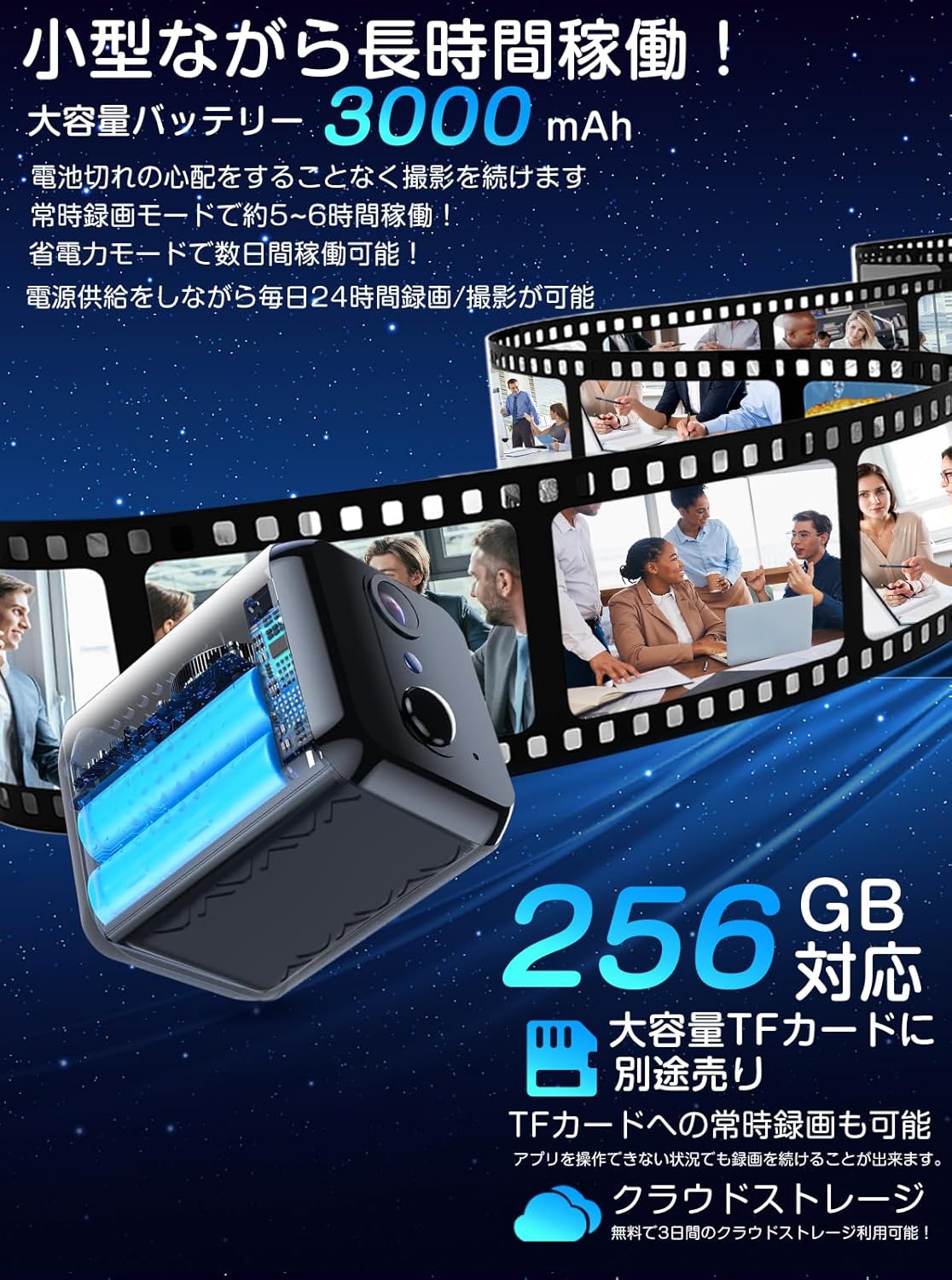
Image: Highlights the camera's large battery capacity (3000mAh) and support for up to 256GB MicroSD card, enabling long recording durations.
5.2 Storage Management
The camera supports up to 256GB MicroSD cards for local storage and includes 3 days of free cloud storage. Loop recording ensures that new footage is always saved by overwriting the oldest data.
6. Troubleshooting
6.1 Common Issues
- Cannot Connect to Wi-Fi: Ensure your Wi-Fi network is 2.4GHz. Check your Wi-Fi password. Make sure the camera is within 5-8 meters of the router.
- App Not Detecting Camera: Try resetting the camera by pressing the reset button. Ensure Bluetooth is enabled on your smartphone during initial setup.
- Poor Image Quality: Check your selected resolution in the app (4K, 1080P, 720P). Ensure the lens is clean and not pointed directly at bright light sources.
- False Motion Alarms: Adjust the motion detection sensitivity in the app. Define specific detection areas to exclude pets or moving objects that should not trigger alarms.
6.2 Resetting the Camera
If you encounter persistent issues, you may need to reset the camera. Locate the reset button (usually a small pinhole) and use a pin or paperclip to press and hold it for a few seconds until the indicator light changes, signaling a reset.
7. Specifications
| Video Capture Resolution | 4K |
| Number of Items | 1 |
| Included Components | Camera unit, USB cable, Bracket (with adhesive sheet) |
| Wireless Communication Technology | Wi-Fi |
| Form Factor | Cube |
| Field of View | 160 degrees |
| Mounting Type | Adhesive |
| Night Vision Range | 15 meters |
| Frame Rate | 15 fps |
| Product Dimensions (LxWxH) | 42 x 37 x 52 mm |
| Product Model Number | S6 |
| Product Weight | 250 g |
| Battery Type | Lithium Ion |
| Power Source | Battery Powered |
| Connectivity Protocol | Wi-Fi |
| Controller Type | Android, iPhone |
8. Warranty and Support
For warranty information or technical support, please refer to the contact details provided in your product packaging or visit the official QZT website. Keep your purchase receipt for warranty claims.


