
QCY MeloBuds Pro
Contents
QCY MeloBuds Pro User Manual
Model: MeloBuds Pro
Introduction
Welcome to the QCY MeloBuds Pro user manual. These adaptive hybrid active noise cancelling wireless earbuds are designed to provide a superior audio experience with advanced features such as LDAC Hi-Res Audio, Bluetooth 5.3 connectivity, and extended playtime. This manual will guide you through the setup, operation, maintenance, and troubleshooting of your new earbuds.

Figure 1: QCY MeloBuds Pro Earbuds and Charging Case
1. Setup
1.1 What's in the Box
Upon opening your QCY MeloBuds Pro package, you will find the following items:
- 1 pair of QCY MeloBuds Pro wireless earphones
- 1 Charging Station (charging case)
- 1 Type C Cable
- 3 pairs of Eartips (sizes S/M/L)
- User Manual (this document)

Figure 2: Package Contents
1.2 Charging Your Earbuds
Before first use, it is recommended to fully charge your QCY MeloBuds Pro.
- Place both earbuds into the charging case.
- Connect the provided Type-C cable to the charging port on the case and a compatible USB power source.
- The charging indicator on the case will show charging status. A full charge for the carrying case takes approximately 1.5 hours.
The earbuds offer approximately 7.5 hours of listening time on a single charge (with ANC on), and the charging case extends total playtime up to 34 hours.

Figure 3: Battery Life Overview
1.3 Pairing with Your Device
The QCY MeloBuds Pro support one-step pairing for convenience.
- Ensure Bluetooth is enabled on your device (smartphone, tablet, laptop, etc.).
- Open the charging case. The earbuds will automatically enter pairing mode, and the indicator light will flash white.
- On your device, search for "QCY MeloBuds Pro" in the Bluetooth settings and select it to connect.
- Once connected, the indicator light on the case will turn off.
The earbuds support multipoint pairing, allowing simultaneous connection and switching between two devices using Bluetooth 5.3 technology.

Figure 4: Dual Device Connection
1.4 QCY App Installation
For an optimized audio experience and customizable settings, download the official QCY App.
- Search for "QCY" on the Google Play Store (for Android devices) or Apple App Store (for iOS devices).
- Install the app and follow the on-screen instructions to connect your MeloBuds Pro.
The app allows you to customize EQ settings, upgrade firmware, and adjust touch controls.

Figure 5: QCY App Interface
1.5 Eartip Selection
Selecting the correct eartip size is crucial for optimal sound quality and noise cancellation. Experiment with the included S, M, and L eartips to find the best fit for your ears. A good seal ensures effective noise isolation and rich bass response.
2. Operating Your Earbuds
2.1 Touch Controls
The QCY MeloBuds Pro feature intuitive touch controls on each earbud. These controls can be customized via the QCY App.
| Action | Control |
|---|---|
| Switch ANC Mode (ANC On - ANC Off - Transparency Mode) | Tab and hold on the Right earbud with the earbuds wearing. |
| Enable Low Latency | Tab and hold on the Left earbud. |
| Pause/Play | Double Tab. |
| Skip Track Forward | Triple tab on the Right earbud. |
| Answer Call | Double Tab. |
| Ignore Call | Tab and hold for 1.5s. |
| Voice Assistant | Triple tab on the Left earbud. |

Figure 6: Earbud Touch Controls
2.2 Adaptive Active Noise Cancellation (ANC)
The MeloBuds Pro feature adaptive ANC technology that automatically detects ambient noise and reduces it by up to 46dB.
- Indoor Mode: Ideal for quiet environments like offices, libraries, and cafes.
- Commuting Mode: Optimized for noisy commuting environments such as subways and buses.
- Anti-Wind Noise Mode: Perfect for outdoor settings with strong wind.
- Outdoor Mode: Designed for bustling streets and shopping malls.
To enable the Adaptive ANC feature, tap and hold on the right earbud. Cycle through ANC On, ANC Off, and Transparency Mode.
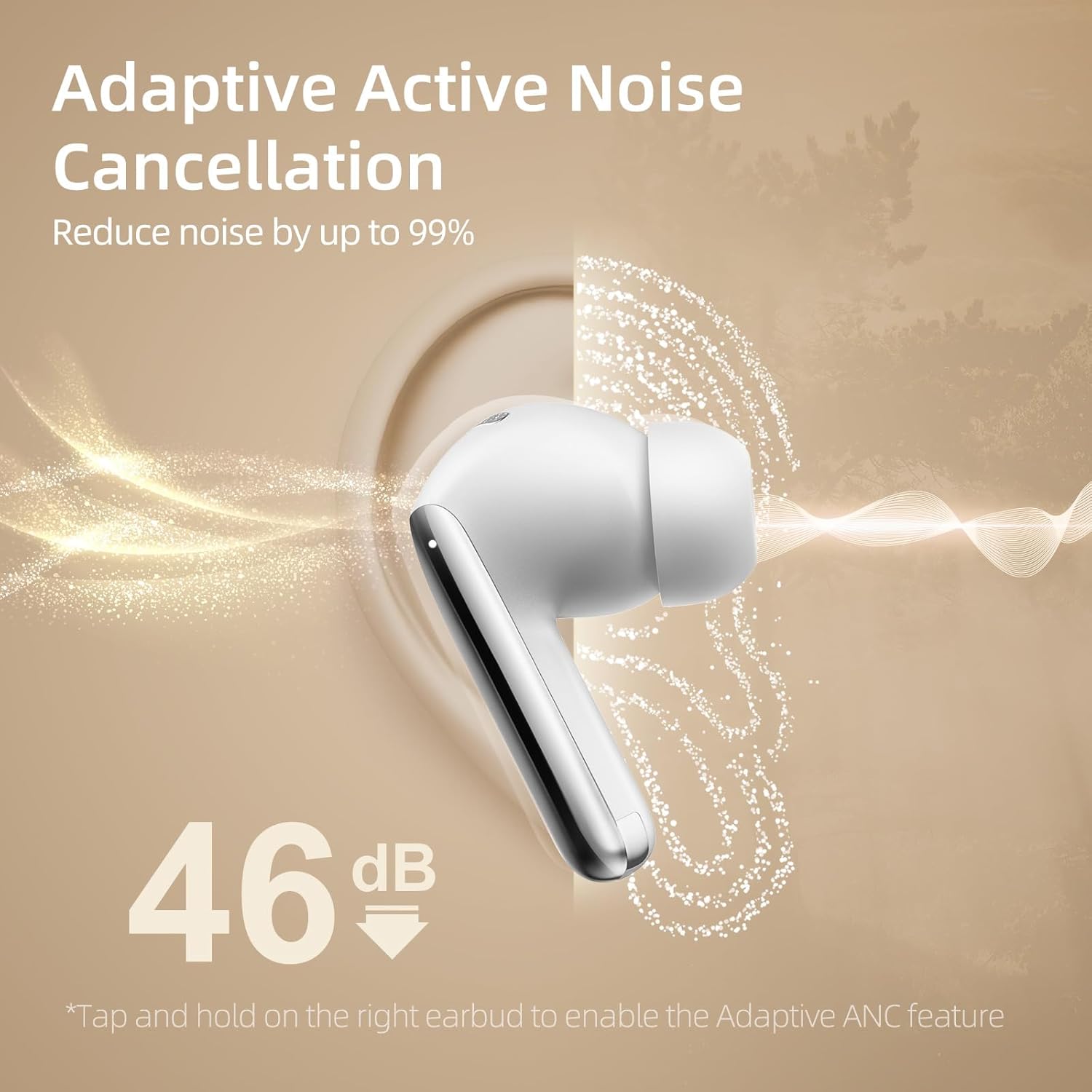
Figure 7: Adaptive ANC in Action

Figure 8: Noise Cancelling Modes
2.3 Hi-Res Audio with LDAC
Experience true fidelity with the 12mm large bio-diaphragm drivers that support LDAC and Hi-Res Audio. The MeloBuds Pro transfer 3x more detail than standard Bluetooth earbuds for the highest quality wireless audio.
Note: LDAC is only compatible with Android devices. Please activate LDAC in the QCY App settings for optimal performance.
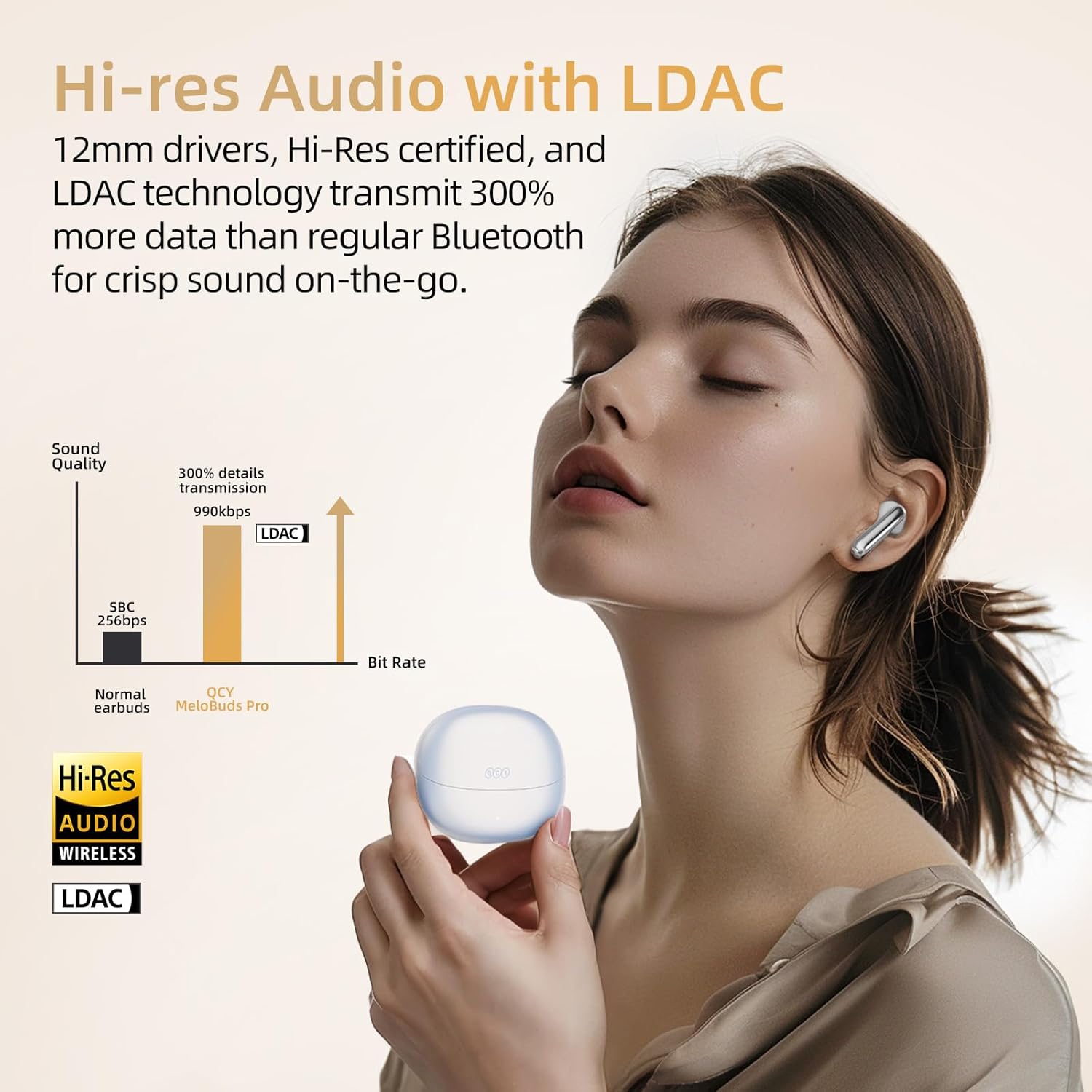
Figure 9: Hi-Res Audio Capability

Figure 10: 12mm Bio-diaphragm Driver
2.4 Crystal Clear Calls
Equipped with AI-powered 6 microphones and advanced ENC technology, the MeloBuds Pro precisely pick up your voice and block out background noise, ensuring clear communication during calls, video chats, and live streams.
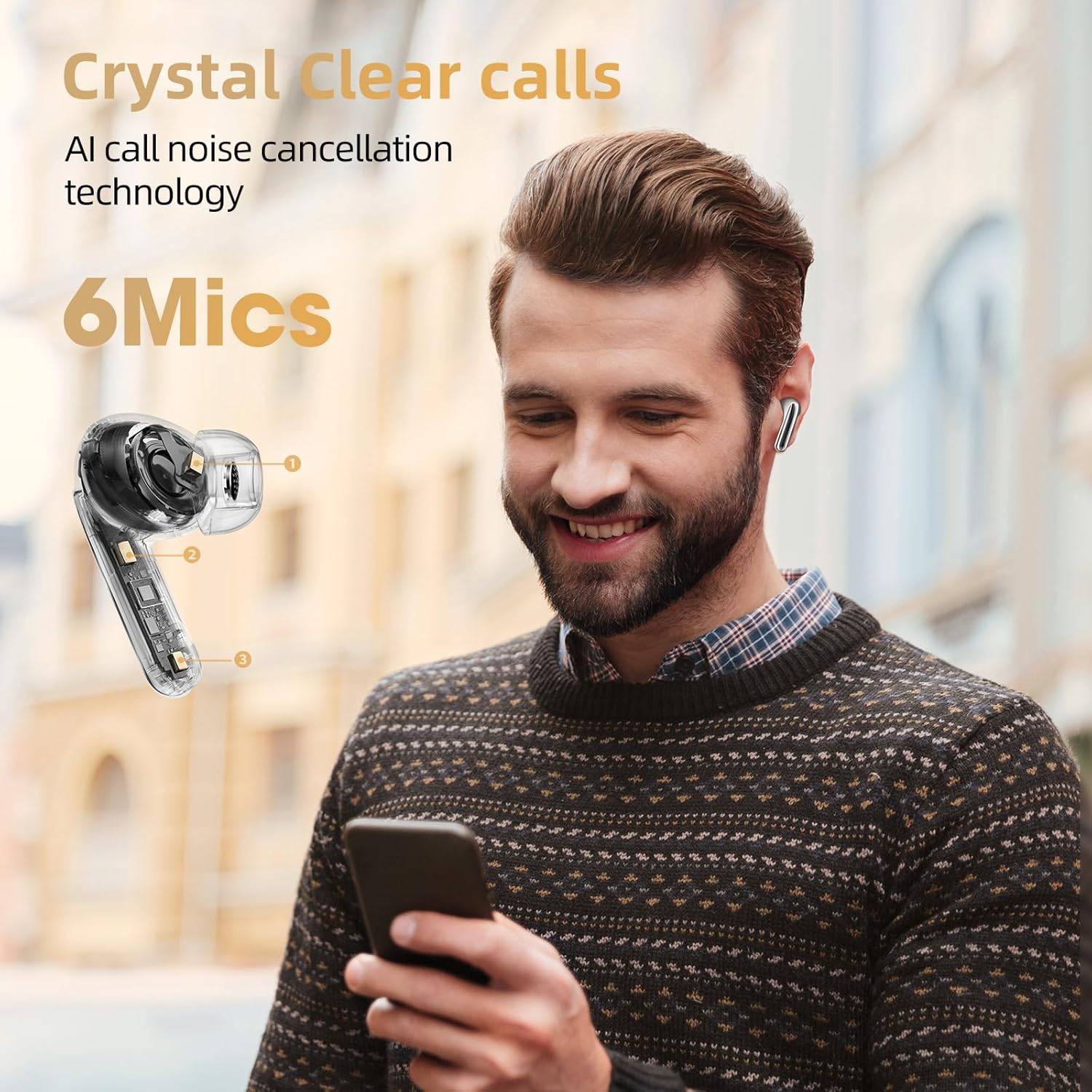
Figure 11: 6-Mic Call Noise Cancellation

Figure 12: Microphone Placement
2.5 Ultra-Low Latency
Enjoy a seamless gaming and video experience with ultra-low 80ms latency, ensuring audio and visuals are perfectly synchronized.

Figure 13: Low Latency for Gaming
2.6 In-Ear Detection
The MeloBuds Pro feature smart in-ear detection. Audio will automatically play when you wear the earbuds and pause when you take them off.
3. Maintenance
3.1 Cleaning Your Earbuds
Regular cleaning helps maintain sound quality and hygiene.
- Gently wipe the earbuds and charging case with a soft, dry, lint-free cloth.
- For the eartips, remove them from the earbuds and clean with a mild soap solution if necessary, then rinse and dry thoroughly before reattaching.
- Pay special attention to the speaker holes, as wax buildup can restrict volume. Use a small, soft brush or cotton swab to carefully remove any debris.
3.2 Storage
Always store your QCY MeloBuds Pro in their charging case when not in use to protect them from damage and keep them charged. Store in a cool, dry place away from extreme temperatures.
4. Troubleshooting
4.1 Common Issues and Solutions
- Earbuds not pairing: Ensure both earbuds are in the case, open the lid, and check your device's Bluetooth settings. Try turning Bluetooth off and on again on your device.
- Only one earbud playing: Place both earbuds back into the charging case, close the lid, wait a few seconds, then open it again. This often re-syncs them.
- Poor sound quality/low volume: Ensure eartips provide a good seal. Clean speaker holes for any obstructions. Check EQ settings in the QCY App.
- Controls not responding: Ensure earbuds are properly seated in your ears. Try a factory reset if issues persist.
4.2 Restore Factory Settings
If you encounter persistent issues, performing a factory reset may resolve them.
- Place both earbuds back into the charging case.
- Hold the charging case button for 10 seconds.
- The earbuds will flash five times to confirm the reset.
- After the reset, you will need to re-pair the earbuds with your device.
5. Specifications
| Feature | Detail |
|---|---|
| Model Name | MeloBuds Pro |
| Brand | QCY |
| Connectivity Technology | Bluetooth 5.3, Wireless |
| Noise Control | Adaptive Noise Cancellation (up to 46dB) |
| Audio Driver Size | 12 Millimeters (Dynamic Driver) |
| Frequency Response | 20 Hz - 20,000 Hz |
| Sensitivity | 102 dB |
| Battery Life (Earbuds) | 7.5 Hours (ANC On) |
| Total Playtime (with Case) | 34 Hours |
| Charging Case Battery Capacity | 350 Milliamp Hours |
| Charging Case Charging Time | 1.5 Hours |
| Bluetooth Range | 15 Meters |
| Audio Latency | 80 Milliseconds |
| Microphones | 6 (AI-powered ENC) |
| Water Resistance Level | Waterproof |
| Control Type | Touch Control & App Control |
| Material | Plastic |
| Product Dimensions | 2.22 x 2.01 x 1.1 inches |
| Item Weight | 4.9 ounces |
6. Warranty & Support
6.1 User Manual (PDF)
A digital version of this user manual is available for download:Download User Manual (PDF)
6.2 Customer Support
For any product inquiries, technical assistance, or warranty claims, please contact QCY customer support through their official channels or the retailer where you purchased the product.
Visit the official QCY Store for more information:QCY Official Store
Ask a question about this manual
Ask about setup, troubleshooting, compatibility, parts, safety, or missing instructions. Manuals+ will review the question and use this page’s manual context to help answer it.