
QCY BH24HT08A
Contents
QCY MeloBuds Pro User Manual
Model: BH24HT08A | Brand: QCY
1. Introduction
The QCY MeloBuds Pro are advanced wireless earbuds designed to deliver a superior audio experience with adaptive hybrid active noise cancelling. Featuring Hi-Res Audio with LDAC support, these earbuds provide crystal-clear sound and deep bass. With AI-powered 6 microphones, calls are exceptionally clear, and the long-lasting battery ensures up to 34 hours of total playtime with the charging case. Enjoy seamless connectivity with multipoint pairing and ultra-low latency for gaming and video.
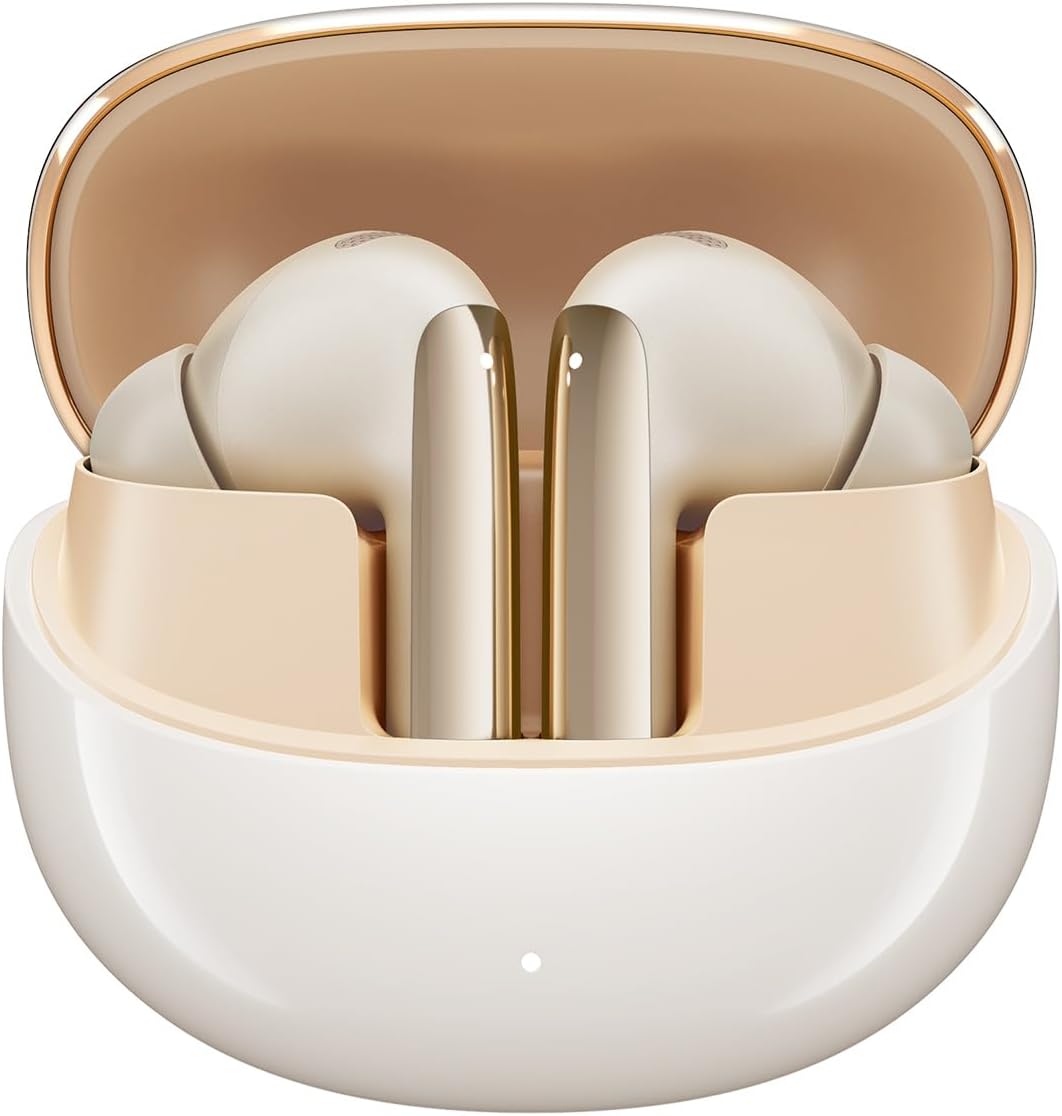
Figure 1: QCY MeloBuds Pro earbuds in their charging case.
2. What's in the Box
- 1 pair of QCY MeloBuds Pro wireless earphones
- 1 USB-C charging cable
- 3 pairs of Eartips (S/M/L)
- 1 Charging Station
- 1 User Manual

Figure 2: All items included in the QCY MeloBuds Pro package.
3. Setup
3.1 Initial Pairing
- Ensure the charging case is charged.
- Open the charging case. The earbuds will automatically enter pairing mode, indicated by a flashing white light.
- On your device (smartphone, tablet, laptop), enable Bluetooth.
- Search for "QCY MeloBuds Pro" in the list of available Bluetooth devices and select it to connect.
- Once connected, the light on the charging case will turn off.
3.2 Multipoint Pairing
The MeloBuds Pro support connecting to two devices simultaneously. After pairing with the first device, disable Bluetooth on the first device. The earbuds will re-enter pairing mode. Connect to the second device. Then, re-enable Bluetooth on the first device, and the earbuds will automatically connect to both.
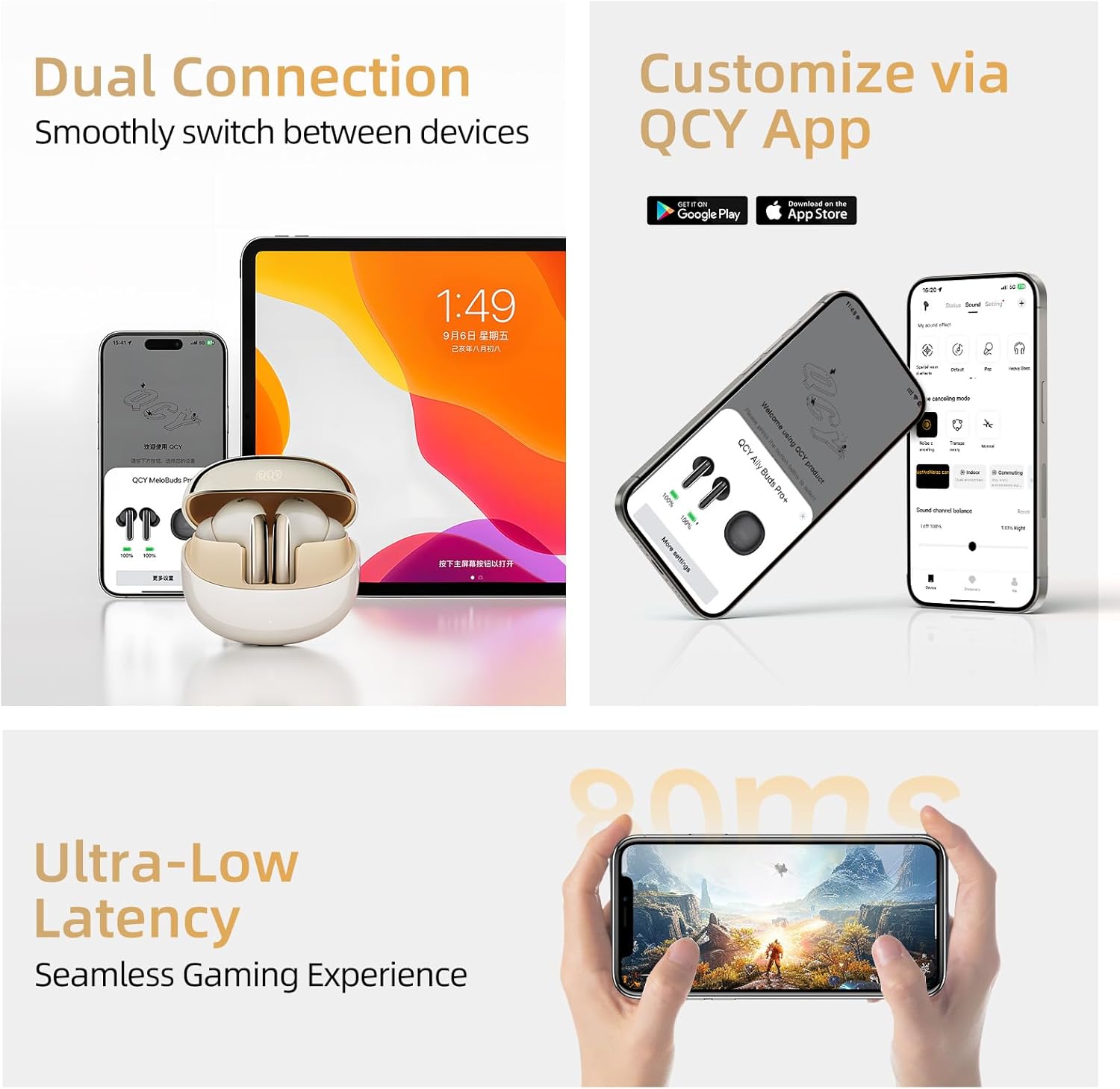
Figure 3: Dual device connection for seamless switching.
3.3 QCY App Installation
For full customization and advanced features, download the official QCY App from the Google Play Store (Android) or Apple App Store (iOS). The app allows for EQ settings, noise cancelling mode selection, and firmware updates.
4. Operating Instructions
4.1 Touch Controls
The MeloBuds Pro feature intuitive touch controls on the earbud stems. These can be customized via the QCY App.
- Switch ANC Mode: Tab and hold on the Right earbud with earbuds wearing. (ANC On - ANC Off - Transparency Mode)
- Enable Low Latency: Tab and hold on the Left earbud.
- Pause/Play: Double Tab.
- Skip Track Forward: Triple Tab on the Right earbud.
- Answer Call: Double Tab.
- Ignore Call: Tab and hold for 1.5s.
- Voice Assistant: Triple Tab on the Left earbud.
- One-Step Pairing: Place the earbuds back into the charging case and hold the charging case button for 3s. The earbuds will flash white once to indicate pairing is available.
- Restore Factory Settings: Place your earbuds back into the charging case and hold the charging case button for 10s. The earbuds will flash red five times to confirm the reset.

Figure 4: Detailed touch control functions.
4.2 Noise Cancellation Modes
The MeloBuds Pro feature adaptive hybrid active noise cancelling (ANC) that reduces noise by up to 46dB. You can switch between different modes to suit your environment:
- Adaptive Noise Cancellation: Automatically detects ambient noise and adjusts cancellation levels.
- Indoor Mode: Ideal for quiet environments like offices, libraries, or dormitories.
- Commuting Mode: Optimized for noisy environments such as subways, buses, or planes.
- Anti-wind Noise Mode: Reduces wind noise, perfect for outdoor activities like cycling or running.
- Outdoor Mode: Designed for bustling streets and shopping malls.
- Transparency Mode: Allows you to hear your surroundings while still enjoying your audio. This mode can be adjusted for vocal enhancement via the app.
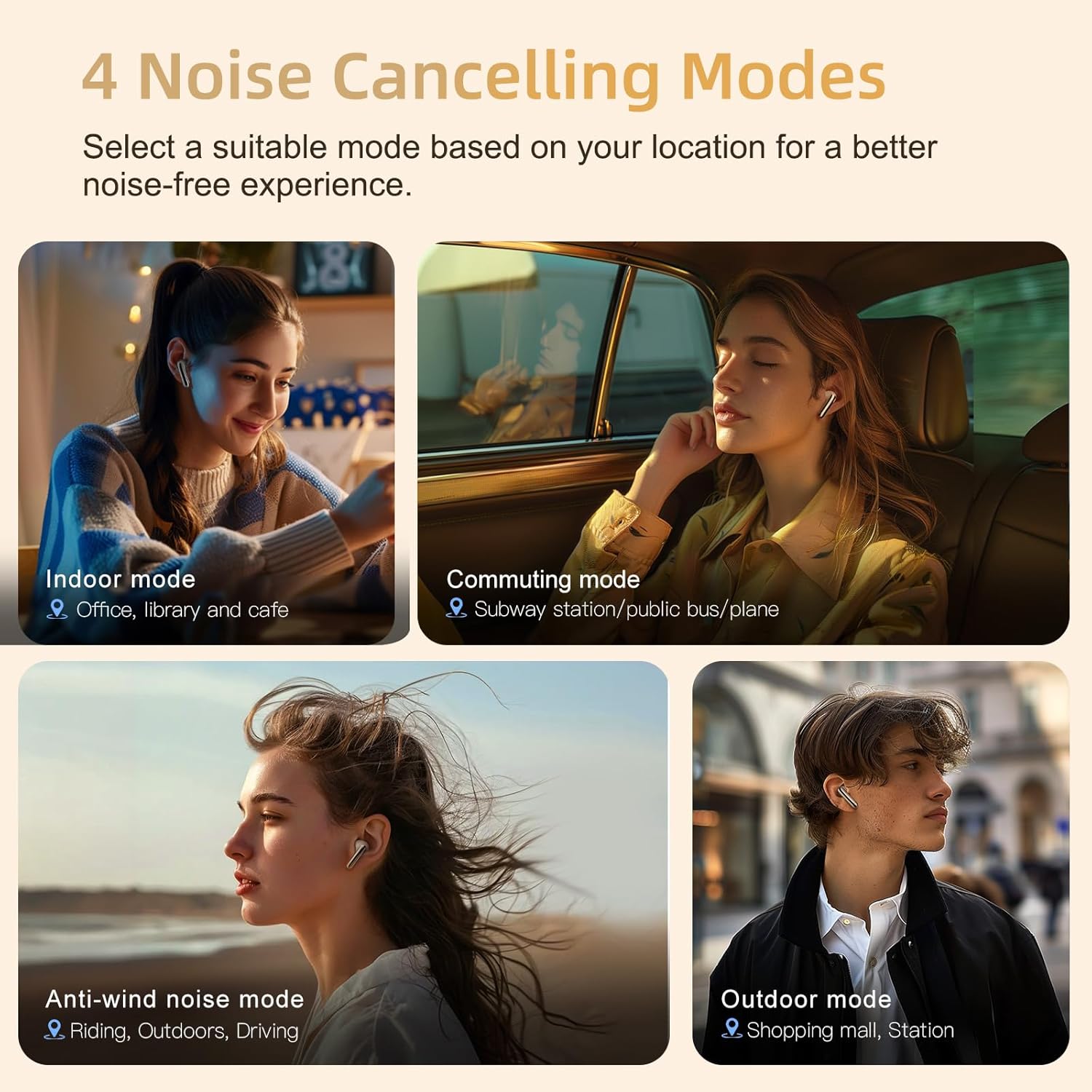
Figure 5: Select the appropriate noise cancelling mode for your environment.
4.3 Audio Quality & Spatial Sound
Equipped with powerful 12mm large bio-diaphragm drivers, the MeloBuds Pro support LDAC and Hi-Res Audio, transferring 3x more detail than standard Bluetooth earbuds. The advanced spatial audio algorithm enhances the sound field and directional perception for an immersive 3D listening experience.
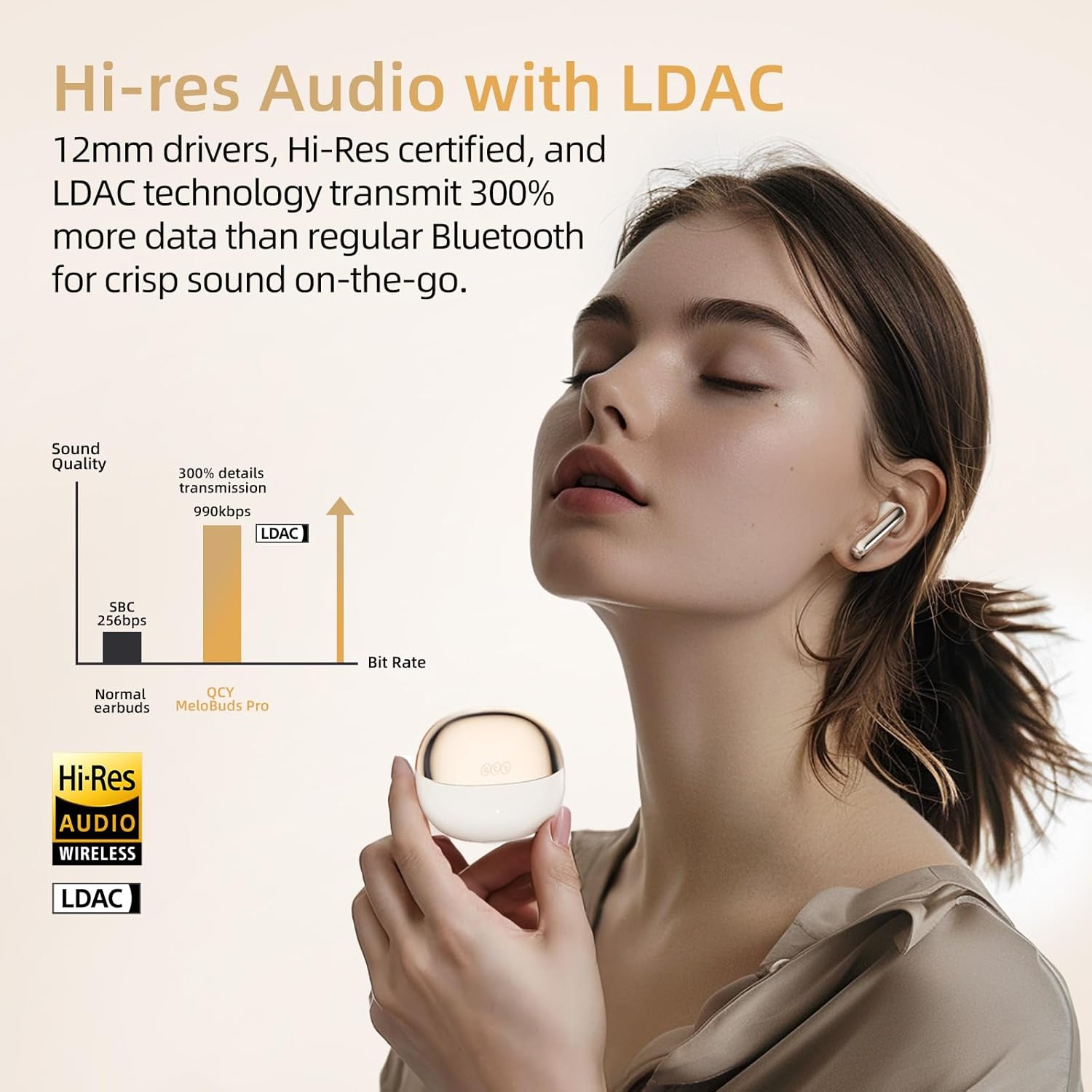
Figure 6: Hi-Res Audio and LDAC support for superior sound.
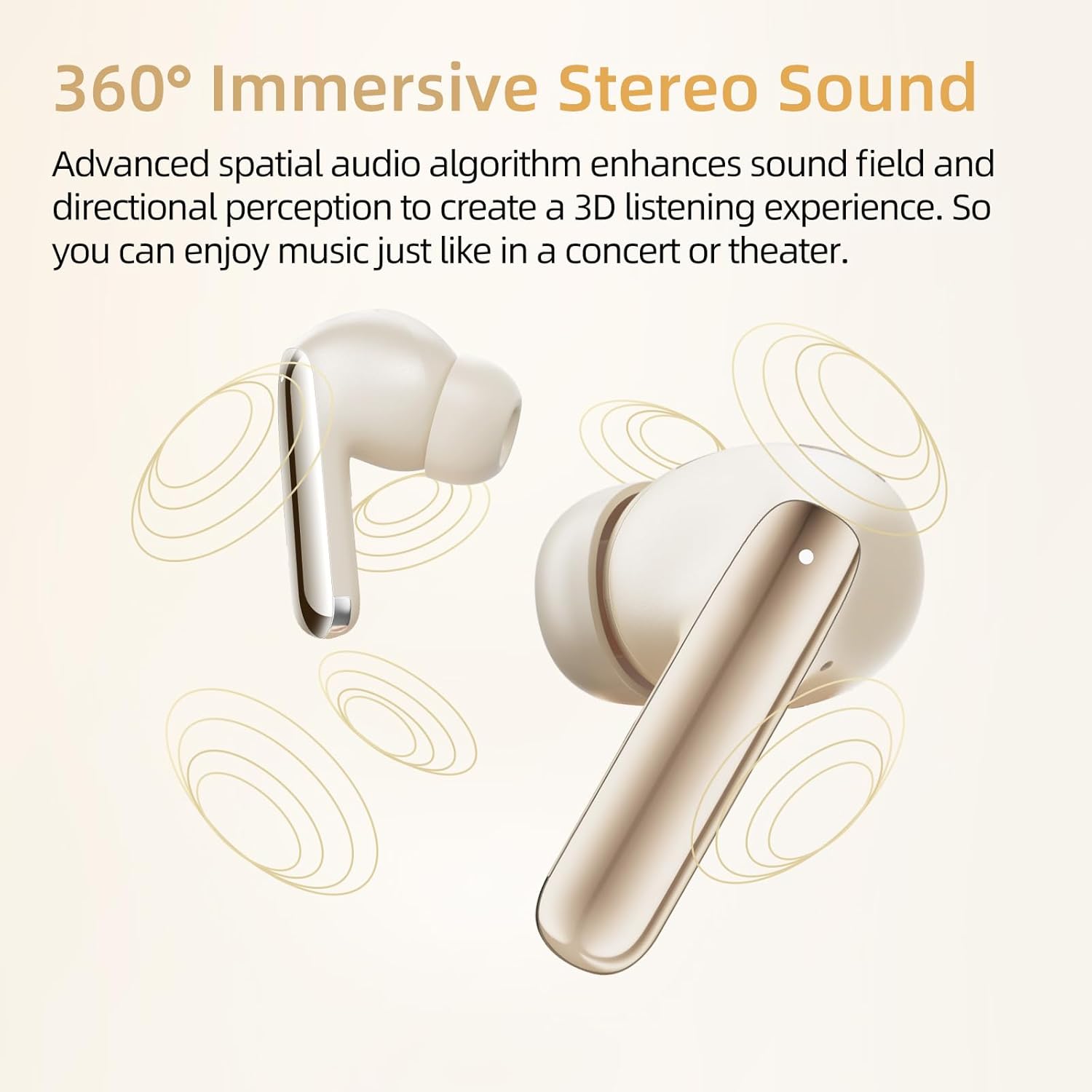
Figure 7: Experience 360° immersive stereo sound.
4.4 Call Quality
The earbuds feature AI-powered 6 microphones (3 per earbud) and advanced ENC technology to precisely pick up your voice and block out background noise, ensuring crystal-clear calls, video chats, and live streams.

Figure 8: Internal microphone setup for clear calls.
4.5 Battery Life
The earbuds offer 7.5 hours of listening time per charge (ANC on) or 8.5 hours (ANC off). The charging case provides three additional recharges, extending your total listening time up to 34 hours.
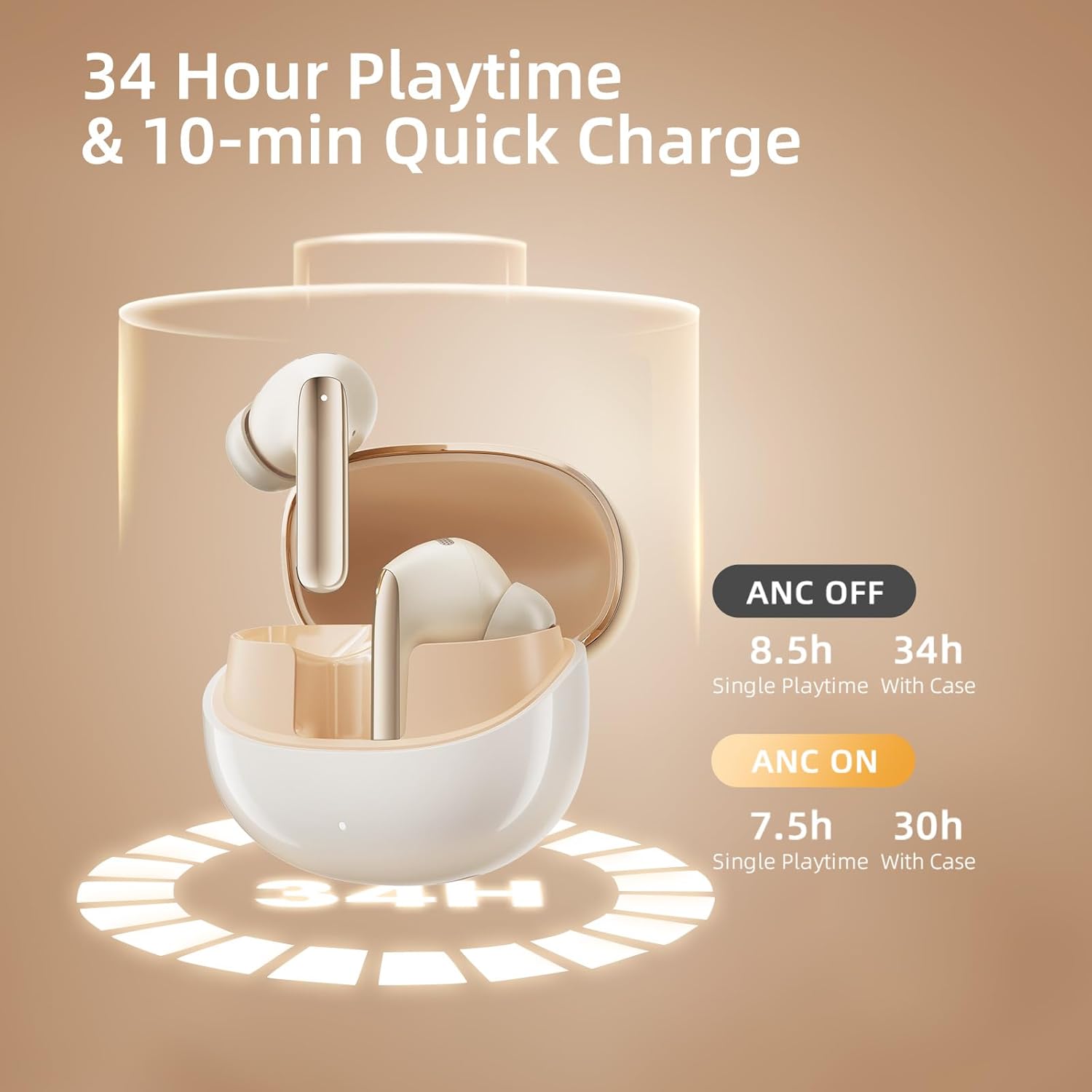
Figure 9: Extended battery life for all-day use.
4.6 Gaming Mode
Activate Ultra-Low Latency Gaming Mode via the QCY App for a seamless gaming experience with an 80ms latency.

Figure 10: Ultra-low latency for an enhanced gaming experience.
4.7 Official Product Video
Video 1: Official guide on how to use QCY MeloBuds Pro, demonstrating various features and controls.
5. Maintenance
- Keep the earbuds and charging case clean and dry. Use a soft, dry cloth to wipe them down regularly.
- Avoid exposing the earbuds to extreme temperatures or direct sunlight.
- The earbuds have an IPX5 waterproof rating, meaning they are resistant to sweat and light splashes. Do not submerge them in water.
- Store the earbuds in their charging case when not in use to protect them and ensure they remain charged.
- Clean the ear tips regularly with a damp cloth and ensure they are dry before reattaching.
6. Troubleshooting
| Problem | Possible Solution |
|---|---|
| Earbuds not pairing | Ensure earbuds are charged. Place them back in the case, close, then open again. Hold the case button for 3 seconds to enter pairing mode. Check your device's Bluetooth settings. |
| Only one earbud working | Place both earbuds back in the charging case, close the lid, then open it again. This should re-sync them. If not, try resetting to factory settings. |
| Poor sound quality | Ensure ear tips provide a good seal. Clean ear tips and earbud nozzles. Adjust EQ settings in the QCY App. Check for interference from other devices. |
| Noise cancellation not effective | Ensure earbuds are properly seated in your ears. Try different sized ear tips for a better seal. Adjust ANC modes in the QCY App. |
| Earbuds not charging | Ensure the charging cable is securely connected and the power source is active. Clean the charging contacts on both the earbuds and the case. |
7. Specifications
| Feature | Detail |
|---|---|
| Model Name | HT08 |
| Connectivity Technology | Wireless (Bluetooth 5.3) |
| Audio Codec Support | LDAC, Hi-Res Audio Wireless |
| Noise Control | Adaptive Hybrid Active Noise Cancellation (up to 46dB) |
| Microphones | 6 (AI-powered ENC for calls) |
| Driver Size | 12mm Bio-diaphragm |
| Battery Life (Earbuds) | 7.5 hours (ANC on) / 8.5 hours (ANC off) |
| Total Playtime (with Case) | Up to 34 hours |
| Charging Port | USB-C |
| Waterproof Rating | IPX5 |
| Control Type | Touch Control, App Control |
| Audio Latency | 80ms (Gaming Mode) |
| Earpiece Shape | In-Ear Bud |
8. Warranty and Support
For detailed warranty information and further support, please refer to the official QCY website or the comprehensive User Manual (PDF) provided with your product. A digital version of the user manual can often be found on the product's support page or directly via the link: QCY MeloBuds Pro User Manual (PDF).
Ask a question about this manual
Ask about setup, troubleshooting, compatibility, parts, safety, or missing instructions. Manuals+ will review the question and use this page’s manual context to help answer it.