
1. Introduction
This manual provides detailed instructions for the installation, operation, and maintenance of your Chameye 4K PTZ Camera (Model C420) and the accompanying E300 PTZ Controller. This system is designed for high-quality video capture and control in various professional environments, including live streaming, church services, educational broadcasts, and conference events.

Image: The Chameye 4K PTZ Camera (C420) and E300 PTZ Controller, along with the included remote control.
2. Product Overview
2.1. Package Contents
Upon unpacking, please verify that all items listed below are present:
- Chameye 4K PTZ Camera (C420)
- Chameye E300 PTZ Controller
- Power Adapter for Camera
- Power Adapter for Controller
- IR Remote Control
- USB 3.0 Cable
- HDMI Cable
- RS-232 Cable
- Mounting Bracket and Screws
- Instruction Manual (this document)
2.2. Key Features
- 4K Ultra-HD Imaging: Equipped with a SONY 1/2.8-inch Progressive CMOS sensor, delivering 4K resolution at 30 frames per second (4KP30) with 8.5 megapixels for sharp, true-to-life colors.
- 20x Optical Zoom: Provides detailed close-ups without loss of image quality.
- Multiple Video Outputs: Simultaneous output via HDMI, LAN (IP streaming), and USB 3.0.
- PoE Support: Power over Ethernet (PoE) for simplified installation and reduced cabling.
- Wide Compatibility: Compatible with popular streaming and conferencing software such as vMix, OBS, Zoom, Skype for Business, Microsoft Teams, and more.
- Advanced PTZ Control: The E300 controller features a 4D joystick, LCD screen, and supports control of up to 255 PTZ cameras.
- AI Human Auto-Tracking: Automatically tracks subjects to keep them in frame (feature dependent on specific camera firmware/model, refer to camera specifications).

Image: The Chameye 4K PTZ Camera highlighting its 4K Ultra-HD capabilities.

Image: Visual representation of the camera's 20x optical zoom capability.
3. Setup
3.1. Camera Placement
The Chameye C420 PTZ camera can be mounted in various configurations:
- Desktop: Place the camera on a stable, flat surface.
- Tripod: Attach the camera to a standard tripod using the integrated mounting screw hole.
- Wall Mount: Use the provided wall mount bracket and screws to secure the camera to a wall.
- Ceiling Mount: Use the provided ceiling mount bracket and screws to secure the camera to the ceiling.
3.2. Connecting the Camera
The C420 camera offers multiple connectivity options:
- Power Connection: Connect the DC 12V power adapter to the camera's power input. Alternatively, if using a PoE-enabled network switch, connect an Ethernet cable to the LAN port for both power and data.
- Video Output:
- HDMI: Connect an HDMI cable from the camera's HDMI output to a display or video switcher.
- USB 3.0: Connect a USB 3.0 cable from the camera's USB 3.0 port to a computer for direct video capture.
- LAN (IP Streaming): Connect an Ethernet cable to the LAN port for IP streaming. This allows for network-based video transmission and control.
- Audio Input: Connect an external audio source to the LINE IN port if required.
- Control: Connect the E300 controller via LAN for IP control, or via RS-232/RS-422/RS-485 for serial control.

Image: Rear view of the Chameye 4K PTZ Camera showing LAN (PoE), Line In, RS-232/422, USB 3.0, and HDMI ports.
3.3. Connecting the E300 Controller
The E300 controller can be connected to your network for IP control of multiple cameras:
- Power Connection: Connect the power adapter to the controller's power input. The controller also supports PoE via its LAN port.
- Network Connection: Connect an Ethernet cable from the controller's LAN port to a network switch or router. Ensure the camera(s) are on the same network.
- Serial Connection: For direct serial control, connect an RS-232, RS-422, or RS-485 cable from the controller to the camera.

Image: The Chameye E300 PTZ Controller with labeled interfaces including Tally, Power Input, RS-422/485, RS-232, USB, and LAN (PoE).

Image: A network connection diagram illustrating how multiple Chameye PTZ cameras, the E300 controller, a PoE switch, and a router connect for live streaming.
4. Operating Instructions
4.1. Basic Camera Control (E300 Controller)
The E300 controller provides comprehensive control over your PTZ camera(s):
- Joystick: Use the 4D joystick to control Pan, Tilt, and Zoom (PTZ) functions. Push the joystick forward/backward for tilt, left/right for pan, and twist for zoom.
- Focus: Adjust focus manually using the dedicated focus knob or select auto-focus.
- Presets: Store and recall up to 255 camera positions. Use the numeric keypad to select a preset number and press 'CALL' to move the camera to that position.
- Camera Selection: Use the camera selection buttons (e.g., CAM 1, CAM 2) to switch control between multiple connected cameras.
- LCD Screen: The 3-inch LCD screen displays camera parameters and can show a live preview of the selected camera's image.

Image: The E300 PTZ Controller's 3-inch LCD screen displaying camera parameters and a preview image.
4.2. IR Remote Control
The included IR remote control offers basic PTZ and preset functions for direct camera control.
- Power: Turn the camera on/off.
- PTZ Controls: Directional buttons for pan/tilt, and dedicated buttons for zoom in/out (TELE/WIDE) and focus (FAR/NEAR).
- Presets: Store and recall up to 10 presets using the numeric buttons and 'PRESET'/'RESET' buttons.
- Menu: Access the camera's on-screen display (OSD) menu for advanced settings.
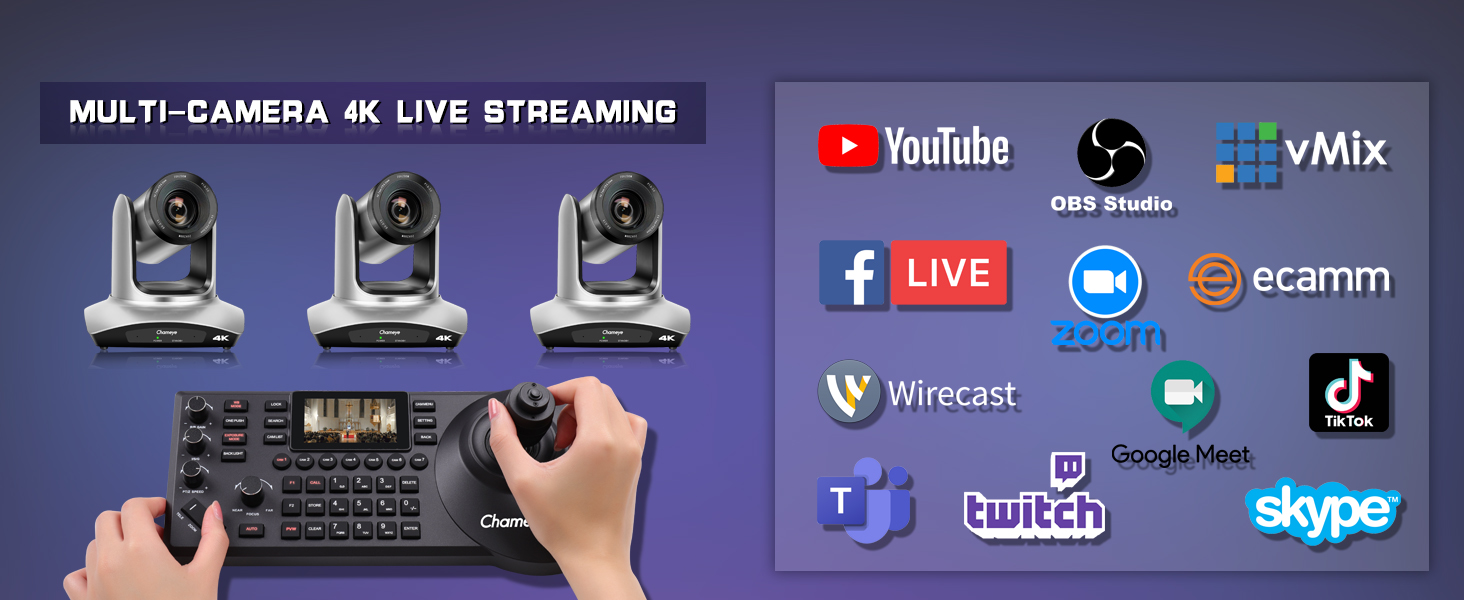
Image: A hand holding the IR remote control for the Chameye PTZ camera.
4.3. AI Auto-Tracking
Certain camera models or firmware versions may support AI Human Auto-Tracking. When enabled, the camera can automatically detect and follow a designated speaker or subject, ensuring they remain centered in the frame. Refer to the camera's OSD menu or specific model documentation for activation and configuration.
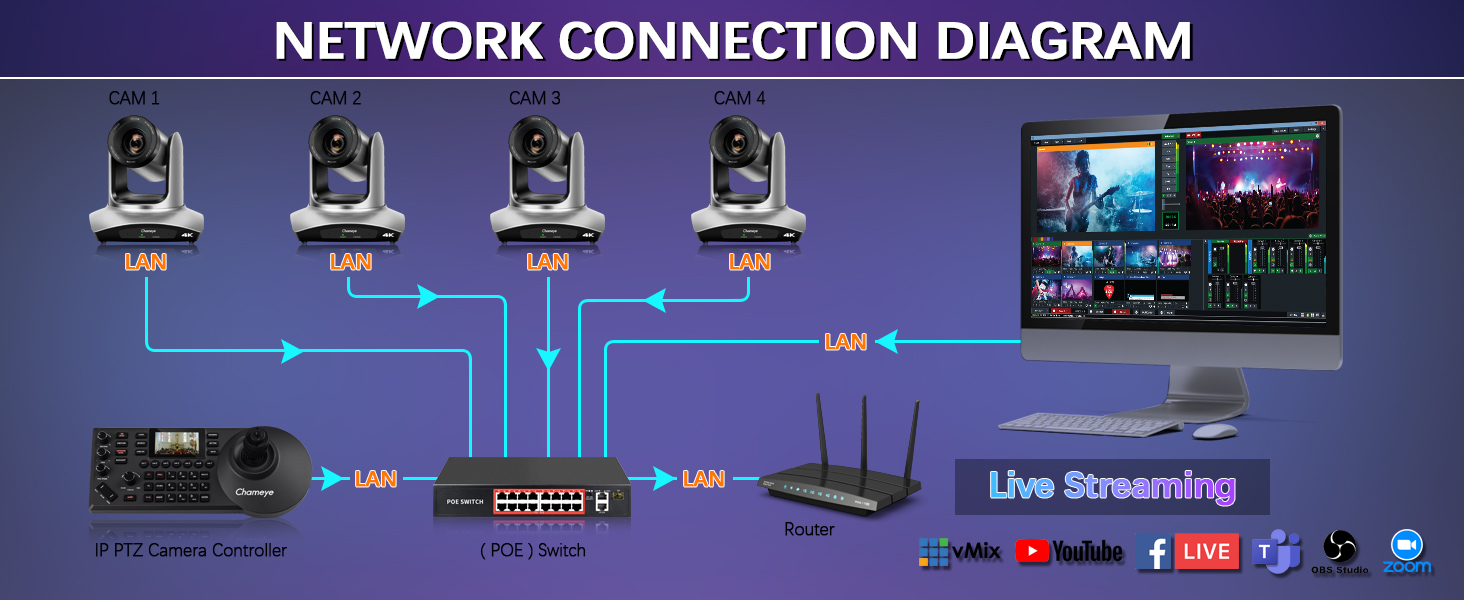
Image: An example of AI auto-tracking in action, with a speaker highlighted in a lecture hall setting.
5. Connectivity and Integration
The Chameye C420 camera offers versatile connectivity for various production workflows.
5.1. Video Outputs
- HDMI: Provides a direct, high-quality video feed up to 4K30P.
- USB 3.0: Offers plug-and-play connectivity for computers, supporting resolutions up to 4K30P, ideal for web conferencing and direct recording.
- LAN (IP Streaming): Supports IP streaming protocols (TCP/IP, HTTP, RTSP, RTMP, DHCP, Multicast) for network-based video transmission up to 1080P30. This enables integration with software like vMix, OBS, and direct streaming to platforms like YouTube and Facebook.

Image: A visual representation of USB 3.0 connectivity, highlighting its high-speed data transfer capabilities.
5.2. Software Compatibility
The camera and controller system is compatible with a wide range of software platforms for live streaming, video production, and conferencing:
- vMix
- OBS Studio
- Zoom
- Skype for Business
- Microsoft Teams
- Voovmeeting
- CISCO WebEx
- YouTube Live
- Facebook Live
- Twitch
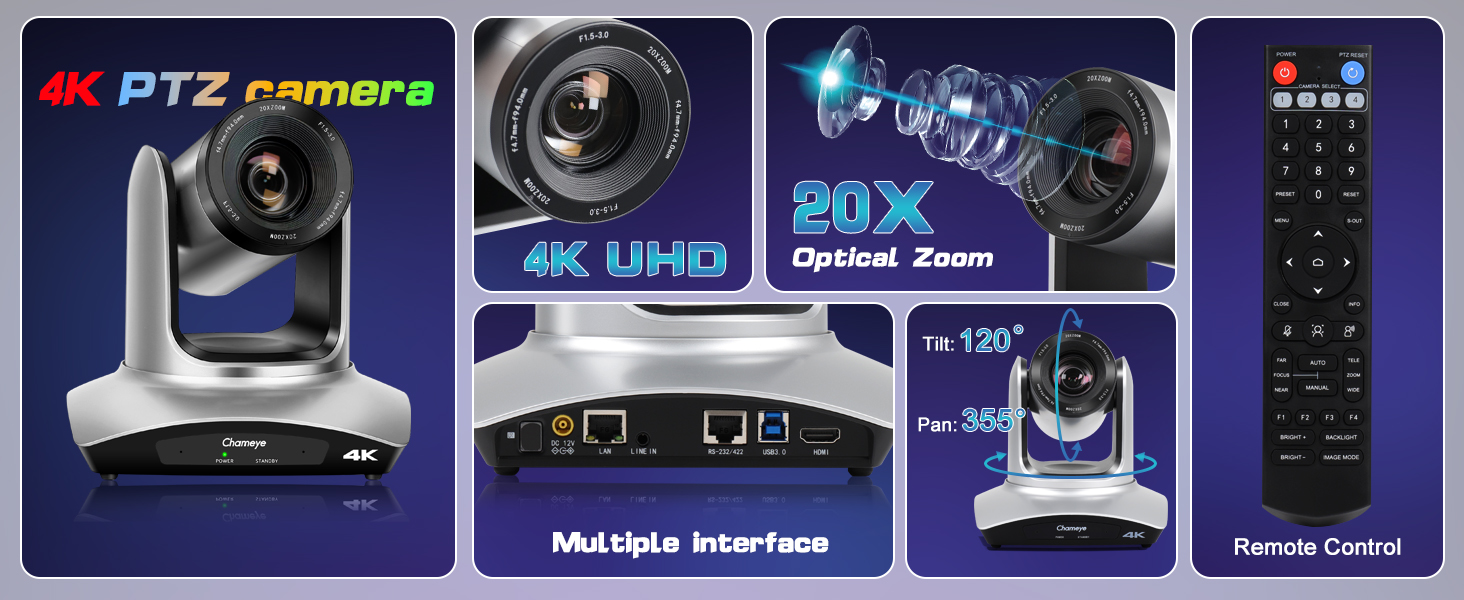
Image: A composite image showcasing the Chameye 4K PTZ camera's features, including 4K UHD, 20x optical zoom, multiple interfaces (HDMI, USB 3.0, IP streaming), and remote control.
6. Applications
The Chameye 4K PTZ Camera and E300 Controller are suitable for a wide range of professional video applications:
- Live Streaming: Ideal for broadcasting events to platforms like YouTube, Facebook, and Twitch.
- Church Services: Capture worship events with high clarity and flexible camera angles.
- Educational Institutions: Perfect for recording lectures, online teaching, and virtual classrooms.
- Conferences and Events: Professional video capture for corporate meetings, seminars, and live performances.
- Esports: High-quality video for gaming events and broadcasts.
- Telemedicine: Facilitate remote medical consultations and training.

Image: Various application scenarios for the Chameye PTZ camera, including church live streaming, live speech broadcast, live concert broadcast, education live streaming, and live broadcasting room setups.

Image: A grid of diverse applications including video conferencing, live speech broadcast, education live streaming, church live streaming, college lectures, and telemedicine.

Image: A setup demonstrating multi-camera 4K live streaming with three Chameye PTZ cameras, the E300 controller, and a monitor displaying various streaming platform logos.
7. Maintenance
Proper maintenance ensures the longevity and optimal performance of your Chameye PTZ camera and controller.
- Cleaning: Use a soft, dry cloth to clean the camera body and controller. For the lens, use a specialized lens cleaning cloth and solution. Avoid harsh chemicals or abrasive materials.
- Storage: When not in use, store the equipment in a cool, dry place away from direct sunlight and extreme temperatures.
- Cable Management: Ensure all cables are neatly organized and not under strain to prevent damage to ports and connectors.
- Firmware Updates: Periodically check the Chameye official website for any available firmware updates for your camera and controller to ensure the latest features and performance enhancements.
8. Troubleshooting
If you encounter issues, refer to the following common troubleshooting steps:
- No Power: Ensure all power cables are securely connected and the power outlets are functional. If using PoE, verify the PoE switch is active and providing power.
- No Video Output: Check all video cables (HDMI, USB, Ethernet) for secure connections. Verify the input source on your display or capture device is correctly selected. Ensure the camera is powered on.
- No Control from E300 Controller:
- IP Control: Verify the controller and camera are on the same network and have compatible IP settings. Check network cable connections.
- Serial Control: Ensure the RS-232/422/485 cable is correctly wired and connected to the appropriate ports on both the controller and camera. Verify the communication protocol settings (baud rate, data bits, etc.) match.
- Image Quality Issues: Check lighting conditions. Ensure the lens is clean. Adjust focus manually if auto-focus is not performing as expected.
- Software Not Detecting Camera: For USB connections, ensure the USB 3.0 cable is connected to a compatible port. For IP connections, verify network settings and firewall configurations. Restart the software and the camera.
For persistent issues, please contact Chameye customer support.
9. Specifications
| Feature | Specification |
|---|---|
| Brand Name | Chameye |
| Model Name | C420+E300 |
| Photo Sensor Technology | CMOS |
| Video Capture Resolution | 4K (3840x2160) |
| Optical Zoom | 20x |
| Connectivity Technology | HDMI, USB 3.0, LAN (IP/PoE) |
| Video Capture Format | MP4 |
| Supported Audio Format | AAC |
| Item Weight (Camera) | 1.25 KG (approx.) |
| Dimensions (Camera) | 17.7cm x 17.7cm x 16.7cm (approx.) |

Image: Visual representation of the camera's dimensions and a display of the included accessories in the package.
10. Warranty and Support
Chameye stands behind its products with comprehensive support:
- Warranty: A 1-year warranty is provided for the Chameye 4K PTZ Camera and E300 Controller.
- Money-Back Guarantee: A 30-day money-back guarantee is offered for any reason.
- Technical Support: Lifetime technical support is available to assist with any questions or issues you may encounter.
For support inquiries, please refer to the contact information provided with your product packaging or visit the official Chameye website.


