
Introduction
This manual provides detailed instructions for the setup, operation, maintenance, and troubleshooting of your JSAUX FlipGo 13.5" 2.2K Dual Touchscreen Portable Monitor. Please read this manual thoroughly before using the product to ensure proper functionality and to maximize your experience.
Safety Information
- Do not expose the device to extreme temperatures, humidity, or direct sunlight.
- Avoid dropping or subjecting the device to strong impacts.
- Use only the provided cables and power adapter to prevent damage.
- Keep the device away from water or other liquids.
- Do not attempt to disassemble or repair the device yourself. Contact customer support for assistance.
Package Contents
Verify that all items are present in the package:
- JSAUX FlipGo 13.5" Dual Touchscreen Portable Monitor
- USB-C to USB-C Cable (Full-featured)
- USB-A to USB-C Cable
- Power Adapter
- User Manual
- Optional accessories (e.g., magnetic stand, VESA adapter, carry bag) may be sold separately.
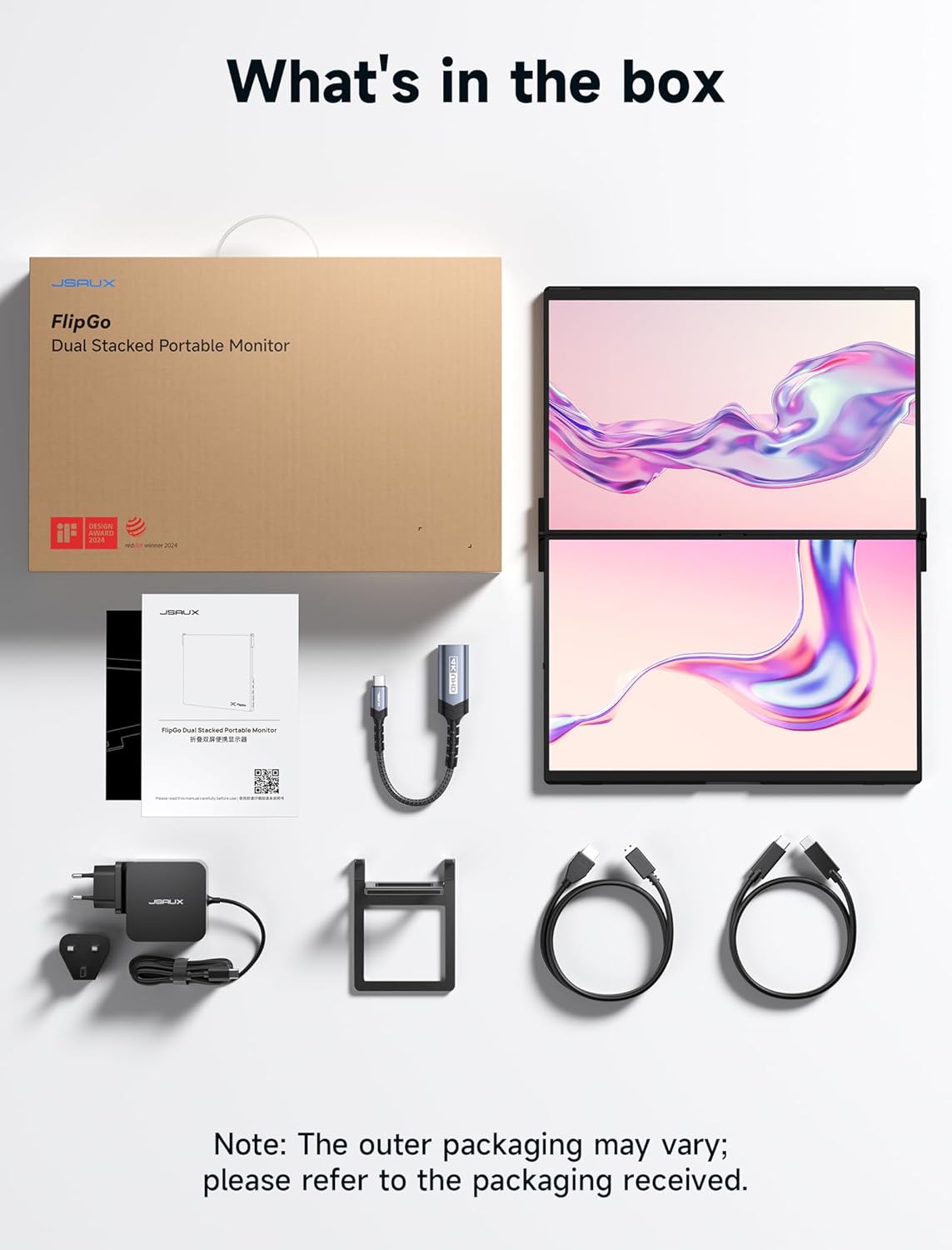
Image: Contents of the JSAUX FlipGo package. Note: Outer packaging and specific accessories may vary.
Product Features
- Dual-Screen Touch: The FlipGo monitor features dual-screen touch and gesture support with 10-point touch capability, enhancing interaction performance for Windows and macOS.
- Dual 2.2K High-Resolution Displays: Each 13.5-inch IPS screen supports 2.2K resolution (2256x1504 pixels) with a 100% sRGB color gamut, 3:2 aspect ratio, 400 nits brightness, and a 1500:1 contrast ratio for clear and vibrant visuals.
- One Cable Connectivity: Power and display signals can be transmitted through a single USB-C cable from your laptop. When connected to an external power supply, the laptop will also be charged.
- Triple Display (ABC Mode): Extend your workspace across three screens (laptop + two FlipGo screens) for enhanced multitasking and productivity.
- Upgraded Magnetic Design: The monitor's back panel features a magnetic design for secure attachment of stands and other accessories, equipped with N52 strong magnets for stability.
- Built-in HUB: Features an integrated docking station for direct, simultaneous connections to peripherals such as a keyboard, mouse, or USB drive.

Image: Visual representation of the FlipGo's display quality and specifications.

Image: Demonstrating the touch screen capability of the FlipGo monitor.

Image: The FlipGo's built-in USB hub for connecting various peripherals.
Setup Instructions
1. Physical Setup
- Unfold the Monitor: Carefully unfold the FlipGo monitor to its desired viewing position. The magnetic design allows for various configurations.
- Connect to Your Device: Use the included full-featured USB-C to USB-C cable to connect the FlipGo's USB-C2 port to a compatible USB-C port on your laptop or device. Ensure your device's USB-C port supports video output (DisplayPort Alternate Mode) and power delivery.
- Optional Power Connection: If your laptop does not provide sufficient power or if you wish to charge your laptop via the FlipGo, connect the provided power adapter to the FlipGo's power input port.
- Using Optional Stands: The FlipGo supports various magnetic stands and VESA adapters (sold separately) for enhanced ergonomics and stability. Align the magnetic part of the display with the stand's magnetic bracket and ensure it is securely attached.

Image: JSAUX Snap Magnetic Stand for FlipGo monitors.

Image: JSAUX Snap VESA Adapter for FlipGo monitors.
2. Touchscreen Setup for Windows
To enable touchscreen functionality on Windows, follow these steps:
- Connect the FlipGo to your computer using the included full-featured USB-C cable.
- Press "Win+R" to open the Run dialog. Enter shell:::{80f3f1d5-feca-45f3-bc32-752c152e456e} and press Enter to open the Tablet PC Settings interface.
- In the Display section, select "FlipGo-A1", click "Settings", and then choose "Touch Input".
- Follow the on-screen instructions to designate the current screen as the touch screen, then lightly press the Enter key.
Video: Instructions for setting up touchscreen functionality on Windows for the JSAUX FlipGo monitor.
3. Touchscreen Setup for Mac
To enable touchscreen functionality on Mac, follow these steps:
- Connect the FlipGo to your computer using the included full-featured USB-C cable.
- Open System Settings > Display > Arrange Displays. Relocate the menu bar to FlipGo.
- Move the cursor over to the desktop displayed on the FlipGo.
Video: Instructions for setting up touchscreen functionality on Mac for the JSAUX FlipGo monitor.
Operating Modes
The JSAUX FlipGo offers flexible display modes to suit various productivity needs:
- DuoViews (Extended/Mirror Mode): This mode allows you to either extend your desktop across the two FlipGo screens or mirror your primary display. This is ideal for multitasking or sharing content during presentations.
- Triple Display (ABC Mode): By utilizing your laptop's screen in conjunction with the two FlipGo screens, you can create a comprehensive triple-display setup. This expands your screen real estate for complex tasks like financial analysis or creative projects.
- UltraView Mode: Note: This specific version of the JSAUX FlipGo (Model sd0202a) does not support UltraView mode, which combines both screens into one seamless ultra-wide display. This feature is available on the Pro version.
Video: Overview of the JSAUX FlipGo Portable Monitor's various display modes and uses.
Maintenance
- Cleaning: Use a soft, lint-free cloth to clean the screen and exterior. For stubborn smudges, lightly dampen the cloth with water or a screen-safe cleaner. Avoid harsh chemicals.
- Storage: When not in use, fold the monitor and store it in a protective case or bag to prevent scratches and damage.
- Cable Care: Handle cables gently. Avoid bending them sharply or pulling them forcefully from the ports.
Troubleshooting
- No Display:
- Ensure the USB-C cable is securely connected to both the FlipGo and your device.
- Verify that your device's USB-C port supports video output (DisplayPort Alternate Mode).
- Try connecting the external power adapter to the FlipGo.
- Check your computer's display settings to ensure the external monitor is detected and configured correctly.
- Touchscreen Not Responding:
- Ensure the USB-C cable is a full-featured cable that supports data and touch signal transmission.
- For Windows, follow the touchscreen calibration steps in the Setup section.
- For Mac, ensure the menu bar is relocated to the FlipGo display as per the Setup section.
- Restart your computer and the FlipGo monitor.
- Flickering Screen:
- Ensure the cable connections are stable.
- Reduce the screen brightness or refresh rate in your device's display settings.
- Ensure your device's graphics drivers are up to date.
Specifications
| Feature | Specification |
|---|---|
| Model Number | sd0202a |
| Screen Size | 13.5 Inches (Dual Screen) |
| Resolution | 2.2K (2256x1504 Pixels) |
| Aspect Ratio | 3:2 |
| Image Brightness | 400 Nits |
| Contrast Ratio | 1500:1 |
| Color Gamut | 100% sRGB |
| Touchscreen | 10-point Multi-touch |
| Total USB Ports | 1 (USB-C for connection, additional ports on built-in HUB) |
| Product Dimensions | 0.35 x 12.08 x 17.48 inches |
| Item Weight | 3.88 ounces |
| Manufacturer | Shenzhen Wuyishi Technology Co.,Ltd |
Warranty and Support
JSAUX products come with a standard manufacturer's warranty. For specific warranty details, please refer to the warranty card included in your product packaging or visit the official JSAUX website. For technical support, troubleshooting assistance, or to inquire about replacement parts, please contact JSAUX customer service through their official channels.
Online Support: Visit the JSAUX official website for FAQs, driver downloads, and contact information.
Email Support: Refer to your product packaging or the JSAUX website for the appropriate support email address.

