
1. Introduction
The AULA SC580 Wireless Gaming Mouse is designed to provide a versatile and high-performance experience for both gaming and productivity. Featuring tri-mode connectivity (2.4G wireless, Bluetooth 5.0, and USB-C wired), it offers seamless switching between up to four devices. With a high-precision 12000 DPI optical sensor and 6 programmable buttons, this ergonomic mouse is built for accuracy, speed, and comfort during extended use. Its built-in rechargeable battery ensures long-lasting operation.
2. What's in the Box
- Gaming Mouse x1
- Manual x1
- USB Cable x1
- Non-slip stickers
3. Setup
3.1 Connection Modes
The AULA SC580 mouse supports three connection modes: 2.4G wireless, Bluetooth 5.0, and USB-C wired. You can switch between these modes using the selector switch located on the bottom of the mouse.
- 2.4G Wireless Mode: Slide the switch to '2.4G'. The LED indicator on the bottom will flash green until connected. Insert the USB receiver into an available USB port on your device.
- Bluetooth 5.0 Mode: Slide the switch to 'BT'. The LED indicator on the bottom will flash blue. On your device, search for Bluetooth devices and select 'AULA SC580' to pair.
- USB-C Wired Mode: Connect the provided USB-C cable from the mouse to a USB port on your device. The mouse will automatically switch to wired mode and begin charging.

Figure 3.1: Tri-Mode Connectivity of the AULA SC580 Gaming Mouse.
3.2 Charging the Mouse
The mouse features a built-in 500mAh rechargeable battery. To charge, connect the mouse to your device using the provided USB-C cable. The LED light bar on the top of the mouse will indicate charging status. When fully charged, the lights will restore to your selected DPI setting. A low battery indicator will flash red to remind users to recharge.
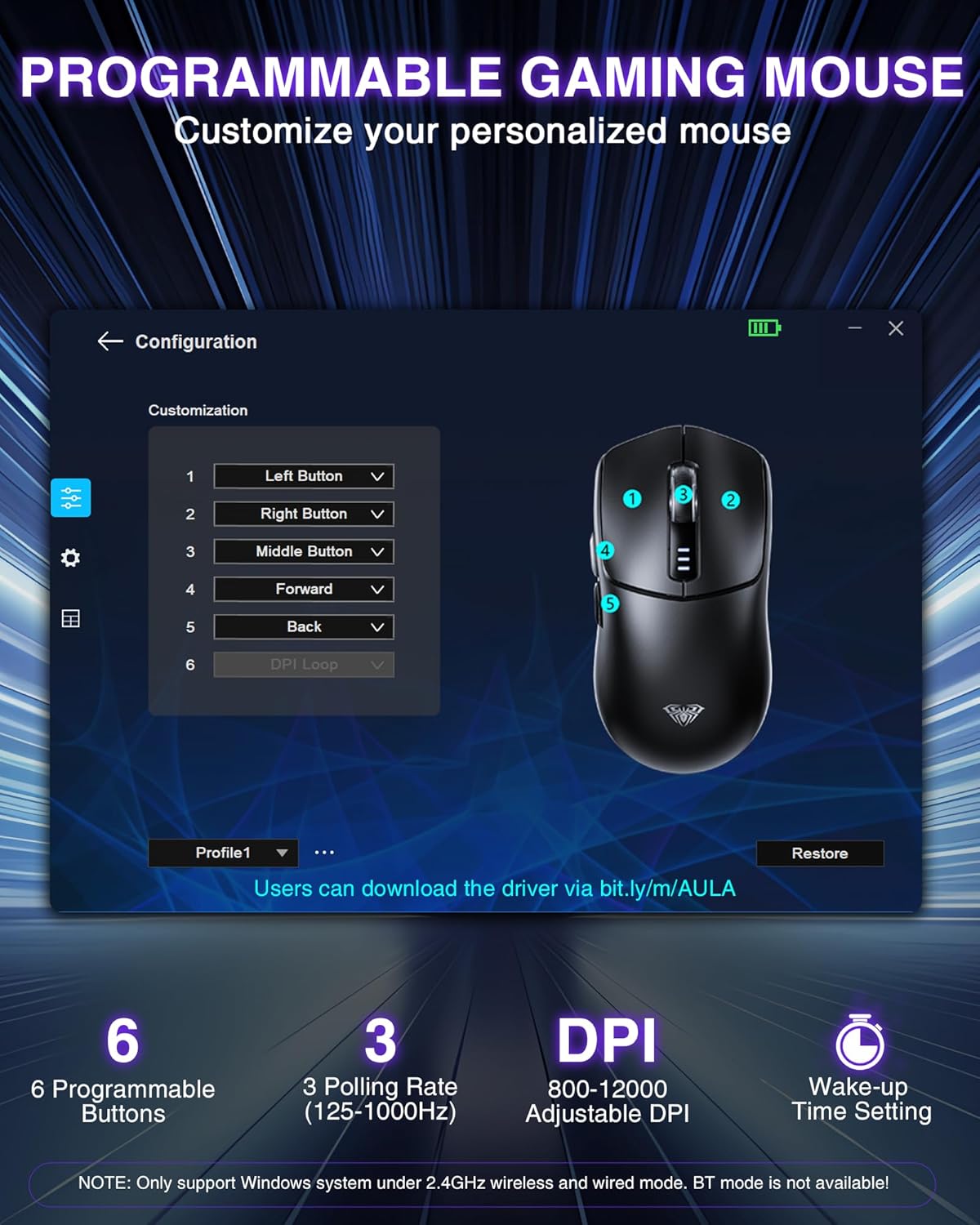
Figure 3.2: Charging the AULA SC580 Gaming Mouse.
4. Operating Instructions
4.1 Button Functions
The AULA SC580 mouse is equipped with 6 buttons for enhanced control and customization:
- Left Button: Standard left-click function.
- Right Button: Standard right-click function.
- Scroll Wheel: Scrolls up/down. Also functions as a push button (middle click).
- Forward Button: Navigates forward in web browsers or applications.
- Backward Button: Navigates backward in web browsers or applications.
- DPI Button (Bottom): Cycles through DPI settings.

Figure 4.1: Multi-Function Buttons Overview.
4.2 DPI Adjustment
The mouse offers 6 adjustable DPI levels (800/1600/2400/3200/6400/12,000) to suit various tasks and preferences. You can adjust the DPI by pressing the DPI button located on the bottom of the mouse. The LED light bar on the top of the mouse indicates the current DPI setting (more lights illuminated means higher DPI).

Figure 4.2: Adjustable DPI Levels.
4.3 Programmable Buttons
The 6 buttons on the mouse are programmable through the dedicated driver software. This allows for macro editing and customization to fit your gaming and working habits. The driver software is compatible only with Windows systems and functions in 2.4GHz wireless and USB-C wired modes (Bluetooth mode is not supported for programming). You can download the driver from: bit.ly/m/AULA
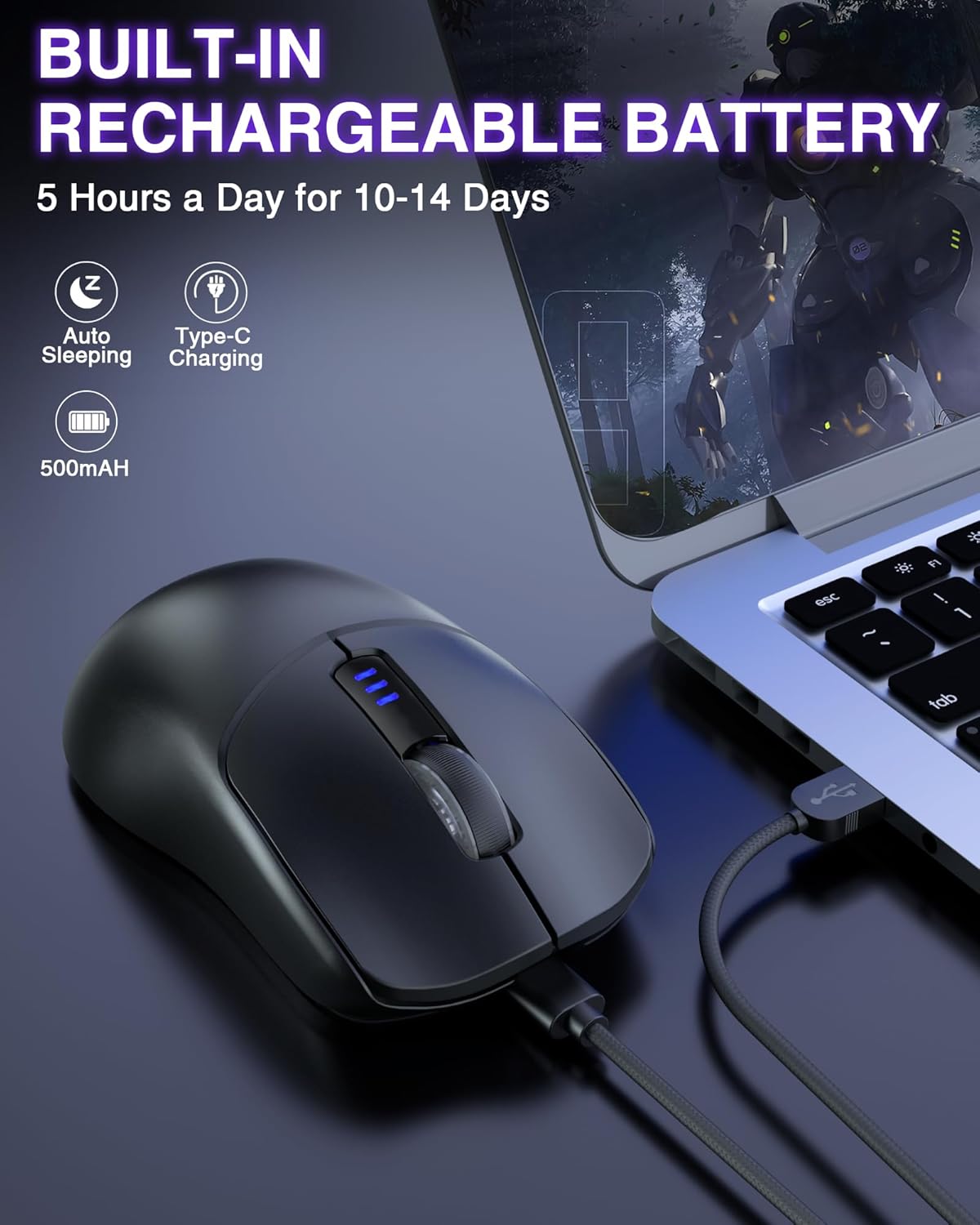
Figure 4.3: Programmable Buttons Interface.
5. Maintenance
5.1 Battery Care
To maximize battery lifespan, avoid fully discharging the mouse frequently. Recharge the mouse when the low battery indicator flashes red. The mouse can last 10-14 days with 5 hours of daily use on a full charge.
5.2 Anti-Slip Stickers
The included non-slip stickers can be applied to the mouse's left, right, and top click areas to enhance grip and prevent oil and sweat buildup, improving handling and comfort.

Figure 5.1: Non-Slip Stickers for Enhanced Grip.
5.3 General Cleaning
To clean the mouse, use a soft, dry cloth. For stubborn dirt, a slightly damp cloth can be used, ensuring no moisture enters the device. Avoid using harsh chemicals or abrasive materials.
6. Troubleshooting
- Connectivity Issues (Lag/Disconnection): Ensure the mouse is within range of your device. For 2.4G wireless, ensure the USB receiver is securely plugged in. For Bluetooth, ensure your device's Bluetooth is enabled and the mouse is properly paired. If issues persist, try restarting both the mouse and your device.
- Button Mapping Resets: The gaming driver software only supports Windows systems and is active in 2.4GHz wireless and USB-C wired modes. If you switch to Bluetooth mode or disconnect the mouse, custom button mappings may reset. Reconnect in a supported mode and re-apply settings if necessary.
- Mouse Not Charging: Ensure the USB-C cable is securely connected to both the mouse and a power source/USB port. Check if the charging indicator lights are active. If not, try a different USB port or cable.
- Cursor Movement Issues: Ensure the optical sensor on the bottom of the mouse is clean and free from debris. Use the mouse on a clean, non-reflective surface or a mouse pad. Adjust DPI settings to find the optimal sensitivity.
7. Specifications
| Feature | Detail |
|---|---|
| Product Dimensions | 4.68 x 2.44 x 0.1 inches |
| Item Weight | 2.89 ounces |
| Item Model Number | SC580 |
| Batteries | 1 Lithium Ion batteries required (included) |
| Connectivity Technology | 2.4GHz, BT5.0, USB |
| Special Features | Ergonomic Design, Lightweight, Programmable Buttons, Rechargeable, Wireless |
| Movement Detection Technology | Optical |
8. Warranty and Support
AULA products come with a standard manufacturer's warranty. For detailed warranty information, technical support, or any product-related inquiries, please refer to the contact information provided on the product packaging or visit the official AULA website. Keep your purchase receipt for warranty claims.


