
vLinker vLinker BM+ (BT3.0+BLE4.0)
vLinker BM+ Bluetooth Pro OBD2 Scanner User Manual
Model: vLinker BM+ (BT3.0+BLE4.0)
1. Product Overview
The vLinker BM+ is a professional Bluetooth OBD2 diagnostic scanner designed to transform your iOS, Android, or Windows device into a powerful vehicle diagnostic tool. It offers comprehensive features for monitoring vehicle health, reading and clearing diagnostic trouble codes, and performing advanced functions like bi-directional control and coding.

Image: The vLinker BM+ OBD2 Scanner device.
Key Features:
- Pro Bluetooth OBD2 Scanner: Dual-mode Bluetooth (BT3.0+BLE4.0) for iOS, Android, and Windows devices.
- Powerful, Faster & Smoother: Enhanced connection speed with USART data buffer up to 2K bytes and baud rate up to 230.4Kbps.
- Bi-directional Control: Send commands to the vehicle's ECU for active testing and quicker problem identification.
- Battery Saver and Protection Technology: Auto sleep/wake mode, over-voltage, over-current, over-temperature, and battery drain protection.
- Wide Compatibility: Supports all 1996 and newer 12V petrol cars and small diesel vehicles compatible with standard OBD2 protocols, including EOBD, JOBD, and other international variants. Specifically made for BMW/Mini and recommended by BimmerCode Team.
- Portable & Economical: Compact design for easy use and transport.
2. Setup Guide
What's in the Box:
- 1 x vLinker BM+ (BT3.0+BLE4.0) device
- 1 x User Manual
- 1 x Packing Box
Installation Steps:
- Locate OBD-II Port: Find your vehicle's OBD-II diagnostic port, typically located under the dashboard on the driver's side.
- Plug in vLinker BM+: Insert the vLinker BM+ device firmly into the OBD-II port.
- Turn on Vehicle Ignition: Turn your car's ignition to the 'ON' position (Key On Engine On). The device indicator lights should illuminate.
- Download Application: Download a compatible third-party OBD2 application to your smartphone or tablet. Recommended apps include BimmerCode, BimmerLink, TORQUE Lite/Pro, JScan, OBD Fusion, DashCommand, Car Scanner ELM OBD2, inCarDoc, and AlfaOBD.

Image: Visual guide for easy setup steps, including app download, device connection, and Bluetooth pairing.
Connecting via Bluetooth:
For Android Devices:
- Enable Bluetooth on your Android device.
- Go to your phone's Bluetooth settings and search for the device name "vLinker BM" or "vLinker BM-Android".
- Click 'Pair'. If prompted, enter the pairing code: 1234.
- Once paired, open your chosen OBD2 application and configure its settings to connect to the vLinker BM+ device.
For iOS Devices:
- Enable Bluetooth on your iOS device. Note: You do not need to pair the device in your iOS Bluetooth settings.
- Open your chosen OBD2 application. The application will handle the Bluetooth connection directly.
- Follow the specific connection steps within the application's settings. Refer to the app's official website or documentation for detailed instructions, as steps may vary between applications.
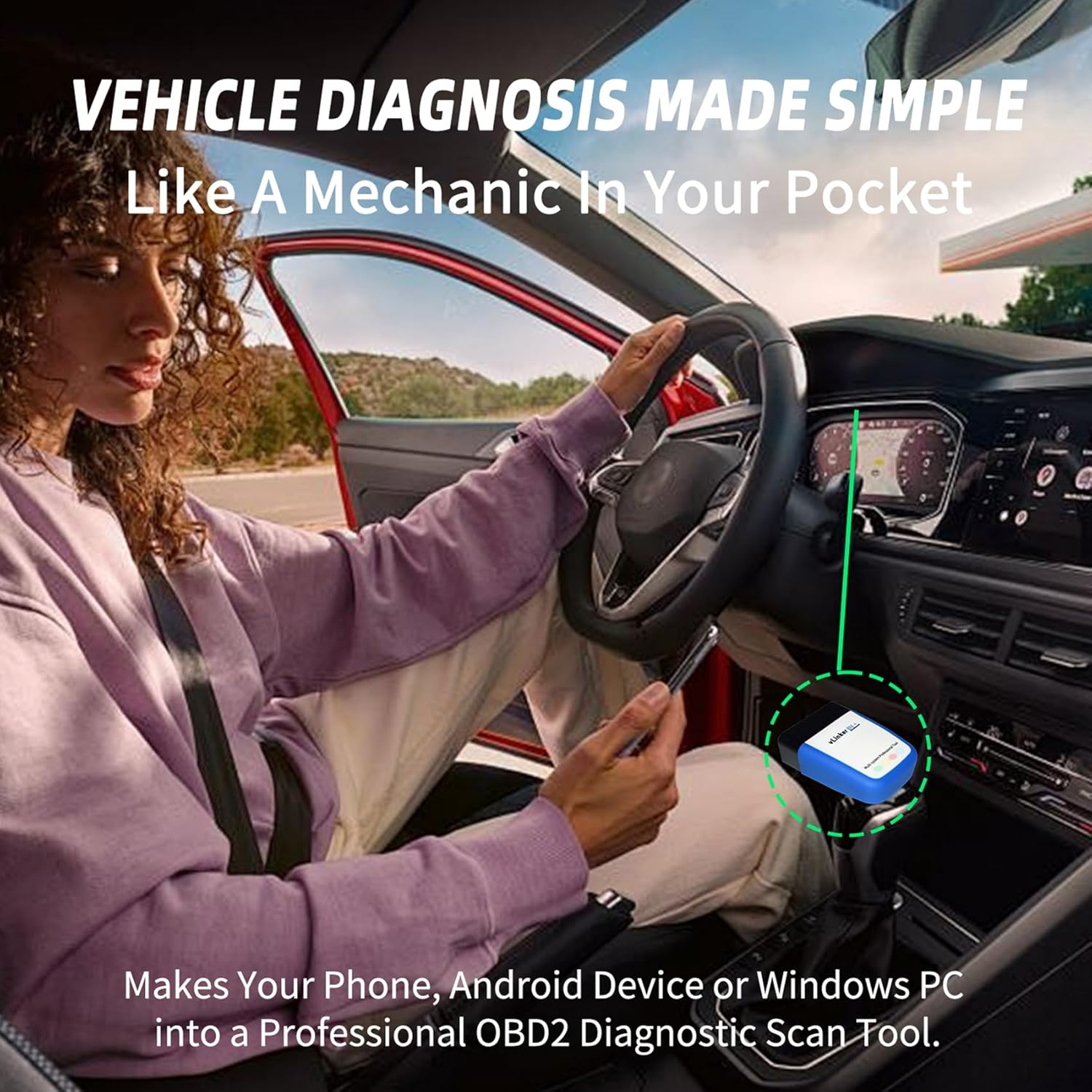
Image: The vLinker BM+ device plugged into a car's OBD port, demonstrating its compact size and ease of use.
3. Operating Instructions
Once connected, the vLinker BM+ allows you to access various diagnostic and monitoring functions through your chosen OBD2 application.
Full System Diagnostics:
The vLinker BM+ supports full system diagnosis, allowing you to access and retrieve information from all available electronic control modules in your vehicle. This includes, but is not limited to:
- Engine System
- ABS System
- SRS System (Airbag)
- SAS System (Steering Angle Sensor)
- Transmission System
- TPMS System (Tire Pressure Monitoring System)
- BCM System (Body Control Module)
- Air Conditioning System
- Dashboard System
- Battery Charging System
Note: The specific features and accessible modules depend on the third-party application you use, as well as your vehicle's year, make, and model.

Image: Diagram illustrating the comprehensive dealer-level full system diagnostics capabilities, including engine, ABS, SRS, and transmission systems.
Bi-directional Control:
This advanced function allows you to send commands from your smartphone or tablet directly to the vehicle's Electronic Control Unit (ECU) to perform active tests. This helps in quickly narrowing down problem areas and diagnosing faulty components without extensive manual troubleshooting.

Image: A visual representation of bi-directional control, showing commands being sent from a smartphone to a vehicle's components like wipers, windows, headlights, mirrors, and horn.
Supported OBD-II Protocols:
The vLinker BM+ supports all standard OBD-II protocols, ensuring broad compatibility with various vehicles:
- SAE J1850 PWM (41.6 kbaud)
- SAE J1850 VPW (10.4 kbaud)
- ISO 9141-2 (5 baud init, 10.4 kbaud)
- ISO 14230-4 KWP (fast init, 10.4 kbaud)
- ISO 15765-4 CAN (11 bit ID, 500 kbaud)
- ISO 15765-4 CAN (29 bit ID, 500 kbaud)
- ISO 15765-4 CAN (11 bit ID, 250 kbaud)
- ISO 15765-4 CAN (29 bit ID, 250 kbaud)
- SAE J1939 CAN (29 bit ID, 250 kbaud)
- USER1 CAN (11 bit ID, 125 kbaud)
- USER2 CAN (11 bit ID, 50 kbaud)

Image: Diagram showing the general positions of OBD-II ports and listing the various supported OBD-II protocols.
4. Maintenance
The vLinker BM+ is designed for minimal maintenance and features advanced technology to protect both the device and your vehicle.
Battery Saver Technology:
The device incorporates an auto sleep and wake-up mode. When idle, the operating current is reduced to 3mA, preventing battery drain. This allows the vLinker BM+ to be left plugged into your vehicle's OBD-II port without causing damage to your car's battery.

Image: Icon representing the Battery Saver Technology, indicating low power consumption.
Protection Features:
The vLinker BM+ is equipped with multiple protection mechanisms to ensure safe operation:
- Over-Voltage Protection
- Over-Current Protection
- Over-Temperature Protection
- Battery Drain Protection

Image: Visual representation of the safety features, including over-voltage, over-current, over-temperature, and battery drain protection.
5. Troubleshooting
Common Issues and Solutions:
- Device Not Powering On: Ensure the vLinker BM+ is fully inserted into the OBD-II port and the vehicle's ignition is in the 'ON' position. Check your vehicle's fuse for the OBD-II port if no power is detected.
- Bluetooth Connection Failure (Android):
- Verify Bluetooth is enabled on your device.
- Ensure you are attempting to pair with "vLinker BM" or "vLinker BM-Android" in your phone's Bluetooth settings. Do not attempt to pair with "vLinker BM-IOS".
- Confirm the pairing code 1234 is entered correctly if prompted.
- Restart your phone and the vehicle, then try connecting again.
- Bluetooth Connection Failure (iOS):
- Remember that iOS devices connect directly through the app; no manual pairing in iOS Bluetooth settings is required.
- Ensure Bluetooth is enabled on your iOS device.
- Check the specific connection settings within your chosen OBD2 application.
- Restart the app and your iOS device.
- App Not Detecting Device: Ensure the correct adapter type (Bluetooth) is selected within your OBD2 application's settings. Some apps may require specific configuration for vLinker devices.
- Firmware Upgrade Failure: If an upgrade fails, unplug the product, then re-plug it into the car OBD port. Scan the product QR code with the same device again to restart the upgrade process. For Android, be careful not to unpair the product Bluetooth devices that your phone has saved.
Firmware Update Procedure:
To ensure optimal performance and access to the latest features, it is recommended to keep your vLinker BM+ firmware updated. Follow these steps:
- Download the App: Scan the QR code below or visit the provided link to download the "VgateFwUpdater" app.
- Open the App: Launch the VgateFwUpdater app on your device.
- Connect: Click "Auto connect" within the app.
- Download Firmware: Click "Download" to initiate the firmware download.
- Upgrade: Wait for the upgrade process to complete. A success message will be displayed.

Image: Step-by-step guide for upgrading the vLinker BM Series Bluetooth firmware using the VgateFwUpdater app.
Firmware Updater App QR Code:
6. Specifications
| Attribute | Detail |
|---|---|
| Brand | vLinker |
| Model | vLinker BM+ (BT3.0+BLE4.0) |
| Item Weight | 0.882 ounces |
| Product Dimensions | 1.95 x 1.75 x 0.76 inches |
| Operating System Compatibility | Android & iOS & Windows |
| Language | English |
| Manufacturer | vLinker Direct |
| ASIN | B0D4Q6PLH5 |
| Date First Available | May 21, 2024 |
7. Warranty and Support
Warranty Information:
The vLinker BM+ wireless Bluetooth car diagnostic scanner comes with a solid 1-Year Warranty from the date of purchase.
Technical Support:
vLinker provides lifetime Firmware FREE Updates and round-the-clock technical support. Should you encounter any issues, including failure to connect the device or other operational concerns, the responsive vLinker team is ready to provide fast responses and technical assistance.

Image: Customer service representatives ready to provide 24/7 support and technical assistance.
For support, please refer to the contact information provided with your product packaging or visit the official vLinker website.
Ask a question about this manual
Ask about setup, troubleshooting, compatibility, parts, safety, or missing instructions. Manuals+ will review the question and use this page’s manual context to help answer it.