Introduction
This manual provides essential instructions for the setup, operation, and maintenance of your iRobot Roomba i5+ Combo Robot Vacuum and Mop. This device is designed to automate floor cleaning by vacuuming and mopping hard surfaces. Please read this manual thoroughly before using the product to ensure proper function and safety.
What's in the Box
Verify that all components are present upon unboxing:
- iRobot Roomba i5+ Combo Robot Vacuum and Mop
- Clean Base Automatic Dirt Disposal (Docking Station)
- Mop Pad
- Power Cord
- User Manual (this document)

Image: The iRobot Roomba i5+ Combo robot vacuum and mop, shown with its Clean Base automatic dirt disposal station.
Setup
- Unpack the Robot and Clean Base: Remove all packaging materials from the robot and the Clean Base.
- Place the Clean Base: Position the Clean Base against a wall in an open, uncluttered area. Ensure there is at least 0.5 meters (1.5 feet) of clear space on either side and 1.2 meters (4 feet) in front of the base.
- Connect Power: Plug the Clean Base power cord into a wall outlet.
- Charge the Robot: Place the Roomba robot onto the Clean Base. The robot will automatically begin charging. Allow at least 3 hours for the initial charge.
- Download the iRobot Home App: For full functionality, download the iRobot Home app from your device's app store. Follow the in-app instructions to connect your robot to your Wi-Fi network and complete the setup.
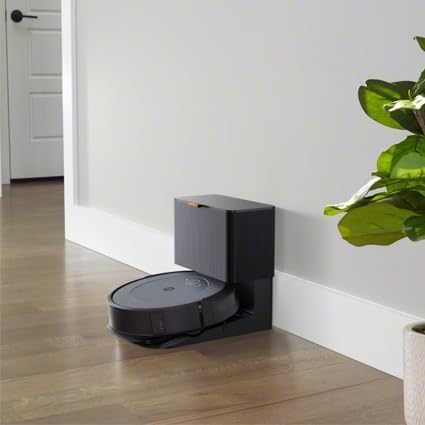
Image: The iRobot Roomba i5+ Combo robot vacuum docked on its Clean Base for charging.
Operating Instructions
Vacuuming Mode
To initiate a cleaning cycle in vacuuming mode, ensure the dustbin is properly installed. Press the CLEAN button on the robot or use the iRobot Home app to start, pause, or stop cleaning. The robot will automatically return to its Clean Base when the battery is low or when cleaning is complete.

Image: The iRobot Roomba i5+ Combo robot vacuum cleaning debris from a hard floor.

Image: An overhead view of the iRobot Roomba i5+ Combo robot vacuum demonstrating its systematic cleaning path on a floor.
Mopping Mode
To use the mopping function, remove the vacuuming dustbin and install the mopping attachment with a clean mop pad. Fill the mopping reservoir with water or a compatible cleaning solution. The robot will then be ready to mop hard floors. Do not use the mopping attachment on carpets or rugs.

Image: The iRobot Roomba i5+ Combo robot vacuum shown with its interchangeable vacuum dustbin and mopping attachment.
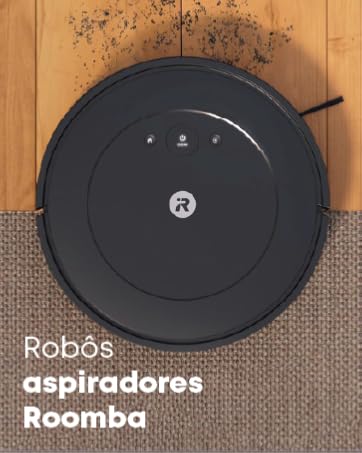
Image: A person filling the mopping reservoir of the iRobot Roomba i5+ Combo with water at a sink.
Smart Mapping and Scheduling
The iRobot Home app allows you to create Smart Maps of your home, define cleaning zones, and set schedules for automated cleaning. You can also direct the robot to clean specific rooms or areas.
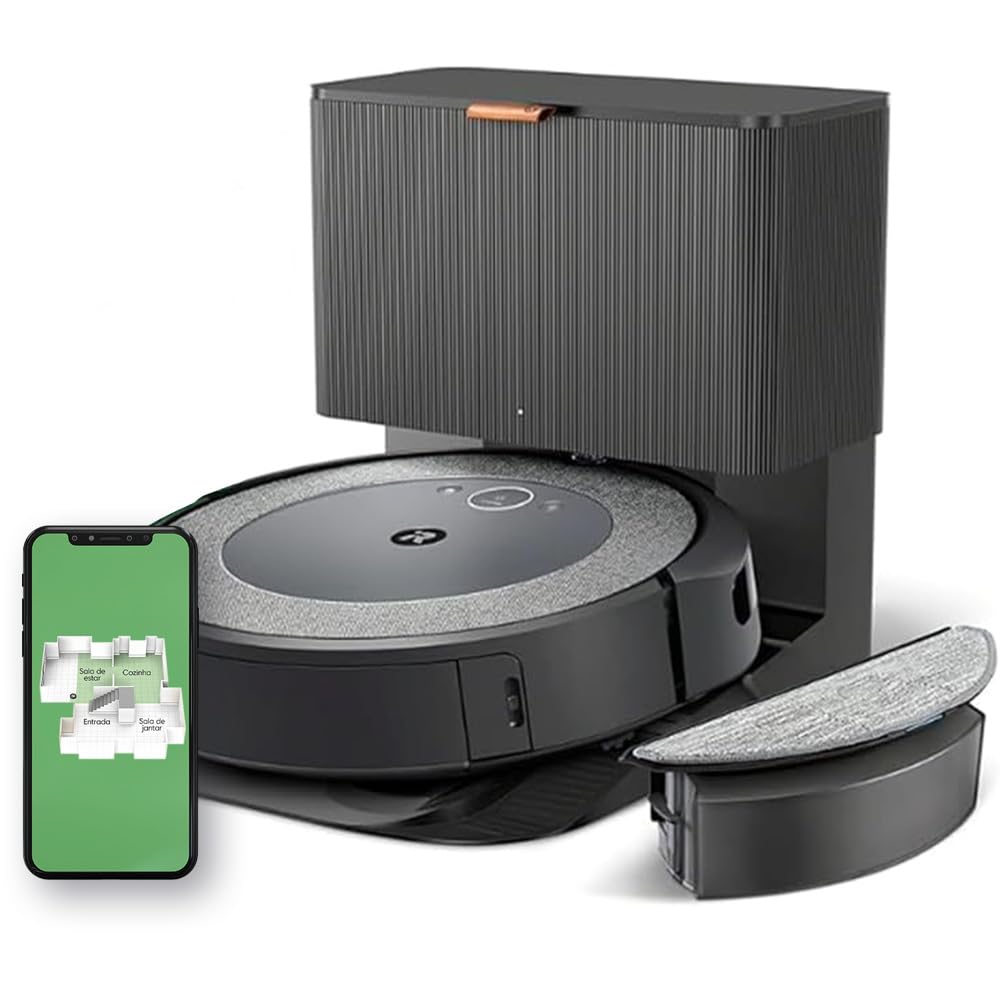
Image: A diagram illustrating the iRobot Roomba i5+ Combo's 4-stage cleaning system, including edge-sweeping brush, dual multi-surface rubber brushes, power-lifting suction, and mop pad.
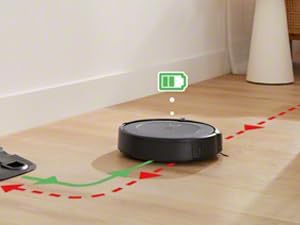
Image: The iRobot Roomba i5+ Combo robot vacuum shown mapping the layout of a house, indicating different rooms like living room, kitchen, entryway, and dining room.
Video: This video demonstrates the iRobot Roomba i5+ Combo's powerful suction and mopping capabilities, highlighting its 4-stage cleaning system and automatic dirt disposal. It also shows how to select specific rooms for cleaning using the iRobot OS app.
Maintenance
Regular maintenance ensures optimal performance of your Roomba i5+ Combo.
- Empty the Dustbin: The Clean Base automatically empties the robot's dustbin. However, manually check and empty the dustbin if the Clean Base is not used or if the robot indicates it's full.
- Clean the Mop Pad: After each mopping cycle, remove and clean the mop pad. It can be hand-washed or machine-washed according to care instructions.
- Clean Brushes: Regularly remove hair and debris from the edge-sweeping brush and the dual multi-surface rubber brushes. Use the cleaning tool provided.
- Clean Filters: Tap the filter clean to remove debris. Replace the filter every 2-3 months, or as needed.
- Clean Sensors and Charging Contacts: Wipe the robot's sensors and charging contacts, as well as the Clean Base charging contacts, with a clean, dry cloth.
Troubleshooting
| Problem | Solution |
|---|---|
| Robot not charging | Ensure the Clean Base is plugged in and the robot is properly aligned with the charging contacts. Clean the charging contacts on both the robot and the base. |
| Robot gets stuck frequently | Clear obstacles from the cleaning area. Ensure virtual walls or keep-out zones are set up in the app for problem areas. Clean the robot's sensors. |
| Poor cleaning performance | Empty the dustbin, clean the brushes, and replace the filter if necessary. Ensure the mop pad is clean and wet for mopping. |
| Robot not connecting to Wi-Fi | Ensure your Wi-Fi network is 2.4 GHz. Restart your router and the robot. Follow the in-app instructions for Wi-Fi setup carefully. |
Specifications
| Feature | Detail |
|---|---|
| Brand | iRobot |
| Model | Roomba i5+ Combo |
| Color | White (Note: Product images often show a dark grey/black unit) |
| Compatible Devices | Alexa or Google Assistant compatible devices |
| Special Features | Scheduling, Anti-fall, Self-emptying, Pet hair capture, Automatic dust collection |
| Power Source | Electric with cord |
| Battery Type | Lithium-ion |
| Form Factor | Round |
| Product Dimensions | 12.7L x 41.9W x 45H centimeters |
| Surface Recommendation | Multiple surfaces |
Warranty and Support
For warranty information and technical support, please refer to the official iRobot website or contact iRobot customer service. Keep your purchase receipt as proof of purchase.
Official iRobot Website: www.irobot.com


