
Introduction
This manual provides essential instructions for setting up, operating, maintaining, and troubleshooting your TCL 43-inch 4K LED Smart HDR Ultra HD Google TV, Model 43P61B. Please read this manual thoroughly before using your television to ensure proper and safe operation.

Image: Front view of the TCL 43-inch 4K UHD Google TV, highlighting its display and Google TV features.
1. Setup
1.1 Unpacking and Stand Installation
Carefully remove the TV from its packaging. Ensure all components are present. If you are not wall-mounting, attach the TV stand according to the instructions provided in the separate quick start guide. Ensure the stand is securely fastened to prevent the TV from tipping.
1.2 Connecting Power
Connect the power cord to the TV's power input, then plug the other end into a suitable electrical outlet. Do not power on the TV until all other connections are made.
1.3 Connecting External Devices
Your TCL TV offers various ports for connecting external devices. Refer to the diagram below for port locations and types.

Image: Detailed diagram showing the various input and output ports on the side of the TCL TV.
- USB 2.0: For connecting USB storage devices to play media.
- LAN: For wired internet connection.
- HDMI 1, HDMI 2 (SERVICE), HDMI 3 (eARC/ARC): For connecting high-definition devices like Blu-ray players, game consoles, or soundbars. HDMI 3 supports eARC/ARC for enhanced audio return channel functionality.
- ANTENNA/CABLE IN: For connecting an antenna or cable TV signal.
- AV IN adapter: For connecting older devices using composite video and stereo audio cables (adapter may be required).
- HEADPHONE: For connecting headphones.
- DIGITAL AUDIO OUT (OPTICAL): For connecting to a digital audio receiver or soundbar.
1.4 Initial Power-On and Basic Settings
After connecting all necessary cables, press the power button on the remote control or TV. Follow the on-screen instructions to complete the initial setup, including language selection, network connection, and Google TV account setup.
2. Operating Your TV
2.1 Remote Control Functions
The included remote control allows you to navigate the TV's interface, adjust volume, change channels, and access smart features. Familiarize yourself with the button layout for optimal use.
2.2 Google TV Interface
Your TV features Google TV, providing a personalized home screen with content recommendations from your subscriptions and apps. Use the remote to browse content, search, and access various applications like Netflix and YouTube.
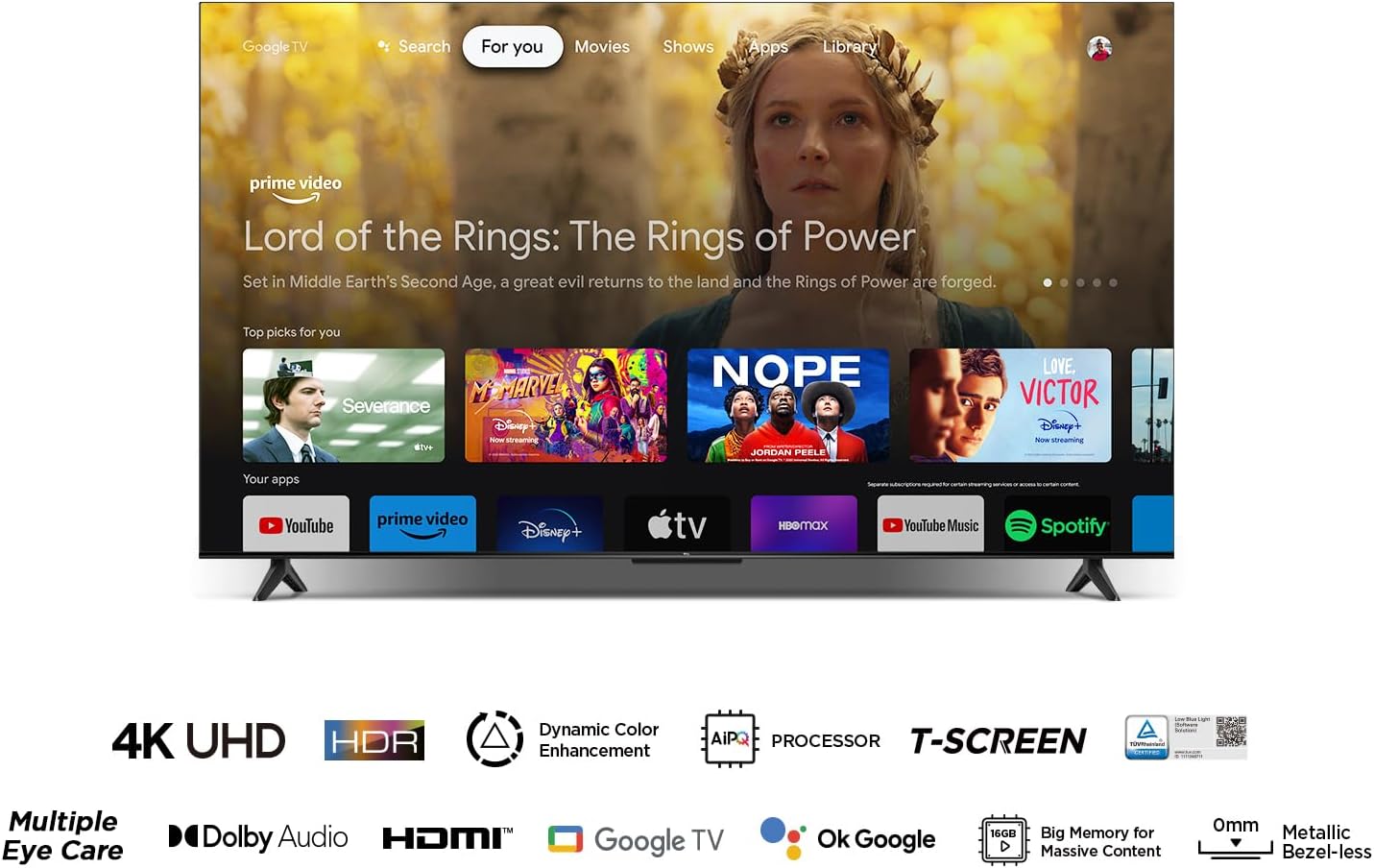
Image: Screenshot of the Google TV home screen displaying various streaming content and application icons.
2.3 Picture Settings
Access the TV's settings menu to customize picture quality. Key features include:
- 4K HDR: High Dynamic Range expands contrast and color, reproducing accurate light and dark shades with precise colors and detail.
- Dynamic Color Enhancement: A technology developed by TCL to optimize color vibrancy automatically, providing a more vibrant viewing experience.

Image: Visual comparison demonstrating the enhanced detail and contrast when 4K HDR is active versus a standard picture.

Image: Graphic explaining TCL's Dynamic Color Enhancement technology, showing vibrant colors.
2.4 Audio Settings
Your TV supports Dolby Audio, designed to deliver immersive sound with crystal clarity, crisp dialogue, and rich detail. Adjust audio settings through the TV menu to suit your preferences.

Image: Graphic illustrating the immersive experience provided by Dolby Audio, with sound waves emanating from the TV.
3. Maintenance
3.1 Cleaning Your TV
To clean the screen, gently wipe it with a soft, dry, lint-free cloth. For stubborn marks, slightly dampen the cloth with water or a specialized screen cleaner. Never spray liquid directly onto the screen. Clean the TV frame and stand with a soft, dry cloth. Always unplug the TV before cleaning.
3.2 Software Updates
Your TV may receive software updates periodically to improve performance and add new features. Ensure your TV is connected to the internet to receive these updates. You can usually check for updates manually in the TV's settings menu.
4. Troubleshooting
Before requesting service, please review the following common issues and solutions:
4.1 No Picture or Sound
- Ensure the power cord is properly inserted into the power outlet.
- Verify the source type is set correctly (e.g., HDMI 1, TV).
- Confirm the antenna is properly connected.
- Check that the volume is not set to minimum or mute.
- Ensure headphones are not connected, or if they are, that they are functioning correctly.
- The TV may be receiving a signal other than from TV broadcasting stations.
4.2 Picture is Not Clear
- Ensure the antenna cable is properly connected.
- Consider whether your TV signal is being properly received.
- Poor picture quality can occur due to a VHS camera, camcorder, or other peripheral being connected at the same time. Switch off one of the other peripherals.
- The 'ghost' or double image may be caused by obstruction to the antenna due to high-rise buildings or hills. Using a highly directional antenna may improve the picture quality.
- Horizontal dotted lines shown on the pictures may be caused by electrical interference, e.g., a hair dryer or nearby neon lights. Turn off or remove these devices.
4.3 Picture is Too Dark, Too Light, or Tinted
- Check the color adjustment settings.
- Check the brightness setting.
- Check the sharpness function.
4.4 Remote Control Does Not Work
- Check the batteries of the remote control and replace if necessary.
- Ensure the remote sensor window on the TV front is not under strong fluorescent lighting.
- Try to clean the remote sensor window on the TV front with a soft cloth.
5. Specifications
| Feature | Detail |
|---|---|
| Model Number | 43P61B |
| Screen Size | 43 Inches (110 cm visible diagonal) |
| Display Technology | LED |
| Resolution | 4K UHD (Ultra High Definition) |
| Refresh Rate | 60 Hz |
| Special Features | Flat Screen, Smart HDR, Google TV |
| Connectivity | Ethernet, HDMI (x3, one with eARC/ARC), USB (x1) |
| Aspect Ratio | 16:9 |
| Product Dimensions (W x H x D) | 107.5 cm x 64.6 cm x 11.5 cm (with stand) |
| Weight | 8.2 kg |
| Included Components | Remote control, Manual Book |
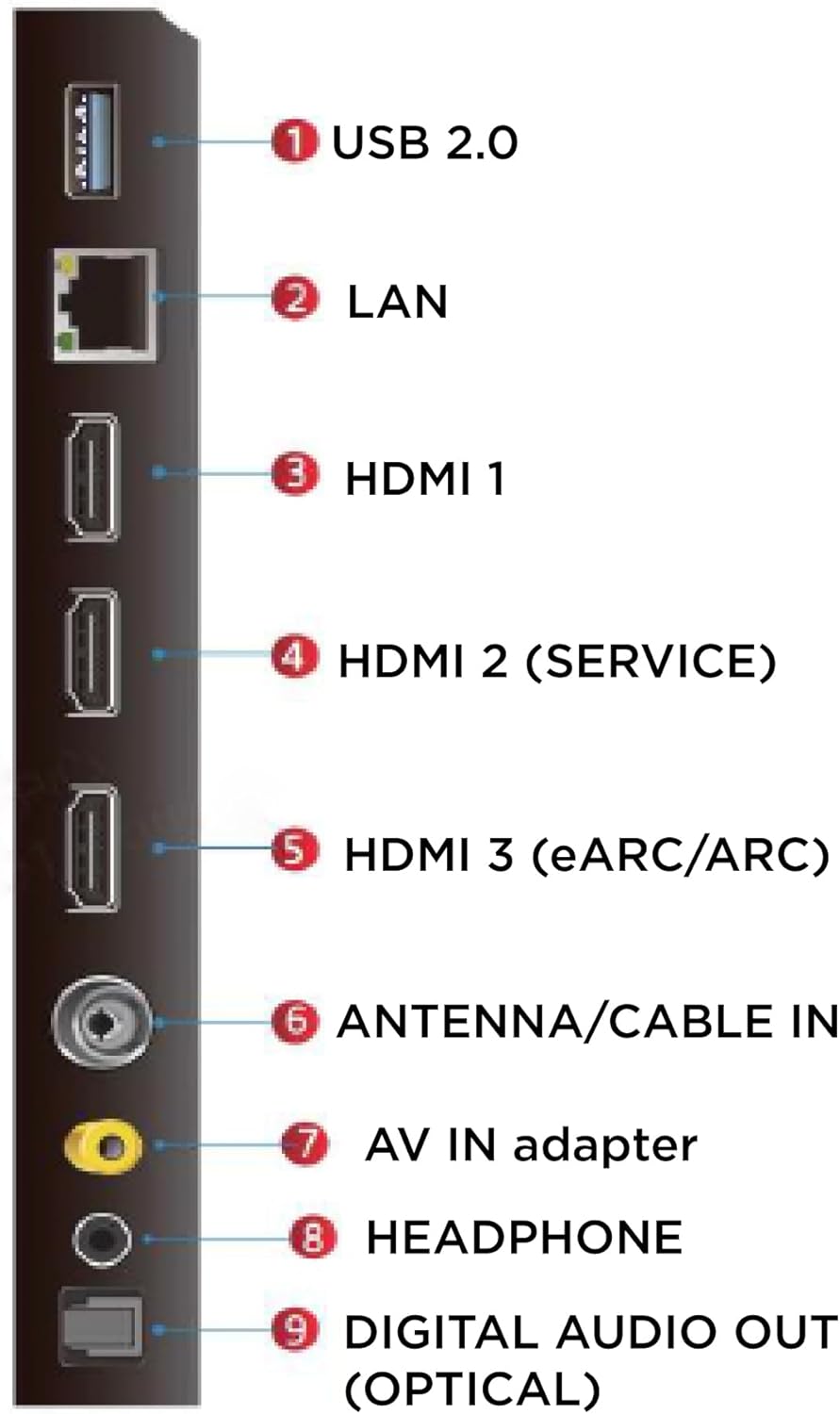
Image: Technical drawing showing the dimensions of the TCL 43P61B TV in millimeters, including width, height, and depth.
6. Warranty and Support
For information regarding your product's warranty, please refer to the warranty card included with your purchase or visit the official TCL website. For technical support or service inquiries, please contact TCL customer service through their official channels.
You can find more information and support resources on the TCL Store on Amazon.


