
1. Introduction
This manual provides detailed instructions for the installation, operation, and maintenance of your ID-COOLING FROZN A410 ARGB CPU Air Cooler. This high-performance cooler is designed to efficiently dissipate heat from your CPU, ensuring stable and reliable system operation. It features ARGB lighting for aesthetic customization and is compatible with a wide range of Intel and AMD sockets.
Please read this manual thoroughly before installation to ensure proper setup and to prevent any damage to your components.
2. Safety Information
- Always disconnect power from your computer before installing or performing maintenance on any internal components.
- Handle the CPU cooler and other components with care to avoid physical damage.
- Be mindful of sharp edges on heatsink fins.
- Ensure proper grounding to prevent electrostatic discharge (ESD) damage to sensitive electronic components.
- Keep thermal paste away from skin and eyes. Refer to the thermal paste manufacturer's safety data sheet for specific handling instructions.
- Do not modify the product. Any modifications may void the warranty and could lead to malfunction or damage.
3. Package Contents
Verify that all components listed below are present in your package:
- ID-COOLING FROZN A410 ARGB Heatsink
- 120mm ARGB FDB Cooling Fan
- Mounting Hardware Kit (for Intel and AMD sockets)
- Thermal Paste (syringe)

Image: Overview of the ID-COOLING FROZN A410 ARGB CPU Cooler's included components, showing the heatsink, fan, various mounting brackets for Intel and AMD platforms, screws, and a tube of thermal paste.
4. Specifications
| Feature | Specification |
|---|---|
| Product Dimensions | 5.98"L x 2.95"W x 5.98"H (152mm Height) |
| Cooling Method | Air |
| Heatpipes | 4 x Φ6mm Copper Heatpipes (Direct Contact) |
| Fan Size | 120mm x 120mm x 25mm |
| Fan Bearing Type | Fluid Dynamic Bearing (FDB) |
| Fan Speed | 500-2000 ±10% RPM (PWM Controlled) |
| Max. Air Flow | 78 CFM |
| Noise Level | 29.9 dB(A) Max. |
| Power Connector | 4-Pin PWM |
| Voltage | 12 Volts (DC) |
| Wattage | 1.32 watts |
| TDP | 220W |
| Compatible Sockets | Intel LGA1700/1851/1200/1150/1151/1155/1156; AMD AM4/AM5 |
| Material | Aluminum, Copper |

Image: Detailed view of the fan and heatsink, illustrating key performance metrics such as airflow, noise level, and the FDB fan technology.
5. Setup and Installation
The ID-COOLING FROZN A410 ARGB cooler offers hassle-free installation for both Intel and AMD platforms. Follow the steps below for your specific CPU socket type.
5.1. Preparation
- Ensure your computer is powered off and unplugged from the wall outlet.
- Open your computer case and locate the CPU socket area on your motherboard.
- Remove any existing CPU cooler and clean the CPU surface thoroughly with isopropyl alcohol to remove old thermal paste.

Image: Visual representation of the four direct-contact heatpipes efficiently absorbing and transferring heat from the CPU surface.
5.2. Applying Thermal Paste
Apply a small, pea-sized amount of the included thermal paste to the center of your CPU's integrated heat spreader (IHS). The pressure from the cooler will spread it evenly.
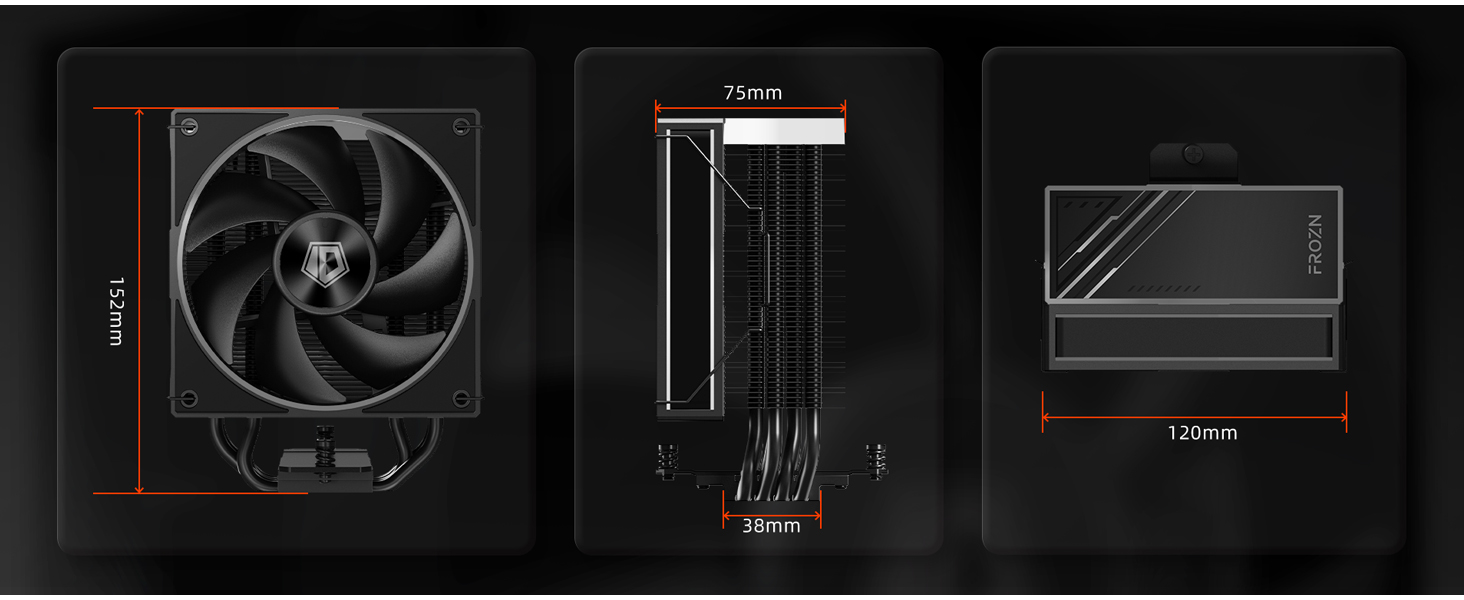
Image: Illustration demonstrating the application of thermal paste onto the CPU, emphasizing the non-conductive and safe application properties of the included paste.
5.3. Intel Socket Installation (LGA1700/1851/1200/115X)
- Identify the correct backplate and standoffs for your Intel socket type from the mounting hardware kit.
- Place the backplate on the rear side of the motherboard, aligning the holes with the CPU cooler mounting holes.
- From the front side of the motherboard, screw in the appropriate standoffs into the backplate.
- Place the Intel mounting brackets onto the standoffs and secure them with the provided nuts.
- Carefully place the heatsink onto the CPU, aligning the mounting screws with the holes on the brackets.
- Tighten the screws in a diagonal pattern until snug, ensuring even pressure. Do not overtighten.
5.4. AMD Socket Installation (AM4/AM5)
- Retain the original AMD backplate that comes with your motherboard.
- Screw the appropriate AMD standoffs into the original backplate's mounting holes.
- Place the AMD mounting brackets onto the standoffs and secure them with the provided nuts.
- Carefully place the heatsink onto the CPU, aligning the mounting screws with the holes on the brackets.
- Tighten the screws in a diagonal pattern until snug, ensuring even pressure. Do not overtighten.
5.5. Fan and Cable Connection
- Attach the 120mm ARGB fan to the heatsink using the included fan clips. Ensure the fan is oriented to push air through the heatsink towards the rear or top of your case.
- Connect the 4-pin PWM fan cable to the "CPU_FAN" header on your motherboard.
- Connect the ARGB lighting cable to a compatible 3-pin 5V ARGB header on your motherboard. If your motherboard does not have an ARGB header, the lighting will not function.

Image: The FROZN A410 ARGB cooler mounted inside a computer case, demonstrating its integrated ARGB lighting effects on the fan and top cover.

Image: A diagram illustrating the cooler's design for perfect memory compatibility, ensuring clearance for RAM modules even with tall heat spreaders.
6. Operating Instructions
Once installed, the ID-COOLING FROZN A410 ARGB cooler operates automatically based on your motherboard's fan control settings. The 4-pin PWM fan allows for precise speed control, adjusting fan RPM based on CPU temperature to optimize cooling performance and noise levels.
- Fan Control: The fan speed is controlled by your motherboard's BIOS/UEFI settings or through motherboard software. It is recommended to use the default PWM settings or configure a custom fan curve for optimal balance between cooling and acoustics.
- ARGB Lighting: The ARGB lighting can be synchronized and controlled via your motherboard's ARGB software (e.g., ASUS Aura Sync, MSI Mystic Light Sync, GIGABYTE RGB Fusion, ASRock Polychrome Sync). Ensure the ARGB cable is correctly connected to a 5V 3-pin ARGB header.
7. Maintenance
Regular maintenance helps ensure the longevity and optimal performance of your CPU cooler.
- Dust Removal: Periodically clean dust from the heatsink fins and fan blades using compressed air or a soft brush. Ensure the fan is held stationary while cleaning to prevent damage to the bearing.
- Thermal Paste: While the included thermal paste offers long durability, consider reapplying fresh thermal paste every 2-3 years, or if you remove the cooler for any reason, to maintain optimal thermal conductivity.
- Cable Connections: Occasionally check that all fan and ARGB cables are securely connected to their respective headers on the motherboard.
8. Troubleshooting
If you encounter issues with your ID-COOLING FROZN A410 ARGB cooler, refer to the following common problems and solutions:
| Problem | Possible Cause | Solution |
|---|---|---|
| High CPU Temperatures | Insufficient thermal paste, improper cooler mounting, fan not spinning, poor case airflow. | Reapply thermal paste, re-mount cooler ensuring even pressure, check fan connection to CPU_FAN header, ensure case fans provide adequate airflow. |
| Fan Not Spinning / Noisy Fan | Loose fan cable, fan obstructed, incorrect BIOS settings, fan defect. | Check fan cable connection, remove any obstructions, adjust fan curve in BIOS, contact support if defect is suspected. |
| ARGB Lighting Not Working | Loose ARGB cable, incorrect header (e.g., 12V RGB instead of 5V ARGB), no motherboard ARGB support, software issue. | Ensure ARGB cable is connected to a 5V 3-pin ARGB header, check motherboard manual for ARGB header location, install/update motherboard ARGB software. |
9. Warranty and Support
ID-COOLING products are manufactured to the highest quality standards. For warranty information, technical support, or any inquiries regarding your FROZN A410 ARGB CPU Air Cooler, please visit the official ID-COOLING website or contact their customer support directly.
Official ID-COOLING Store on Amazon: Visit Store
Please retain your proof of purchase for warranty claims.


