
ZAQE M505
ZAQE M505 MP3 Player User Manual
Model: M505
1. Introduction
Welcome to the ZAQE M505 MP3 Player user manual. This guide provides comprehensive instructions for setting up, operating, and maintaining your new device. The ZAQE M505 is a versatile MP3 player featuring 80GB of internal storage, Bluetooth and Wi-Fi connectivity, and a 4-inch touchscreen, designed to enhance your audio and video experience.
2. Product Overview
2.1 Key Features
- Storage: 80GB internal, expandable up to 512GB via SD card.
- Connectivity: Bluetooth and Wi-Fi for seamless streaming and file transfer.
- Display: 4-inch HD touchscreen for intuitive navigation and clear visuals.
- Operating System: Android 9.0 for app compatibility and smooth operation.
- Processor: 8-core CPU for efficient performance.
- App Support: Pre-installed or downloadable apps like Spotify, Amazon Music, Audible, and Deezer.
- Audio Quality: HiFi sound for an immersive listening experience.
- Battery: 2000mAh for extended playback time.
- Charging: USB Type-C port for convenient charging.
- Format Support: Wide range of audio (MP3, OGG, FLAC, AAC, WAV, WMA, APE) and video (RM, RMVB, MP4, DAT, MKV, MPG, MOV, TS) formats.
2.2 Package Contents
- ZAQE M505 MP3 Player
- USB Type-C Charging Cable
- Headphones (may vary by package)
- Screen Protector (pre-applied or included)
- Transparent Protective Case

Image: The ZAQE M505 MP3 Player, showcasing its 4.0-inch display with WiFi and Bluetooth capabilities.

Image: Front view of the ZAQE M505 MP3 Player, highlighting its sleek design.
3. Setup
3.1 Charging the Device
Before first use, fully charge the MP3 player using the provided USB Type-C cable and a compatible power adapter (not included). The charging indicator will show progress.

Image: The ZAQE M505 MP3 Player connected to a USB Type-C charging cable.
3.2 Powering On/Off
- To Power On: Press and hold the power button on the side of the device until the screen lights up.
- To Power Off: Press and hold the power button, then select 'Power Off' from the options on the screen.
3.3 Wi-Fi Connection
- Go to Settings > Network & Internet > Wi-Fi.
- Toggle Wi-Fi On.
- Select your desired Wi-Fi network from the list.
- Enter the password if prompted and tap Connect.
3.4 Expanding Storage with SD Card
The device supports an external SD card up to 512GB. Locate the SD card slot on the side of the player. Gently insert the SD card until it clicks into place. To remove, push the card in slightly until it springs out.

Image: The ZAQE M505 MP3 Player showing the SD card slot and an SD card.
3.5 Transferring Files
- Via USB: Connect the MP3 player to your computer using the USB Type-C cable. Select 'File Transfer' on the device when prompted. You can then drag and drop files to the internal storage or SD card.
- Via Wi-Fi: Use pre-installed file management apps or download third-party apps to transfer files wirelessly over your Wi-Fi network.
4. Operating Instructions
4.1 Navigating the Interface
The ZAQE M505 features a 4-inch full touchscreen. Swipe left, right, up, or down to navigate through menus and applications. Tap icons to open apps or select options.

Image: The ZAQE M505 MP3 Player's home screen displaying various application icons.
4.2 Music Playback
- Local Files: Open the 'Music' app to browse and play audio files stored on your device or SD card.
- Streaming Apps: Open apps like Spotify, Amazon Music, Audible, or Deezer (requires Wi-Fi connection and subscription) to stream content.
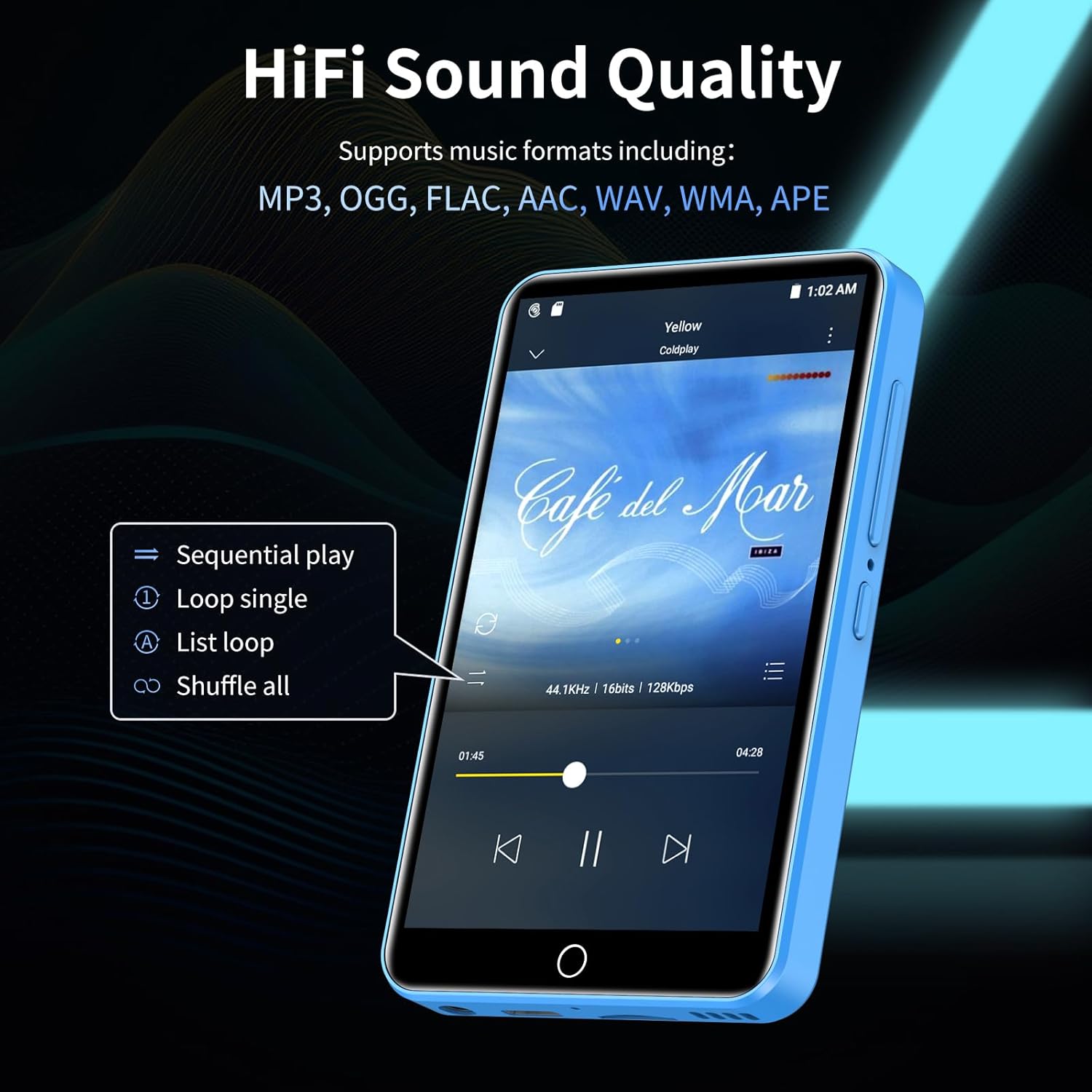
Image: The ZAQE M505 MP3 Player showing the music playback interface with album art and controls.
4.3 Bluetooth Connectivity
Pair your ZAQE M505 with Bluetooth headphones, speakers, or car audio systems for wireless audio playback.
- Go to Settings > Connected devices > Bluetooth.
- Toggle Bluetooth On.
- Ensure your Bluetooth accessory is in pairing mode.
- Select the accessory from the list of available devices to pair.

Image: The ZAQE M505 MP3 Player displaying a Bluetooth connection icon, with wireless earbuds nearby.
4.4 Video Playback
The device supports 1080P HD video playback. Use the pre-installed video player app to watch videos stored on your device or SD card. Supported formats include RM, RMVB, MP4, DAT, MKV, MPG, MOV, TS.

Image: The ZAQE M505 MP3 Player displaying a video on its 4-inch HD touchscreen.
4.5 FM Radio
To use the FM Radio function, connect wired headphones (acting as an antenna) to the device. Open the 'FM Radio' app and scan for available stations.

Image: The ZAQE M505 MP3 Player showing the FM radio interface tuned to 99.7.
4.6 Voice Recorder
Utilize the built-in voice recorder for capturing audio notes or lectures. Open the 'Sound Recorder' app to start, pause, and save recordings.
5. Maintenance
5.1 Cleaning
Wipe the screen and body of the device with a soft, dry, lint-free cloth. Avoid using harsh chemicals or abrasive materials.
5.2 Battery Care
To prolong battery life, avoid fully discharging the device frequently. Charge the device regularly, and if storing for an extended period, ensure it has at least a 50% charge.

Image: The ZAQE M505 MP3 Player highlighting its 2000mAh battery and USB Type-C charging port.
5.3 Software Updates
Periodically check for system updates in Settings > System > Advanced > System update to ensure optimal performance and security.
5.4 Storage Management
Regularly manage your files to free up storage space. Delete unnecessary files or transfer them to an external SD card or computer.
6. Troubleshooting
- Device not turning on or charging:
Ensure the device is properly connected to the charger. Try a different USB Type-C cable or power adapter. If the battery is completely drained, it may take a few minutes for the charging indicator to appear. - Bluetooth connectivity issues:
Ensure Bluetooth is enabled on both the MP3 player and the accessory. Place devices close to each other. Try unpairing and re-pairing the device. Restart both devices. - Wi-Fi connection problems:
Check if your Wi-Fi router is working correctly. Ensure you have entered the correct Wi-Fi password. Try restarting the MP3 player and your router. - Applications crashing or not working (e.g., Deezer):
Ensure the app is updated to the latest version. Clear the app's cache and data in Settings > Apps & notifications > [App Name] > Storage & cache. If the issue persists, uninstall and reinstall the app. Note that older Android versions (like Android 9.0) may have compatibility issues with newer app versions over time. - Slow performance:
Close unused applications. Clear cache and temporary files. Consider performing a factory reset if performance issues persist after other troubleshooting steps (back up your data first). - No sound or poor sound quality:
Check volume levels on both the player and connected headphones/speakers. Ensure headphones are properly plugged in or Bluetooth devices are correctly paired. Test with different headphones/speakers. - Device unresponsive (frozen screen):
Press and hold the power button for about 10-15 seconds to force a restart. If a reset pinhole is available (often near the power/volume buttons), use a thin object like a paperclip to press it gently for a few seconds.
7. Specifications
| Feature | Detail |
|---|---|
| Brand | ZAQE |
| Model Name | M505 |
| Internal Storage | 80 GB |
| Expandable Storage | Up to 512 GB (via SD card) |
| Connectivity Technology | Bluetooth, Wi-Fi |
| Screen Size | 4 Inches |
| Operating System | Android 9.0 |
| Processor | 8-core CPU |
| Battery Capacity | 2000 mAh |
| Compatible Devices | Smartphone, PC, Speaker, Headphones |
| Supported Audio Formats | MP3, OGG, FLAC, AAC, WAV, WMA, APE |
| Supported Video Formats | RM, RMVB, MP4, DAT, MKV, MPG, MOV, TS |
| Item Weight | 221.2 Grams |
| UPC | 751528694652 |

Image: Technical illustration of the ZAQE M505's Android 9.0 operating system and 8-core CPU.
8. Warranty and Support
For warranty information and technical support, please refer to the documentation included with your purchase or contact ZAQE customer service through their official website. Keep your proof of purchase for warranty claims.
Related documentsM505


Ask a question about this manual
Ask about setup, troubleshooting, compatibility, parts, safety, or missing instructions. Manuals+ will review the question and use this page’s manual context to help answer it.