
Zomolither A7267A3195A4MI2
Zomolither Android 13 Car Stereo User Manual
Model: A7267A3195A4MI2
1. Product Overview
This Zomolither Android 13 Car Stereo is designed for Mercedes Benz C Class 3 W204 S204 models from 2006 to 2011. It features a 9-inch touchscreen display, 2GB RAM, and 64GB ROM, providing a smooth and responsive user experience. Key functionalities include wireless Apple CarPlay, Android Auto, GPS navigation, Bluetooth connectivity, FM/RDS radio, Mirror Link, and support for a backup camera.
Key Features:
- Android 13 Operating System with 2GB RAM + 64GB ROM
- 9-inch High-Definition Touchscreen (1024*600 resolution)
- Wireless Apple CarPlay & Android Auto (via Zlink App)
- Built-in GPS Navigation (online and offline maps)
- WiFi Connectivity for online services and app downloads
- Bluetooth 4.2 for Hands-Free Calling and Audio Streaming
- FM/RDS Radio with 18 preset stations
- Mirror Link Functionality (iOS one-way, Android two-way)
- Support for AHD Backup Camera (included)
- Steering Wheel Control (SWC) compatibility
- Split Screen Function
- Dual USB Adapter Input
- Multi-language Support (up to 40 national languages)
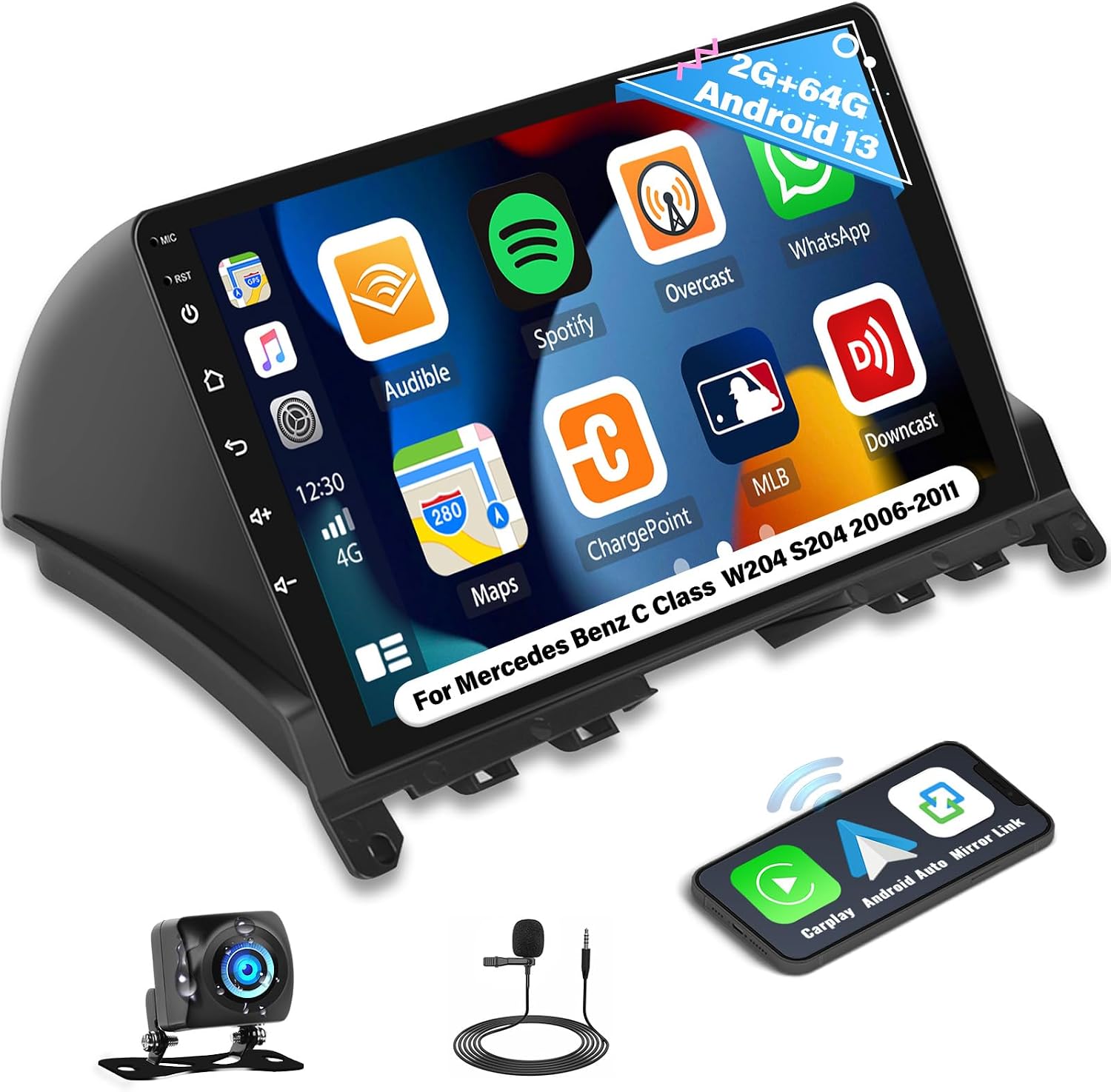
Image: The Zomolither Android 13 Car Stereo unit, showcasing its 9-inch display, along with the included backup camera and external microphone.
2. Setup and Installation
2.1 Compatibility Check
This car stereo is specifically designed for Mercedes Benz C Class 3 W204 S204 models manufactured between 2006 and 2011. Before installation, it is crucial to confirm your car's compatibility. You can do this by comparing your car's dashboard and original CD player's rear slots with the provided images or by contacting Zomolither support with photos of your car's center console and original CD player's rear slots.

Image: A visual comparison showing the car's dashboard before and after the installation of the Zomolither Android 13 Car Stereo, demonstrating the integrated fit.
2.2 What's in the Box
Please verify that all components listed below are present in your package:
- 1x Android Car Stereo (with Frame)
- 1x User Manual
- 1x AHD Backup Camera
- 1x Cam-in cable
- 1x External Microphone
- 1x GPS Antenna
- 2x USB Cables
- 1x CANBUS Box
- 1x Installation Tool
- 1x Power Cable
- 1x RCA cable

Image: A comprehensive diagram illustrating the dimensions of the 9-inch car stereo unit and a visual representation of all components included in the package, such as the AHD rear camera, power cable, CANBUS, USB cables, RCA cable, microphone, user manual, GPS antenna, and cam-in cable.
2.3 Wiring Diagram
Refer to the following diagram for proper wiring connections. Ensure all cables are securely connected to their respective ports.

Image: A detailed wiring diagram showing the back panel of the car stereo with labeled USB ports and camera input, alongside the various RCA input/output cables, power cord, and GPS antenna connections. This image also includes a close-up of the main power harness with numbered pins and their functions (e.g., REARR+, REARL-, FRONT L+, FRONT R+, KEY1, KEY2, GND, ACC).
2.4 Installation Tips
- Always disconnect the car battery before starting installation.
- Follow the wiring diagram carefully.
- Ensure the CANBUS box is correctly connected and configured in the factory settings (Password: 1234) to retain original car information display.
- For steering wheel control, navigate to "Steering Learn" in the settings after installation to match the keys.
- If you encounter any issues, refer to the troubleshooting section or contact support.
3. Operating Instructions
3.1 Power On/Off
The unit powers on automatically with the car's ignition. To turn off the screen while driving, press the power button. To fully power off, turn off the car's ignition.
3.2 Wireless Apple CarPlay & Android Auto
This unit supports both wireless and wired Apple CarPlay and Android Auto via the Zlink App.
For Apple CarPlay:
- Wireless Connection: Pair your iPhone's Bluetooth with the car radio. Open the "CP Link" app on the car radio.
- Wired Connection: Connect your iPhone to the car radio using the original USB cable. Open the "CP Link" app.
For Android Auto:
- Wireless Connection: Install the "Android Auto" app on your phone. Pair your Android phone's Bluetooth with the car radio. Open the "ZLink" app.
- Wired Connection: Install the "Android Auto" app on your phone. Connect your Android phone to the car radio using the original USB cable. Open the "CP Link" app.

Image: Two screenshots displaying the user interfaces for Apple CarPlay and Android Auto on the car stereo, showing various compatible applications like Spotify, Maps, and messaging apps. Below the screens, icons represent GPS, Message, Music, Dial Number, and Voice Control functionalities, along with connection methods for CarPlay and Android Auto.
3.3 GPS Navigation and WiFi Hotspot
The unit comes with built-in GPS navigation. You can use pre-installed offline maps (e.g., Here WeGo) or download other navigation apps from the Play Store. Connect to WiFi for online maps and real-time traffic information.
- Offline Map Download (Here WeGo): Connect the car stereo to WiFi/phone's hotspot. Open the Here WeGo app -> Menu -> Download the map. Select and download the required country data.
- Online Navigation: With WiFi connected, Google Maps and other online navigation apps can be used for real-time traffic updates and directions.

Image: Two distinct sections. The left section illustrates the WiFi connection capability, showing various app icons like YouTube, TikTok, and social media, indicating online entertainment and app download possibilities. The right section displays the GPS navigation interface with a map showing a route and a visual representation of a map and location pins, emphasizing the built-in GPS and offline map support.
3.4 Bluetooth Functions
The unit features Bluetooth 4.2 for hands-free calling and audio streaming.
- Hands-Free Calls: Pair your phone via Bluetooth to make and receive calls directly from the stereo. The built-in microphone and external mic jack ensure clear audio.
- Bluetooth Music Player: Stream music wirelessly from your paired device to the car stereo.
- Auto Loading Phonebooks: Your phone's contacts can be automatically loaded for easy access.

Image: A screenshot of the car stereo's display showing a Bluetooth call interface with a dial pad and options to answer or hang up a call. An icon for Bluetooth is prominently displayed, and an external microphone is shown, indicating hands-free calling capability.
3.5 FM/RDS Radio
Enjoy your favorite radio stations with the built-in FM/RDS tuner. It supports 18 preset stations.
- Preset Stations: Save your preferred stations for quick access.
- RDS Functionality: Displays station information (e.g., song title, artist) where available.
- Equalizer: Customize your audio experience with 16 bands EQ and various preset styles (Rock, Pop, Jazz, Classic).

Image: A screenshot of the car stereo's display showing the FM radio interface with frequency display (87.50 MHz) and various controls for tuning and presets. An icon for FM/RDS radio is visible, indicating stable signal and support for preset stations.
3.6 Mirror Link
Mirror Link allows you to cast your phone's screen to the car stereo display.
- iOS: Supports one-way projection via WiFi.
- Android: Supports two-way connection via USB/WiFi.
- Open the "Phonelink" app on the stereo to initiate the connection.

Image: A visual representation of the Mirror Link function, showing a smartphone screen being mirrored onto the car stereo display. The image illustrates content (like a video) playing on both the phone and the car screen, with icons indicating support for iOS (WiFi) and Android (USB/WiFi) connections.
3.7 Split Screen Function
The split screen feature allows you to run two applications simultaneously on the 9-inch display, enhancing multitasking capabilities.

Image: A screenshot of the car stereo's display demonstrating the split screen function, with two applications running side-by-side. One side shows a music player interface, and the other displays a navigation map, illustrating simultaneous operation.
3.8 Steering Wheel Control (SWC)
Control essential functions of the car stereo directly from your steering wheel buttons for a safer and more convenient driving experience.
- Learning SWC: Go to "Settings" -> "Factory Settings" (Password: 1234) -> "Protocol settings". Select the brand of your CANBUS box and model information to complete the matching. Then, go to "Steering Learn" in the settings to program the buttons.

Image: This image combines two features. The top part shows the view from the AHD backup camera on the car stereo screen, with parking guidelines, and a diagram of how to connect the camera. The bottom part illustrates the Steering Wheel Control (SWC) function, showing a hand on a steering wheel and a screenshot of the stereo's SWC learning interface, where users can program buttons for music, refresh, user profile, volume, radio, and other functions.
3.9 Backup Camera Input
The included AHD backup camera provides a clear view of the rear of your vehicle, automatically displaying the image when you shift into reverse gear.
- Automatic Display: The screen automatically switches to the camera view when reverse gear is engaged.
- Features: 720P clarity, 170° wide viewing angle, night vision, waterproof design, and back-up assist lines.
4. Maintenance
Proper maintenance ensures the longevity and optimal performance of your car stereo.
4.1 General Care
- Avoid exposing the unit to extreme temperatures or direct sunlight for prolonged periods.
- Do not spill liquids on the unit.
- Handle the touchscreen gently.
4.2 Cleaning
- Use a soft, dry, lint-free cloth to clean the screen and exterior.
- For stubborn smudges, slightly dampen the cloth with water or a screen-safe cleaner.
- Do not use abrasive cleaners, alcohol, or solvents.
5. Troubleshooting
If you encounter any issues, please refer to the common problems and solutions below. If the problem persists, contact Zomolither customer support.
| Problem | Possible Cause | Solution |
|---|---|---|
| Unit does not power on. | Incorrect wiring; Blown fuse; Power supply issue. | Check power cable connections. Verify car fuse. Ensure ACC and B+ wires are correctly connected. |
| No sound. | Speaker wires disconnected; Volume too low; Incorrect audio output setting. | Check speaker wire connections. Increase volume. Verify audio output settings in the system. |
| Steering Wheel Controls not working. | CANBUS not configured; SWC learning not completed. | Ensure CANBUS is correctly connected and configured in Factory Settings (Password: 1234). Perform "Steering Learn" in settings. |
| CarPlay/Android Auto not connecting. | Incorrect app used; Bluetooth/WiFi issue; USB cable issue. | Ensure "CP Link" or "ZLink" app is used. Check Bluetooth/WiFi connection. Try a different USB cable (for wired). Restart phone and stereo. |
| Backup camera not displaying. | Camera not connected; Reverse trigger wire issue. | Check camera and cam-in cable connections. Ensure the reverse trigger wire is correctly connected to the car's reversing light positive. |
For further assistance, please contact Zomolither support at Zomolither@126.com. When contacting support, please provide details of your car model, the issue encountered, and any troubleshooting steps you have already taken. Providing photos of your car's center control and original CD player's rear slots can also help with compatibility checks.
6. Specifications
| Feature | Detail |
|---|---|
| System | Android 13 |
| Chipset | 8227L |
| Screen Size | 9 Inches |
| Memory (RAM) | 2GB |
| Storage (ROM) | 64GB |
| Screen Resolution | 1024*600 |
| Power Output | 4*45W |
| Work Temperature | -20℃ to 75℃ |
| Radio Band | FM/RDS (18 preset stations) |
| Maps | Built-in offline maps (requires internet to download data), supports online maps |
| Connectivity | WiFi, Bluetooth 4.2, USB |
| External Microphone | Supported (included) |
| Video Output | Supported |
| USB Interface | Double USB adapter input |
| Reversing Input | Supported (AHD backup camera included) |
| Steering Wheel Control | Supported (with CANBUS) |
| Audio Format Support | APE/FLAC/WAV/MP3/WMA etc. |
| Video Format Support | MKV/RMVB/AVI/MP4/MDV etc. |
| Picture Format Support | PNG/JPEG/JPG/GIF/WBMP/BNP etc. |
| Factory Setting Keyword | 1234 |
| Languages | Chinese/English/French/Italian/Korean/Japanese/Arabic/Spanish/Portuguese/Russian/Turkish/Vietnamese/Hebrew/Polish/German (up to 40 national languages) |
| Item Weight | 3.67 pounds |
| Product Dimensions | 3.66 x 8 x 6.1 inches |
| Model Number | A7267A3195A4MI2 |
7. Warranty and Support
Zomolither is committed to providing high-quality products and excellent customer service.
7.1 Warranty Information
- Money Back Guarantee: 30-day money back policy.
- Replacement Warranty: 12-months free replacement for product defects.
- Manufacturer Warranty: 1 Year (as per product specifications).
7.2 Customer Support
For any installation problems, functional issues, or general inquiries, please do not hesitate to contact our support team. We aim to provide a solution within 24 hours.
Online Support Email: Zomolither@126.com
When contacting support, please include your order details, a description of the issue, and any relevant photos or videos to help us assist you more efficiently.

Image: A graphic displaying Zomolither's commitment to customer support, highlighting "30-Day Refund," "24H After-Sale," and "Lifetime Tech-Support." It also includes the online support email address: Zomolither@126.com, and images of various car models indicating broad compatibility.
Ask a question about this manual
Ask about setup, troubleshooting, compatibility, parts, safety, or missing instructions. Manuals+ will review the question and use this page’s manual context to help answer it.