
Introduction
This manual provides detailed instructions for the HOU Bluetooth Keyboard Case designed for iPad Mini 7 (2024) and iPad Mini 6 (2021). Please read this manual thoroughly before using the product to ensure proper operation and longevity.
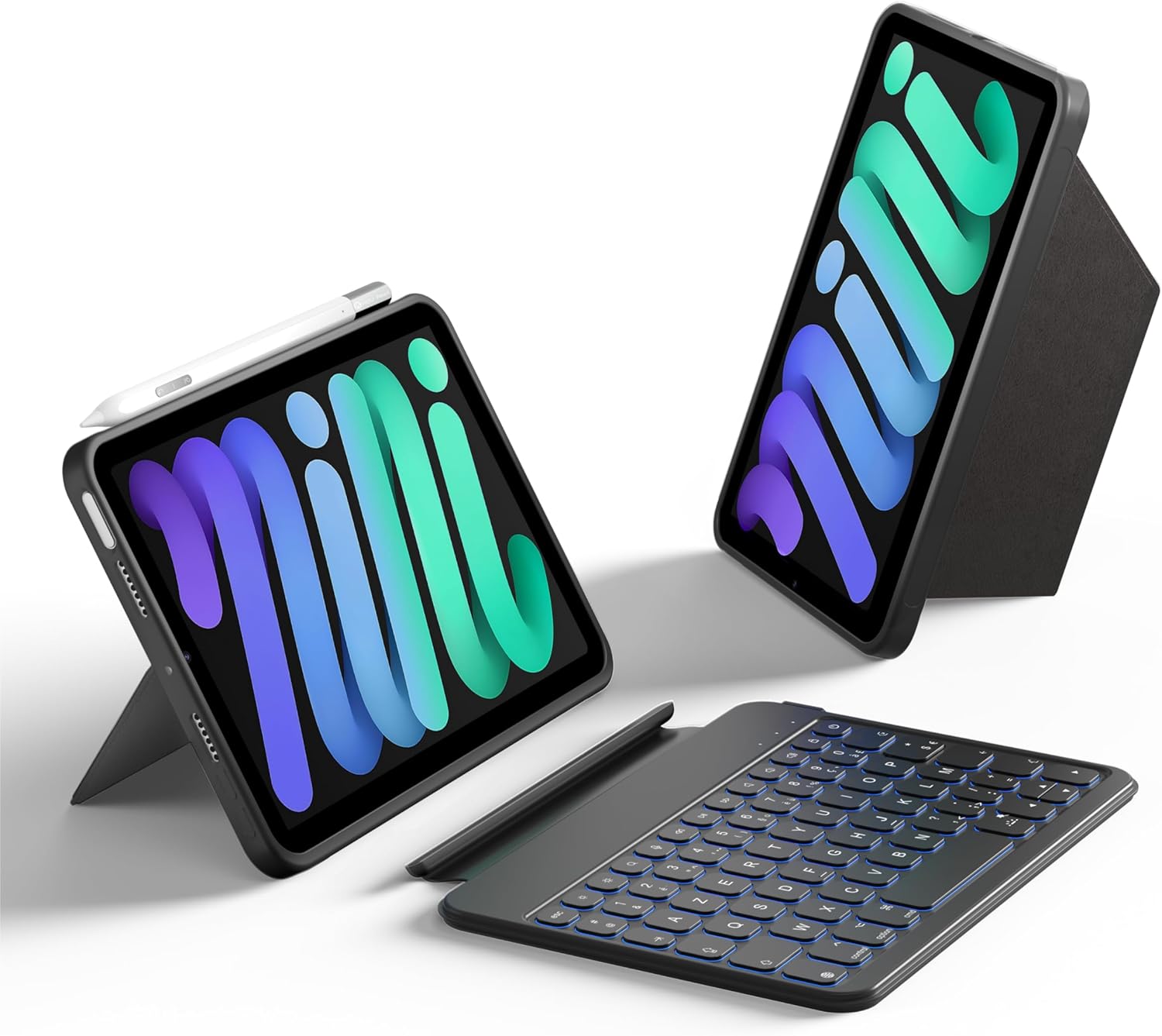
Image: The HOU Bluetooth Keyboard Case shown with an iPad Mini, illustrating its versatility and design. The iPad is displayed in both upright and angled positions, with the detachable keyboard positioned separately.

Image: The HOU Keyboard Case for iPad Mini 7/6 set up on a desk, demonstrating its use as a compact workstation. An iPad Mini is securely held in the case, with the keyboard positioned in front, alongside office accessories.
Compatibility
This keyboard case is specifically designed for the following iPad Mini models:
- iPad Mini 7 (2024): Models A2993, A2995, A2996
- iPad Mini 6 (2021): Models A2567, A2568, A2569
To verify your iPad model number, navigate to Settings > General > About on your device.

Image: An overview of the HOU Keyboard Case's key features, including its lightweight and portable design, removable keyboard, 156-degree adjustable stand, protective cover, durable organosilicon-PU material, and multiple usage scenarios.
What's in the Box
Upon opening the package, please ensure all the following items are present:
- HOU Bluetooth Keyboard Case
- USB-C Charging Cable
- User Manual (this document)
Setup
1. Charging the Keyboard
Before initial use, fully charge the keyboard. Connect the provided USB-C charging cable to the keyboard's charging port and a power source.

Image: The HOU Keyboard Case with an iPad Mini, showing the USB Type-C charging port on the keyboard. A charging cable is connected, indicating the charging process.
2. Attaching Your iPad Mini
Place your iPad Mini into the protective case. Ensure it snaps securely into place. The case features precise cutouts for all ports and buttons.
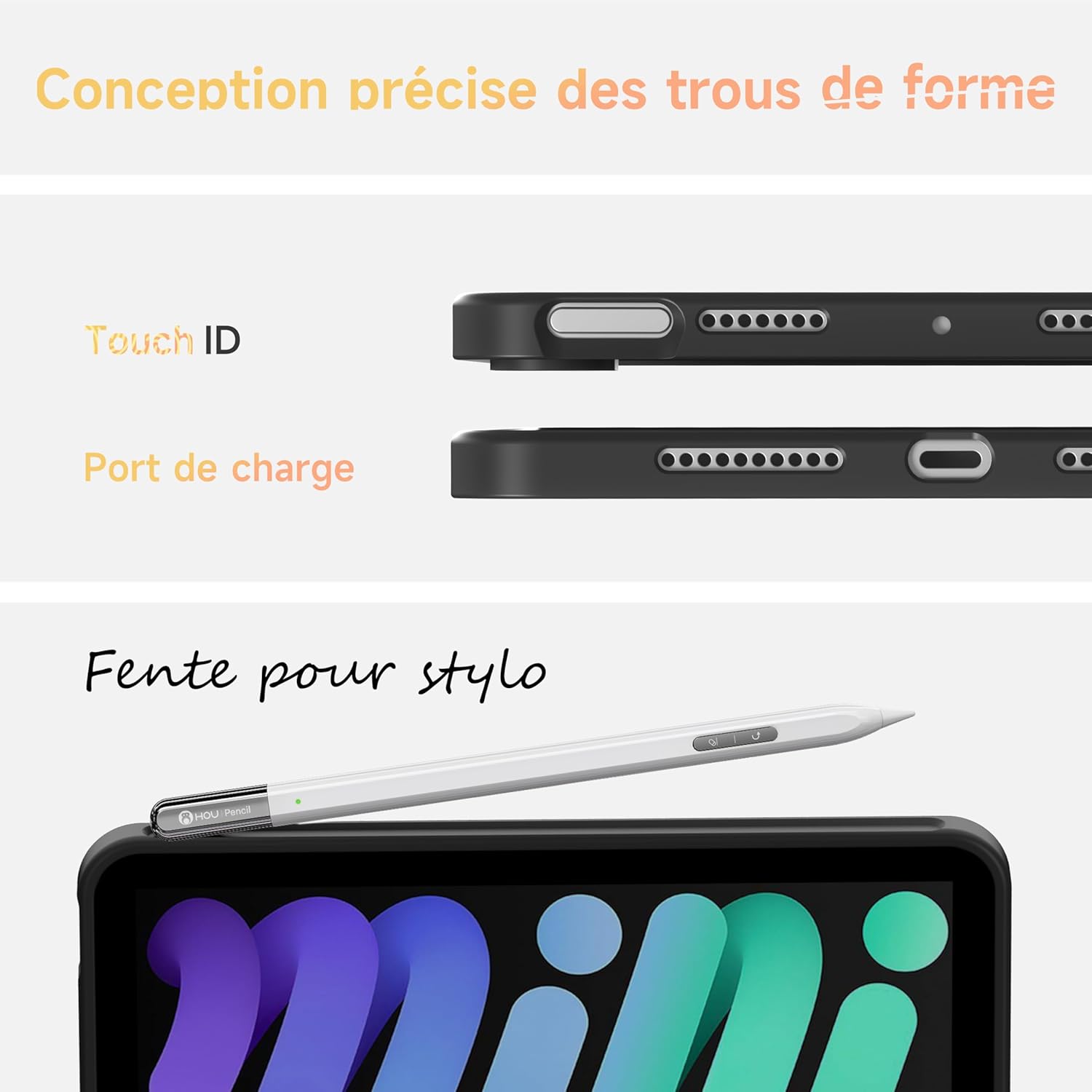
Image: A close-up view of the HOU Keyboard Case, highlighting the precise cutouts for the iPad Mini's Touch ID sensor, charging port, and a dedicated slot for a stylus or Apple Pencil.
3. Connecting the Keyboard via Bluetooth
- Turn on the keyboard by sliding the power switch. The indicator light will flash.
- On your iPad, go to Settings > Bluetooth and turn Bluetooth on.
- The iPad will search for available devices. Select "HOU Keyboard" (or similar name) from the list.
- If prompted, enter the pairing code displayed on your iPad and press Enter on the keyboard.
- Once connected, the indicator light on the keyboard will turn off, and your iPad will show the keyboard as "Connected."
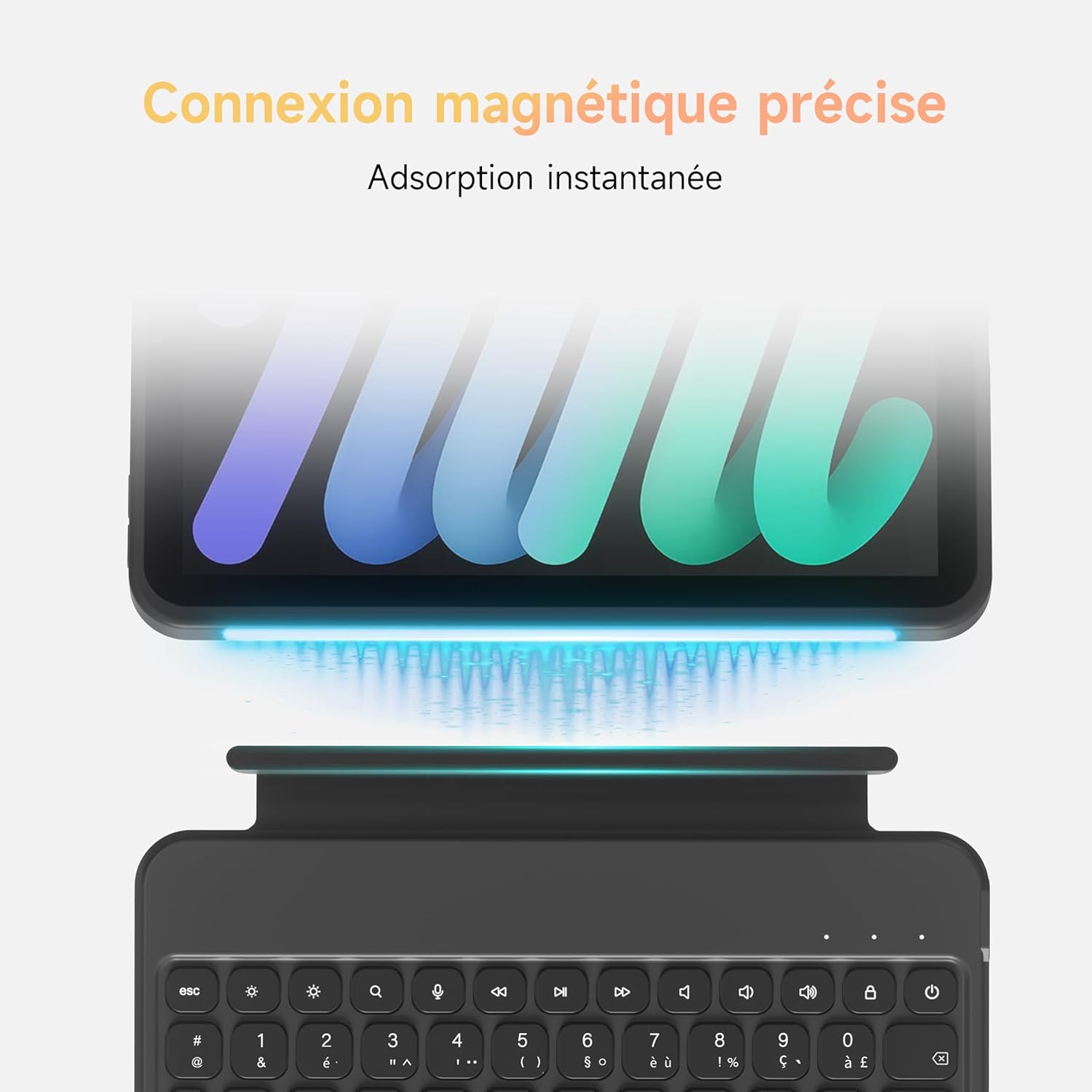
Image: A visual representation of the precise magnetic connection between the HOU Keyboard Case and the iPad Mini. Blue lines illustrate the magnetic force ensuring a secure and instant attachment.
Operating Instructions
Adjusting Viewing Angles
The case features an innovative and intuitive back support that allows for continuous adjustment up to 180 degrees, providing an ergonomic viewing experience. The keyboard is also detachable, offering flexibility.

Image: The HOU Keyboard Case illustrating its adjustable viewing angles from 0 to 156 degrees. Various usage modes are shown, including Freestyle Mode, Painting Mode with a stylus, and Reading Mode, highlighting the case's adaptability.
Using Backlit Keys
The keyboard features 7-color backlighting with 11 levels of backlight intensity and 3 brightness levels. Use the dedicated backlight key (often represented by a light bulb icon) to cycle through colors and adjust brightness.

Image: A detailed view of the HOU Keyboard, highlighting its 11 function keys and 7-color backlighting. An exploded diagram illustrates the scissor-structure keys, emphasizing their design for quick response.

Image: The HOU Keyboard Case in use on a desk, with the iPad Mini displaying its screen and the keyboard's 7-color backlighting illuminated. This demonstrates the visual appeal and functionality of the backlit keys in a working environment.
Smart Functions
- Auto Sleep/Wake: The keyboard case automatically puts your iPad to sleep when closed and wakes it upon opening, conserving battery life.
- Automatic Lock: When the keyboard is flipped backward, it automatically locks to prevent accidental key presses.
- Shortcut Keys: The keyboard includes 11 dedicated shortcut keys for quick access to common iPad functions.

Image: Two hands holding the HOU Keyboard Case with an iPad Mini, illustrating the automatic lock feature when the keyboard is folded back. This prevents unintended input from the keys.
Multiple Usage Modes
The detachable design and adjustable stand allow for various modes:
- Laptop Mode: iPad in case, keyboard attached for typing.
- Tablet Mode: Detach keyboard, use iPad as a standalone tablet.
- Portrait Mode: Adjust iPad to a vertical orientation for reading or specific apps.
- Landscape Mode: Adjust iPad to a horizontal orientation for viewing media or typing.

Image: A user typing on the HOU Keyboard Case with the iPad Mini in Landscape Mode, demonstrating a typical workstation setup.

Image: A user interacting with the HOU Keyboard Case with the iPad Mini in Portrait Mode, suitable for reading or specific applications.
Maintenance
Cleaning
To clean the keyboard and case, use a soft, damp cloth. Avoid using harsh chemicals or abrasive materials, as these may damage the surface. Ensure the keyboard is powered off and disconnected from any power source before cleaning.

Image: An illustration detailing the properties of the HOU Keyboard Case's PU-silicone material, highlighting its resistance to scratches and stains, and its durable nature.
Battery Care
To prolong battery life, avoid fully discharging the keyboard frequently. Charge the keyboard regularly, even if not in constant use. Store the keyboard in a cool, dry place when not in use for extended periods.
Troubleshooting
- Keyboard not connecting:
- Ensure the keyboard is powered on and fully charged.
- Turn off and on your iPad's Bluetooth, then try pairing again.
- Forget the device in your iPad's Bluetooth settings and re-pair.
- Restart both your iPad and the keyboard.
- Keys not responding:
- Check if the keyboard is connected via Bluetooth.
- Ensure the keyboard is not in automatic lock mode (flipped backward).
- Recharge the keyboard.
- Backlight not working:
- Press the backlight key to cycle through settings.
- Ensure the keyboard has sufficient battery charge.
Specifications
| Feature | Detail |
|---|---|
| Brand | HOU |
| Model Compatibility | iPad Mini 7 (2024), iPad Mini 6 (2021) |
| Connectivity Technology | Bluetooth |
| Keyboard Description | Multimedia |
| Power Type | Battery Powered |
| Special Features | Ergonomic, Backlit (7 colors, 11 levels, 3 brightness) |
| Material | Polybutylene Terephthalate Silicone |
| Handedness | Ambidextrous |
| Charging Port | USB-C |
Warranty Information
This HOU product comes with a 1-year manufacturer's warranty from the date of purchase. This warranty covers defects in materials and workmanship under normal use. It does not cover damage caused by accidents, misuse, unauthorized modifications, or external causes such as drops or liquid damage.
Please retain your proof of purchase for warranty claims.
Support
For further assistance, technical support, or warranty claims, please contact HOU customer service through the retailer where the product was purchased or visit the official HOU brand store on Amazon:
Please have your product model and purchase details ready when contacting support.