
1. Product Overview
The PHOINIKAS G2000 Gaming Headset is designed to provide an immersive audio experience across multiple gaming platforms. Featuring 50mm audio drivers for surround sound and deep bass, a noise-cancelling microphone, and comfortable over-ear design, it is suitable for extended gaming sessions.

Image 1: PHOINIKAS G2000 Gaming Headset, showcasing its design and blue/red color scheme.
2. What's in the Box
- PHOINIKAS G2000 Gaming Headset
- User Manual
- 3.5mm Y-splitter cable (for PC use)
3. Specifications
| Feature | Detail |
|---|---|
| Model Name | G2000 |
| Connectivity Technology | Wired (3.5mm Jack, USB for LED) |
| Audio Driver Size | 50mm |
| Noise Control | Sound Isolation |
| Microphone | Noise-Cancelling, Adjustable |
| Compatibility | PC, PS5, PS4, Xbox Series X/S, Switch, Laptops, Tablets, Phones |
| Control Type | Volume Control, Mic On/Off |
| Ear Placement | Over Ear |
| Material | Plastic |
| Item Weight | 1.06 pounds |
4. Setup Instructions
The PHOINIKAS G2000 headset offers multi-platform compatibility. Follow the instructions below for your specific device.

Image 2: Connection diagram for various gaming platforms.
4.1 PC/Laptop Connection
- Connect the 3.5mm audio cable from the headset to the 3.5mm Y-splitter.
- Plug the green connector of the Y-splitter into your PC's headphone jack and the pink connector into the microphone jack.
- For LED lighting, connect the USB cable to an available USB port on your PC or laptop.
4.2 PS4/PS5/Switch/Tablet/Phone Connection
- Connect the 3.5mm audio cable directly into the controller (PS4/PS5) or the device's 3.5mm audio jack (Switch, Tablet, Phone).
- The USB connection is only for LED lighting and is not required for audio or microphone functionality on these devices.
4.3 Xbox One Connection
- For older versions of Xbox One controllers without a 3.5mm jack, an additional Microsoft adapter (not included) is required.
- Connect the 3.5mm audio cable from the headset into the controller (or adapter).
- The USB connection is only for LED lighting.

Image 3: Detailed compatibility chart showing audio, mic, mute, and LED functionality per device.
5. Operating Instructions
The PHOINIKAS G2000 headset features convenient in-line controls for easy management of audio and microphone functions.
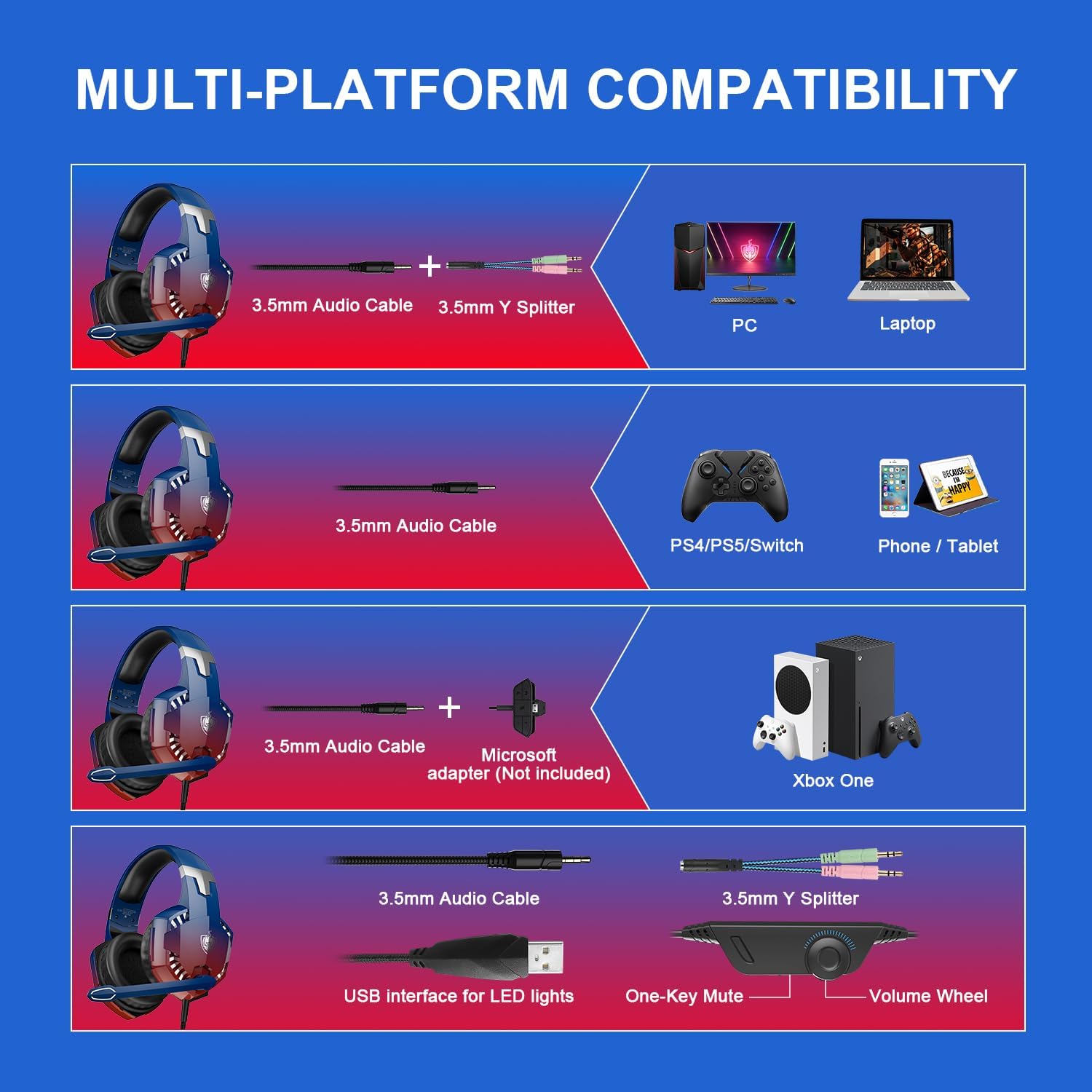
Image 4: In-line control unit with volume wheel and microphone switch.
5.1 Volume Control
Adjust the volume using the scroll wheel located on the in-line control unit. Rotate the wheel up to increase volume and down to decrease it.
5.2 Microphone Mute
To mute or unmute the microphone, use the switch on the in-line control unit. Slide the switch to the microphone icon to unmute, and away from it to mute.
5.3 Noise-Cancelling Microphone
The headset features an omnidirectional, 360° flexible, noise-cancelling microphone designed for clear communication by reducing external noise.

Image 5: The noise-cancelling microphone in use.
5.4 LED Lighting
The headset's LED lights are powered via the USB connection. Plug the USB cable into an available USB port to activate the lighting. Note that the USB connection is solely for lighting and does not transmit audio.
6. Comfort and Ergonomics
The PHOINIKAS G2000 headset is designed for comfort during prolonged use.
- Adjustable Headband: The headband can be adjusted to fit various head sizes, ensuring a secure and comfortable fit.
- Soft Ear Pads: The over-ear cups are equipped with soft, breathable ear pads to reduce pressure and prevent discomfort during long gaming sessions.

Image 6: Soft and comfortable ear pads for extended wear.

Image 7: Telescopic adjustment design for a personalized fit.
7. Maintenance
To ensure the longevity and optimal performance of your PHOINIKAS G2000 Gaming Headset, follow these maintenance guidelines:
- Cleaning: Use a soft, dry cloth to wipe down the headset. For ear pads, a slightly damp cloth can be used, but ensure they are completely dry before use. Avoid harsh chemicals or abrasive cleaners.
- Storage: Store the headset in a cool, dry place away from direct sunlight and extreme temperatures. Avoid placing heavy objects on top of the headset.
- Cable Care: Do not pull on the cables forcefully. Always grasp the plug when disconnecting. Avoid sharp bends or kinks in the cable.
8. Troubleshooting
If you encounter issues with your headset, refer to the following common solutions:
- No Audio:
- Ensure the 3.5mm audio jack is fully inserted into the device.
- Check the in-line volume control and ensure it is not set to minimum.
- Verify your device's audio output settings are configured to use the headset.
- For PC, ensure the Y-splitter is correctly connected to both headphone and microphone jacks.
- Microphone Not Working:
- Ensure the microphone mute switch on the in-line control is in the 'unmute' position.
- Check your device's microphone input settings to ensure the headset is selected.
- For PC, confirm the Y-splitter's microphone connector is correctly plugged in.
- For Xbox One, confirm if an adapter is needed and correctly connected.
- LED Lights Not On:
- Ensure the USB cable is securely plugged into a powered USB port.
- Note that LED lights are only active when the USB is connected.
If these steps do not resolve the issue, please contact PHOINIKAS customer support.
9. Official Product Video
Watch this video for a visual overview of the PHOINIKAS G2000 Gaming Headset.
Video 1: PHOINIKAS G2000 Gaming Headset product demonstration. This video provides a visual guide to the headset's features and design.
10. Warranty and Support
PHOINIKAS products are subject to quality inspection and after-sales service. For specific warranty details or technical support, please refer to the warranty card included with your product or visit the official PHOINIKAS website.
For frequently asked questions, you may find answers to common queries:
- Q: What is the difference between 2.4G wireless technology and Bluetooth wireless technology?
A: 2.4G wireless with low-latency chip is compatible with PS4/PS5/PC/Switch and other devices through the transmitter. Bluetooth matching can be connected, but is not compatible with gaming devices. This G2000 model is wired. - Q: How is it compatible with Xbox One devices?
A: 2.4G wireless/Bluetooth is not compatible. Non-3.5mm connector Xbox One versions require an additional adapter.

