
1. Product Overview
The HCSTVCON 4K NDI PTZ Camera (Model HC-HK618NA) is a professional-grade camera designed for high-quality video conferencing, live streaming, and remote education. It features an officially licensed Newtek NDI|HX2 protocol for low-latency video transmission and PTZ control, ensuring real-time interaction without additional specialized equipment.
Equipped with an 8.29-megapixel 1/1.8-inch UHD CMOS sensor, this camera delivers stunning 4K (3840x2160) resolution video. Its 20x optical zoom and 16x digital zoom capabilities allow for detailed close-ups, while 2D and 3D digital noise reduction ensure clear images even in low-light conditions (down to 0.5 Lux).
The camera supports simultaneous video output via 3G-SDI, HDMI, and IP streaming (MJPEG/H.264/H.265). It offers flexible pan (-170° to 170°) and tilt (-30° to 90°) movements. Advanced AI auto-tracking functionality automatically recognizes and follows human figures, making it ideal for dynamic presentations and events.
Power over Ethernet (PoE 802.3af) simplifies installation by allowing power and data transmission over a single cable. The camera is compatible with popular video conferencing and streaming software such as Zoom, vMix, OBS, Skype, and GoToMeeting, and supports various network protocols including TCP/IP, HTTP, RTSP, RTMP, Onvif, and DHCP.

Image 1.1: Key features of the HCSTVCON 4K NDI PTZ Camera, highlighting 20X optical zoom, Sony CMOS sensor, NDI|HX support, multiple interfaces, and AI tracking capabilities.
2. Package Contents and Setup
2.1 Package Contents
Upon unpacking, please verify that all the following components are included:
- HCSTVCON 4K NDI PTZ Camera (20X)
- Power Adapter
- Mounting Bracket
- IR Remote Control
- User Manual
- Serial Control Cable
- USB Cable
2.2 Initial Setup and Connections
Before operating the camera, ensure all necessary connections are made. The camera offers various interfaces for power, video output, and control.
- Power Connection: Connect the provided power adapter to the DC 12V input port on the rear of the camera. Alternatively, if using Power over Ethernet (PoE), connect an Ethernet cable from a PoE-enabled switch to the LAN port.
- Video Output:
- HDMI: Connect an HDMI cable from the camera's HDMI output to a display or capture device.
- 3G-SDI: Connect an SDI cable from the camera's 3G-SDI output to a compatible SDI receiver or switcher.
- USB3.0: Connect a USB 3.0 cable from the camera's USB3.0 port to a computer for use as a webcam or capture source.
- LAN (NDI/IP Streaming): Connect an Ethernet cable to the LAN port for NDI|HX2 video transmission and IP streaming.
- Audio Input/Output: Connect external audio sources (e.g., microphone) to the Line In port and audio monitoring devices to the Line Out port.
- Control Connections:
- IR Remote Control: Ensure line of sight to the camera's IR receiver.
- RS232/RS485: Use the serial control cable to connect to a compatible PTZ controller or control system.
- Network Control: Access the camera's web interface via the LAN connection for advanced settings and control.

Image 2.1: Detailed diagram of the camera's multi-interface panel, illustrating various connection points for power, video, audio, and control.
3. Operating Instructions
3.1 Powering On and Initial Boot
After connecting the power source, the camera will initiate its boot sequence. A tally light on the front of the camera may indicate its status (e.g., green for live, red for standby, depending on configuration).
3.2 Pan, Tilt, and Zoom (PTZ) Control
The camera's pan, tilt, and zoom functions can be controlled via the IR remote, a dedicated PTZ joystick controller connected via RS232/RS485, or through the camera's web interface over the network.
- Pan: Rotate the camera horizontally up to 170° in either direction.
- Tilt: Adjust the camera vertically from -30° to 90°.
- Zoom: Utilize the 20x optical zoom for clear magnification and the 16x digital zoom for further enlargement.

Image 3.1: Visual representation of the camera's PTZ capabilities, including pan and tilt ranges, optical zoom, and remote control functionality.
3.3 AI Auto-Tracking
The integrated AI auto-tracking feature allows the camera to automatically follow a designated speaker or subject. This function is enabled and configured through the camera's web interface. Once activated, the camera will use its intelligent processing chip to recognize and track human figures, keeping them centered in the frame.

Image 3.2: The AI Humanoid Tracking feature in action, automatically keeping the subject in focus and centered.
3.4 NDI|HX2 and IP Streaming
The camera's NDI|HX2 capability enables high-quality, low-latency video and audio transmission over a standard IP network. This allows for flexible integration into NDI-compatible production workflows. IP streaming can be configured via the web interface to output MJPEG, H.264, or H.265 streams for various applications.

Image 3.3: NDI|HX2 enables real-time interaction and integration into live production environments.
3.5 Software Compatibility
The HCSTVCON 4K NDI PTZ Camera is designed to work seamlessly with a range of popular video conferencing and live streaming platforms:
- Zoom
- OBS (Open Broadcaster Software)
- vMix
- Skype
- GoToMeeting
- Cisco Webex
- Microsoft Teams
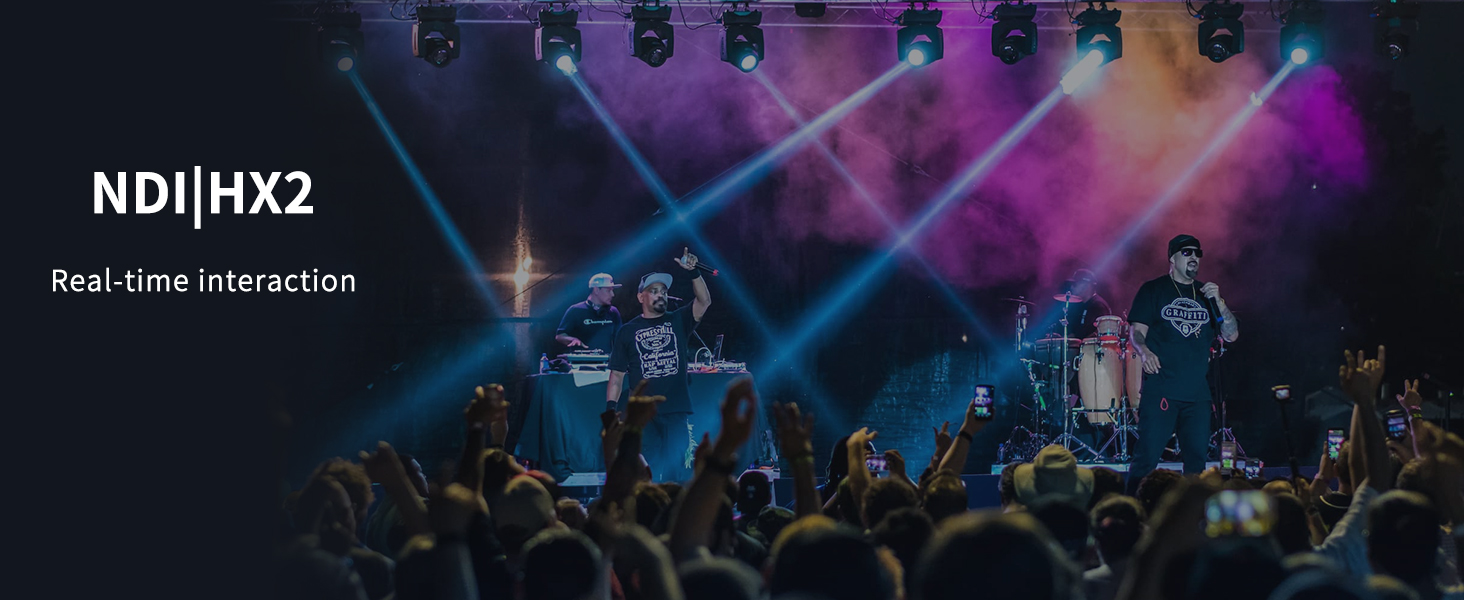
Image 3.4: The camera integrates with various streaming and conferencing platforms, enhancing your live productions.
4. Maintenance
Proper maintenance ensures the longevity and optimal performance of your HCSTVCON 4K NDI PTZ Camera.
- Cleaning the Lens: Use a soft, lint-free cloth specifically designed for optical lenses to gently wipe the camera lens. Avoid abrasive materials or harsh chemicals.
- General Cleaning: Wipe the camera body with a dry, soft cloth. Do not use liquid cleaners directly on the camera.
- Environmental Conditions: Operate and store the camera in a clean, dry environment, away from extreme temperatures, humidity, and direct sunlight.
- Cable Management: Ensure all cables are securely connected and not under strain to prevent damage to ports or cables.
5. Troubleshooting
If you encounter issues with your HCSTVCON 4K NDI PTZ Camera, refer to the following common troubleshooting steps:
- No Power: Check if the power adapter is securely connected to both the camera and a working power outlet. If using PoE, ensure the Ethernet cable is connected to a PoE-enabled switch and the switch is powered on.
- No Video Output:
- Verify that video cables (HDMI, SDI, USB, Ethernet) are correctly connected.
- Ensure the display or capture device is set to the correct input source.
- Check the camera's output settings via the web interface to confirm resolution and format.
- PTZ Control Not Responding:
- For IR remote, ensure fresh batteries and clear line of sight to the camera.
- For serial control, check cable connections and ensure the controller's protocol and address settings match the camera.
- For network control, verify network connectivity and IP address settings.
- AI Tracking Issues: Ensure the AI tracking feature is enabled in the camera's settings. Provide adequate lighting and a clear view of the subject for optimal performance.
- Poor Image Quality:
- Clean the camera lens.
- Adjust lighting conditions in the environment.
- Check camera settings for exposure, white balance, and noise reduction.
If problems persist after following these steps, please contact customer support.
6. Specifications
| Feature | Specification |
|---|---|
| Brand | HCSTVCON |
| Model Number | HC-HK618NA |
| Sensor | 1/1.8 inch 8.29 Megapixel UHD CMOS |
| Video Resolution | 4K (3840x2160) |
| Optical Zoom | 20x |
| Digital Zoom | 16x |
| Focal Length | 6.25 mm (Min) - 125 mm (Max) |
| Max Aperture | f/4 |
| Pan Range | -170° to +170° |
| Tilt Range | -30° to +90° |
| Connectivity | HDMI, 3G-SDI, USB3.0, LAN (RJ45), RS232, RS485 |
| Video Formats | MJPEG, H.264, H.265 |
| Special Features | NDI|HX2 Support, AI Tracking, PoE (802.3af), Tally Light |
| Minimum Illumination | 0.5 Lux |
| Image Stabilization | Optical |
| Focus Type | Autofocus |
| Recommended Use | Videoconferencing |
| Compatible Devices | Computer, Notebook, Zoom, OBS, vMix, Skype, GoToMeeting |
7. Warranty and Support
7.1 Product Warranty
The HCSTVCON 4K NDI PTZ Camera (Model HC-HK618NA) is covered by a 2-year warranty from the date of purchase, protecting against manufacturing defects and malfunctions under normal use.
7.2 Money-Back Guarantee
A 30-day money-back guarantee is offered, allowing for returns without reason within 30 days of purchase.
7.3 Technical Support
We provide lifetime technical support for the HCSTVCON 4K NDI PTZ Camera. For any technical assistance, troubleshooting, or inquiries, please contact our customer service team.