
1. Introduction
The COMICA EJoy Uni Pro is a versatile wireless USB condenser microphone designed for high-quality audio capture across various platforms. It supports both wired and 2.4GHz wireless modes, making it suitable for PC gaming, streaming, podcasting, and content creation. Key features include a cardioid polar pattern, 48kHz/24bit professional recording, dynamic RGB lighting, gain control, real-time audio monitoring, a touch-sensitive mute button, and effective one-click noise cancellation.
2. Package Contents
Please verify that all items listed below are included in your package:
- Condenser Microphone (TX) x1
- Pop Filter x1
- Desktop Mic Stand x1
- Receiver (RX) x1
- USB C to USB A Adapter x1
- USB C-USB C/USB A 2-in-1 Audio Cable x1

Image: Contents of the COMICA EJoy Uni Pro package, including microphone, stand, pop filter, receiver, and cables.
3. Setup
3.1. Physical Assembly
- Attach the microphone to the desktop mic stand. Ensure it is securely fastened.
- Attach the pop filter to the microphone. The pop filter helps reduce plosive sounds (like 'p' and 'b') for clearer audio.

Image: The COMICA EJoy Uni Pro microphone fully assembled on its desktop stand with the pop filter attached.
3.2. Connectivity (Plug and Play)
The EJoy Uni Pro supports both wired and wireless connections, offering seamless plug-and-play compatibility with various devices.
- Wired Connection: Use the provided USB C-USB C/USB A 2-in-1 Audio Cable. Connect the USB-C end to the microphone and the other end (USB-C or USB-A, using the adapter if needed) to your computer (Windows/Mac OS), PS4/PS5, tablet, or USB-C phone.
- Wireless Connection: Insert the 2.4GHz wireless receiver (RX) into a compatible USB port on your device. The microphone will automatically pair.
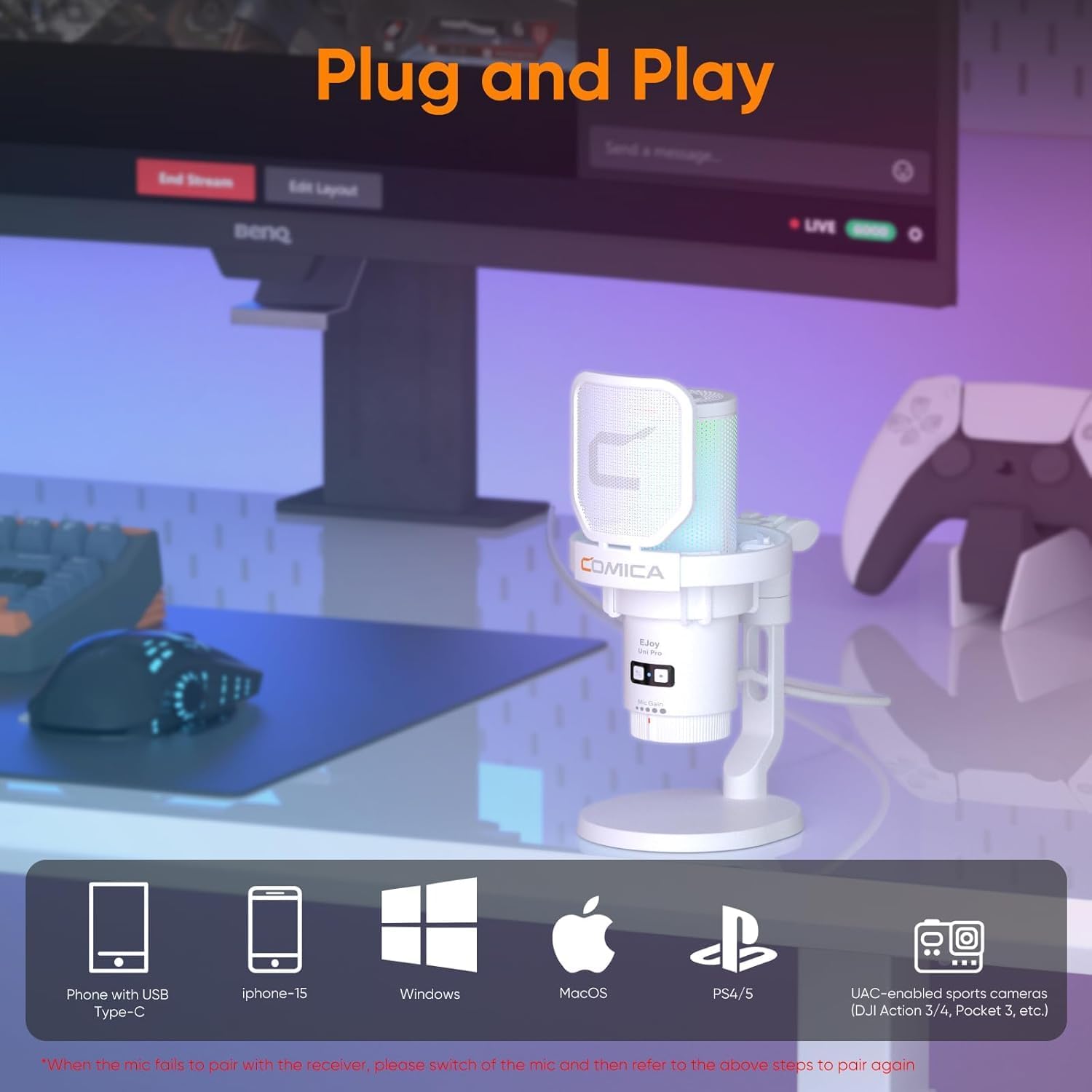
Image: Diagram illustrating wired and wireless connection methods for the microphone with different devices like phones, laptops, and gaming consoles.
4. Operating Instructions
4.1. Audio Controls
- Gain Control: Adjust the microphone's input sensitivity using the gain knob located on the microphone body. Rotate to increase or decrease the mic volume according to your needs.
- Real-time Audio Monitoring: Plug headphones into the 3.5mm jack on the microphone to monitor your audio input in real-time. This allows you to hear exactly what the microphone is capturing.
- Touchable Muting Key: A touch-sensitive button on the top of the microphone allows for quick muting and unmuting. Tap to toggle the microphone's active state.

Image: Close-up view of the microphone's controls, highlighting the gain knob, headphone jack for monitoring, and the mute button.
4.2. Noise Cancellation
The EJoy Uni Pro features a one-click denoise function to minimize background noise, providing a clearer recording experience. Press the dedicated noise reduction button to activate or deactivate this feature.
Video: A short preview demonstrating the noise cancellation feature of the Comica EJoy Uni Pro microphone.
4.3. RGB Lighting Effects
The microphone includes controllable dynamic radiant RGB lighting with three unique effects: breathing light, dynamic gradient, and audio dynamics. These effects can be adjusted to suit your preference.
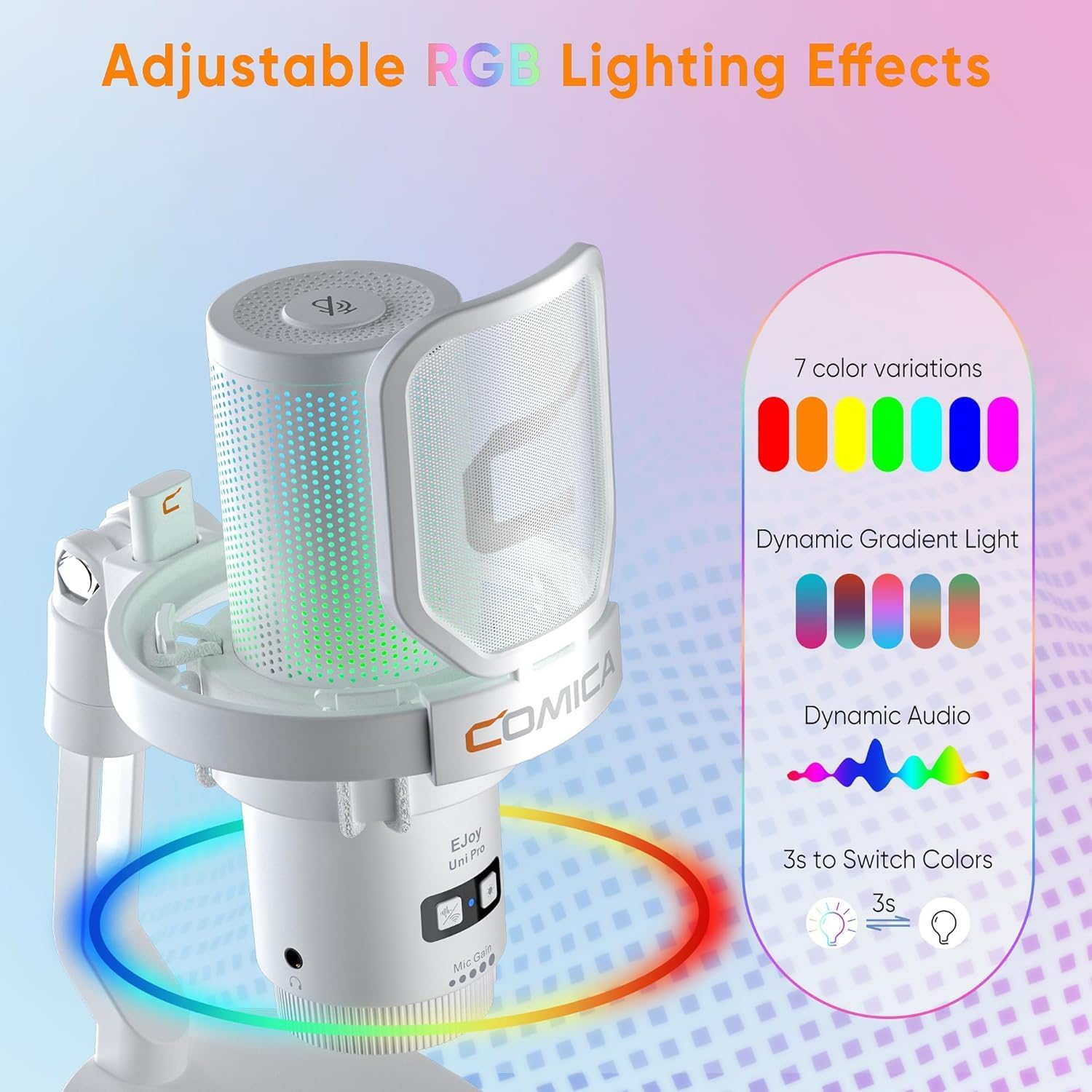
Image: Visual representation of the microphone's adjustable RGB lighting effects, including various color modes.
5. Maintenance
To ensure optimal performance and longevity of your COMICA EJoy Uni Pro microphone, follow these maintenance guidelines:
- Keep the microphone clean by gently wiping it with a soft, dry cloth. Avoid using harsh chemicals or abrasive materials.
- Store the microphone in a cool, dry place away from direct sunlight and extreme temperatures.
- Handle the microphone and its components with care to prevent physical damage.
- Regularly check cable connections for any signs of wear or damage.
6. Troubleshooting
If you encounter issues with your microphone, please refer to the following common troubleshooting steps:
- No Sound Output:
- Ensure the microphone is properly connected (wired or wireless receiver inserted).
- Check if the microphone is muted (red light indicates mute). Tap the mute button to unmute.
- Verify the gain control is not set to minimum.
- Confirm the correct audio input device is selected in your computer's or device's sound settings.
- Poor Audio Quality/Background Noise:
- Activate the one-click denoise feature.
- Ensure the microphone is positioned correctly, utilizing its cardioid polar pattern (speak directly into the front).
- Check for environmental noise sources and minimize them.
- Ensure the pop filter is correctly installed to reduce plosives.
- Wireless Connection Issues:
- Ensure the wireless receiver is fully inserted into the USB port.
- If pairing fails, try re-pairing the microphone with the receiver by following the instructions in the quick guide.
- Check the battery level of the microphone.
7. Specifications
| Feature | Description |
|---|---|
| Model Number | uni Pro(D) |
| Microphone Form Factor | Mini |
| Polar Pattern | Unidirectional (Cardioid) |
| Sampling Rate | 48kHz/24bit |
| Connectivity Technology | USB, USB C, Wireless (2.4GHz) |
| Connector Type | USB Type-A, USB Type-C |
| Compatible Devices | Desktop/PC, MAC OS/WINDOWS, PS4/PS5, Tablet, USB C Phone |
| Special Features | Mute Function, Noise Reduction, Stand, Volume Control, Wireless and Wired Dual Mode, RGB Lighting |
| Signal-to-Noise Ratio | 72 dB |
| Power Source | Corded Electric (USB powered) |
| Battery Type | 1 Lithium Polymer (included) |
| Item Weight | 1.58 pounds (0.72 Kilograms) |
| Package Dimensions | 9.25 x 6.69 x 4.57 inches |
8. Warranty and Support
COMICA products are covered by a manufacturer's warranty. For detailed warranty information, product support, or service inquiries, please visit the official COMICA website or contact their customer service directly. Keep your purchase receipt as proof of purchase.


