
Redragon S101-4
Redragon S101 Programmable Gaming Keyboard and Mouse Instruction Manual
Model: S101-4
Introduction
This manual provides detailed instructions for setting up, operating, and maintaining your Redragon S101 Programmable Gaming Keyboard and Mouse combo. This combo is designed for PC gaming and general use, featuring customizable RGB backlighting, programmable keys, and adjustable DPI settings for the mouse.
Setup
Connecting the Devices
- Connect the Keyboard: Locate the USB connector attached to the keyboard cable. Insert this connector into an available USB port on your computer.
- Connect the Mouse: Locate the USB connector attached to the mouse cable. Insert this connector into another available USB port on your computer.
- Driver Installation: Your operating system (Windows 10, 8, 7, Vista, or XP) should automatically detect and install the necessary drivers. For advanced customization, download the official software from the Redragon website.
Once connected, the devices should be ready for immediate use. The RGB backlighting will illuminate upon successful connection.
Operating Instructions - Keyboard
RGB Backlighting Control
The Redragon S101 keyboard features 6 RGB backlit effects. You can adjust these effects and brightness levels directly from the keyboard or through the dedicated software.
- Changing Colors/Effects: Use the Function (FN) key in combination with specific keys (refer to the detailed instruction booklet for exact key combinations) to cycle through different lighting modes and colors.
- Adjusting Brightness: Use the Function (FN) key with the Up/Down arrow keys to increase or decrease the backlight brightness.
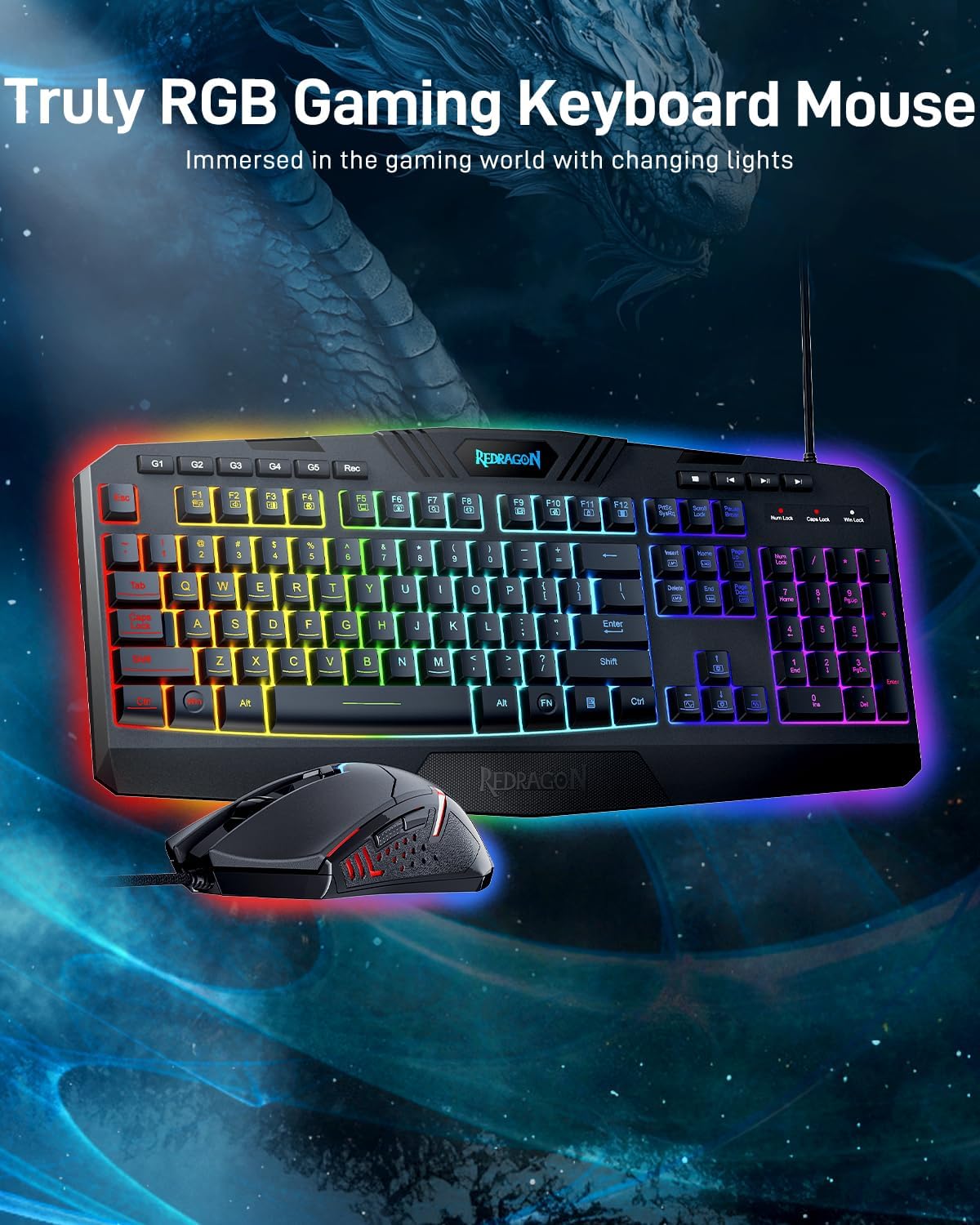
Image: The Redragon S101 keyboard and mouse displaying various RGB backlighting colors.
Macro Recording Function
The keyboard is equipped with 5 dedicated Macro Record keys (G1-G5) allowing you to record complex key combinations for quick execution.
- Start Recording: Press the Rec key.
- Select Macro Key: Press one of the G1-G5 keys to assign the macro.
- Record Your Macro: Type the desired key sequence.
- Save Recording: Press the Rec key again to save the macro.
- Play Macro: Press the assigned G key (G1-G5) to execute the recorded macro.

Image: A close-up of the Redragon S101 keyboard highlighting the G1-G5 macro keys and the 'Rec' button, with on-screen instructions for macro recording.
Multimedia Keys
The keyboard includes 4 independent and 12 combination multimedia keys for convenient control over media playback and system functions.
- Independent Keys: Dedicated buttons for common functions like volume control, play/pause, and track skipping.
- Combination Keys: Use the Function (FN) key with F1-F12 keys for additional multimedia and system shortcuts.

Image: The Redragon S101 keyboard with highlighted multimedia keys and function key combinations for various controls.
Operating Instructions - Mouse
DPI Adjustment
The Redragon S101 mouse offers adjustable DPI settings (800/1200/1600/2400/7200) to suit different needs and preferences.
- On-the-fly Adjustment: Use the dedicated DPI button on the mouse to cycle through the preset DPI levels.
- Software Customization: The DPI settings can be further customized and fine-tuned using the Redragon software.

Image: The Redragon S101 gaming mouse with an overlay illustrating the different DPI settings (800, 1200, 1600, 2400, 7200) and their corresponding colors.
Programmable Buttons
The mouse features customizable buttons that can be assigned various functions via the Redragon software.
- Software Configuration: Install the Redragon software to access options for remapping buttons, creating macros, and adjusting other mouse parameters.

Image: The Redragon S101 keyboard and mouse displayed alongside a graphical user interface of the customization software, showing options for lighting effects, macro recording, and mouse DPI settings.
Adjustable Weight System
The mouse includes an adjustable weight system, allowing users to fine-tune the mouse's feel and balance.
- Accessing Weights: The weights are typically located in a compartment on the underside of the mouse. Gently open the compartment to add or remove weights.
- Customization: Adjust the number of weights to achieve your preferred mouse feel for optimal control and comfort.
Maintenance
- Cleaning: Use a soft, dry cloth to wipe down the keyboard and mouse. For stubborn dirt, a slightly damp cloth with mild soap can be used, ensuring no liquid enters the devices.
- Cable Care: Avoid sharp bends or excessive pulling on the cables to prevent damage.
- Storage: Store the devices in a cool, dry place away from direct sunlight and extreme temperatures when not in use.
Troubleshooting
- Device Not Responding: Ensure both USB cables are securely plugged into your computer. Try different USB ports. Restart your computer.
- Backlighting Not Working: Check if the backlighting is turned off or set to minimum brightness using the FN key combinations. Ensure drivers are correctly installed.
- Mouse Tracking Issues: Clean the mouse sensor. Ensure you are using the mouse on a suitable surface (e.g., a mouse pad). Adjust DPI settings.
- Macro Keys Not Functioning: Verify that macros have been recorded and assigned correctly. Ensure the Redragon software is running if required for complex macros.
Specifications
| Feature | Detail |
|---|---|
| Brand | Redragon |
| Model Number | S101-4 |
| Connectivity Technology | Wired |
| Keyboard Special Features | Ergonomic, Macro Record, Programmable Buttons, RGB Backlit |
| Mouse DPI | 800/1200/1600/2400/7200 Adjustable |
| Compatible Devices | Personal Computer (Windows 10, 8, 7, Vista, XP; Limited Mac OS keyboard support) |
| Item Weight | 2.29 pounds |
| Package Dimensions | 17.83 x 11.02 x 1.85 inches |
Warranty and Support
For warranty information, technical support, or to download the latest software and drivers, please visit the official Redragon website. Keep your purchase receipt for warranty claims.
Official Redragon Website: www.redragonzone.com
Related documentsS101-4


Ask a question about this manual
Ask about setup, troubleshooting, compatibility, parts, safety, or missing instructions. Manuals+ will review the question and use this page’s manual context to help answer it.