
Introduction
This manual provides instructions for the BoxWave USB-A to C PortChanger adapter. This compact adapter is designed to convert a standard USB Type-A port into a USB Type-C port, enabling compatibility with newer USB-C devices for both charging and data transfer. The product includes a convenient 5-pack of adapters.

Image: BoxWave USB-A to C PortChanger adapter shown with a compatible portable monitor.
Setup
Follow these steps to set up your BoxWave USB-A to C PortChanger adapter:
- Identify USB-A Port: Locate an available USB Type-A port on your host device (e.g., computer, wall charger, power bank, car charger).
- Insert Adapter: Gently insert the male USB Type-A end of the PortChanger adapter into the identified USB Type-A port. Ensure it is fully seated.
- Connect USB-C Device: Connect your USB Type-C cable or accessory (e.g., charging cable for your phone, USB-C flash drive) into the female USB Type-C port of the PortChanger adapter.

Image: A close-up of the BoxWave USB-A to C PortChanger adapter, showing its design.

Image: Diagram showing the adapter's USB-A male and USB-C female ends, and compatible devices.
Operating Instructions
The BoxWave USB-A to C PortChanger adapter supports both charging and data transfer functionalities.
Charging
To charge a USB-C device:
- Connect the PortChanger adapter to a USB Type-A power source (e.g., wall adapter, computer USB-A port).
- Plug your USB Type-C charging cable into the female USB-C port of the adapter.
- Connect the other end of the USB Type-C cable to your device to initiate charging.

Image: Illustration of the adapter used for charging a USB-C device from a USB-A charger.
Data Transfer (On-The-Go - OTG)
To transfer data or use USB-C accessories:
- Connect the PortChanger adapter to a USB Type-A data port on your computer or compatible device.
- Plug your USB Type-C data cable or USB-C accessory (e.g., flash drive, external hard drive) into the female USB-C port of the adapter.
- Your device should recognize the connected USB-C accessory, allowing for data transmission. This functionality is typically plug-and-play.

Image: The adapter facilitating data transfer between a laptop and a smartphone.
Maintenance
To ensure the longevity and optimal performance of your BoxWave USB-A to C PortChanger adapter, follow these simple maintenance guidelines:
- Keep Clean: Wipe the adapter with a soft, dry cloth to remove dust or debris. Avoid using liquid cleaners.
- Keep Dry: Protect the adapter from moisture and liquids. Do not expose it to rain or humid conditions.
- Handle with Care: Avoid applying excessive force when inserting or removing the adapter from ports or when connecting cables.
- Proper Storage: Store the adapter in a cool, dry place when not in use. Its compact size makes it easy to carry in a small pouch or pocket.
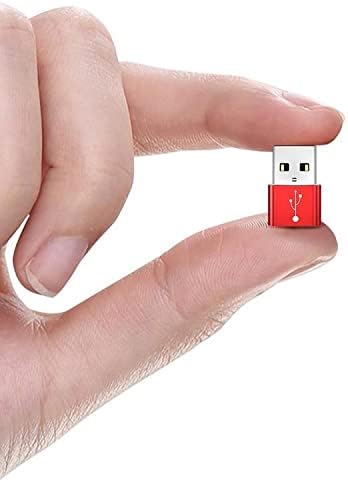
Image: The compact size of the adapter, emphasizing its portability.
Troubleshooting
If you encounter issues with your BoxWave USB-A to C PortChanger adapter, consider the following:
- Device Not Charging/Data Not Transferring:
- Ensure all connections are secure and fully inserted.
- Try using a different USB Type-A port on your host device.
- Test with a different USB Type-C cable or accessory to rule out issues with those components.
- Verify that the USB Type-A port you are using supports the desired function (charging or data transfer). Some older USB-A ports may have limited functionality.
- Adapter Not Recognized:
- Disconnect and reconnect the adapter.
- Restart your host device (computer, etc.).
Specifications
| Feature | Detail |
|---|---|
| USB Type | USB 2.0 Male to Type-C Female Adapter |
| Product Name | Type-C Adapter |
| Color | Metallic Silver (also available in red, gold, black) |
| Material | Aluminum Alloy |
| Product Type | OTG Adapter, Charge |
| Application | Laptop, Smartphone |
| Function | Data Transfer and Charging |
| Connector | USB-A to USB-C |
| Dimensions (Approx.) | 20mm (Length) x 14mm (Width) x 7mm (Thickness) |
| Item Weight | 0.3 ounces (approx. 4g) |

Image: Detailed diagram showing the physical dimensions and key specifications of the adapter.
Warranty and Support
This product includes limited third-party technical support for your device (up to 3 inquiries via electronic messaging). This support is provided by BoxWave and is not affiliated with or endorsed by Zeuslap.
For further assistance or warranty inquiries, please refer to the contact information provided with your purchase or visit the official BoxWave website.