1. Introduction
This manual provides detailed instructions for the installation, operation, and maintenance of your MSI MAG MT201D Premium Heavy Duty Dual Monitor Stand Arms. Please read this manual thoroughly before installation and retain it for future reference. This monitor arm is designed to support two monitors ranging from 17 to 45 inches, with a weight capacity of 2 to 20 kg (4.4 to 44 lbs) per screen.
2. Safety Information
Please observe the following safety precautions to prevent injury or damage to the product:
- Ensure the desk surface is stable and capable of supporting the combined weight of the monitor stand and monitors.
- Do not exceed the maximum weight capacity of 20 kg (44 lbs) per monitor arm.
- Follow all installation steps carefully. Improper installation may result in product failure or injury.
- Keep small parts away from children to prevent choking hazards.
- Adjust the tension of the spring arm only when a monitor is attached to prevent the arm from springing up rapidly.
- Avoid pinching fingers or hands during adjustment.
3. Package Contents
Verify that all components are present before beginning installation:
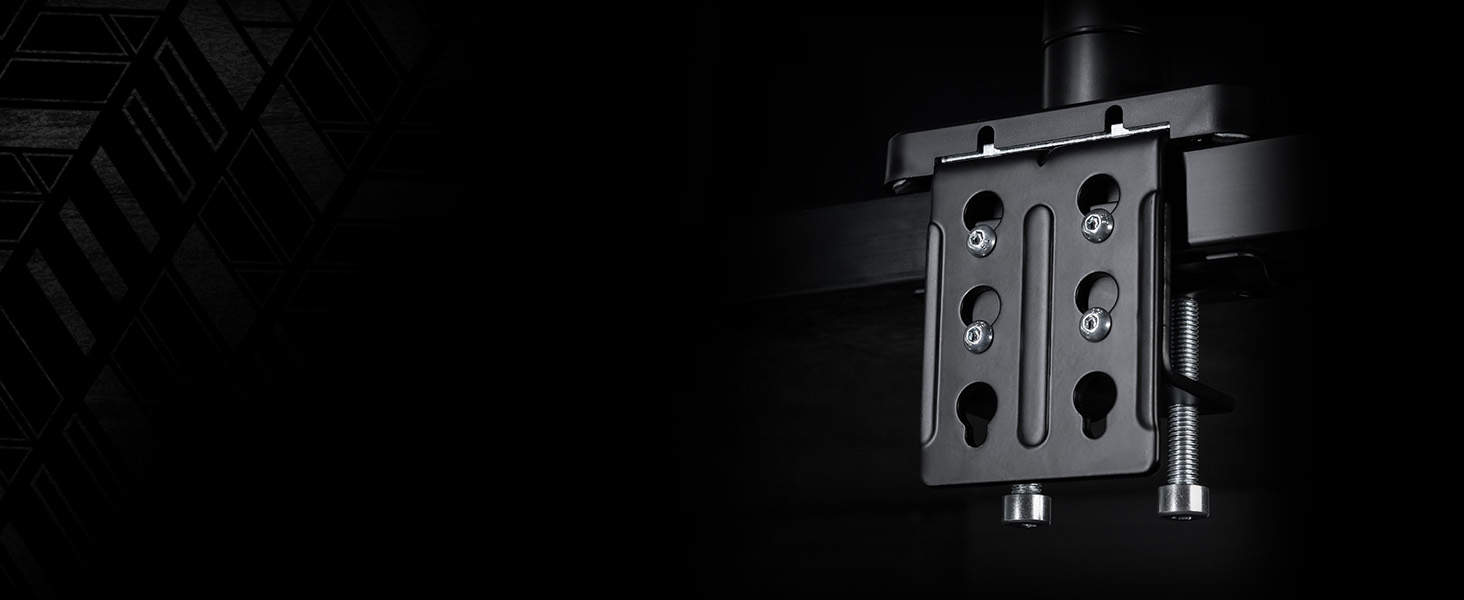
Image: All components included in the package, including monitor arms, VESA plates, desk clamp, grommet mount, and various screws and tools.
- Monitor Arms (x2)
- VESA Plates (x2)
- Desk Clamp Assembly (x1)
- Grommet Mount Components (x1 set)
- Tools (Allen wrenches)
- Assorted Screws and Washers
4. Specifications
| Feature | Specification |
|---|---|
| Model Number | MAGMT201D |
| Screen Size Compatibility | 17 - 45 inches |
| Weight Capacity (per screen) | 2 - 20 kg (4.4 - 44 lbs) |
| VESA Compatibility | 75x75 mm, 100x100 mm |
| Desk Thickness (Clamp) | 10 - 85 mm |
| Desk Thickness (Grommet) | 10 - 35 mm |
| Tilt Adjustment | +50° / -20° |
| Swivel Adjustment | +90° / -90° |
| Screen Rotation | +180° / -180° |
| Material | Metal |
| Item Weight | 20.9 pounds |
5. Setup and Installation
The MSI MAG MT201D offers two installation methods: desk clamp and grommet mount.
5.1 Choosing an Installation Method
- Desk Clamp: Suitable for desks with edges, supporting thicknesses from 10 to 85 mm.
- Grommet Mount: Ideal for desks with existing grommet holes, supporting thicknesses from 10 to 35 mm.
5.2 General Installation Steps
- Assemble the Base: Attach the chosen clamp or grommet components to the main pole according to the included diagram.
- Secure to Desk: Fasten the assembled base securely to your desk. Ensure it is tight and stable.
- Attach Monitor Arms: Slide the monitor arms onto the main pole.
- Attach VESA Plates to Monitors: Secure the VESA quick-release plates to the back of your monitors using the provided screws. Ensure VESA compatibility (75x75mm or 100x100mm).

Image: VESA Quick Release mechanism for easy monitor attachment.
- Mount Monitors: Carefully slide the monitors (with VESA plates attached) onto the monitor arms until they click into place.
- Adjust Spring Tension: Adjust the spring tension using the provided Allen wrench to match the weight of your monitors. This ensures the arms hold the monitors at the desired height. Turn clockwise to increase tension for heavier monitors, counter-clockwise to decrease for lighter monitors.
Video: Official product video demonstrating the installation process and various adjustments of the MSI MAG MT201D monitor arm.
6. Operation and Adjustments
The MSI MAG MT201D offers extensive adjustability for optimal viewing comfort and workspace efficiency.

Image: Overview of the monitor arm's flexibility, including tilt, pivot, height, and swivel adjustments.
- Height Adjustment: The gas spring mechanism allows for smooth vertical movement. Adjust the spring tension as needed to ensure the monitor stays at the desired height.
- Tilt: Adjust the monitor screen angle up to +50° or down to -20° to reduce glare and optimize viewing.
- Swivel: Rotate the monitor horizontally up to +90° or -90° for collaborative viewing or to change screen orientation.
- Rotation (Pivot): Rotate the monitor 360° (+180° / -180°) to switch between landscape and portrait modes.

Image: Demonstrates the full range of motion, including rotation, tilt, and swivel for various viewing angles.
- Horizontal/Forward/Backward: Position your monitors closer or further away from you, and adjust their horizontal alignment to create a seamless dual-monitor setup.
6.1 Cable Management
Integrated cable management channels help keep your workspace tidy. Route monitor cables through the designated clips or covers on the arms to maintain a clean setup.
Image: Cables are neatly organized along the monitor arm, contributing to a streamlined workspace.
7. Maintenance
Regular maintenance ensures the longevity and optimal performance of your monitor stand:
- Cleaning: Wipe the stand with a soft, damp cloth. Avoid abrasive cleaners or solvents.
- Inspection: Periodically check all screws and connections to ensure they are tight. Re-tighten if necessary.
- Spring Tension: If monitors sag or rise unexpectedly, re-adjust the spring tension as described in Section 5.2.
8. Troubleshooting
If you encounter issues with your monitor stand, refer to the following common problems and solutions:
- Monitor Sags or Won't Stay Up: The spring tension is too low for the monitor's weight. Increase the spring tension by turning the adjustment screw clockwise.
- Monitor Floats Up or is Difficult to Push Down: The spring tension is too high for the monitor's weight. Decrease the spring tension by turning the adjustment screw counter-clockwise.
- Arm is Loose or Wobbly: Check all connection points, especially the desk clamp/grommet mount and the arm-to-pole connection. Tighten all screws.
- Monitor Not Level: Adjust the tilt mechanism on the VESA plate. Some VESA plates may have a small leveling screw.
9. Warranty and Support
The MSI MAG MT201D Premium Heavy Duty Dual Monitor Stand Arms are backed by a comprehensive 3-year coverage. For warranty claims or technical support, please refer to the official MSI support channels or contact your retailer.


