
1. Introduction
Thank you for choosing the THOMSON 24-inch HD Google TV (Model 24HG2S14CW). This manual provides essential information for setting up, operating, and maintaining your new television. Please read these instructions carefully before using the product to ensure safe and optimal performance.
Experience complete entertainment for the whole family with the Thomson 24-inch HD Google TV. Google TV simplifies your entertainment experience by organizing content from your apps and subscriptions per user. Create multiple user profiles and benefit from organized recommendations. Enjoy a wide range of smart features, including access to over 400,000 movies and TV shows from numerous available apps, smart voice control with Google Assistant, and integrated Google Cast for wireless streaming of movies, music, and videos from compatible devices. Its elegant design with a 3-sided bezel-less frame allows you to fully concentrate on the on-screen action. Dolby Audio technology creates a dynamic sound experience. The integrated triple tuner allows reception via satellite antenna, terrestrial antenna, or cable, meaning you can receive all available channels without additional equipment. The ergonomic remote control with backlighting allows you to keep track of everything, even in dim lighting, and a dedicated 'Favorite' button provides quick access to your preferred app.
2. Safety Information
Always follow basic safety precautions when using this product to reduce the risk of fire, electric shock, and injury.
- Power Source: Ensure the TV is connected to a power supply that matches the voltage specified on the rating label. For 12V operation, use only the provided 12V adapter.
- Ventilation: Do not block ventilation openings. Allow adequate space around the TV for proper airflow to prevent overheating.
- Placement: Place the TV on a stable, level surface. Avoid placing it in direct sunlight, near heat sources, or in environments with high humidity or dust.
- Water and Moisture: Do not expose the TV to rain or moisture. Do not place objects filled with liquids, such as vases, on the TV.
- Cleaning: Unplug the TV before cleaning. Use a soft, dry cloth. Do not use liquid cleaners or aerosol cleaners.
- Servicing: Do not attempt to service this product yourself. Refer all servicing to qualified service personnel.
3. Package Contents
Please check that all items are included in your package:
- THOMSON 24-inch HD Google TV
- Remote Control (with batteries)
- Power Adapter (for standard AC outlet)
- 12V Power Cable (for camping/caravan use)
- TV Stands (2 pieces)
- Screws for TV Stands
- Quick Start Guide
- Instruction Manual (this document)
4. Setup
4.1 Physical Installation
Attaching the Stands:
- Carefully place the TV face down on a soft, clean surface to prevent screen damage.
- Align the stands with the screw holes on the bottom of the TV.
- Secure the stands using the provided screws. Ensure they are firmly attached.
The TV offers two stand positions to fit various furniture widths. Refer to the image below for guidance.

Wall Mounting (Optional):
If you plan to wall mount your TV, please consult a professional installer. Ensure the wall mount is compatible with the TV's VESA mounting pattern and weight.
4.2 Connecting Power
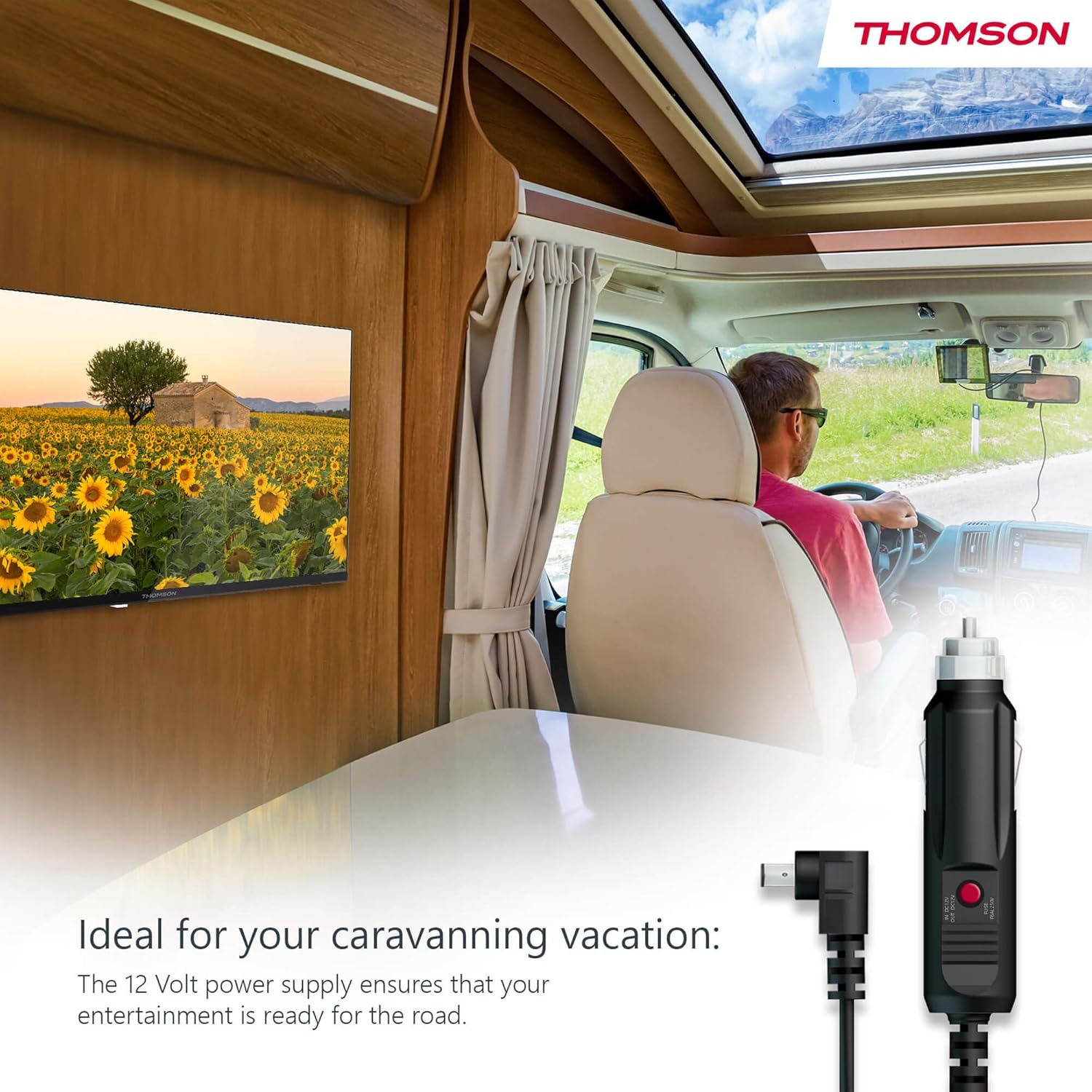
Your THOMSON TV supports both standard AC power and 12V DC power, making it ideal for camping or caravan use.
- Standard AC Power: Connect the provided power adapter to the TV's power input and then plug it into a standard wall outlet.
- 12V DC Power (Camping): For mobile use, connect the 12V power cable to the TV's power input and then to a compatible 12V power source in your vehicle or caravan.
4.3 Connecting Antennas/Cables
The integrated triple tuner allows reception via DVB-T (terrestrial antenna), cable, or satellite antenna.
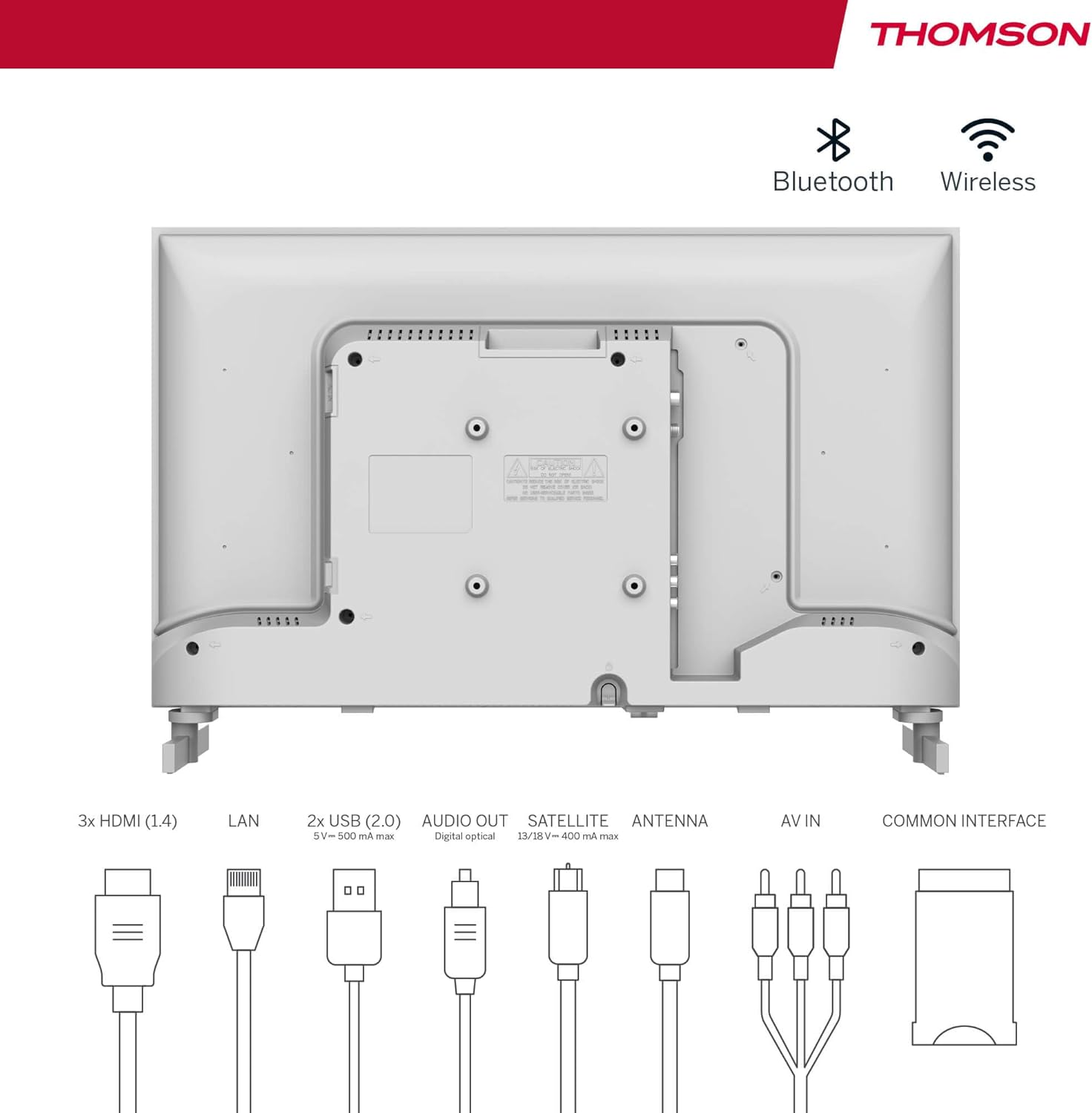
- Terrestrial Antenna: Connect a DVB-T/T2 antenna cable to the 'ANTENNA' input on the TV.
- Cable TV: Connect your cable TV coaxial cable to the 'ANTENNA' input on the TV.
- Satellite Dish: Connect your satellite dish cable to the 'SATELLITE' input on the TV.
4.4 Connecting External Devices
- HDMI Devices: Connect Blu-ray players, game consoles, or other HDMI devices to the HDMI ports (3 available).
- USB Devices: Connect USB drives for media playback or software updates to the USB ports (2 available).
- Audio Out: Use the digital optical audio output to connect to a soundbar or home theater system.
- AV In: For older devices, use the AV In ports.
- LAN: For a wired internet connection, connect an Ethernet cable to the LAN port.
- CI+ Module: Insert a CI+ module and smart card (if required by your service provider) into the Common Interface slot.
4.5 Initial Setup (Google TV)
- Power on the TV. The initial setup wizard will guide you through the process.
- Select your preferred language.
- Connect to a Wi-Fi network or use a wired LAN connection.
- Sign in with your Google account to access Google TV features, apps, and personalized recommendations.
- Follow the on-screen prompts to set up Google Assistant and tune channels (for antenna/cable/satellite).
5. Operating Your TV
5.1 Remote Control
The included remote control is designed for intuitive navigation of your Google TV.

- Backlit Buttons: The remote features backlighting for easy use in dark environments.
- Voice Control: Press the Google Assistant button and speak into the remote to control your TV, search for content, or ask questions.
- Favorite App Button: Use the star button to quickly access your most frequently used application.
- Profile Switch: Easily switch between different user profiles set up on your Google TV.

5.2 Google TV Interface
Google TV organizes content from your streaming services and apps into a single, easy-to-navigate interface.

- Personalized Recommendations: The 'For You' tab provides content suggestions based on your viewing habits across all your streaming services.
- Apps: Access a wide range of applications from the Google Play Store, including popular streaming platforms.
- Library: Find your purchased movies and shows from Google Play.
- Profiles: Create separate user profiles for each family member to get personalized content and recommendations.
5.3 Google Cast
Integrated Google Cast allows you to wirelessly stream movies, music, and videos from compatible devices (smartphones, tablets, computers) directly to your TV screen.
- Ensure your device and TV are connected to the same Wi-Fi network.
- Open a Cast-enabled app on your device (e.g., YouTube, Netflix).
- Tap the Cast icon (▶) within the app and select your THOMSON TV.
5.4 Dolby Audio
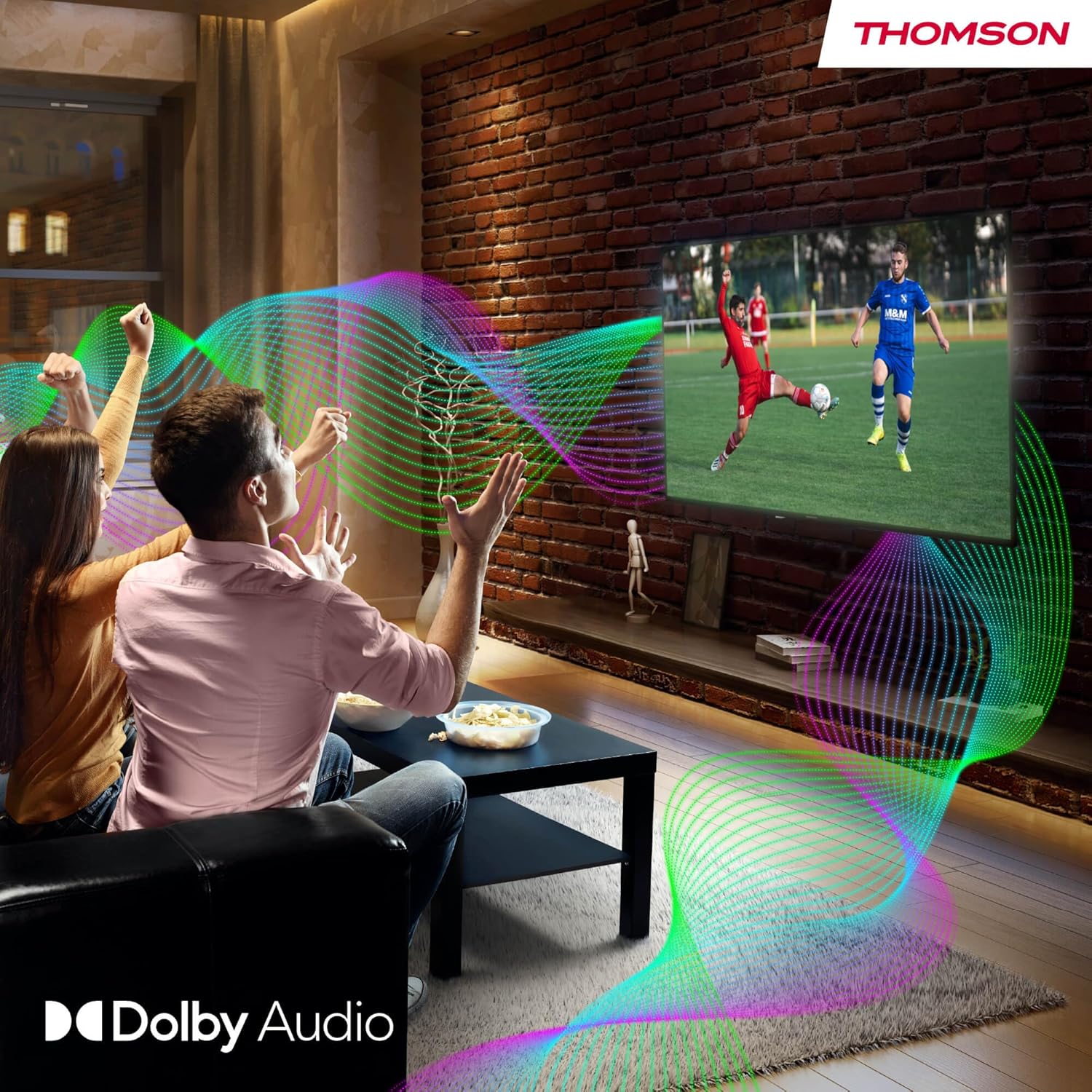
Your TV features Dolby Audio technology for an enhanced sound experience, delivering clear dialogue and immersive audio.
6. Maintenance
- Cleaning the Screen: Gently wipe the screen with a soft, lint-free cloth. For stubborn marks, slightly dampen the cloth with water or a specialized screen cleaner (ensure it's safe for LED screens). Never spray liquid directly onto the screen.
- Cleaning the TV Body: Use a soft, dry cloth to wipe the exterior of the TV.
- Software Updates: Your Google TV will periodically check for and install software updates. Ensure your TV is connected to the internet for these updates.
- Cable Management: Keep cables tidy and organized to prevent damage and ensure proper ventilation.
7. Troubleshooting
If you encounter any issues with your TV, refer to the following common problems and solutions:
| Problem | Possible Solution |
|---|---|
| No power | Check if the power cable is securely connected to the TV and the power outlet. Ensure the outlet is working. Try a different power source. |
| No picture, but sound is present | Check the input source. Ensure external devices are properly connected and powered on. |
| No sound, but picture is present | Check the volume level. Ensure mute is not activated. Check audio output settings and external audio device connections. |
| Remote control not working | Check and replace batteries. Ensure there are no obstructions between the remote and the TV. |
| Cannot connect to Wi-Fi | Ensure your router is on and working. Re-enter the Wi-Fi password. Try restarting the TV and router. |
| Poor picture quality | Check antenna/cable connections. Adjust picture settings. For streaming content, check internet speed. |
8. Specifications
| Feature | Detail |
|---|---|
| Brand | Thomson |
| Model Number | 24HG2S14CW |
| Screen Size | 24 inches (60 cm) |
| Resolution | HD (1366 x 768) |
| Display Technology | LED |
| Refresh Rate | 60 Hz |
| Operating System | Google TV |
| Voice Control | Google Assistant |
| Audio Technology | Dolby Audio |
| HDR Support | HDR10 |
| Connectivity | Wi-Fi, Bluetooth 5.1, HDMI (3 ports), USB (2 ports), LAN, Digital Optical Audio Out, AV In, CI+ |
| Tuner Type | Triple Tuner (DVB-T/T2, DVB-C, DVB-S/S2) |
| Power Supply | 12V DC / Standard AC |
| Color | White |
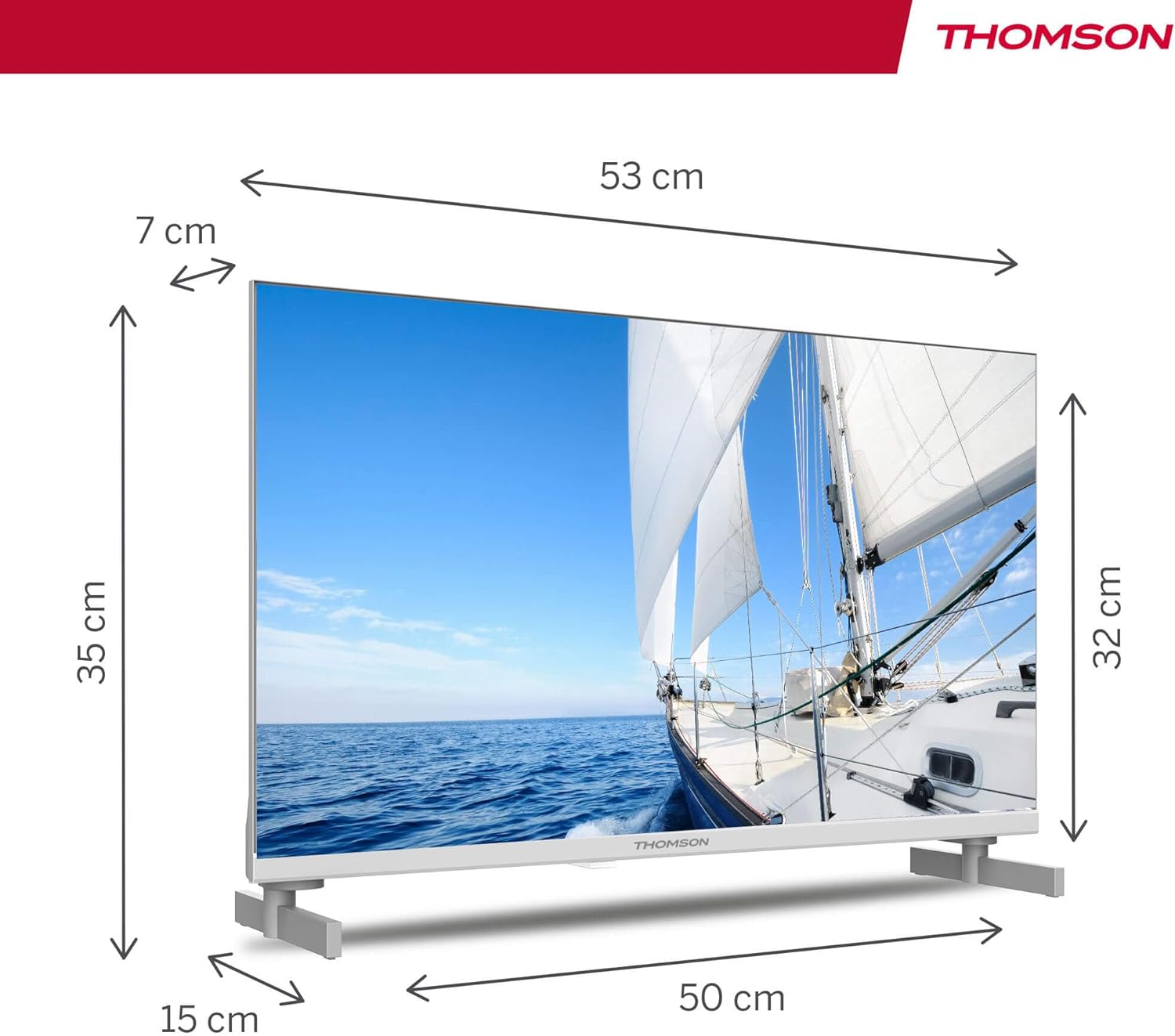
| Product Dimensions (L x W x H) | 53.48 x 15.05 x 35.32 cm |
| Weight | 3.5 kg |
| Energy Efficiency Class | E |
| Power Consumption (1000h) | 18 kWh |

9. Warranty and Support
THOMSON products are designed and manufactured to the highest quality standards. This product is covered by a manufacturer's warranty. Please refer to the warranty card included in your package for specific terms and conditions, including the warranty period and coverage details.
For technical support, troubleshooting assistance, or warranty claims, please contact THOMSON customer service through their official website or the contact information provided in your warranty documentation.


