
1. Introduction
The ttec Spoti Smart Tracker 2SMT01S is an Apple-certified device designed to help you locate your personal belongings. It integrates seamlessly with the Apple Find My network, allowing you to track items such as keys, bags, and luggage using your iOS device. The tracker features audible alerts for easy detection and boasts a compact, lightweight design for portability. Advanced wireless connectivity is provided by Bluetooth 5.1, and with iOS 17 or later, you can utilize multiple profiles within the Find My app.
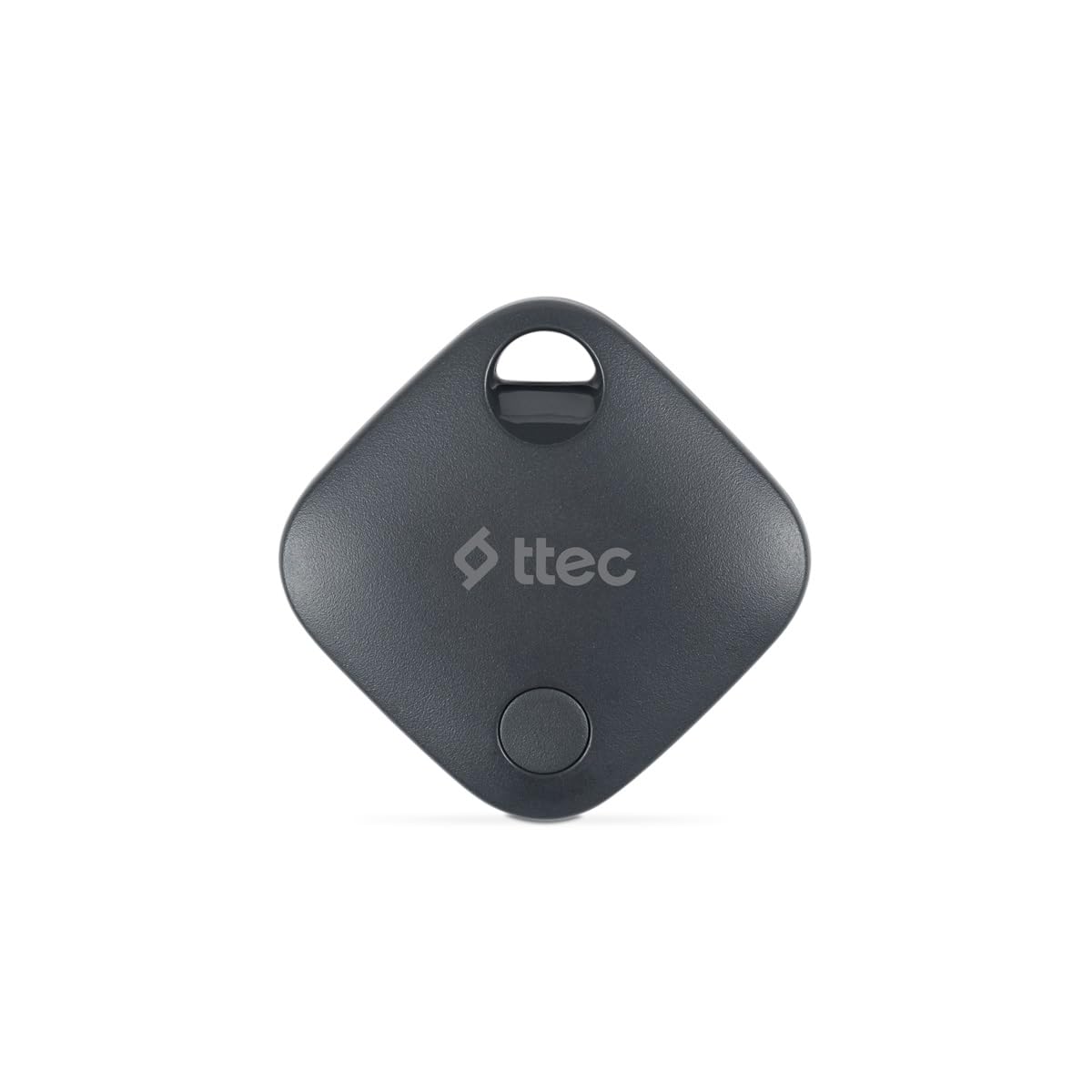
Image 1.1: ttec Spoti Smart Tracker 2SMT01S product packaging, showing the device and key features.
2. Package Contents
Please check the package for the following items:
- 1 x ttec Spoti Smart Tracker 2SMT01S
- 1 x User Manual (this document)
- Note: A CR2032 battery is required and is included in the package.

Image 2.1: The ttec Spoti Smart Tracker 2SMT01S device.
3. Setup
3.1. Installing the Battery
The ttec Spoti Smart Tracker uses one CR2032 coin cell battery. Ensure the battery is correctly inserted before use.
- Locate the battery compartment on the back of the tracker.
- Open the compartment cover by twisting it counter-clockwise or by gently prying it open with a small tool if indicated.
- Insert the CR2032 battery with the positive (+) side facing up.
- Close the compartment cover securely.
3.2. Pairing with Apple Find My
The ttec Spoti Smart Tracker is designed to work with the Apple Find My network. Follow these steps to pair your tracker with your iOS device:
- Ensure your iOS device (iPhone, iPad, or iPod touch) is running iOS 14.5 or later.
- Open the Find My app on your iOS device.
- Tap the Items tab at the bottom of the screen.
- Tap Add Item, then select Other Supported Item.
- Bring your ttec Spoti Smart Tracker close to your iOS device.
- The app will detect the tracker. Follow the on-screen instructions to name your item and register it to your Apple ID.
- Once paired, the tracker will appear on the map in the Find My app.
Note: For iOS 17 and later, the Find My app supports using multiple profiles, allowing for more flexible item management.
4. Operating the Smart Tracker
4.1. Locating Your Item
To find an item attached to your ttec Spoti Smart Tracker:
- Open the Find My app on your iOS device.
- Go to the Items tab.
- Select your ttec Spoti Smart Tracker from the list.
- The app will display the tracker's last known location on a map.
- If the item is nearby, tap Play Sound to make the tracker emit an audible alert, helping you pinpoint its exact location.
- If the item is not nearby, the Find My network will help locate it. When another Apple device user passes by your item, its location will be anonymously updated in the Find My app.
4.2. Lost Mode
If your item is lost, you can enable Lost Mode:
- In the Find My app, select your ttec Spoti Smart Tracker.
- Scroll down and tap Enable under Lost Mode.
- Follow the instructions to enter a phone number or email address where you can be contacted.
- If someone finds your item, they can use their iPhone to scan the tracker and see your contact information.
5. Battery Replacement
The ttec Spoti Smart Tracker uses a standard CR2032 coin cell battery. When the battery level is low, you will receive a notification on your iOS device via the Find My app. To replace the battery:
- Locate the battery compartment on the back of the tracker.
- Open the compartment cover.
- Remove the old CR2032 battery.
- Insert a new CR2032 battery with the positive (+) side facing up.
- Close the compartment cover securely.
Warning: Dispose of used batteries responsibly according to local regulations. Keep batteries out of reach of children.
6. Maintenance
To ensure the longevity and optimal performance of your ttec Spoti Smart Tracker:
- Keep the device clean and dry. Wipe with a soft, dry cloth if necessary.
- Avoid exposing the tracker to extreme temperatures, direct sunlight, or harsh chemicals.
- Do not attempt to disassemble or modify the device, as this will void the warranty.
- Ensure the battery compartment is always securely closed to prevent dust and moisture ingress.
7. Troubleshooting
| Problem | Possible Cause | Solution |
|---|---|---|
| Tracker not appearing in Find My app. | Not paired, out of battery, or out of Bluetooth range during initial setup. |
|
| Cannot hear the sound alert. | Tracker is too far, battery is low, or environmental noise is too high. |
|
| Location not updating. | Tracker is out of range of any Apple Find My network device, or battery is dead. |
|
| Connection frequently drops. | Interference, low battery, or device malfunction. |
|
8. Specifications
| Brand | ttec |
| Model | 2SMT01S |
| Connectivity Technology | Bluetooth 5.1 |
| Product Weight | 0.02 Kilogram |
| Battery Type | 1 x CR2032 (included) |
| Manufacturer | ttec |
| Country of Origin | China |
| ASIN | B0D49TPB9Y |
9. Warranty and Support
The ttec Spoti Smart Tracker 2SMT01S comes with a 2-year Official Distributor Warranty. This warranty covers defects in materials and workmanship under normal use.
For warranty claims, technical support, or any questions regarding your product, please contact ttec customer service through their official website or the contact information provided with your purchase documentation.
Please have your proof of purchase and the product model number (2SMT01S) ready when contacting support.
10. Safety Information
Please read and follow these safety guidelines to prevent damage to your device or injury to yourself:
- Do not ingest the battery. Chemical Burn Hazard.
- Keep new and used batteries away from children.
- If the battery compartment does not close securely, stop using the product and keep it away from children.
- If you think batteries might have been swallowed or placed inside any part of the body, seek immediate medical attention.
- Do not expose the device to water or moisture unless specified as waterproof.
- Avoid dropping or subjecting the device to strong impacts.
- Do not attempt to open, disassemble, or repair the device yourself.
- Dispose of the device and batteries according to local environmental regulations.
- This device complies with European Union Standards (CE).