
1. Introduction
This manual provides essential information for the setup, operation, maintenance, and troubleshooting of your Fujitsu Esprimo P757 PC. Please read these instructions carefully before using your computer to ensure proper functionality and longevity.
The Fujitsu Esprimo P757 is a refurbished PC tower designed for business, multimedia, and daily work use, featuring an Intel Core i7-7700 processor, 16GB DDR4 RAM, and a 240GB SSD, pre-installed with Windows 10 Pro.
2. Product Overview
Key Features:
- Operating System: Windows 10 Professional (installed and activated with COA license)
- Processor: Intel Core i7-7700 (up to 4.20 GHz turbo boost, 4 Cores, 8 Threads)
- Memory: 16 GB DDR4 RAM (expandable up to 64 GB)
- Storage: 240 GB SATA 2.5" SSD
- Graphics: Integrated Intel HD Graphics 530
- Power Supply: 280 W
- Motherboard: FUJITSU D3501
External Components and Ports:

Image: Front view of the Fujitsu Esprimo P757 PC tower, showing the optical drive bay, front panel ports, and ventilation grille.
Front Panel:
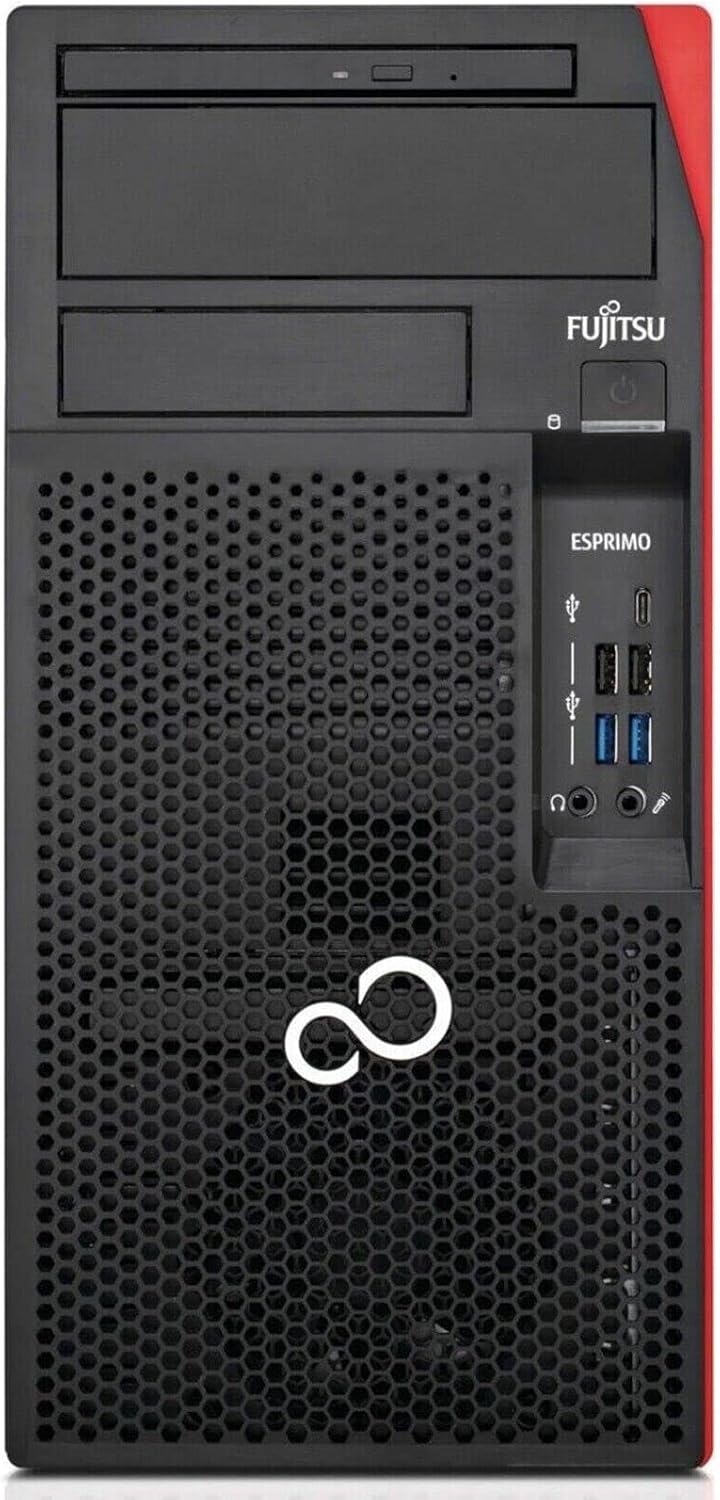
Image: Close-up of the front panel ports on the Fujitsu Esprimo P757, highlighting USB and audio connections.
- 1 x Headphone jack
- 1 x Microphone jack
- 2 x USB 2.0 ports
- 2 x USB 3.0 ports
- 1 x USB 3.1 Type C port
Rear Panel:

Image: Rear view of the Fujitsu Esprimo P757 PC, displaying the various video, USB, network, and audio ports.
- 4 x USB 3.0 ports
- 2 x USB 2.0 ports
- 1 x DVI-D (video) port
- 2 x DisplayPort (audio and video)
- 1 x RJ-45 LAN port (10/100/1000Mbps)
- 3 x Audio jacks
Internal Components:
- 4 x DDR4 RAM slots (variable RAM bank arrangement)
- 5 x SATA III ports (1 occupied by SSD)
- 1 x PCI Express x16 3.0 slot
- 1 x PCI Express x4 2.0 slot
- 2 x PCI Express x1 2.0 slots
3. Setup
- Unpacking: Carefully remove the PC from its packaging. The package includes the PC and an external power supply.
- Placement: Place the PC on a stable, flat surface with adequate ventilation. Ensure no vents are blocked.
- Connect Peripherals:
- Connect your monitor(s) to the DVI-D or DisplayPort outputs on the rear panel.
- Connect your keyboard and mouse to any available USB ports (USB 2.0 or USB 3.0).
- If using a wired network, connect an Ethernet cable to the RJ-45 LAN port.
- Connect speakers or headphones to the audio jacks as needed.
- Power Connection: Connect the external power supply to the PC's power input and then plug the power cable into a wall outlet.
- First Boot: Press the power button on the front of the PC. The system will boot into Windows 10 Professional, which is pre-installed and activated. Follow any on-screen prompts for initial setup, such as language and user account creation.
4. Operating Instructions
Power On/Off:
- To Power On: Press the power button located on the front panel.
- To Shut Down: In Windows, click the Start button, then Power, and select 'Shut down'. Do not force power off by holding the power button unless the system is unresponsive.
- To Restart: In Windows, click the Start button, then Power, and select 'Restart'.
Connecting Devices:
- USB Devices: Connect USB devices such as external hard drives, printers, or webcams to any available USB 2.0, USB 3.0, or USB 3.1 Type C ports. USB 3.0 and 3.1 offer faster data transfer speeds.
- Audio Devices: Use the front panel headphone and microphone jacks for convenient access. The rear audio jacks can be used for speakers or other audio equipment.
- Display Devices: The PC supports multiple displays via the DVI-D and DisplayPort outputs. Ensure your monitor cables are securely connected.
- Network: For wired internet access, connect an Ethernet cable. For wireless connectivity, ensure a Wi-Fi adapter is installed (if not integrated) and configure Wi-Fi settings in Windows.
5. Maintenance
Regular maintenance helps ensure the longevity and optimal performance of your Fujitsu Esprimo P757 PC.
- Cleaning: Regularly clean the exterior of the PC with a soft, dry cloth. Use compressed air to gently clear dust from ventilation grilles and ports to prevent overheating. Ensure the PC is powered off and unplugged before cleaning.
- Ventilation: Always ensure that the PC's ventilation openings are unobstructed to allow for proper airflow. Avoid placing the PC in enclosed spaces.
- Software Updates: Keep your Windows operating system and drivers updated to ensure security and performance.
- Data Backup: Regularly back up important data to an external drive or cloud storage to prevent data loss.
As this is a professionally refurbished product, it has been inspected, tested, and cleaned by qualified suppliers.
6. Troubleshooting
This section provides solutions to common issues you might encounter.
- No Power:
- Check if the power cable is securely connected to both the PC and the wall outlet.
- Verify the wall outlet is functional by plugging in another device.
- Ensure the external power supply is correctly connected.
- No Display:
- Ensure the monitor is powered on and its video cable is securely connected to the PC's DVI-D or DisplayPort.
- Try connecting the monitor to a different video port on the PC if available.
- Test the monitor with another device if possible.
- Peripheral Not Working (Keyboard/Mouse/USB Device):
- Ensure the device is properly connected to a USB port.
- Try connecting the device to a different USB port.
- Restart the PC.
- Check device drivers in Windows Device Manager.
- System Slowdown:
- Close unnecessary applications running in the background.
- Check for malware or viruses using antivirus software.
- Ensure sufficient free space on the SSD.
- Verify that the PC's ventilation is not blocked and it's not overheating.
7. Specifications
| Feature | Specification |
|---|---|
| Brand | Fujitsu |
| Model Number | P757-I7-7700 |
| Series | P757-I7-7700 |
| Operating System | Windows 10 Pro |
| Hardware Platform | PC |
| Processor Brand | Intel |
| Processor Type | Core i7-7700 |
| Processor Speed | 3.6 GHz (up to 4.2 GHz Turbo Boost) |
| Number of Cores | 4 |
| Installed RAM | 16 GB DDR4 |
| Maximum Memory | 64 GB |
| Hard Drive Size | 240 GB |
| Hard Drive Technology | SSD |
| Graphics Chipset Brand | Intel |
| Graphics Card Description | Integrated |
| GPU | Intel HD Graphics 530 |
| Graphics Card RAM | 128 MB |
| Processor Socket | LGA 1151 |
| Connectivity Type | Wi-Fi (if adapter installed), Ethernet |
| Number of USB 3.0 Ports | 7 (2 front, 4 rear) |
| Specific Uses for Product | Business, Multimedia, Daily Use, Work |
| PC Type | Computer Tower |
| Dimensions (L x W x H) | 38 x 30 x 18 cm |
8. Warranty and Support
For warranty information, please refer to the documentation provided by your reseller or the terms of your purchase. As this is a refurbished product, specific warranty details may vary.
Spare Parts Availability: Information regarding spare parts availability is currently unavailable.
Software Updates: Information regarding guaranteed software updates is currently unavailable.
For further assistance, please contact your product supplier or refer to the official Fujitsu support website for general product information.


