
1. Introduction
Thank you for choosing the TONGVEO PTZ HDMI Camera. This manual provides essential information for the proper installation, operation, and maintenance of your camera. Please read this manual thoroughly before using the product to ensure optimal performance and to prevent damage. This camera is designed for high-quality video capture in various settings, including live streaming, video conferencing, education, and worship services.
2. Product Overview
2.1 Key Features
- High-Definition Video: 1080p resolution at 60 frames per second (fps) for clear and smooth video.
- Optical Zoom: 3x optical zoom lens with a 55.8° field of view, allowing for detailed close-ups without loss of quality.
- Pan/Tilt/Zoom (PTZ) Functionality: Silent movement with 350° pan and 180° tilt capabilities, controllable remotely.
- Multiple Outputs: HDMI and USB 3.0 for versatile connectivity.
- Easy Setup: Plug and Play functionality, automatically recognized by computers without driver installation.
- Wide Compatibility: Compatible with Windows, Mac, and popular conferencing software like Zoom, Skype, OBS, Google Hangouts, Cisco WebEx, and Microsoft Teams.
- Advanced Image Processing: Superior white balance and exposure modes, supporting YUV, MJPG, and H.264 video compression formats.
- Remote Control: Includes an infrared (IR) remote control with 10 presets for quick camera positioning.
- Joystick Control: Supports external joystick control via RS485 or RS232 interfaces.
2.2 Package Contents
Verify that all items are present in the package:
- TONGVEO USB PTZ Camera
- 9.8ft USB 3.0 Cable
- DC 12V Power Adapter
- IR Remote Control
- Wall Mount with Screws
- User Manual (this document)

Image: Package contents including the camera, USB cable, power adapter, remote, wall mount, and user manual.
3. Setup
3.1 Physical Installation
The TONGVEO PTZ camera offers flexible mounting options to suit various environments:
- Desktop Placement: Place the camera on a stable, flat surface.
- Monitor Mounting: Securely attach to the top of a monitor.
- Wall Mounting: Use the provided wall mount and screws to fix the camera to a wall.
- Tripod Mounting: Attach the camera to a standard tripod using the tripod screw hole at the base.
- Ceiling Mounting: Install the camera upside down on the ceiling using a compatible mount (sold separately or included if specified).
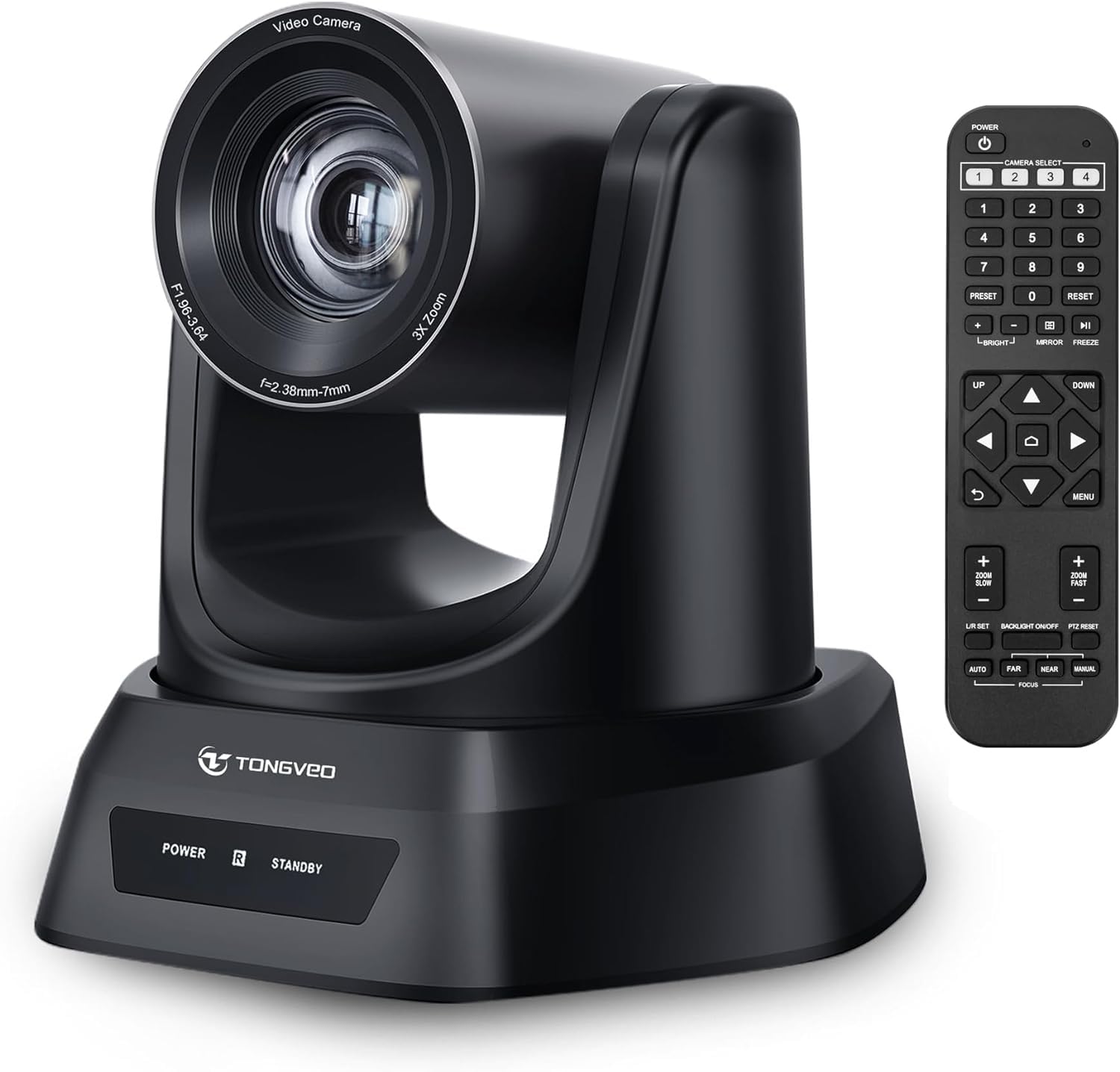
Image: Overview of the TONGVEO PTZ camera highlighting 3x optical zoom, 1080p 60fps, and pan/tilt capabilities.
3.2 Connections
Connect the camera to your devices using the ports on the rear panel:
- DC 12V Power: Connect the included power adapter to the DC 12V port and then to a power outlet.
- USB 3.0: Connect the USB 3.0 cable from the camera to your computer (PC/Mac) for video and control.
- HDMI: Connect an HDMI cable from the camera to a display (TV/Monitor) or a video switcher (e.g., Blackmagic ATEM) for video output.
- RS232/RS485: These ports are for connecting an external joystick controller for advanced PTZ control. RS485 supports daisy-chaining multiple cameras.

Image: Rear panel of the TONGVEO PTZ camera showing DC 12V, RS485, RS232, USB, and HDMI ports.
3.3 Software Installation
The TONGVEO PTZ camera is a Plug and Play device. No specific drivers are required for most operating systems. Your computer should automatically recognize the camera when connected via USB. It supports the UVC1.1 standard.
4. Operation
4.1 Remote Control
Use the included IR remote control to manage camera functions:
- PTZ Movement: Use the directional buttons to pan (left/right) and tilt (up/down) the camera.
- Zoom: Adjust the optical zoom in and out. The remote typically offers fast and slow zoom options.
- Presets: The remote allows you to save and recall up to 10 preset positions. To save a preset, move the camera to the desired position, then press the 'SET' button followed by a number (1-10). To recall a preset, press the corresponding number button.
- Camera Select: If multiple TONGVEO cameras are connected, use the camera select buttons to control a specific unit.
4.2 Image Settings
Access the On-Screen Display (OSD) menu via the remote control to adjust image parameters:
- Focus: The camera features auto-focus by default. Manual focus adjustment is available through the OSD menu.
- White Balance: Adjust for accurate color reproduction under different lighting conditions.
- Exposure: Control brightness and contrast to optimize image visibility.
4.3 Software Compatibility
The camera is compatible with a wide range of operating systems and video conferencing applications:
- Operating Systems: Windows XP, Vista, 7, 8, 8.1, 10, 11; Mac 10.4 or higher.
- Applications: Zoom, Skype, Google Hangouts, Cisco WebEx, Microsoft Teams, GoToMeeting, BlueJeans, OBS, and other UVC-compliant software.

Image: Diagram illustrating the TONGVEO PTZ camera's compatibility with various devices and software platforms.
5. Maintenance
To ensure the longevity and optimal performance of your TONGVEO PTZ camera, follow these maintenance guidelines:
- Cleaning: Use a soft, dry cloth to clean the camera body. For the lens, use a specialized lens cleaning cloth and solution. Avoid abrasive cleaners or solvents.
- Storage: When not in use for extended periods, store the camera in a cool, dry place, away from direct sunlight and extreme temperatures.
- Handling: Handle the camera with care. Avoid dropping or subjecting it to strong vibrations.
- Power: Disconnect the power adapter when the camera is not in use or during electrical storms.
6. Troubleshooting
If you encounter issues with your TONGVEO PTZ camera, refer to the following common problems and solutions:
- No Power:
- Ensure the power adapter is securely connected to the camera and a working power outlet.
- Verify the power outlet is functional.
- No Video Output:
- Check all cable connections (USB, HDMI) are secure.
- Ensure the correct input source is selected on your display or video switcher.
- Verify the camera is selected as the video input device in your software (e.g., Zoom, OBS).
- Image is Blurry/Out of Focus:
- Allow the camera's auto-focus to adjust.
- Access the OSD menu to manually adjust the focus if needed.
- Ensure the lens is clean and free from smudges.
- Remote Control Not Working:
- Check the batteries in the remote control and replace if necessary.
- Ensure there are no obstructions between the remote and the camera's IR receiver.
- PTZ Movement is Unresponsive:
- Verify the camera is powered on and the remote control is functioning.
- If using a joystick, ensure it is correctly connected via RS232/RS485.
7. Specifications
Detailed technical specifications for the TONGVEO PTZ HDMI Camera (Model TV-NV3H-UK):
| Feature | Specification |
|---|---|
| Model Number | TV-NV3H-UK (819988df-b012-4f6a-b3ce-5c96af8001c3) |
| Brand | TONGVEO |
| Optical Zoom | 3x |
| Effective Video Resolution | 1080 Pixels (1080p 60fps) |
| Photo Sensor Technology | CMOS |
| Optical Sensor Size | 1/2.7-inch |
| Max Focal Length | 10 Millimeters |
| Min Focal Length | 5 Millimeters |
| Video Capture Format | MP4 (Supports YUV, MJPG, H.264) |
| Pan Movement | 350° |
| Tilt Movement | 180° |
| Connectivity | HDMI, USB 3.0, RS232, RS485 |
| Power Source | DC 12V |
| Image Stabilization | No |
| Working Temperature | -10°C to +50°C |
| Package Dimensions | 28 x 21 x 19 cm |
| Weight | 2 kilograms |

Image: Bottom view of the TONGVEO PTZ camera showing model number (TV-V3H) and other regulatory information.
8. Warranty and Support
The TONGVEO PTZ HDMI Camera comes with a 3-year warranty. For any questions, technical assistance, or warranty claims, please contact TONGVEO customer service. Our support team is available to respond to your inquiries within 24 hours.
Please refer to the contact information provided on the TONGVEO official website or your purchase documentation for the most up-to-date support channels.


