
Introduction
This manual provides comprehensive instructions for the installation, operation, and maintenance of your Powerbass PB-ZXN20MP Deckless Media Player. Please read this manual thoroughly before using the product to ensure proper operation and to prevent damage.
Product Overview
The Powerbass PB-ZXN20MP is a deckless media player designed for in-vehicle audio entertainment. It features multiple connectivity options including Bluetooth, USB, and Auxiliary input, along with an integrated FM radio tuner. The unit delivers 60 watts x 4 output for clear and powerful sound.
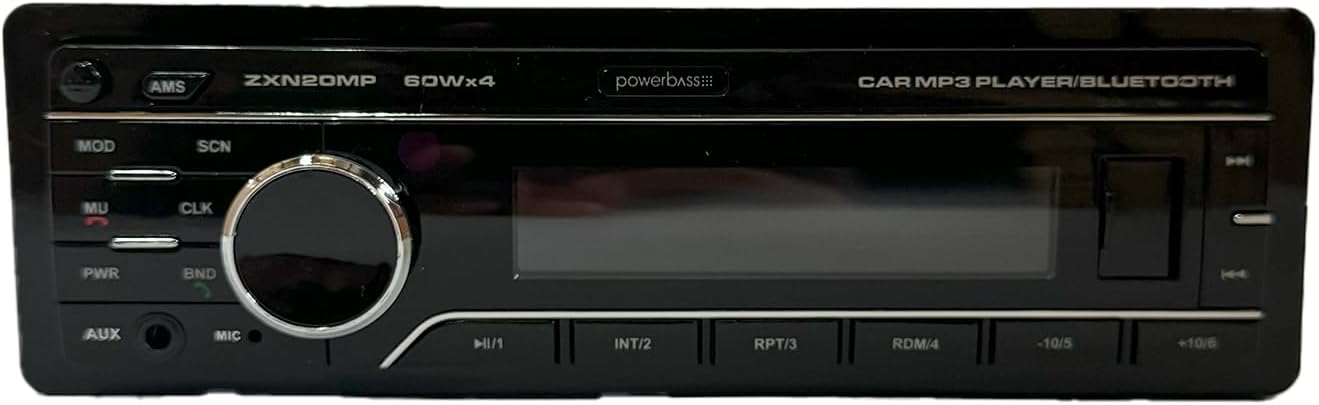
Figure 1: Front panel of the Powerbass PB-ZXN20MP media player. This image displays the main controls including the volume knob, display screen, and various function buttons for mode selection, track control, and radio tuning.
Setup and Installation
1. Wiring Connections
Before installation, ensure the vehicle's battery is disconnected to prevent electrical shorts. Refer to your vehicle's wiring diagram for specific connections.
- Yellow Wire (Constant 12V): Connect to a constant 12V power source. This maintains memory settings.
- Red Wire (Accessory 12V): Connect to a switched 12V power source (e.g., ignition switch).
- Black Wire (Ground): Connect securely to the vehicle's chassis.
- Speaker Wires: Connect to your vehicle's speakers. Ensure correct polarity (+/-) for each speaker. Typically, four pairs of wires are provided for front left, front right, rear left, and rear right speakers.
- Antenna Wire: Connect the vehicle's FM antenna to the player's antenna input.
2. Mounting the Unit
Install the media player into the vehicle's dashboard opening using the provided mounting sleeve and hardware. Ensure the unit is securely fastened and does not obstruct any vehicle controls.
3. Initial Power-On
After all connections are made and the unit is mounted, reconnect the vehicle's battery. Press the PWR button on the unit to power it on. The display should illuminate.
Operating Instructions
1. Front Panel Controls
- PWR (Power/Mute): Press to turn the unit on/off. Short press to mute/unmute audio.
- MOD (Mode): Press to cycle through available audio sources: FM, Bluetooth, USB, AUX.
- SCN (Scan): In FM mode, press to scan and store radio stations.
- CLK (Clock): Press to display the clock. Press and hold to enter clock setting mode.
- BND (Band): In FM mode, press to switch between FM1, FM2, and FM3 bands.
- AMS (Automatic Memory Store): In FM mode, press and hold to automatically scan and store the strongest stations.
- Volume Knob: Rotate to adjust the volume level. Press to access audio settings (Bass, Treble, Balance, Fader).
- |<< (Previous Track/Rewind): Short press to skip to the previous track (USB/Bluetooth) or tune down radio stations (FM). Long press for fast rewind (USB).
- >>| (Next Track/Fast Forward): Short press to skip to the next track (USB/Bluetooth) or tune up radio stations (FM). Long press for fast forward (USB).
- >|| (Play/Pause): Play or pause media playback (USB/Bluetooth).
- AUX Input: 3.5mm jack for connecting external audio devices.
- USB Port: For connecting USB storage devices.
- MIC: Built-in microphone for Bluetooth hands-free calling.
2. FM Radio Operation
- Press MOD until "FM" is displayed.
- Press BND to select FM1, FM2, or FM3.
- Use the |<< or >>| buttons to manually tune to stations.
- Press SCN to automatically scan for stations.
- Press and hold AMS to automatically store strong stations into presets.
3. Bluetooth Operation
- Press MOD until "BT" or "Bluetooth" is displayed.
- On your mobile device, enable Bluetooth and search for available devices.
- Select "PB-ZXN20MP" from the list. If prompted for a password, enter "0000".
- Once paired, you can stream audio from your device or make/receive calls.
- Use the >||, |<< and >>| buttons to control playback.
4. USB Playback
- Insert a USB storage device into the USB port.
- The unit will automatically switch to USB mode and begin playback. If not, press MOD to select USB.
- Use the >||, |<< and >>| buttons to control playback.
5. AUX Input
- Connect an external audio device (e.g., MP3 player) to the 3.5mm AUX input jack using an audio cable.
- Press MOD until "AUX" is displayed.
- Control playback from the connected external device.
6. Audio Settings
Press the Volume Knob repeatedly to cycle through audio settings:
- BASS: Adjust bass level.
- TREB (Treble): Adjust treble level.
- BAL (Balance): Adjust left/right speaker balance.
- FAD (Fader): Adjust front/rear speaker balance.
- EQ (Equalizer): Select preset equalizer modes (e.g., POP, ROCK, CLASSIC).
Rotate the Volume Knob to change the value for the selected setting.
Maintenance
1. Cleaning the Unit
Use a soft, dry cloth to wipe the front panel. Do not use abrasive cleaners or solvents, as they may damage the finish or display. For stubborn dirt, a slightly damp cloth can be used, followed by a dry cloth.
2. Detachable Faceplate Care
The faceplate is detachable for security. When removing, handle it carefully to avoid scratching the display or damaging the connectors. Store the faceplate in a protective case or bag when not in use.
Troubleshooting
If you encounter issues with your media player, refer to the following table for common problems and solutions.
| Problem | Possible Cause | Solution |
|---|---|---|
| No power | Incorrect wiring; Blown fuse; Vehicle battery disconnected. | Check power and ground connections; Replace fuse if necessary; Reconnect battery. |
| No sound | Volume too low; Mute function active; Incorrect speaker wiring; Faulty speakers. | Increase volume; Press PWR button to unmute; Check speaker connections; Test with known good speakers. |
| Bluetooth not connecting | Bluetooth not enabled on device; Unit not in pairing mode; Interference. | Ensure Bluetooth is on and discoverable on your device; Select "BT" mode on the unit; Move closer to the unit; Restart both devices. |
| USB device not recognized | Unsupported file format; USB device corrupted; USB device capacity too large. | Ensure files are in supported formats (e.g., MP3); Try a different USB device; Format USB device (FAT32); Use a smaller capacity USB. |
| Poor FM reception | Antenna not connected; Weak signal; Interference. | Check antenna connection; Try tuning to a stronger station; Avoid areas with high interference. |
Specifications
- Model: PB-ZXN20MP
- Power Output: 60 Watts x 4 Channels
- Connectivity: Bluetooth, USB, Auxiliary Input
- Radio Tuner: FM (18 Presets)
- Display: Digital LCD
- Features: Detachable Faceplate, Remote Control, Built-in Microphone
- Supported Audio Formats (USB): MP3
- Power Supply: DC 12V (vehicle battery)
Warranty and Support
Warranty Information
This product is covered by a limited warranty. Please refer to the warranty card included with your purchase for specific terms, conditions, and duration. Keep your proof of purchase for warranty claims.
Customer Support
For technical assistance, troubleshooting beyond this manual, or warranty inquiries, please contact the retailer where you purchased the product or refer to the contact information provided in your product packaging.