
Introduction
This manual provides detailed instructions for the setup, operation, and maintenance of your FUDONI GC888 Projector. Designed for a versatile viewing experience, this projector features native 1080P resolution with 4K support, electric focus, automatic keystone correction, and advanced connectivity options including WiFi 6 and Bluetooth 5.2. Please read this manual thoroughly to ensure optimal performance and longevity of your device.

Image: FUDONI GC888 Projector showcasing its key features.
What's in the Box
Verify that all items listed below are included in your package:
- FUDONI GC888 Projector
- Remote Control
- HDMI Cable
- Power Cord
- AV Cable
- User Manual
Video: Unboxing the FUDONI GC888 Projector and its included accessories.
Specifications
| Feature | Detail |
|---|---|
| Brand | FUDONI |
| Model Number | GC888 |
| Display Resolution | 1920 x 1080 (Native 1080P, 4K Supported) |
| Connectivity Technology | Bluetooth 5.2, HDMI, TV Stick, USB, Wi-Fi 6 (5G+2.4G) |
| Special Features | Electric Focus, Auto Keystone, Built-In 5W Speaker |
| Projection Display Size | 30-300 inches |
| Projection Distance | 3.2-29.6 feet |
| Item Weight | 3.98 pounds |
| Package Dimensions | 13.39 x 8.74 x 5.04 inches |
Setup
1. Physical Placement
Place the projector on a stable, flat surface or mount it using a compatible tripod or ceiling mount. Ensure the lens is facing the projection surface (wall or screen) and there are no obstructions.

Image: Various projector placement options including desktop, ceiling, and tripod mounting.
2. Power Connection
Connect the provided power cord to the projector's power input and then plug it into a standard electrical outlet.
3. Connecting Devices
The FUDONI GC888 Projector offers multiple ways to connect your devices:
- HDMI: Use the included HDMI cable to connect devices like TV sticks, laptops, gaming consoles (Xbox, PS5), or Blu-ray players.
- USB: Insert a USB flash drive into one of the USB ports to play media files directly.
- AV: Use the included AV cable to connect older devices with AV output.
- 3.5mm Audio Jack: Connect external speakers or headphones for enhanced audio.

Image: Overview of the projector's connectivity ports and compatible devices.
Connecting a TV Stick (e.g., Amazon Fire Stick)
- Plug the power cable into your TV stick.
- Plug the TV stick into the HDMI port on the projector.
- Plug the other end of the TV stick's power cable into a USB port on the projector or a power outlet.
- Select HDMI as the signal source on the projector.
Video: Step-by-step guide on how to connect a TV stick to the FUDONI GC888 Projector.
4. Wireless Connectivity (WiFi & Bluetooth)
The projector supports dual-band WiFi 6 (2.4G & 5G) for fast and stable screen mirroring, and Bluetooth 5.2 for audio connections.
- WiFi Connection: Navigate to the WiFi settings on the projector's home screen to connect to your home network. This enables screen mirroring from iOS, Android, and Windows devices.
- Bluetooth Connection: Access the Bluetooth settings to pair with external Bluetooth speakers or use the projector as a Bluetooth speaker for your phone/computer.

Image: Projector connected via WiFi 6, mirroring content from a laptop and smartphone.

Image: Projector using Bluetooth 5.2 for audio output to external speakers and input from a smartphone.
Operating
1. Power On/Off
Press the power button on the projector or the remote control to turn the device on or off.
2. Electric Focus
Achieve a clear image instantly using the remote control. Press the "F+" button to sharpen the image or "F-" to soften it. This eliminates the need for manual lens rotation.

Image: Electric Focus feature, adjusting image clarity with the remote control.
3. Automatic Keystone Correction
The projector is equipped with automatic keystone correction. When activated, the image will automatically adjust to a rectangular shape within 2 seconds, even if the projector is placed at an angle. Manual four-sided/cornerstone correction is also available via the remote control for fine-tuning.

Image: Automatic Keystone Correction ensuring a perfectly rectangular projection.
4. Adjusting Projection Size and Distance
The projector can display images from 30 to 300 inches, with optimal projection distances ranging from 3.2 to 29.6 feet. Adjust the distance between the projector and the screen to achieve your desired image size. Digital zoom is also available for further adjustments.
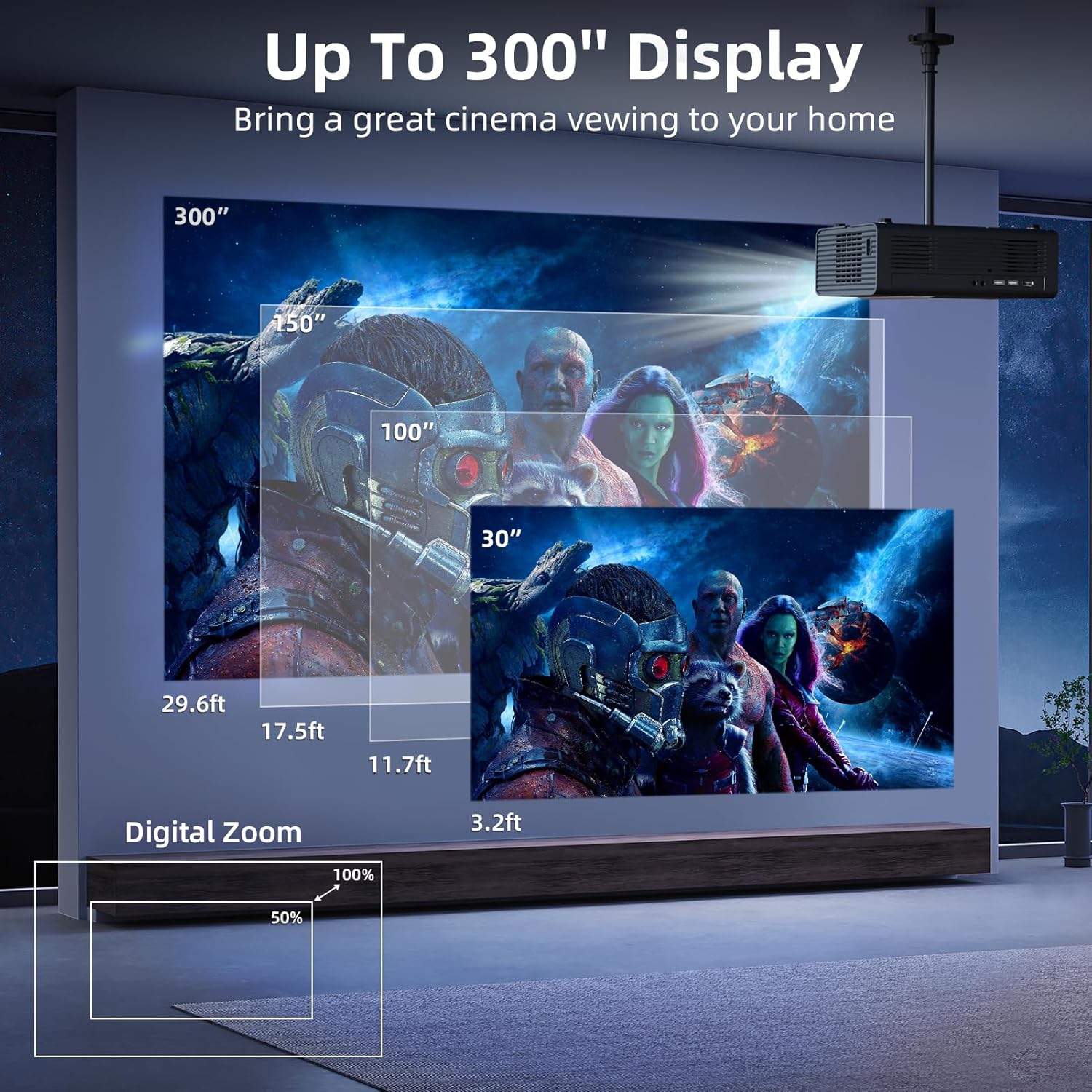
Image: Projection size and distance guide for the FUDONI GC888 Projector.
5. Navigation and Settings
Use the remote control or the buttons on top of the projector to navigate the user interface. The home screen provides quick access to signal sources, mirroring options, and various settings.
- Image Mode: Adjust brightness, contrast, and color settings.
- Color Temperature: Select between Cool, Standard, or Warm color profiles.
- Sound Mode: Choose between Standard, Music, or Movie audio profiles.
- Shutdown Timer: Set a timer for automatic shutdown.
Maintenance
Regular maintenance ensures the longevity and optimal performance of your projector.
- Lens Cleaning: Use the provided cleaning swabs or a soft, lint-free cloth to gently clean the projector lens. Avoid abrasive materials.
- Dust Filter: The projector features a removable dust filter. It is recommended to clean the dust filter once a month to prevent dust accumulation inside the lens, which can affect image clarity.
- Ventilation: Ensure the projector's ventilation ports are clear and unobstructed to prevent overheating. The projector has a superior heat dissipation system designed for efficient cooling.

Image: Dustproof design of the projector, highlighting the importance of a clean lens.

Image: Superior Heat Dissipation System for efficient cooling and quiet operation.
Troubleshooting
- No Image/Blurry Image:
- Ensure the power cable is securely connected and the projector is powered on.
- Use the electric focus (F+/F- buttons on remote) to adjust image clarity.
- Check the projection distance and adjust if necessary.
- Verify the correct input source is selected.
- Distorted Image (not rectangular):
- Ensure "Automatic Trapezoid" is enabled in the Projection settings.
- Use manual four-sided/cornerstone correction via the remote for fine adjustments.
- No Sound:
- Check the volume level on both the projector and the connected device.
- If using external speakers, ensure they are properly connected via Bluetooth or the 3.5mm audio jack.
- Verify the sound mode settings.
- Screen Mirroring Issues:
- Ensure both the projector and your device are connected to the same WiFi network (2.4G or 5G).
- Some streaming services (e.g., Netflix, Hulu, Disney+) may block screen mirroring due to copyright protection. In such cases, connect a TV stick or laptop via HDMI.
Warranty and Support
For warranty information, technical support, or any inquiries, please refer to the contact details provided in your User Manual or visit the official FUDONI website. Keep your purchase receipt for warranty claims.


