
Introduction
Thank you for choosing the Dayton Audio M4 Powered Desktop Speakers. These speakers are designed to deliver rich, clear stereo sound with versatile connectivity options, making them ideal for various audio setups.
Featuring Signature Series woofers and silk dome tweeters, combined with custom-tuned DSP and a sealed cabinet design, the M4 speakers provide a balanced and detailed audio experience. Key features include Bluetooth 5.0 with Qualcomm AptX streaming, a built-in USB DAC supporting up to 192 kHz/32 Bit audio, and a convenient remote control.

Image: Front view of the Dayton Audio M4 Powered Desktop Speakers in matte white, showing the woofer, tweeter, and control knob on the active speaker.
What's in the Box
Please check the contents of your package to ensure all items are present:
- Dayton Audio M4 Powered Desktop Speakers (Pair)
- Remote Control
- Speaker Cable (for connecting active to passive speaker)
- USB-C Cable
- 3.5mm AUX to RCA Cable
- Power Cable
- Rubber Feet

Image: The various cables included with the Dayton Audio M4 speakers, including the power cable, USB-C cable, and speaker cable.
Setup
Speaker Placement
For optimal sound quality, place the speakers on a stable, flat surface, such as a desk or bookshelf. Position them equidistant from your listening position, forming an equilateral triangle for the best stereo imaging. Due to their sealed-box design, these speakers offer flexible placement options, including closer to walls, without significant sound degradation.

Image: Dayton Audio M4 speakers set up on a desk alongside a computer monitor, illustrating a common desktop audio arrangement.
Connecting the Speakers
- Identify the active speaker (with controls and inputs) and the passive speaker.
- Connect the included speaker cable from the "OUTPUT TO PASSIVE SPEAKER" terminals on the active speaker to the "SPEAKER INPUT" terminals on the passive speaker. Ensure positive (+) to positive (+) and negative (-) to negative (-) connections.
- Determine the desired position for the active speaker (left or right) and adjust the "POWERED SPEAKER POSITION SELECT" switch on the rear panel accordingly.

Image: The rear panel of the active Dayton Audio M4 speaker, highlighting the various input/output ports including AUX IN, SUB OUT, USB, and the output to the passive speaker, along with the power switch and speaker position select switch.
Connecting Audio Sources
- USB DAC: Connect your computer to the USB-C input on the active speaker using the provided USB-C cable. This allows for high-resolution audio playback up to 192 kHz/32 Bit.
- AUX IN: Use the included 3.5mm AUX to RCA cable to connect devices with a 3.5mm headphone jack (e.g., smartphones, tablets) to the RCA "AUX IN" ports.
- Bluetooth: For wireless connectivity, enable Bluetooth on your device and pair with the Dayton Audio M4 speakers.
- Subwoofer Output: If desired, connect an external powered subwoofer to the "SUB OUT" port for enhanced low-end performance.
Power Connection
Connect the power cable to the active speaker's power input and then to a wall outlet. Ensure the power switch on the rear panel is in the "OFF" position before connecting.
Operating Instructions
Power On/Off
Use the main power switch located on the rear panel of the active speaker to turn the unit on or off. The front indicator LED will illuminate when powered on.
Volume Control
Volume can be adjusted using the multi-function knob on the front of the active speaker or via the included remote control. Rotate the knob clockwise to increase volume and counter-clockwise to decrease.
Input Selection
Cycle through inputs (Bluetooth, USB, AUX) using the multi-function knob by pressing it, or by using the dedicated "LINE" (AUX), "USB", and Bluetooth buttons on the remote control. The front indicator LED changes color to indicate the active input:
- Blue: Bluetooth
- Green: AUX IN
- Orange: Standby
Bluetooth Pairing
To pair a new Bluetooth device, press and hold the Bluetooth button on the remote control until the front indicator LED flashes rapidly. Select "Dayton Audio M4" from your device's Bluetooth settings. Once connected, the LED will glow solid blue.
Bass Boost Feature
Activate the bass boost feature by pressing the "BASS BOOST" button on the remote control. The front indicator LED will flash twice to confirm activation. Press the button again to deactivate; the LED will flash once to indicate deactivation. This setting will persist even after the speaker enters standby mode.
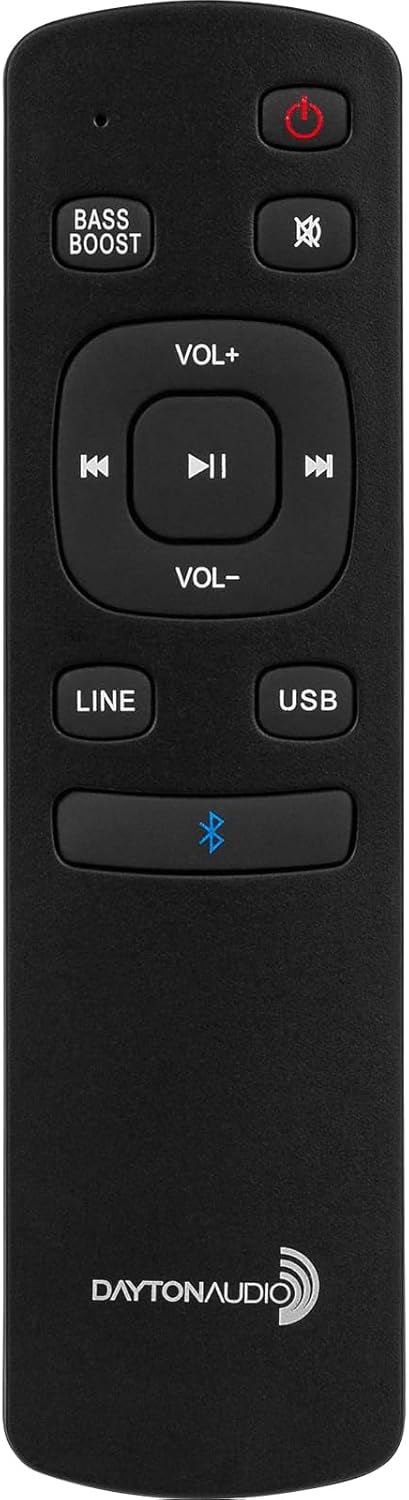
Image: The remote control for the Dayton Audio M4 speakers, showing buttons for power, mute, bass boost, volume, track control, and input selection (Line, USB, Bluetooth).
Maintenance
To maintain the appearance and performance of your Dayton Audio M4 speakers:
- Wipe the speaker cabinets with a soft, dry cloth. Avoid using abrasive cleaners, waxes, or solvents.
- Do not expose the speakers to excessive moisture or direct sunlight.
- Ensure proper ventilation around the speakers to prevent overheating.
- Handle the speaker diaphragms (woofer and tweeter) with care; avoid touching them directly.
Troubleshooting
| Problem | Possible Cause | Solution |
|---|---|---|
| No sound from speakers. |
|
|
| Bluetooth device won't pair. |
|
|
| Bass Boost indicator not clear. | No dedicated indicator light. | The front indicator LED flashes twice for activation and once for deactivation. Rely on these flashes and your hearing to confirm the status. |
| Volume changes unexpectedly. | Possible software or DSP anomaly. | If this occurs frequently, try resetting the speakers by cycling the main power switch OFF and ON. Ensure source volume is controlled. |
Specifications
| Feature | Detail |
|---|---|
| Model Name | M4 |
| Speaker Type | Bookshelf |
| Speaker Size | 4 Inches (Woofer Diameter) |
| Speaker Maximum Output Power | 150 Watts Peak Power |
| Frequency Response | 40 – 20,000 Hz |
| Connectivity Technology | Bluetooth 5.0 (Qualcomm AptX), RCA (AUX IN), USB-C DAC |
| USB DAC Support | Up to 192 kHz/32 Bit |
| Bluetooth Range | 100 Meters (approx. 328 feet) |
| Subwoofer Connectivity | Wired (SUB OUT) |
| Control Method | Remote Control, Multi-function Knob |
| Product Dimensions (each speaker) | 7.5"D x 11.75"W x 9"H |
| Item Weight (pair) | 15.12 pounds |
| Color | Matte White |
| Material | Plastic |
| Power Source | Corded Electric |
| Included Components | 3.5mm AUX to RCA Cable, Power Cable, Rubber Feet, Speaker Cable, USB-C Cable, Remote Control |
Warranty & Support
The Dayton Audio M4 Powered Desktop Speakers come with a Limited Warranty (5 years) covering parts and labor. For warranty claims or technical support, please contact Dayton Audio customer service. Refer to the official Dayton Audio website for the most current support information and contact details.
Manufacturer: Dayton Audio


