
1. Introduction
Thank you for choosing the DAREU EK87PRO 80% Wireless Mechanical Gaming Keyboard. This keyboard features a compact TKL layout, tri-mode connectivity (2.4GHz wireless, Bluetooth 5.1, USB-C wired), hot-swappable switches, and vibrant RGB lighting. Its gasket-mount design and multi-layer padding ensure a comfortable and quiet typing experience. This manual provides detailed instructions to help you set up, operate, and maintain your keyboard for optimal performance.

2. What's in the Box
Please check the contents of your package to ensure all items are present:
- Keyboard Body x 1
- USB Cable x 1
- Receiver x 1 (for 2.4GHz wireless connection)
- Key/axis Puller x 1
- Add-on Keycaps x 7
- Instruction Manual x 1

3. Setup
3.1. Initial Charging
Before first use, it is recommended to fully charge the keyboard. Connect the provided USB-C cable to the keyboard's port and the other end to a USB power source (e.g., computer USB port, wall adapter). The keyboard features a 4000mAh high-capacity battery.

3.2. Connection Modes
The DAREU EK87PRO supports three connection modes:
- 2.4GHz Wireless: For a stable, low-latency connection.
- Bluetooth 5.1: For connecting to multiple devices (up to 5) and switching easily.
- USB-C Wired: For direct connection and charging.

3.2.1. 2.4GHz Wireless Connection
- Locate the 2.4GHz USB receiver, usually stored in a slot on the keyboard.
- Plug the receiver into an available USB port on your computer.
- Toggle the switch on the keyboard to the 2.4GHz mode. The keyboard should automatically connect.
3.2.2. Bluetooth 5.1 Connection
The keyboard can connect to up to 5 Bluetooth devices.
- Toggle the switch on the keyboard to Bluetooth mode.
- Press and hold Fn + 1 (or Fn + 2, Fn + 3) for 3-5 seconds until the indicator light flashes rapidly, indicating pairing mode.
- On your device (PC, laptop, tablet, smartphone), go to Bluetooth settings and search for new devices.
- Select "DAREU EK87PRO" from the list of available devices to complete the pairing.
- To switch between paired Bluetooth devices, simply press Fn + 1, Fn + 2, or Fn + 3.
3.2.3. USB-C Wired Connection
- Connect the provided USB-C cable to the keyboard's USB-C port.
- Connect the other end of the cable to an available USB port on your computer.
- Toggle the switch on the keyboard to the wired mode. The keyboard will be recognized automatically and begin charging.
4. Operating Instructions
4.1. Key Layout and Functionality
The DAREU EK87PRO features an 87-key TKL (Tenkeyless) layout, providing a compact form factor while retaining essential functionality. This design offers more desk space for mouse movement, which is beneficial for gaming.

4.2. RGB Lighting Control
The keyboard features south-facing RGB LEDs with 16.8 million colors and up to 26 backlight modes. You can adjust brightness and effects directly on the keyboard or through the driver software.
- Adjust Brightness: Press Fn + ↑ (Up Arrow) to increase brightness, Fn + ↓ (Down Arrow) to decrease brightness.
- Change Backlight Colors: Press Fn + { to cycle through different colors.
- Change Backlight Effects: Press Fn + } to cycle through different lighting modes.

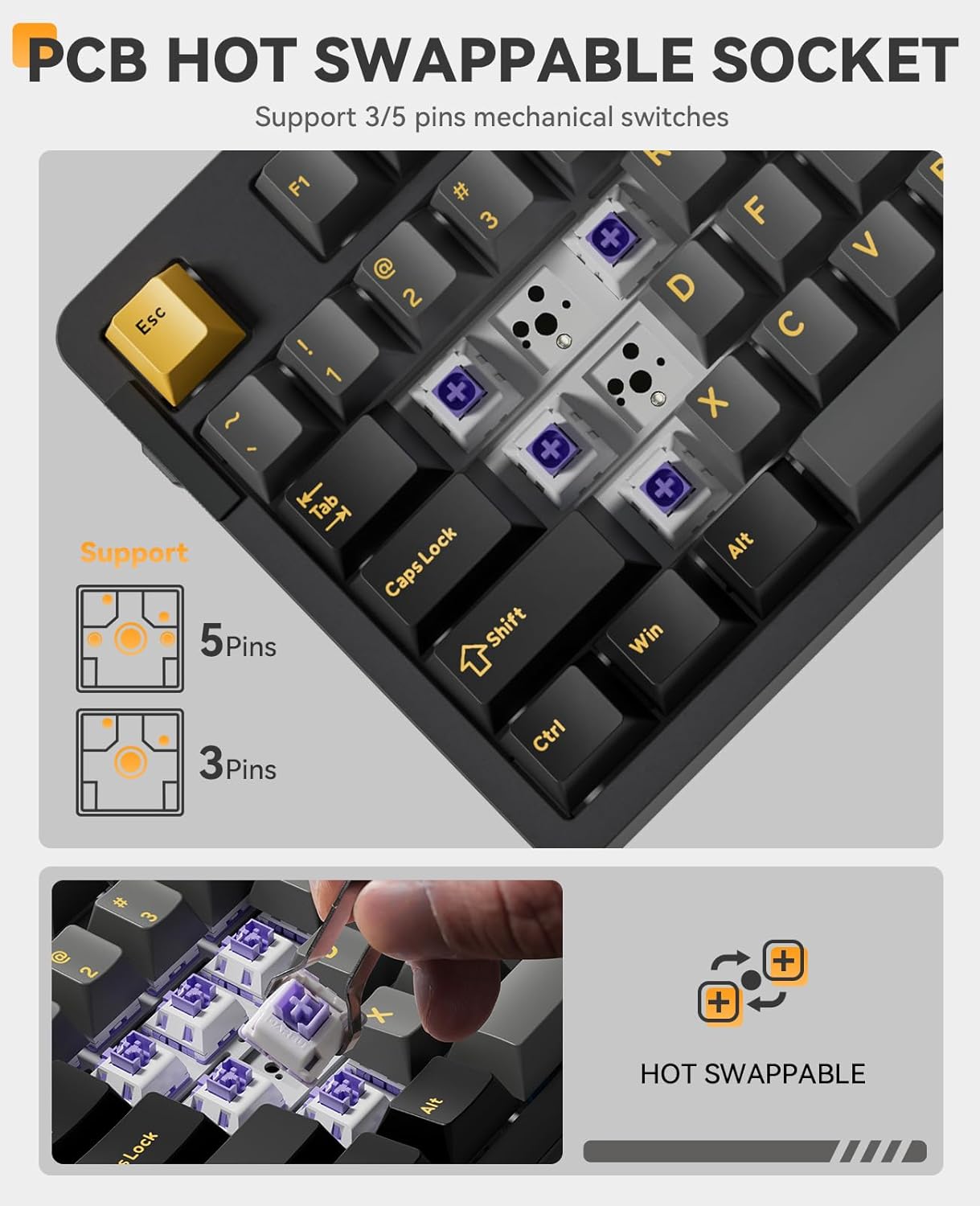
4.3. Hot-Swappable Switches
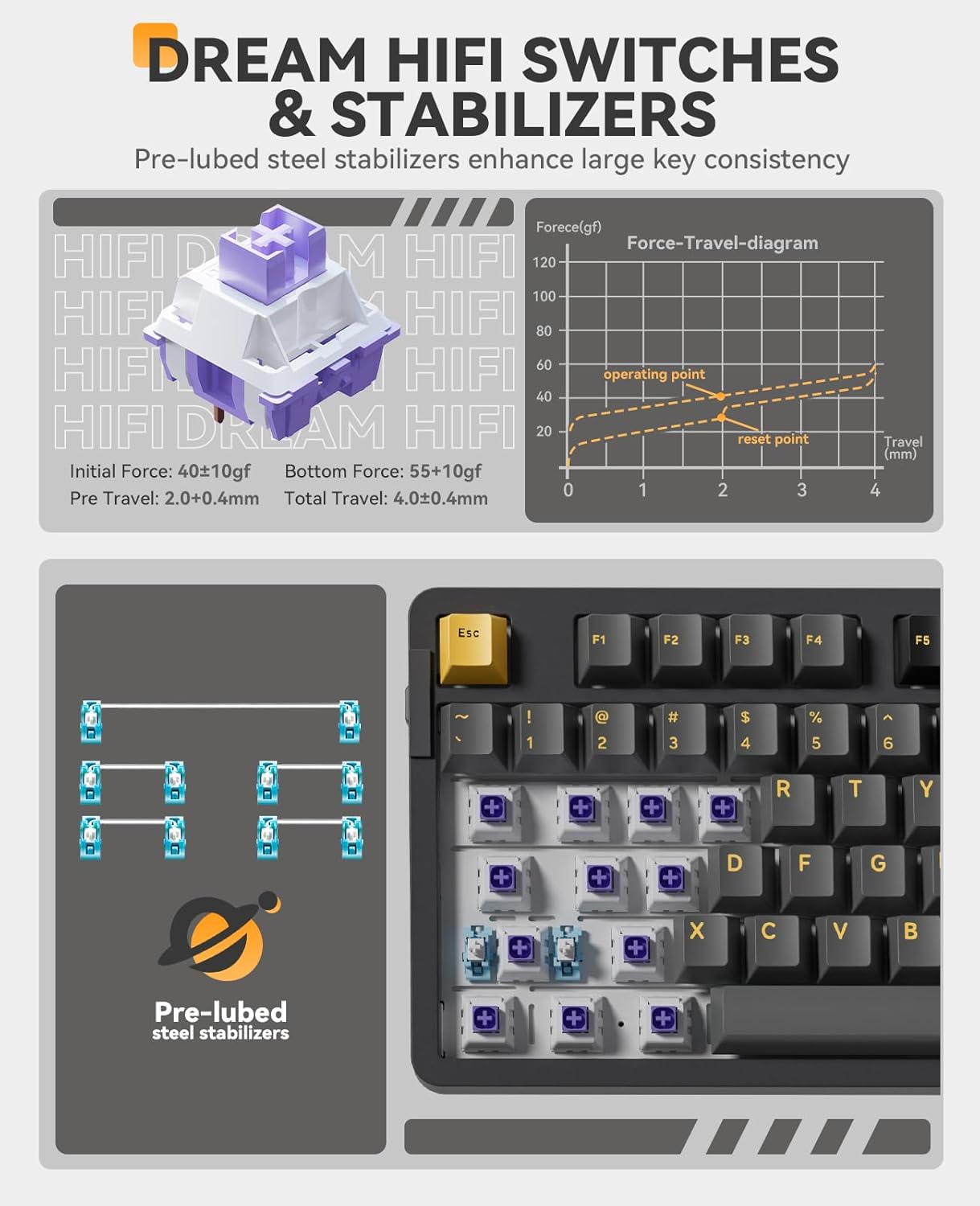
The EK87PRO features a hot-swappable PCB, allowing you to easily change switches without soldering. It supports both 3-pin and 5-pin mechanical switches. The keyboard comes equipped with pre-lubed HIFI Dream switches, known for their lighter and cleaner sound profile compared to linear red switches.
4.4. Driver Software Customization
For advanced customization, including macro programming, key remapping, and detailed RGB lighting effects, download the official DAREU driver software from the DAREU website. The software allows for comprehensive control over your keyboard's functions.

4.5. Adjustable Feet
The keyboard is equipped with 2-stage adjustable feet, allowing you to set the typing angle to your preference for improved ergonomics and comfort during extended use.

5. Maintenance
5.1. Cleaning the Keyboard
To maintain your keyboard's appearance and functionality:
- Disconnect the keyboard from all power sources before cleaning.
- Use a soft, lint-free cloth slightly dampened with water or a mild cleaning solution to wipe down the keycaps and chassis.
- For dust and debris between keycaps, use compressed air or a small brush.
- Avoid using harsh chemicals or abrasive materials.
5.2. Keycap and Switch Replacement
The included keycap and switch pullers allow for easy replacement:
- Keycap Removal: Use the keycap puller to gently grip and pull keycaps straight up.
- Switch Removal: Use the switch puller to depress the two clips on the top and bottom of the switch, then gently pull the switch straight up from the PCB.
- Installation: Align the new switch or keycap with the socket/stem and press firmly until it clicks into place. Ensure pins are straight before inserting switches.
6. Troubleshooting
6.1. Connectivity Issues
- Keyboard not connecting (2.4GHz/Bluetooth): Ensure the keyboard is sufficiently charged. Check that the mode switch is set correctly. For 2.4GHz, ensure the receiver is securely plugged in. For Bluetooth, ensure the keyboard is in pairing mode and your device's Bluetooth is enabled. Try re-pairing the device.
- Lag or Disconnections: Move the keyboard closer to the receiver/device. Avoid interference from other wireless devices. Ensure the keyboard's battery is not low.
6.2. RGB Lighting Problems
- Lights are dim or off: Increase brightness using Fn + ↑. Check if the keyboard is in a power-saving mode (backlight off when idle).
- Specific keys not lighting up: This could indicate a faulty LED or switch. If hot-swappable, try replacing the switch.
6.3. Keys Not Responding
- Ensure the keyboard is properly connected in your chosen mode.
- If using wireless, check battery level.
- For individual non-responsive keys, try removing and re-inserting the switch. If the issue persists, consider replacing the switch.
6.4. Unexpected Sound Profile
The keyboard's gasket mount and six-layered sound-absorbing padding are designed for a quiet and soft acoustic profile. If you experience unexpected noises, ensure no foreign objects are lodged within the keyboard. The pre-lubed HIFI Dream switches are designed to be lighter and cleaner sounding.
7. Specifications
| Product Dimensions | 14.33 x 5.9 x 1.61 inches |
| Item Weight | 1.63 pounds |
| Manufacturer | DAREU |
| Item Model Number | EK87 PRO-BK-D |
| Batteries | 1 Lithium Ion battery required (included) |
| Connectivity Technology | 2.4GHz, Bluetooth (BT 5.1), USB-C |
| Number of Keys | 87 |
| Keyboard Backlighting | RGB (16.8 Million Colors, 26 Modes) |
| Special Features | Portable, South-facing Backlit, Integrated Stand, Noise-canceling, Hot-Swappable |
| Compatible Devices | Laptop, PC, Gaming Console, Tablet, Smartphone |
8. Warranty and Support
For warranty information, please refer to the documentation included with your purchase or visit the official DAREU website. For technical support, driver downloads, and frequently asked questions, please visit the DAREU support page or contact their customer service directly.
Official DAREU Website: DAREU Gaming Store

