
Introduction
Welcome to your new eKids Bluey Kids Camera! This digital camera is designed for young users, allowing them to capture photos and videos with ease. It features a built-in screen, digital stickers, and fun games, all inspired by the popular Bluey series. This manual provides detailed instructions for setup, operation, maintenance, and troubleshooting to ensure a fun and seamless experience.
What's in the Box
- eKids Bluey Kids Camera
- 512MB SD Card
- Wrist Strap
- Micro USB Cable

The eKids Bluey Kids Camera package includes the camera unit, a 512MB SD card for storage, a wrist strap for secure handling, and a micro USB cable for connectivity.
Setup
Battery Installation
The camera requires 3 AA batteries (not included).
- Locate the battery compartment on the bottom of the camera.
- Open the battery compartment cover.
- Insert 3 AA batteries, ensuring correct polarity (+/-).
- Close the battery compartment cover securely.
SD Card Installation
A 512MB SD card is included for storing photos and videos.
- Locate the SD card slot on the side of the camera.
- Insert the 512MB SD card into the slot until it clicks into place.
- To remove, gently push the card until it pops out.

This image illustrates the battery compartment and SD card slot on the eKids Bluey Kids Camera, highlighting where to insert the 3 AA batteries and the included 512MB SD card.
Operating Instructions
Powering On/Off
Press and hold the Power button (located on the back) to turn the camera on or off.
This video demonstrates how to power on the eKids Bluey Digital Camera and navigate its main menu, showcasing the user-friendly interface for children.
Taking Photos
In photo mode, press the Camera Shutter / OK Button (top right) to capture a picture.

A child is shown holding the eKids Bluey Kids Camera, demonstrating the ease of use for taking photos.
Recording Videos
Switch to video mode using the Mode Select button, then press the Camera Shutter / OK Button to start and stop recording.
This image captures a child actively recording a video with the eKids Bluey Kids Camera, highlighting its video recording capability.
Navigating Menus
Use the Up, Down, Forward, and Reverse buttons to navigate through menus and options on the 2-inch full-color screen.

A detailed view of the back of the eKids Bluey Kids Camera, labeling all control buttons including the Camera Shutter/OK, Power, Up, Forward/Photo Frames, Reverse/Mode Select, Down, and Reset buttons, along with the Display Speaker and Mic.
Features
Digital Stickers & Photo Frames
Decorate your images with over 25 built-in photo frames and stickers inspired by Bluey characters.

This image demonstrates the fun digital stickers and photo frames available on the eKids Bluey Kids Camera, allowing users to add Bluey characters to their pictures.
Built-in Games
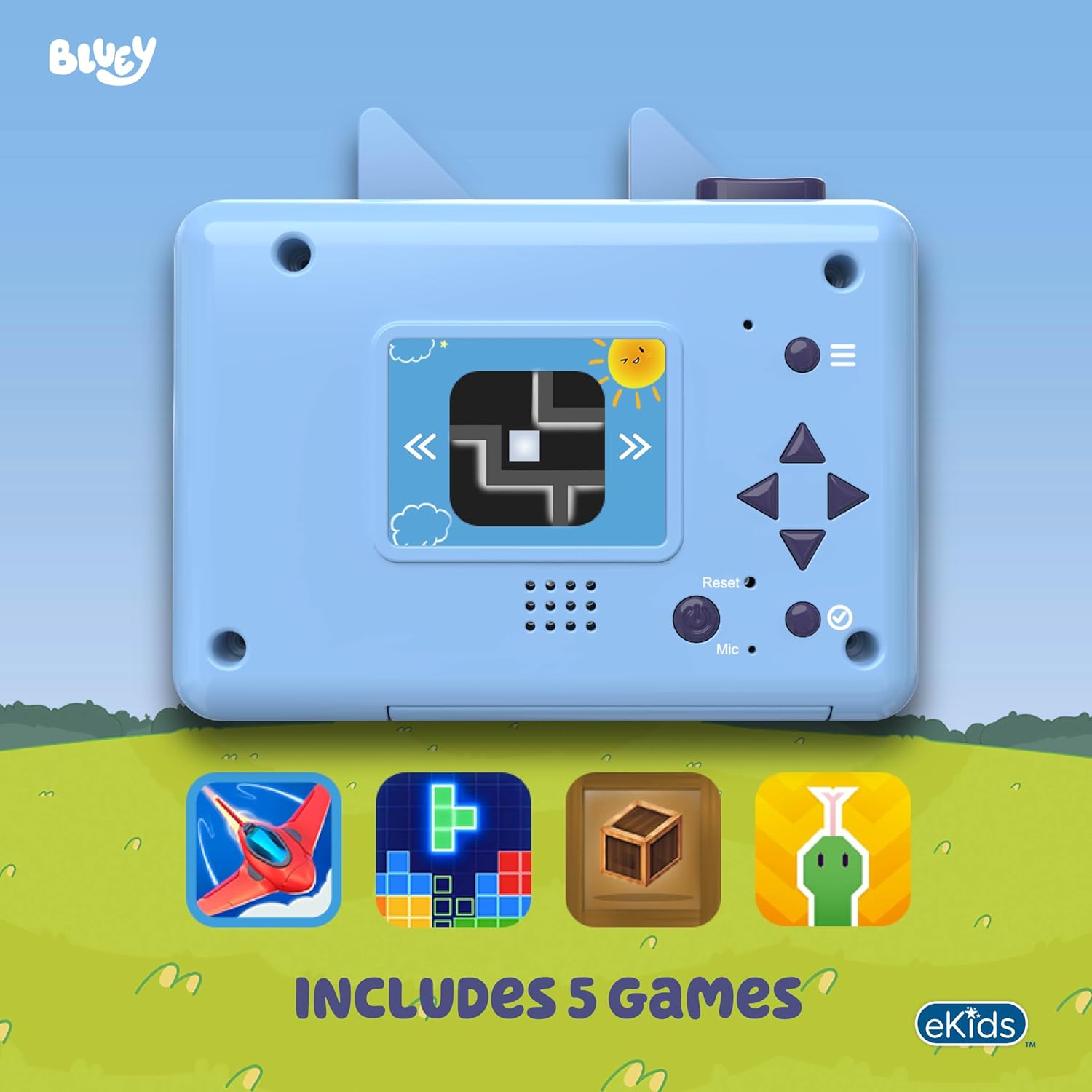
The camera includes 5 built-in games for entertainment. Access them through the main menu.

The eKids Bluey Kids Camera features 5 built-in games, as shown on the camera's screen, providing additional entertainment for children.
2-inch Full Color Screen
View your photos and videos directly on the camera's vibrant 2-inch full-color LCD screen.
Expandable Memory
While a 512MB SD card is included, you can replace it with your own SD memory card (up to 32GB max) to store even more content.
Connectivity
Connect the camera to your computer using the micro USB cable to transfer and share your captured memories.

The eKids Bluey Kids Camera connected to a laptop via its micro USB cable, illustrating the ease of transferring photos and videos to a computer.
Maintenance
- Keep the camera clean by wiping it with a soft, dry cloth.
- Avoid exposing the camera to extreme temperatures or direct sunlight.
- Do not immerse the camera in water, as it is not water resistant.
- Remove batteries if the camera will not be used for an extended period.
Troubleshooting
| Problem | Solution |
|---|---|
| Camera does not turn on. | Check battery installation and ensure batteries are fresh. |
| Cannot take photos/videos. | Ensure an SD card is properly inserted and has sufficient free space. |
| Screen is blank or frozen. | Try resetting the camera using the Reset button (if available) or remove and reinsert batteries. |
| Poor image/video quality. | Ensure adequate lighting. The camera is designed for children and may not produce professional-grade images. |
Specifications
- Brand: eKids
- Model Name: BU-533
- Display Type: LCD
- Screen Size: 2 Inches
- Photo Sensor Resolution: 4 MP
- Video Resolution: 720p
- Flash Memory Type: SD (512MB included, expandable up to 32GB)
- Battery Type: AA Alkaline (3 required, not included)
- Connectivity Technology: Micro USB
- Color: Blue
- Item Dimensions (D x W x H): 4.02" x 1.3" x 3.85"
- Special Feature: Built-In Microphone
- Water Resistance Level: Not Water Resistant
Warranty and Support
This product comes with a 1 Year Limited Warranty. For support or more information, please visit the official eKids brand store.


