
1. Introduction
The iRobot Roomba Combo 2 Essential Robot Auto Empty Vac & Mop is designed to provide automated cleaning for your home. This device combines vacuuming and mopping functionalities, along with an auto-empty feature, to maintain floor cleanliness with minimal user intervention. It is equipped with smart navigation and can be controlled via the iRobot Home App.
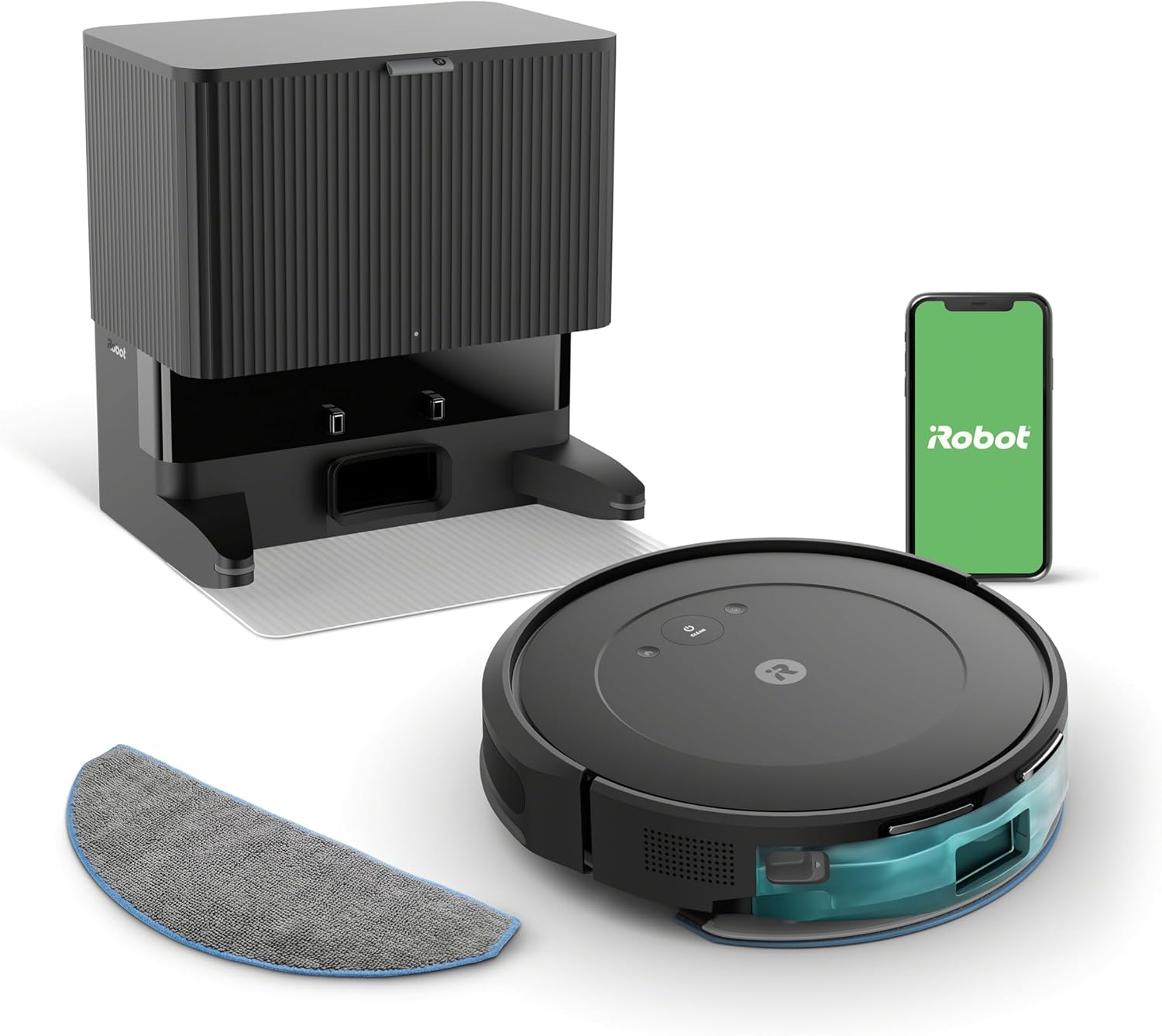
Image: The iRobot Roomba Combo 2 Essential robot, its auto-empty dock, a mop pad, and a smartphone displaying the iRobot app interface.
2. Package Contents
Verify that all items are present in the package:
- iRobot Roomba Combo 2 Essential Robot
- Auto-Empty Charging Dock
- Power Cord
- Microfiber Mopping Pad (washable)
- Replacement Dust Bag for Auto-Empty Dock
- User Manual and Documentation
3. Getting Started
3.1 Unpacking and Placement
- Remove all packaging materials from the robot and the Auto-Empty Charging Dock.
- Place the Auto-Empty Charging Dock on a hard, level surface against a wall. Ensure there is at least 1.5 feet (0.5 meters) of clear space on either side of the dock and 4 feet (1.2 meters) in front of it.
- Plug the power cord into the dock and then into a wall outlet. Ensure the dock is receiving power.
3.2 Initial Charge
Place the robot onto the charging contacts of the Auto-Empty Charging Dock. The robot will begin charging automatically. For optimal battery life, fully charge the robot before its first use. A full charge typically takes approximately 3 hours.
3.3 Connecting to the iRobot Home App
The iRobot Home App enhances your robot's functionality and allows for remote control and scheduling.
- Download the iRobot Home App from your device's app store.
- Open the app and follow the on-screen instructions to create an account or log in.
- Select 'Add a Robot' and choose your Roomba Combo 2 Essential model.
- Follow the app's prompts to connect your robot to your home's 2.4 GHz Wi-Fi network. Note: The robot requires a 2.4 GHz network for setup and operation. Your phone can return to 5 GHz after setup.
4. Operating Your Robot
4.1 Starting a Cleaning Cycle
You can start a cleaning cycle in several ways:
- On the Robot: Press the 'CLEAN' button on the robot.
- Via iRobot Home App: Tap the 'CLEAN' button within the app.
- Voice Assistant: If integrated, use a compatible voice assistant (e.g., "Hey Google, ask Roomba to start cleaning").

Image: The Roomba Combo 2 Essential robot actively cleaning a tiled floor, demonstrating its ability to handle common household messes like paw prints.
4.2 Vacuuming and Mopping
The Roomba Combo 2 Essential performs both vacuuming and mopping simultaneously. Ensure the water tank is filled and the microfiber mop pad is attached for mopping functionality.

Image: A close-up view of the Roomba Combo 2 Essential robot, highlighting its integrated water tank and attached microfiber mop pad, ready for combined vacuuming and mopping.
4.3 Cleaning System Details
The robot utilizes a 4-Stage Cleaning System:
- Edge-Sweeping Brush: Sweeps debris from edges and corners.
- V-Shaped Brush: Lifts dirt and debris from floors.
- Powerful Suction: Draws in dirt, dust, and pet hair.
- Microfiber Mopping Pad: Wipes floors clean with controlled water flow.

Image: An exploded view diagram of the Roomba Combo 2 Essential's underside, showing the V-shaped brush, edge-sweeping brush, microfiber mop pad, and suction path, illustrating its 4-stage cleaning process.
4.4 Auto-Empty Function
When the robot returns to its Auto-Empty Charging Dock, it automatically empties its dust bin into an enclosed bag within the dock. This allows for up to 60 days of cleaning without needing to manually empty the robot's bin.

Image: The Roomba Combo 2 Essential robot docked with its auto-empty station, with a visual representation of dirt and debris being suctioned from the robot's bin into the disposable bag inside the dock.
4.5 Navigation
The robot uses smart navigation to clean methodically in neat rows. Sensors assist it in navigating around furniture and avoiding falls down stairs. It will return to its charging station to recharge when its battery is low and resume cleaning once charged.
4.6 iRobot Home App Features
The app provides several features to simplify your cleaning routine:
- Clean While I'm Away: Schedule cleaning cycles to run when you are not home.
- Suggested Cleaning Schedules: Receive personalized cleaning recommendations.
- Clean Map Report: View where your robot has cleaned.
- Customized Cleaning: Adjust suction power (4 levels) and mopping water levels (3 options).
5. Maintenance
Regular maintenance ensures optimal performance of your Roomba Combo 2 Essential robot.
5.1 Emptying the Dust Bag
The Auto-Empty Dock's dust bag holds up to 60 days of debris. Replace the bag when the indicator light on the dock signals it is full, or as needed.
5.2 Cleaning the Microfiber Mop Pad
The washable microfiber mop pad can be reused up to 30 times. After each mopping cycle, remove the pad and rinse it thoroughly with water. Allow it to air dry completely before reattaching.
5.3 Cleaning Brushes and Filter
Periodically inspect and clean the V-shaped brush, edge-sweeping brush, and the robot's filter. Remove any tangled hair or debris. Replace the filter as recommended by the iRobot Home App or every 2-3 months, depending on usage.
5.4 Cleaning Sensors and Charging Contacts
Wipe the robot's sensors and charging contacts, as well as the dock's charging contacts, with a clean, dry cloth to ensure proper function and charging.
6. Troubleshooting
If your Roomba Combo 2 Essential robot encounters an issue, refer to the following common solutions:
- Robot Not Charging: Ensure the charging contacts on both the robot and the dock are clean and free of debris. Verify the power cord is securely plugged into the dock and wall outlet.
- Robot Gets Stuck: Clear obstacles such as loose cables, small rugs, or furniture that the robot frequently gets caught on. The robot's sensors help it navigate, but some items may still pose a challenge.
- Poor Cleaning Performance: Check the dust bin and auto-empty bag for fullness. Clean the brushes and filter. Ensure the mop pad is clean and properly moistened for mopping tasks.
- App Connectivity Issues: Confirm your robot is connected to a 2.4 GHz Wi-Fi network. Restart your router and the iRobot Home App.
- Auto-Empty Not Working: Check if the dust bag in the dock is full and needs replacement. Ensure there are no obstructions in the suction path from the robot to the dock.
For more detailed troubleshooting, consult the iRobot Home App or the iRobot support website.
7. Specifications
| Feature | Detail |
|---|---|
| Brand | iRobot |
| Model Name | Y051020 |
| Item Model Number | Y01020 |
| Special Feature | Auto-Empty, Vacuums & Mops |
| Color | Black |
| Product Dimensions | 11.7"L x 10.5"W x 11.6"H (Dock dimensions, robot dimensions may vary) |
| Filter Type | Cloth |
| Battery Life | Up to 120 minutes per charge |
| Dust Bin Capacity | 400 Milliliters (robot) |
| Auto-Empty Bag Capacity | Up to 60 days of debris |
| Power Source | Battery Powered (1 Lithium Ion battery included) |
| Control Method | App, On-robot buttons |
| Form Factor | Rectangular (dock), Circular (robot) |
| Item Weight | 26.4 pounds (total package weight) |
| Connectivity | 2.4 GHz Wi-Fi |
8. Warranty and Support
Your iRobot Roomba Combo 2 Essential robot comes with a limited warranty. Please refer to the warranty information included in your product packaging or visit the official iRobot website for details regarding warranty coverage, terms, and conditions.
For technical support, replacement parts, or additional assistance, please contact iRobot Customer Service or visit their support portal. You can often find helpful resources, FAQs, and troubleshooting guides on the iRobot website.
iRobot Support: www.irobot.com/support


