
ELECTRO WOLF EW07
ELECTRO WOLF Bluetooth Wireless Mouse Tri-Mode User Manual
Model: EW07
Introduction
Thank you for choosing the ELECTRO WOLF Tri-Mode Wireless Mouse. This advanced mouse offers versatile connectivity options (Dual Bluetooth 5.1 and 2.4GHz USB), a transparent design, silent clicks, and a rechargeable battery, making it ideal for various computing environments. This manual provides detailed instructions for setup, operation, maintenance, and troubleshooting to ensure optimal performance and longevity of your device.
Safety Information
- Keep the device away from water and other liquids to prevent electric shock.
- Avoid exposing the mouse to extreme temperatures or direct sunlight.
- Do not attempt to disassemble or repair the mouse yourself. This will void the warranty.
- Use only the provided Type-C charging cable for recharging.
- Dispose of the battery according to local regulations. Do not incinerate.
Package Contents
Please check the package for the following items:
- ELECTRO WOLF Tri-Mode Wireless Mouse (Green)
- USB 2.4GHz Receiver (stored inside the mouse)
- USB Type-C Charging Cable
- User Manual
Product Overview
Familiarize yourself with the components of your ELECTRO WOLF mouse.

Figure 1: ELECTRO WOLF Tri-Mode Wireless Mouse (Green) - Top View
The mouse features a full transparent design, allowing visibility of its internal circuitry. Key components include the scroll wheel, left and right click buttons, a DPI adjustment button, and a dedicated "One-Click Desktop" button. The USB receiver is conveniently stored magnetically within the mouse body.

Figure 2: Magnetic Top Cover and USB Receiver
The mouse is designed with a magnetic top cover for easy access to the USB receiver and a secure fit. The ambidextrous design ensures comfortable use for both right and left-handed users.
Setup
1. Charging the Mouse
Before first use, it is recommended to fully charge the mouse.
- Locate the USB Type-C charging port on the front of the mouse.
- Connect the provided Type-C charging cable to the mouse and the other end to a USB power source (e.g., computer USB port, wall adapter).
- The battery indicator light will show the current battery level and flash while charging.
- Once fully charged, the indicator light will change (refer to the specific light behavior in the operating section).

Figure 3: USB-C Charging and Battery Indicator
The mouse features a built-in rechargeable battery, eliminating the need for disposable batteries. The battery indicator provides real-time status.
2. Connecting via 2.4GHz USB Mode
This mode is compatible with devices that have a USB port.
- Remove the 2.4GHz USB receiver from its magnetic storage slot inside the mouse.
- Plug the USB receiver into an available USB port on your computer or laptop.
- Turn on the mouse using the power switch located on the bottom.
- Switch the mode button on the bottom of the mouse to the 2.4GHz icon.
- The mouse should automatically connect to your device.

Figure 4: 2.4GHz USB Receiver Connection
3. Connecting via Bluetooth Mode (BT1 / BT2)
Bluetooth mode works with Windows, Android, MAC OS, iPad iOS 13 and above systems.
- Turn on the mouse using the power switch on the bottom.
- Switch the mode button on the bottom of the mouse to either BT1 or BT2. The corresponding indicator light will flash, indicating it's in pairing mode.
- On your device (computer, tablet, etc.), go to Bluetooth settings.
- Search for new devices. You should see "ELECTRO WOLF Mouse" or similar in the list.
- Select the mouse to pair. Once paired, the indicator light on the mouse will stop flashing and remain solid.
- Repeat steps for BT2 if you wish to connect to a third device.

Figure 5: Wireless Bluetooth Mouse Connectivity
Operating Instructions
1. Switching Between Modes
The mouse supports Tri-Mode connection. Use the switch button on the bottom of the mouse to toggle between 2.4GHz, BT1, and BT2 modes.

Figure 6: Tri-Mode Switch on Mouse Bottom
2. Adjusting DPI (Sensitivity)
The mouse offers 4 adjustable DPI levels (800-1200-1600-2400). Press the DPI button located on the top of the mouse, below the scroll wheel, to cycle through the settings. An indicator light will show the current DPI level.
3. One-Click Desktop Function
The mouse features a dedicated "One-Click Desktop" shortcut button. Press this button to instantly switch to your computer's desktop, useful for quick access or privacy.
- Windows: One click back to homepage
- Mac: ⌘D (Command + D)

Figure 7: One-Click Desktop Button
4. Silent Click Feature
The left and right buttons are designed for silent clicks, providing a quiet working environment without disturbing others.
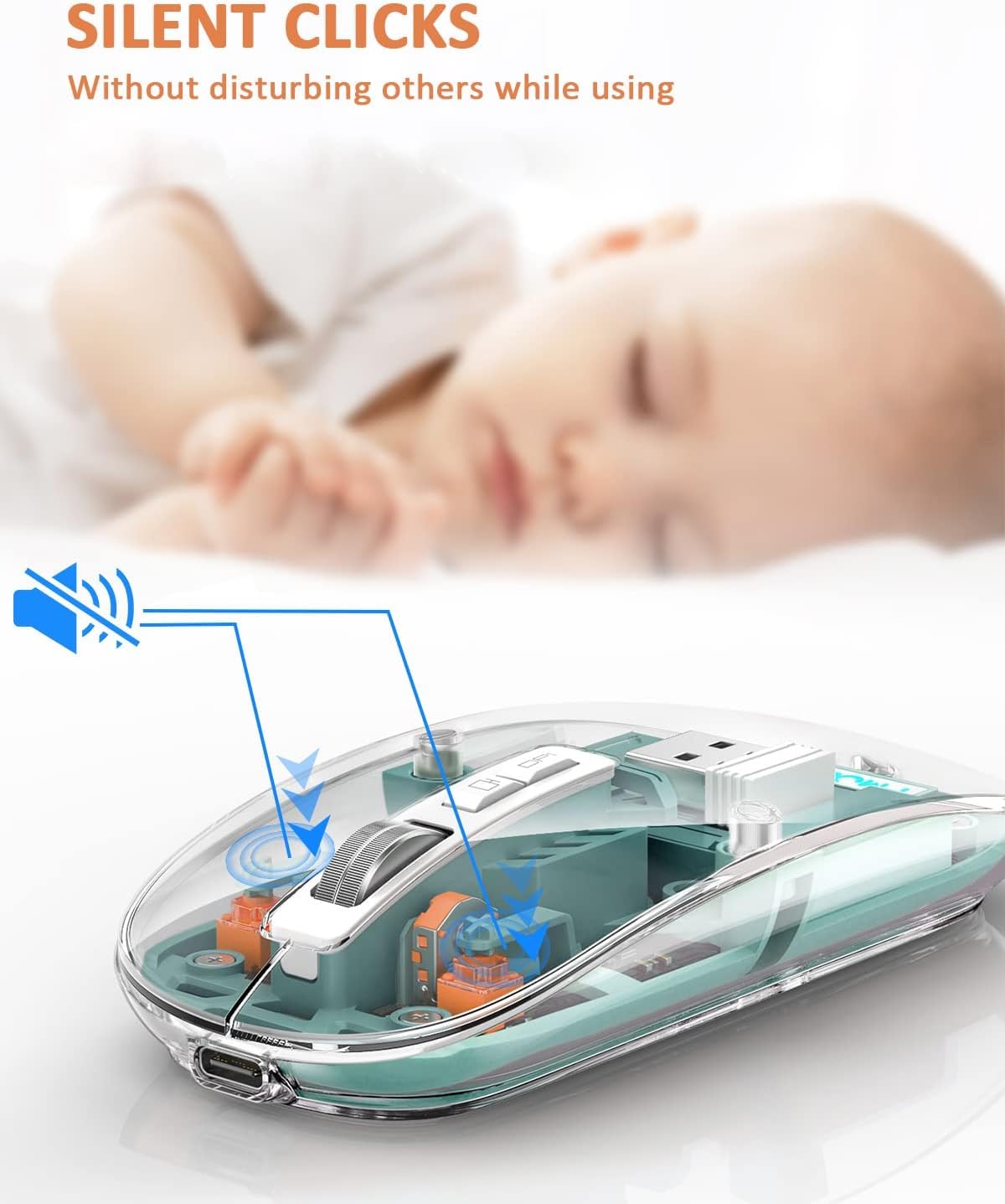
Figure 8: Silent Click Mechanism
5. Breathing Light
The mouse logo features a colorful breathing light that changes randomly during use, adding a stylish aesthetic.
6. Power Saving Mode
To conserve battery, the mouse automatically enters sleep mode after 5 minutes of inactivity. To wake it up, simply click any button.
Maintenance
- Cleaning: Use a soft, dry cloth to wipe the surface of the mouse. For stubborn dirt, a slightly damp cloth can be used, but ensure no moisture enters the internal components.
- Storage: When not in use for extended periods, store the mouse in a cool, dry place. Ensure the USB receiver is securely stored inside the mouse.
- Battery Care: Avoid fully discharging the battery frequently. Charge the mouse regularly to maintain battery health.
Troubleshooting
| Problem | Possible Cause | Solution |
|---|---|---|
| Mouse not responding | Low battery; Incorrect mode selected; USB receiver not connected; Bluetooth not paired. | Charge the mouse; Ensure correct mode (2.4GHz/BT1/BT2) is selected; Re-insert USB receiver; Re-pair Bluetooth. |
| Lagging or erratic cursor movement | Interference; Dirty optical sensor; Surface issues. | Move closer to the receiver/device; Clean the optical sensor; Use on a clean, non-reflective mouse pad. |
| Cannot connect via Bluetooth | Mouse not in pairing mode; Device Bluetooth off; Already connected to another device. | Ensure mouse is in BT pairing mode (flashing light); Turn on Bluetooth on your device; Disconnect from other devices if necessary. |
| Battery drains quickly | Frequent use; Old battery; Mouse not entering sleep mode. | Ensure mouse is turned off when not in use for long periods; Contact support if battery life is significantly shorter than expected. |
Specifications
| Feature | Detail |
|---|---|
| Model | EW07 |
| Connectivity | Tri-Mode (Dual BT5.1 + 2.4GHz USB) |
| DPI Levels | 800 / 1200 / 1600 / 2400 (Adjustable) |
| Power Source | Rechargeable Lithium Ion Battery (included) |
| Charging Port | USB Type-C |
| Click Type | Silent Click (Left/Right buttons) |
| Hand Orientation | Ambidextrous |
| Special Features | Full Transparent Design, One-Click Desktop Button, Breathing Light, Battery Indicator |
| Compatible OS | Windows, Mac OS, Android, iPad iOS 13 and above |
| Product Dimensions | 11 x 6 x 0.1 cm |
| Item Weight | 100 g |
Warranty and Support
For warranty information and technical support, please contact ELECTRO WOLF customer service at the number provided on the product packaging or visit our official website. Please have your model number (EW07) and purchase details ready when contacting support.
Customer Support No.: 7801806979
Ask a question about this manual
Ask about setup, troubleshooting, compatibility, parts, safety, or missing instructions. Manuals+ will review the question and use this page’s manual context to help answer it.