1. Introduction
This manual provides detailed instructions for the installation, operation, and maintenance of your KERUI 6MP Dual Lens PoE Security Camera. Please read this manual thoroughly before using the product to ensure proper function and safety. This camera is designed for both indoor and outdoor surveillance, offering advanced features such as dual-lens linkage, 360-degree view, night vision, two-way audio, and AI human detection.
2. Safety Information
- Power Supply: Use only the specified power adapter or a compatible Power over Ethernet (PoE) NVR. Incorrect voltage may damage the camera.
- Installation Environment: Ensure the camera is installed in a stable location. Avoid direct exposure to extreme temperatures, humidity, or corrosive substances.
- Water Resistance: The camera is IP66 waterproof, suitable for outdoor use. However, avoid submerging it in water.
- Cleaning: Disconnect power before cleaning. Use a soft, dry cloth. Do not use strong detergents or solvents.
- Servicing: Do not attempt to disassemble or repair the camera yourself. Contact qualified service personnel for assistance.
3. Package Contents
Verify that all items are present in your package:
- 1 x PoE Dual Lens Linkage Camera
4. Product Overview
The KERUI 6MP Dual Lens PoE Security Camera features a robust design for comprehensive surveillance. It includes two lenses for wide-angle and detailed views, integrated sensor lights, and a two-way audio system.

Figure 4.1: Front view of the KERUI 6MP Dual Lens PoE Security Camera, showcasing its dual lens design and integrated lights.
5. Setup and Installation
5.1 Mounting the Camera
The camera is designed for wall mounting. Choose a location that provides the desired surveillance coverage and is within reach of your network cable for PoE connection.
- Secure the mounting bracket to a stable surface using appropriate screws.
- Attach the camera to the mounting bracket.
- Adjust the camera angle as needed after connection.
5.2 Connection Options
This camera is primarily designed as an add-on for a Wired PoE NVR system. It does not support WiFi wireless local area networks.

Figure 5.2.1: Illustration of two connection methods for the P6S-POE camera. The left side shows connection to a router with a 12V power supply (not included). The right side shows connection to an NVR via a network cable.
- Option 1: NVR Connection (Recommended)
Connect the camera directly to your PoE NVR using a network cable. This provides both power and data transmission. Ensure your NVR is compatible. - Option 2: Router Connection with External Power (If NVR is not used)
If you do not have an NVR, the camera can be connected to a router via a network cable. In this setup, an external 12V power supply (not included) is required to power the camera. This method is for standalone use without an NVR.
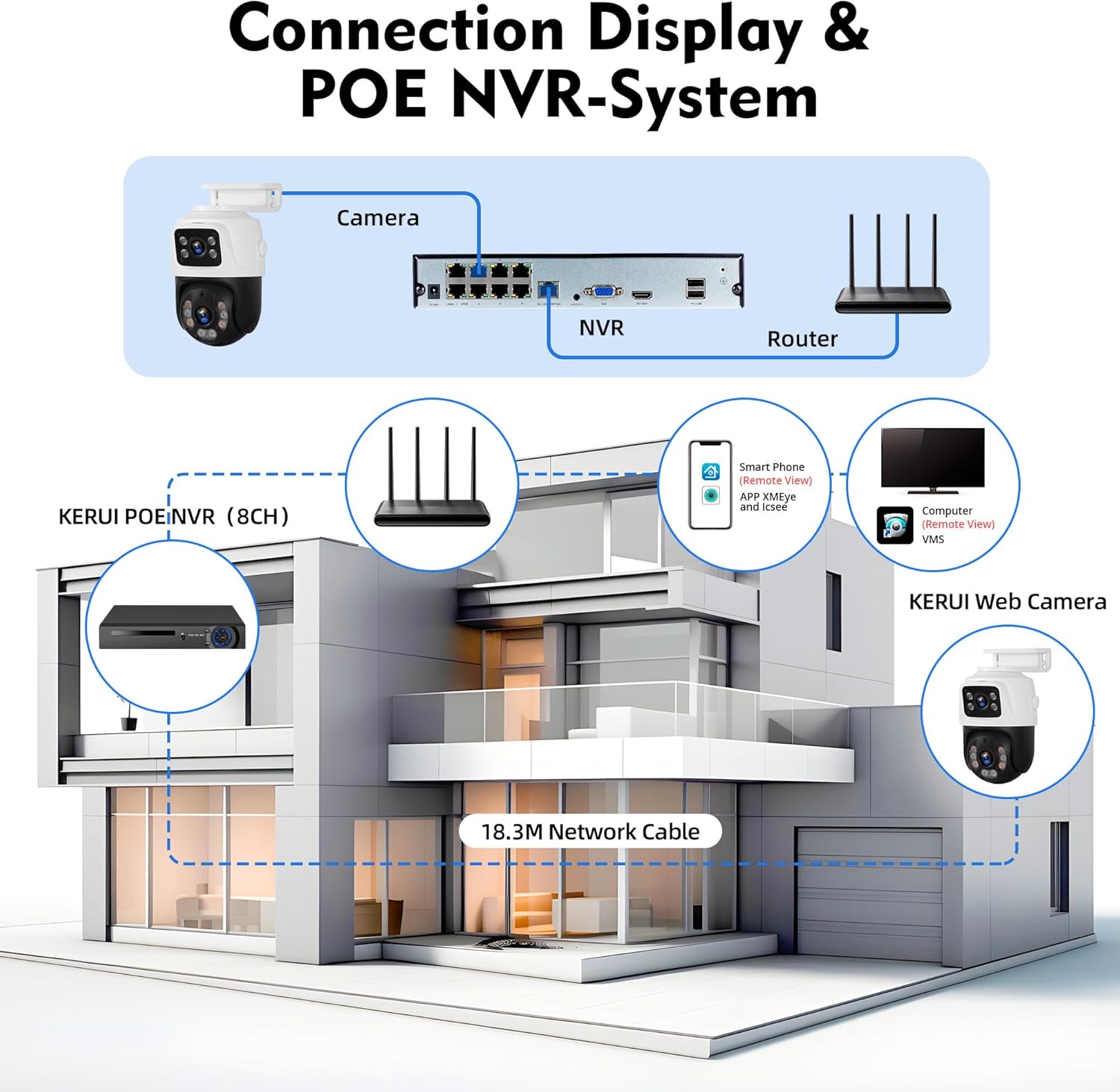
Figure 5.2.2: Diagram illustrating the connection of the KERUI camera to a PoE NVR and router for a complete surveillance system, allowing remote viewing via smartphone or computer.
5.3 App Setup
To access and control your camera remotely, download the iCSee app on your mobile phone or use VMS PC software.
- Download and install the iCSee app from your device's app store.
- Register an account and log in.
- Follow the in-app instructions to add your camera. This typically involves scanning a QR code on the camera or manually entering its device ID.
- The camera is also compatible with Amazon Alexa for voice control integration.
6. Operating Instructions
6.1 Live View and Pan/Tilt Control
Once connected, you can view the live feed from your camera through the iCSee app or VMS software. The camera features 355° horizontal rotation (pan) and 270° vertical rotation (tilt) for a 360° area view.
- In the app, navigate to the live view of your camera.
- Use the on-screen controls to pan and tilt the camera to adjust its viewing angle.
- The dual lenses provide a comprehensive view, allowing you to zoom in on details up to 60 feet.
6.2 Night Vision Modes
The camera offers three night vision modes to ensure clear monitoring in low-light conditions:
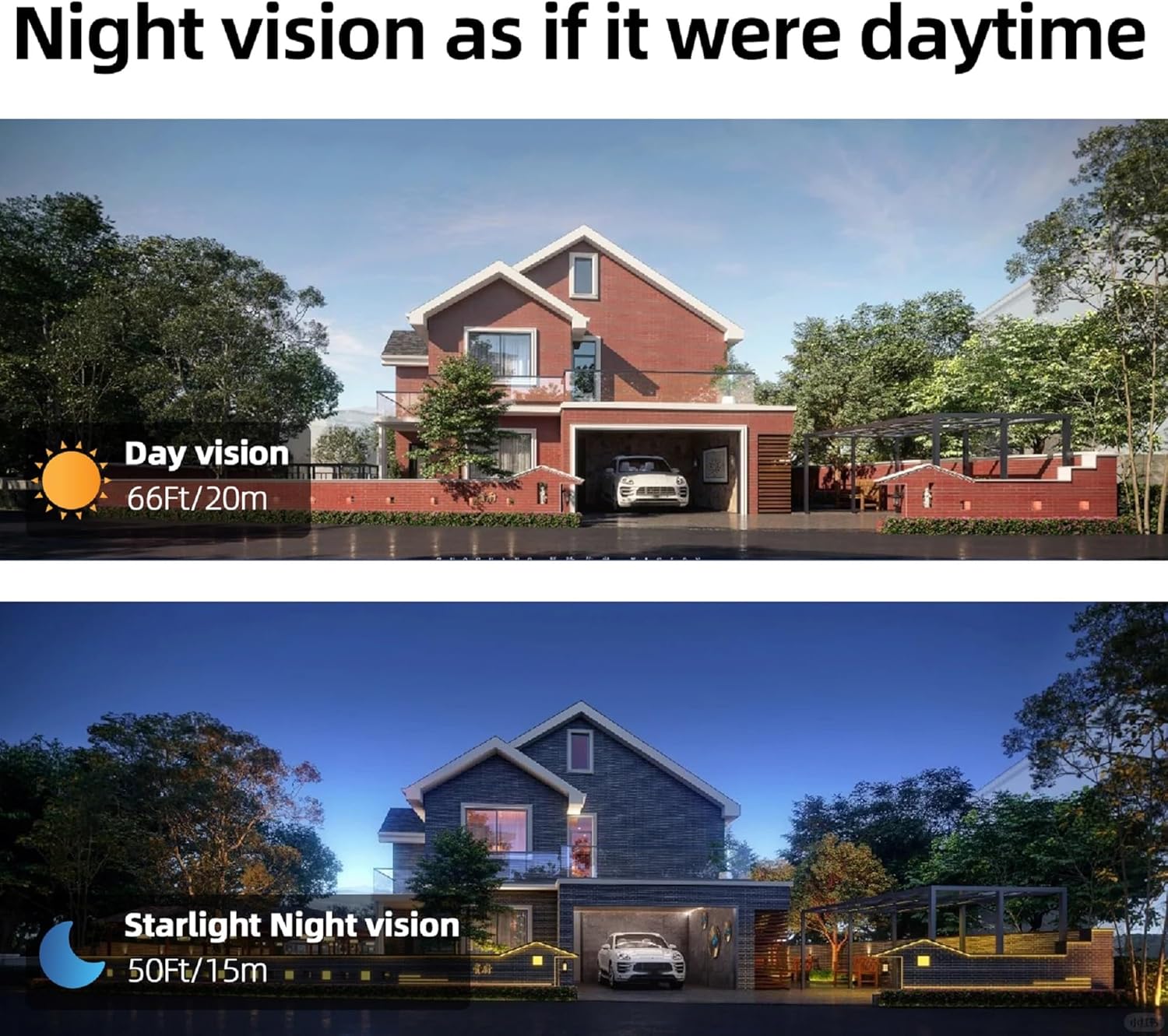
Figure 6.2.1: Comparison of day vision (top) and starlight night vision (bottom), demonstrating the camera's capability to capture clear images in varying light conditions.
- Full Color Night Vision: Utilizes integrated sensor lights to provide a full-color image in dark environments.
- Infrared Night Vision: Uses infrared LEDs for a black and white image in complete darkness.
- Double Light Warning: Combines infrared with white light activation upon detection, serving as a deterrent and providing color video.
You can switch between these modes in the camera settings within the iCSee app.
6.3 Two-Way Audio
The built-in speaker and microphone enable real-time two-way communication.

Figure 6.3.1: Illustration of the two-way audio feature, showing a user speaking through the camera to a visitor and receiving a response via the mobile app.
- In the live view, tap the microphone icon to speak through the camera.
- The camera's speaker will broadcast your voice, allowing you to communicate with visitors or deter intruders.
- Audio from the camera's microphone will be transmitted to your mobile device.
6.4 AI Human Detection & Auto Tracking
The camera features an intelligent PIR motion sensor for accurate human detection and auto-tracking capabilities.

Figure 6.4.1: Depiction of the camera's humanoid tracking feature, where the PTZ camera automatically follows a detected person, while the fixed top camera maintains a static view. A phone notification for human detection is also shown.
- When a human is detected, the PTZ camera will automatically track their movement. The top fixed camera maintains its original view.
- You will receive instant notifications on your phone via the iCSee app.
- This feature minimizes false alarms from non-human movements.
6.5 Recording and Storage
The camera works with an NVR for continuous recording and storage.

Figure 6.5.1: An NVR connected to a monitor displaying multiple camera feeds, indicating 24/7 continuous recording capability with options for built-in and reserved hard drive storage.
- When connected to a compatible NVR, the camera supports 24/7 continuous recording.
- Review recorded footage through your NVR interface or the iCSee app.
6.6 Remote Access
Access your camera feed and controls from anywhere using the iCSee app on your smartphone or VMS software on your PC.

Figure 6.6.1: A world map showing various users accessing camera feeds remotely via smartphones and laptops, with a close-up of a smartphone displaying a dual-screen synchronous preview from the camera.
- The app allows for dual-screen synchronous preview, enabling you to view the panorama and enlarge details simultaneously.
- Ensure your camera and NVR (if used) are connected to the internet for remote access functionality.
7. Maintenance
7.1 Cleaning
- Regularly clean the camera lenses with a soft, lint-free cloth to ensure clear image quality.
- Do not use abrasive cleaners or solvents.
7.2 Environmental Considerations

Figure 7.2.1: The KERUI camera shown enduring rain, snow, and sunlight, illustrating its IP66 waterproof rating and ability to operate in temperatures from -10°C to +55°C (14°F to 131°F).
- The camera has an IP66 waterproof rating, making it suitable for outdoor use in various weather conditions.
- It operates effectively in temperatures ranging from -10°C to +55°C (14°F to 131°F).
- Ensure proper installation to prevent water accumulation around connections.
8. Troubleshooting
- No Power: Check the PoE connection or the 12V power adapter if used. Ensure the power source is active.
- No Video Feed: Verify network cable connection to the NVR or router. Ensure the NVR is functioning correctly. Check app settings for camera status.
- Poor Image Quality: Clean the camera lens. Check for obstructions. Ensure sufficient lighting for optimal night vision performance.
- Motion Detection Not Working: Review motion detection settings in the iCSee app. Ensure the PIR sensor is not obstructed.
- Cannot Connect to App: Ensure your mobile device has a stable internet connection. Verify camera is properly connected to the network. Re-add the camera in the app if necessary.
- Two-Way Audio Issues: Check microphone and speaker settings in the app. Ensure volume levels are adequate.
9. Specifications
| Feature | Specification |
|---|---|
| Model Name | Dual Lens Linkage-Security Camera |
| Item Model Number | P6S-6MP-POE |
| Video Capture Resolution | 6MP (2304*2592) |
| Effective Still Resolution | 6 MP |
| Indoor/Outdoor Usage | Outdoor |
| Connectivity Technology | Wired (PoE) |
| Wireless Communication Technology | NO WIFI, Wired Network |
| Power Source | DC (via PoE or external 12V adapter) |
| Mounting Type | Wall Mount |
| Controller Type | Amazon Alexa |
| Control Method | App (iCSee) |
| Special Feature | Adjustable, Dual Lens, Two-Way Audio, Human Detection, Night Vision |
| Alert Type | Motion Only |
| Product Dimensions | 7 x 6 x 4 inches |
| Item Weight | 1 pounds |
| Operating Temperature | -10°C to +55°C (14°F to 131°F) |
10. Warranty and Support
For warranty information and technical support, please refer to the contact details provided with your purchase or visit the official KERUI website. Our professional technical team is available to respond to your queries within 24 hours.


