
1. Product Overview
The BOIFUN Baby Monitor (Model Baby 7SM-2) provides comprehensive surveillance for your baby with its dual 1080P cameras and a 4.3-inch split screen monitor. It offers both mobile app and monitor control, ensuring you can keep an eye on your little one from anywhere. Key features include motion and sound detection, 4X digital zoom, invisible infrared night vision, and a customizable zone alarm.
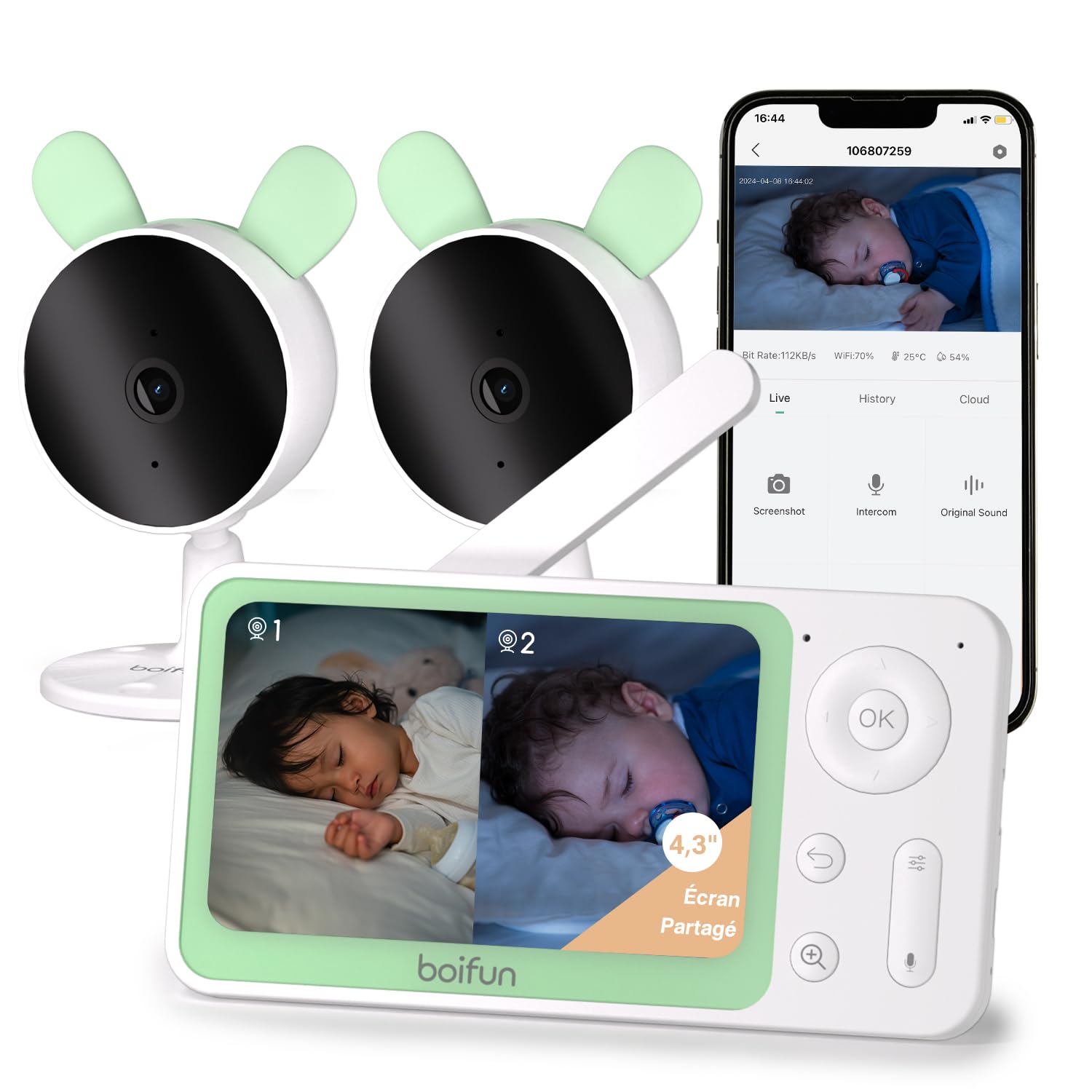
Image 1: The BOIFUN Baby Monitor system, including the parent unit and two baby cameras.
2. Package Contents
Please check the package for the following items:
- 1 x Parent Unit (Monitor)
- 2 x Baby Units (Cameras)
- 3 x Power Adapters (for monitor and cameras)
- 1 x User Manual
3. Setup Instructions
3.1 Powering On
- Connect the power adapter to the parent unit and plug it into a power outlet.
- Connect the power adapters to each baby unit and plug them into power outlets.
- The devices will power on automatically.
3.2 Pairing Cameras with the Monitor
The cameras are usually pre-paired with the monitor. If re-pairing is needed or to add a new camera:
- On the parent unit, press the Menu button and navigate to the Camera management section.
- Select an empty camera slot or the camera you wish to re-pair.
- On the baby unit, press and hold the pairing button (usually a small button on the back or bottom) until you hear a "BOOGU" beep.
- On the parent unit, press the OK button to initiate pairing. The monitor will display "Device is linked" upon successful pairing.
Video Description: This video demonstrates how to connect the BOIFUN baby monitor to the screen. It shows pressing the menu button, selecting the camera option, holding the pairing button on the camera until a beep is heard, and then pressing OK on the monitor to complete the pairing process. The video confirms successful linking of the device.
3.3 Connecting Cameras to the Mobile App (Wi-Fi 2.4 GHz)
To use the mobile app for monitoring, ensure your Wi-Fi network is 2.4 GHz. The camera does not support 5 GHz Wi-Fi.
- Download the BoifunCam app from your smartphone's app store.
- Register or log in to your BoifunCam account.
- In the app, select to add a new device (e.g., "Baby Monitor Wi-Fi").
- On the baby unit, press and hold the reset button (often located in a small hole, requiring a pin) for five seconds until you hear a "BOOGU" prompt. After 5-10 seconds, another beep will sound, and the red indicator light will flash.
- Follow the in-app instructions to connect to your 2.4 GHz Wi-Fi network and enter the password.
- The app will then prompt you to scan a QR code with your camera. Position your smartphone 5-8 inches from the camera lens. A tone will be heard upon successful scanning.
- The app will then connect the camera to your Wi-Fi network. Once connected, you can name the camera and assign it to a room.
Video Description: This video illustrates how to connect the BOIFUN baby monitor to a mobile phone. It shows pressing the reset button on the camera, then using the BoifunCam app to scan a QR code displayed on the phone with the camera. The video emphasizes that the camera only supports 2.4 GHz Wi-Fi and guides the user through the app's connection process.
4. Operating the Monitor
4.1 Split Screen Functionality
With two cameras, you can view both feeds simultaneously on the 4.3-inch split screen.
- In split screen mode, press the Zoom (+) button to select which camera feed to view in full screen. The selected camera icon will flash.
- Press the OK button to switch to full screen view for the selected camera.
- Press the Return button to go back to split screen mode.

Image 2: The 4.3-inch monitor displaying a split screen view from two separate cameras, showing babies in different rooms.
4.2 Mobile App and Monitor Control
You can control and monitor your baby using either the dedicated parent unit or the BoifunCam mobile application.
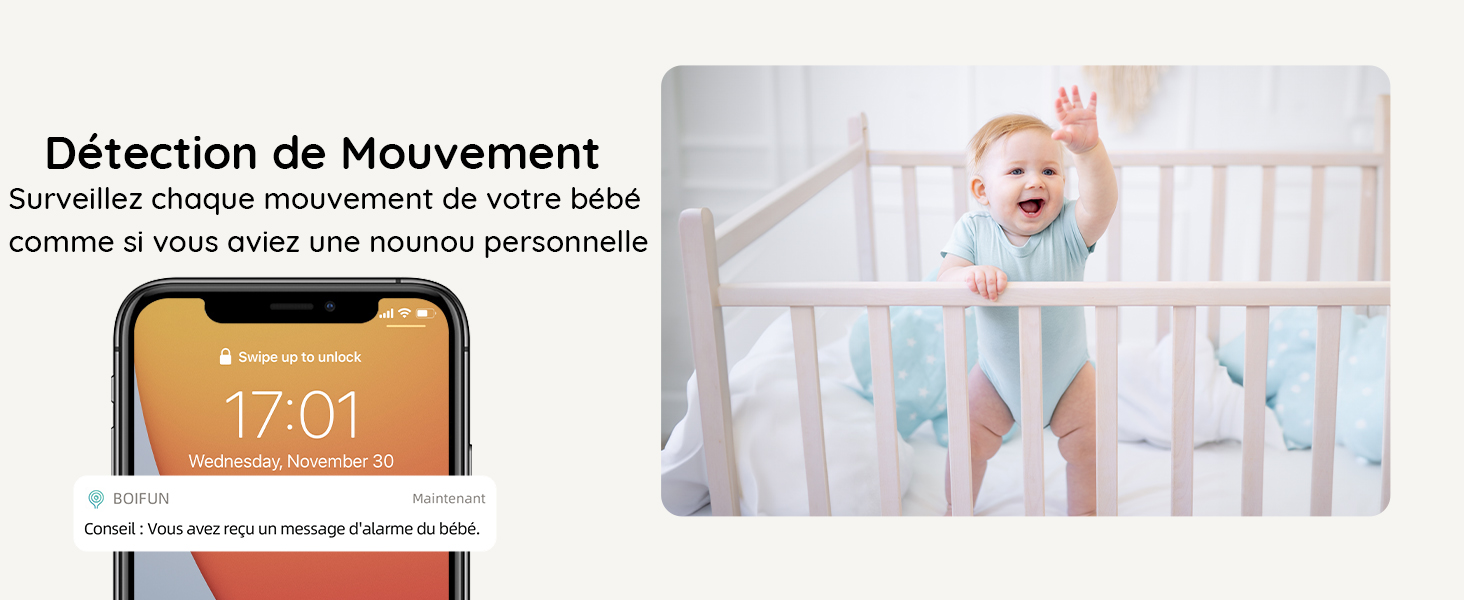
Image 3: The baby monitor can be controlled via both the dedicated parent unit and a smartphone application, offering flexibility for monitoring.
4.3 Motion and Sound Detection
The monitor is equipped with advanced detection features to alert you to your baby's activity.
- Motion Detection: Receive immediate alerts on your phone when movement is detected in the camera's view.
- Sound Detection: Get notified when your baby makes sounds, indicating they might need attention.
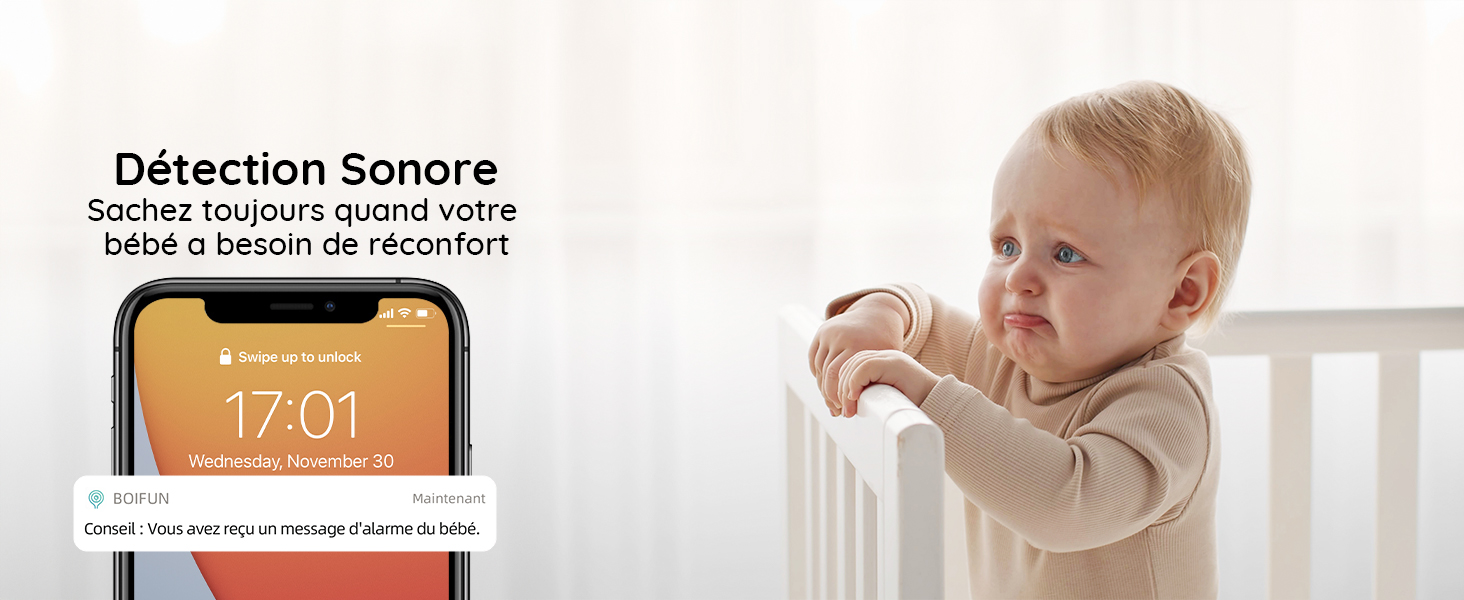
Image 4: A smartphone displaying a notification for detected movement, with a baby in a crib in the background.
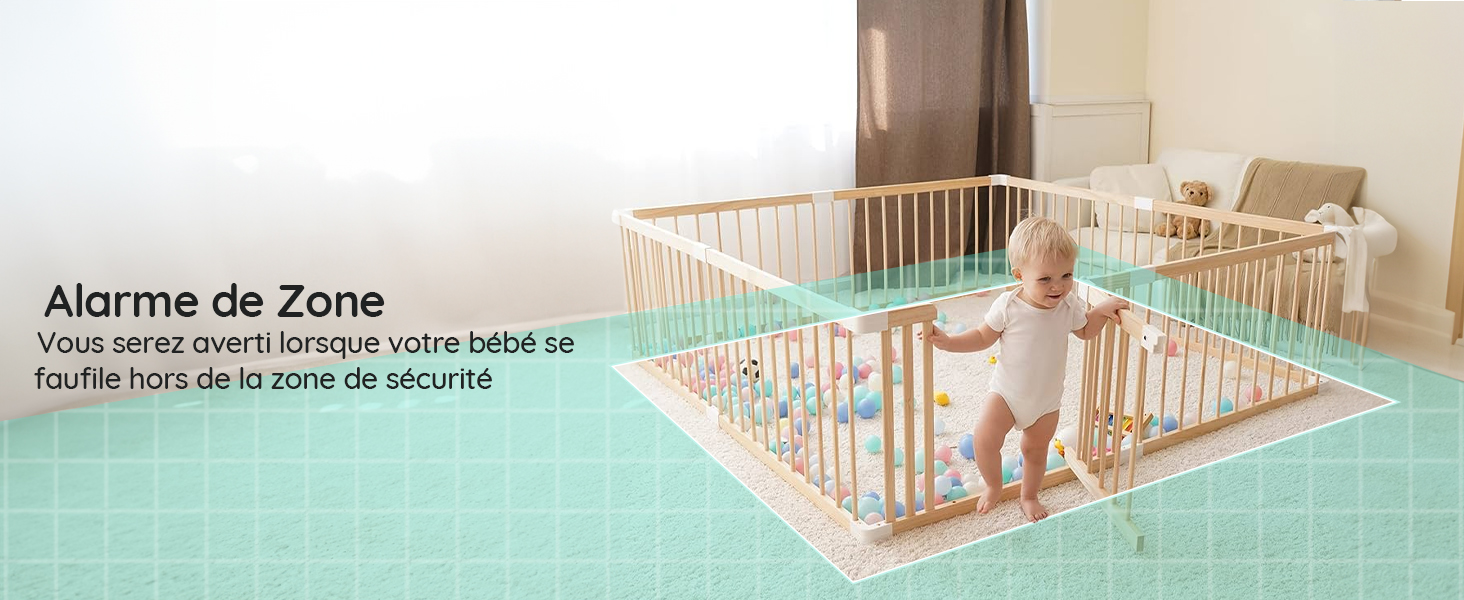
Image 5: A smartphone displaying a notification for detected sound, with a crying baby in the background.
4.4 Customizable Zone Alarm
Set specific areas within the camera's view to trigger an alarm if your baby enters or exits them.
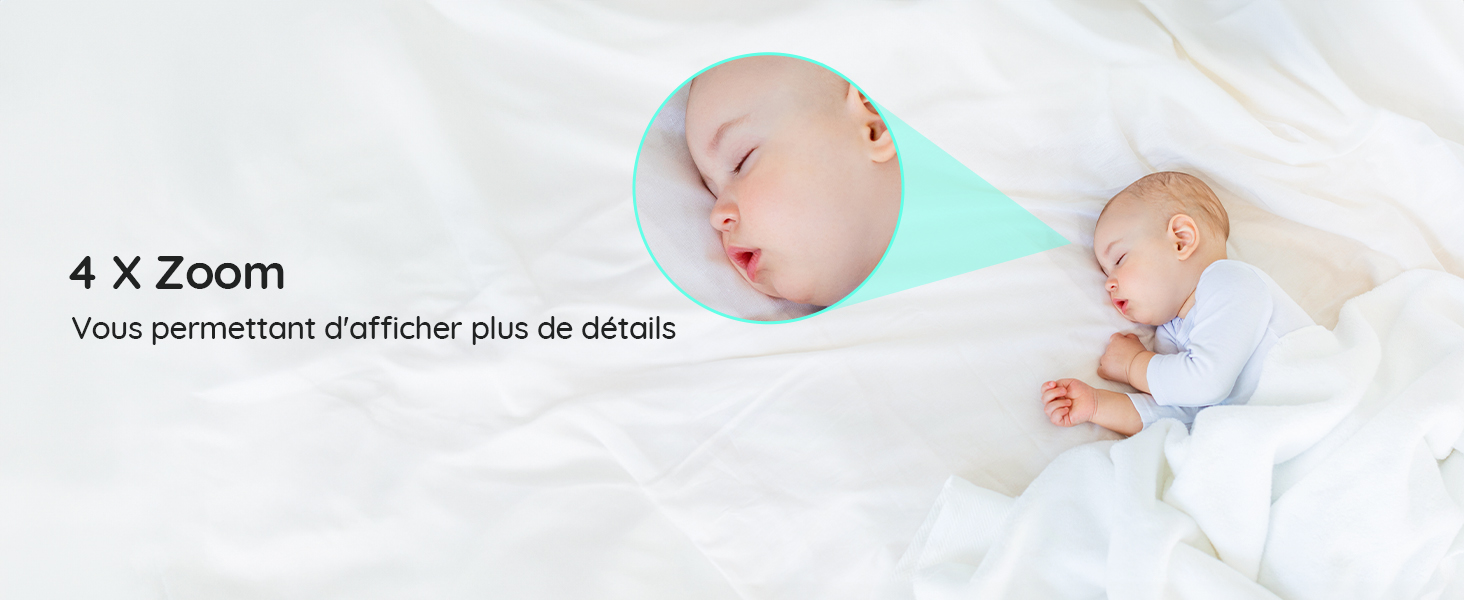
Image 6: A baby playing in a playpen, with a visual overlay indicating a configured zone alarm area.
4.5 4X Digital Zoom
Zoom in on your baby to see more details without disturbing them.
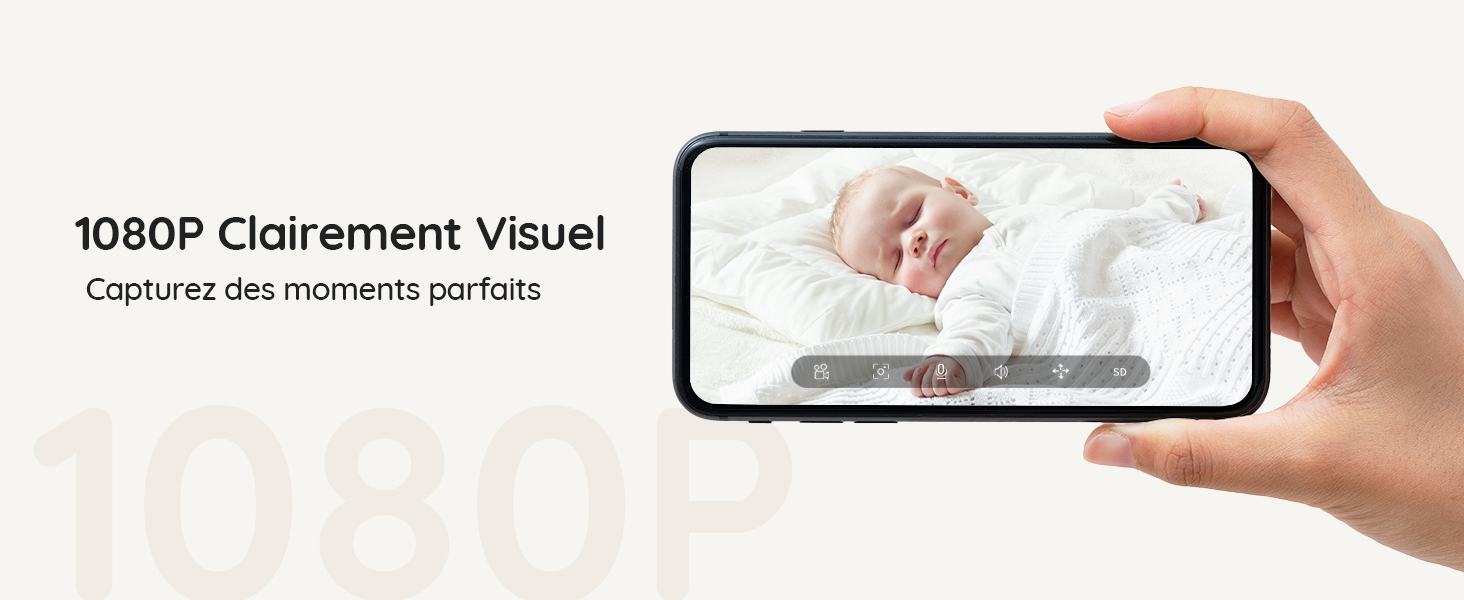
Image 7: A sleeping baby, with a magnified inset showing the baby's face in detail, demonstrating the 4X zoom feature.
4.6 Invisible Infrared Night Vision
Monitor your baby clearly in low-light conditions without disturbing their sleep with visible red lights.
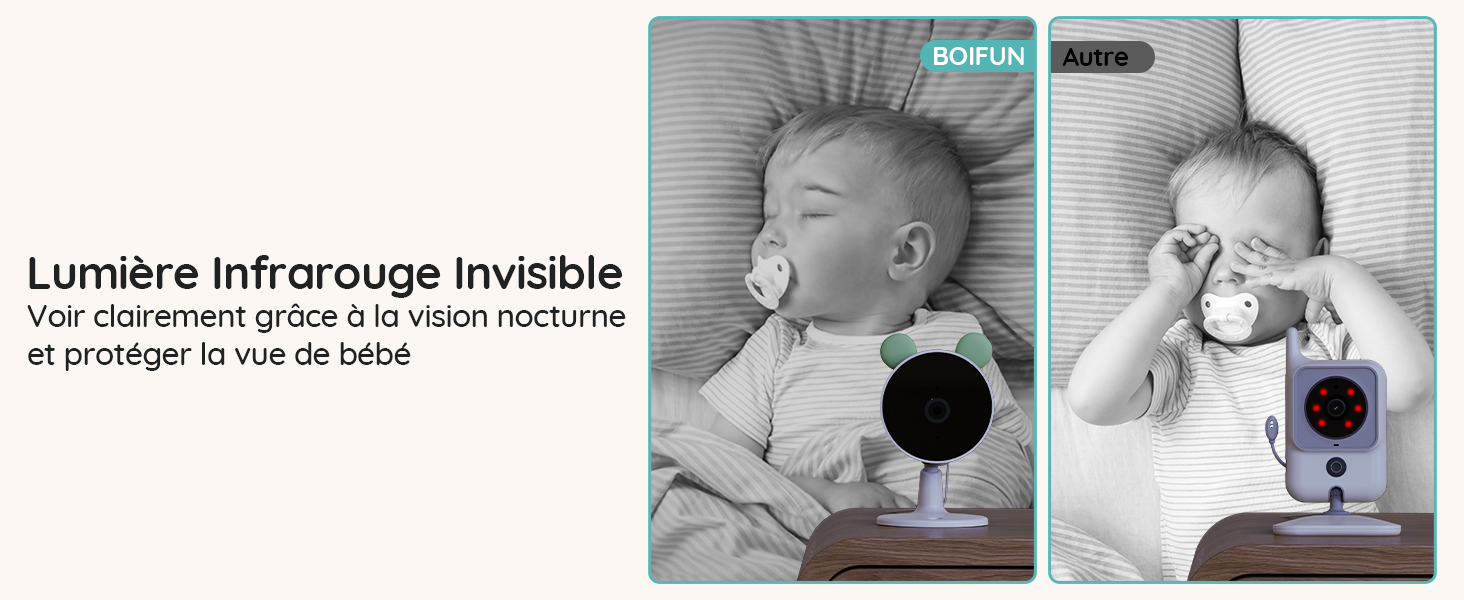
Image 8: A comparison showing the BOIFUN camera's invisible infrared night vision on the left, and a standard camera with visible red IR lights on the right, both monitoring a sleeping baby.
4.7 Status Lights
The camera's status lights can be turned off to ensure a peaceful sleeping environment for your baby.
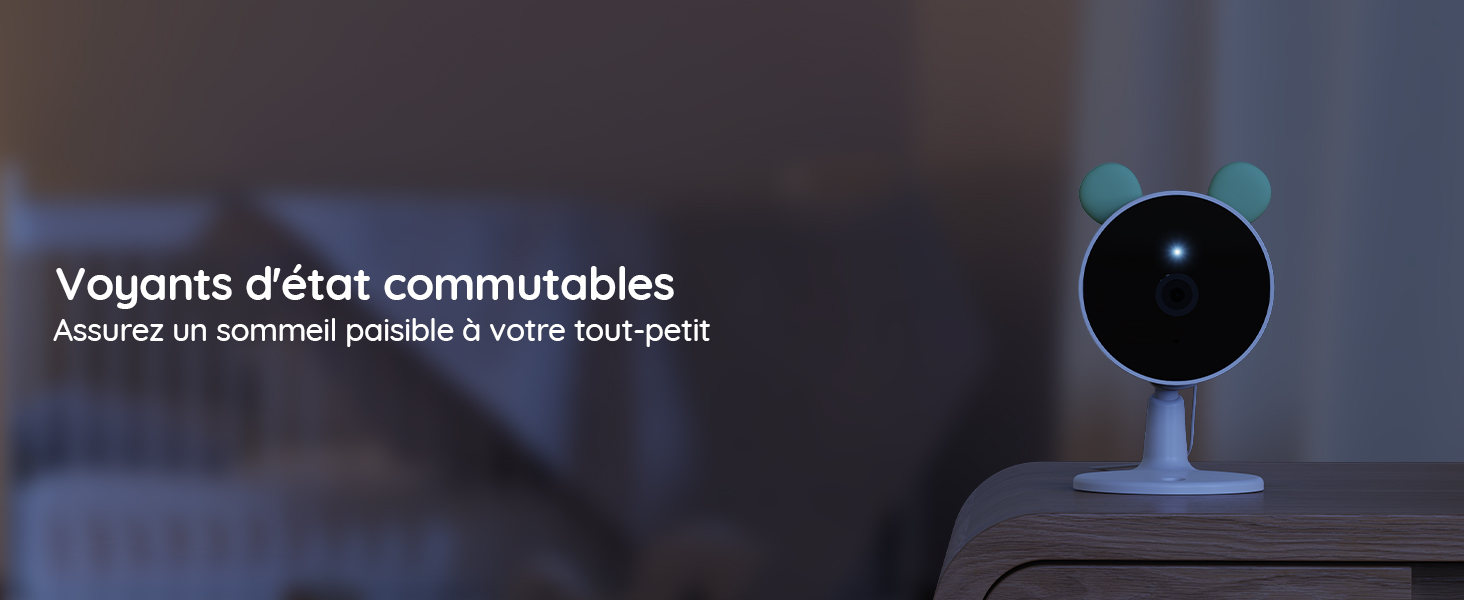
Image 9: A baby camera monitoring a sleeping baby in a dark room, with its status light turned off to avoid disturbance.
4.8 Lullabies
Play soothing lullabies directly from the camera to help your baby fall asleep.
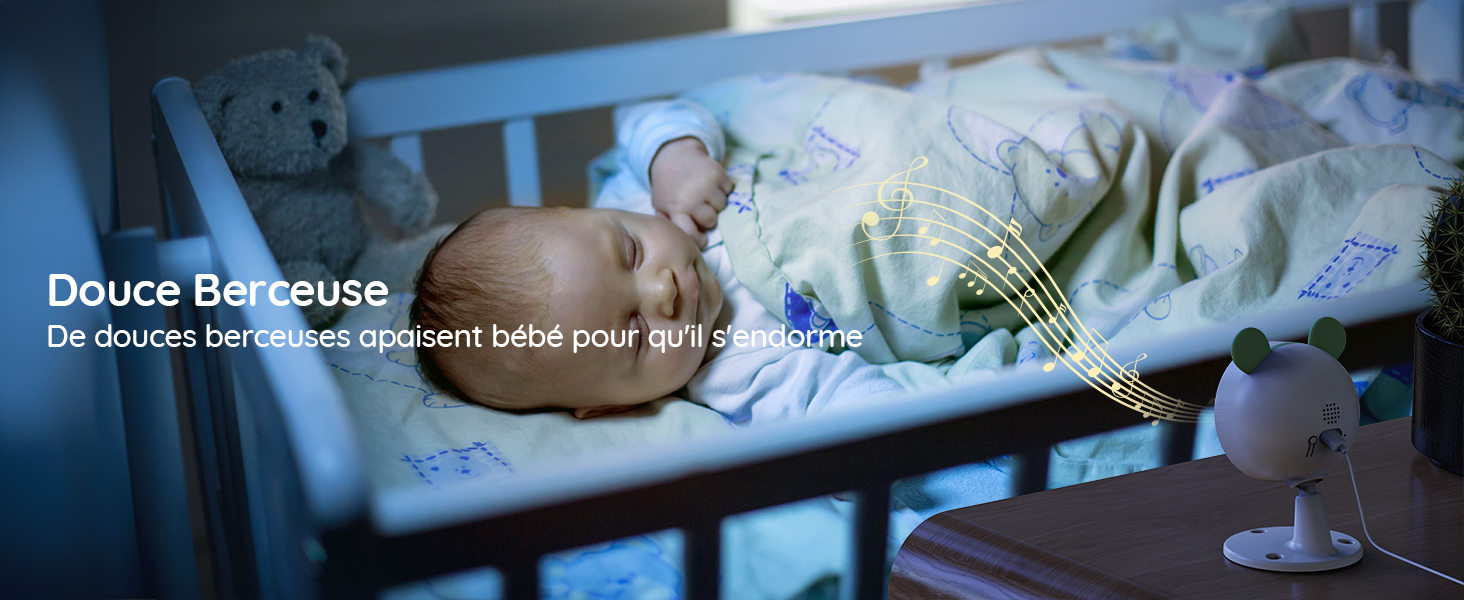
Image 10: A baby sleeping peacefully in a crib, with musical notes emanating from the baby camera, indicating the lullaby feature.
4.9 Two-Way Audio
Communicate with your baby through the monitor or app using the two-way audio feature.

Image 11: A woman in a kitchen speaking into the baby monitor, with speech bubbles illustrating the two-way audio communication feature.
4.10 Feeding Reminders
Set up feeding reminders to help maintain your baby's feeding schedule.
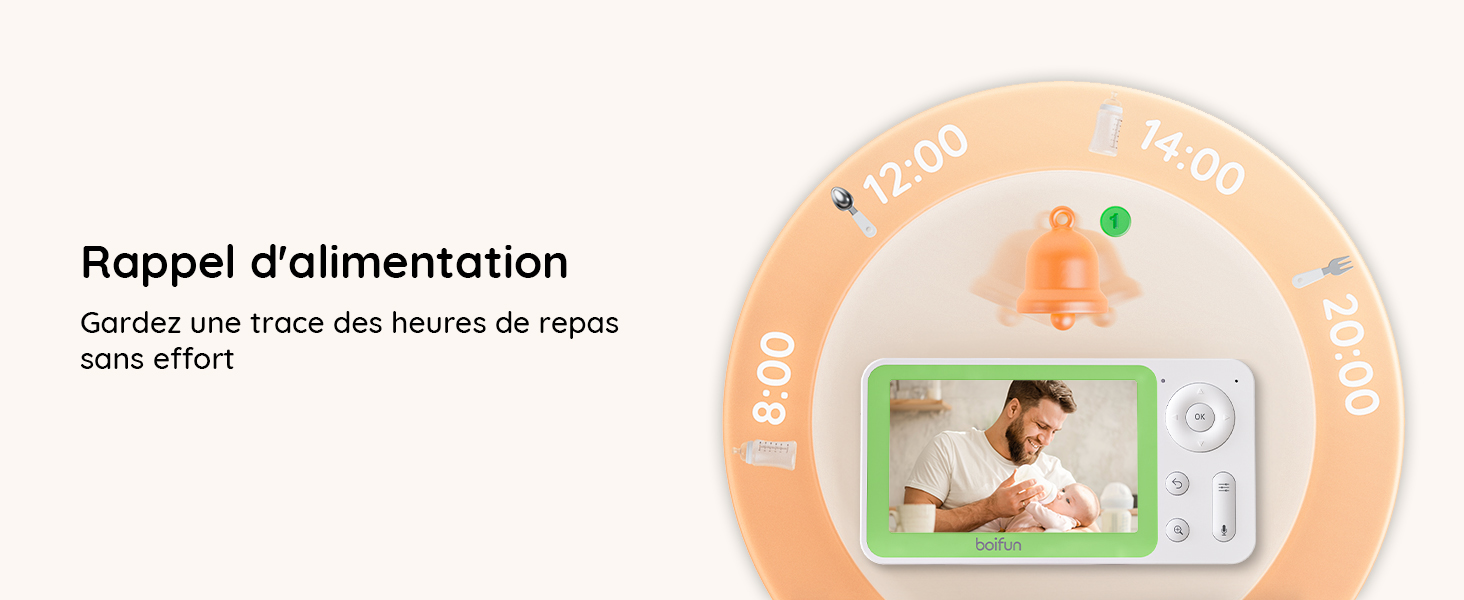
Image 12: The baby monitor screen showing a visual representation of a feeding reminder schedule, with times and icons.
4.11 Manual Angle Adjustment
The camera's angle can be manually adjusted to achieve the desired viewing area.
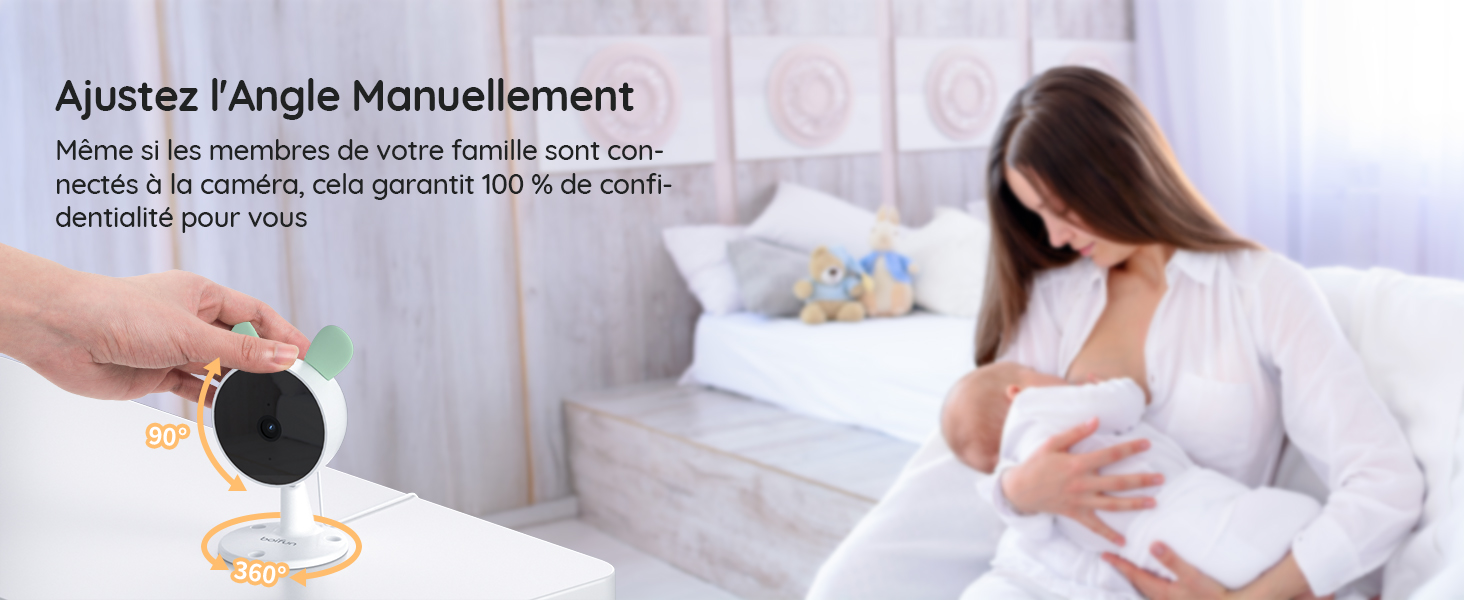
Image 13: A hand manually adjusting the camera lens, demonstrating the camera's flexible positioning.
5. Maintenance
5.1 Cleaning
To clean the monitor and cameras, use a soft, dry cloth. Do not use liquid cleaners or aerosols. Ensure devices are powered off before cleaning.
5.2 Battery Life
The parent unit features a long-lasting battery, providing approximately 6 hours of active monitoring and up to 4 days in standby mode.

Image 14: The monitor displaying a full battery icon, indicating extended battery life for continuous monitoring.
6. Troubleshooting
6.1 Connection Issues
- No signal on monitor: Ensure both cameras and the monitor are powered on and within range. Try re-pairing the cameras as described in Section 3.2.
- App connection failure: Verify your Wi-Fi network is 2.4 GHz. Ensure the camera is properly reset and follow the app pairing steps in Section 3.3 carefully. Check your Wi-Fi signal strength.
6.2 Image Quality
- Blurry image: Clean the camera lens with a soft cloth. Ensure there is adequate lighting (for day mode) or that night vision is active (for night mode).
- Night vision not working: Ensure the room is dark enough for night vision to activate automatically. Check for any obstructions blocking the infrared sensors.
6.3 Audio Issues
- No sound: Check the volume settings on the parent unit and your mobile app. Ensure the camera's microphone is not obstructed.
- Feedback/Static: Move the monitor further away from the camera to reduce interference.
7. Specifications
| Feature | Detail |
|---|---|
| Brand | BOIFUN |
| Model Name | Baby 7SM-2 |
| Connectivity Protocol | Wi-Fi 2.4 GHz |
| Special Features | Motion Detector, Night Vision |
| Compatible Devices | Monitor, Smartphones and Tablets |
| Color | Black |
| Number of Items | 1 (System includes 2 cameras) |
| Form Factor | Dome |
| Internal Material | Acrylonitrile Butadiene Styrene (ABS) |
| Control Method | Application |
| Batteries Required | Yes |
| Battery Power | 2500 Milliampere-hour (mAh) |
| Zoom Type | Digital Zoom |
| Zoom Ratio | 4X |
| Item Dimensions | 12.5 x 7.1 x 6.5 centimeters |
| Night Vision Range | 5 Meters |
| Night Vision Type | Invisible Infrared (940 nm) |
8. Warranty and Support
BOIFUN is committed to providing high-quality products and excellent customer service.
- Warranty: This product comes with a 3-year quality guarantee.
- Returns: Enjoy a 90-day free return policy.
- Customer Support: Individual after-sales assistance and quick responses are available 24 hours a day.
For any inquiries or support, please contact us at: admin@boifun.net


Image 15: Icons representing professional after-sales support, 90-day free return policy, and a 3-year quality guarantee.


