1. Introduction
This manual provides comprehensive instructions for the Alacrity NB80 4G & WiFi POS Terminal. It covers device setup, operational procedures, maintenance guidelines, and troubleshooting steps to ensure optimal performance and longevity of your device. Please read this manual thoroughly before using the terminal.
2. Safety Information
- Use only the provided charging adapter to prevent damage to the device and battery.
- Do not expose the device to extreme temperatures, direct sunlight, or humid environments.
- Avoid dropping or subjecting the device to severe impact.
- Keep the device away from water and other liquids.
- Do not attempt to disassemble or repair the device yourself. Contact customer support for assistance.
3. Package Contents
Verify that all items are present in the package:
- Alacrity NB80 POS Terminal (1 unit)
- Thermal Paper Roll (1 unit)
- Charge Adaptor (1 unit)
- User Manual (1 unit)
- USB-Type C Cable (1 unit)
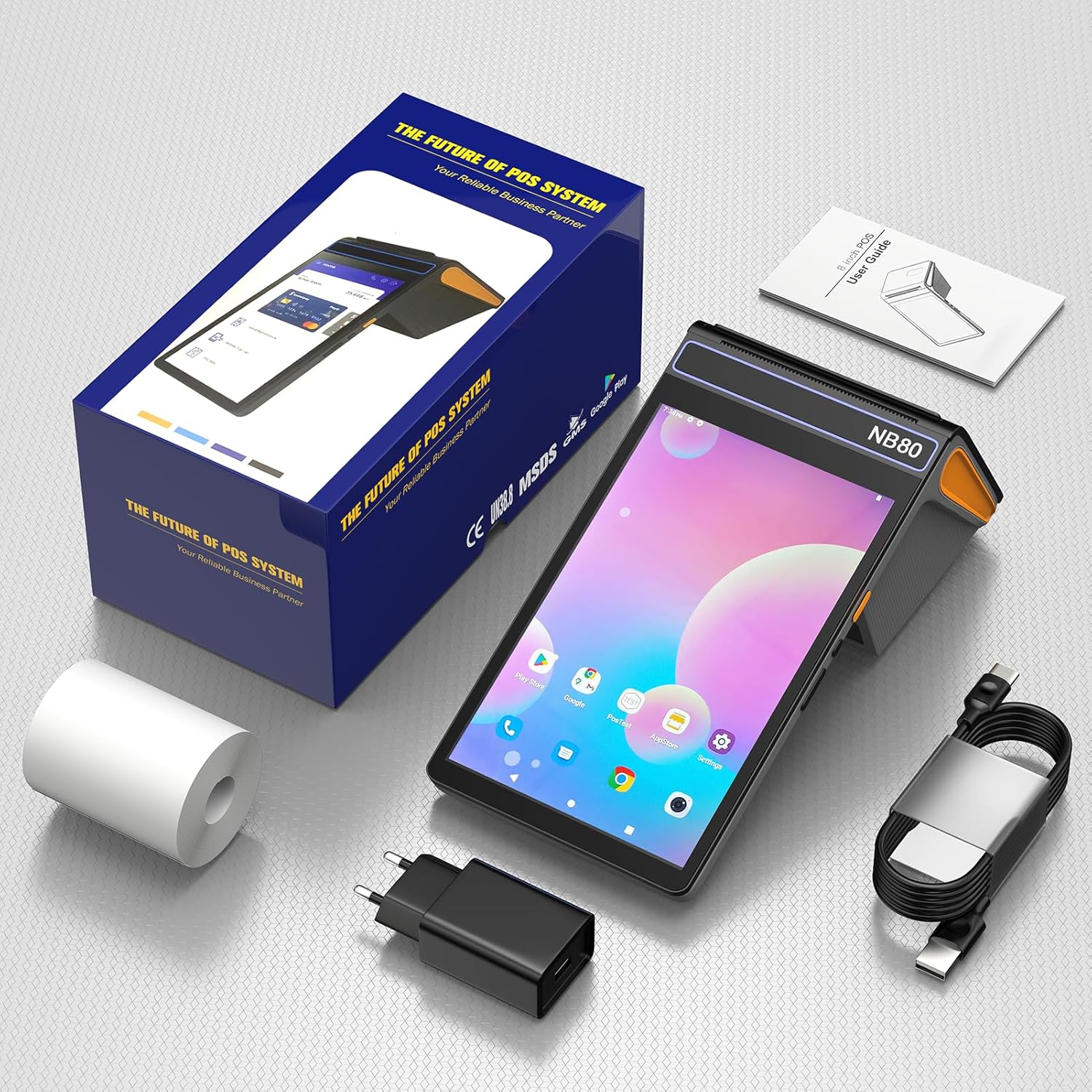
Image: Contents of the Alacrity NB80 POS Terminal package, including the terminal, paper roll, charger, USB-C cable, and user manual.
4. Product Overview
The Alacrity NB80 is an Android-based POS terminal featuring an 8-inch touch screen, integrated thermal printer, 2D barcode scanner, and NFC reader. It supports various connectivity options including 4G and WiFi.

Image: Front view of the Alacrity NB80 POS Terminal, showcasing its 8-inch display and integrated printer, alongside a separate QR code scanning and NFC module.
Key Features:
- Operating System: Android 12 OS
- Memory: 3GB RAM, 16GB ROM
- Display: 8-inch 1280*800 IPS Capacitive Touch Screen
- Printer: 58mm Direct Thermal Printer (90mm/s speed)
- Scanner: Integrated 2D Barcode Scanner
- NFC: Contactless Card Reader
- Battery: 6400mAh Rechargeable Li-Battery
- Connectivity: WiFi, 4G/3G/2G, Bluetooth

Image: Diagram illustrating the internal components and performance specifications of the Alacrity NB80, highlighting its Android OS, Octa-Core processor, memory, and printer.
5. Setup
5.1. Battery Installation and Charging
- Locate the battery compartment on the back of the terminal.
- Insert the 6400mAh rechargeable Li-battery, ensuring correct polarity.
- Close the battery compartment cover securely.
- Connect the provided USB-Type C cable to the terminal and the charge adaptor.
- Plug the charge adaptor into a power outlet. The device will indicate charging status. A full charge typically takes approximately 6 hours.

Image: The Alacrity NB80 POS Terminal connected to a charger, displaying battery capacity (6400mAh), scanning time (25-30 hours), and charging time (8-10 hours).
5.2. Paper Roll Installation
- Locate the printer cover release latch, usually on the top or side of the terminal.
- Open the printer cover.
- Insert the 58mm thermal paper roll into the compartment. Ensure the paper feeds out from the top and is aligned correctly. The maximum paper roll diameter supported is 40mm.
- Close the printer cover firmly until it clicks into place, leaving a small amount of paper extending from the slot.
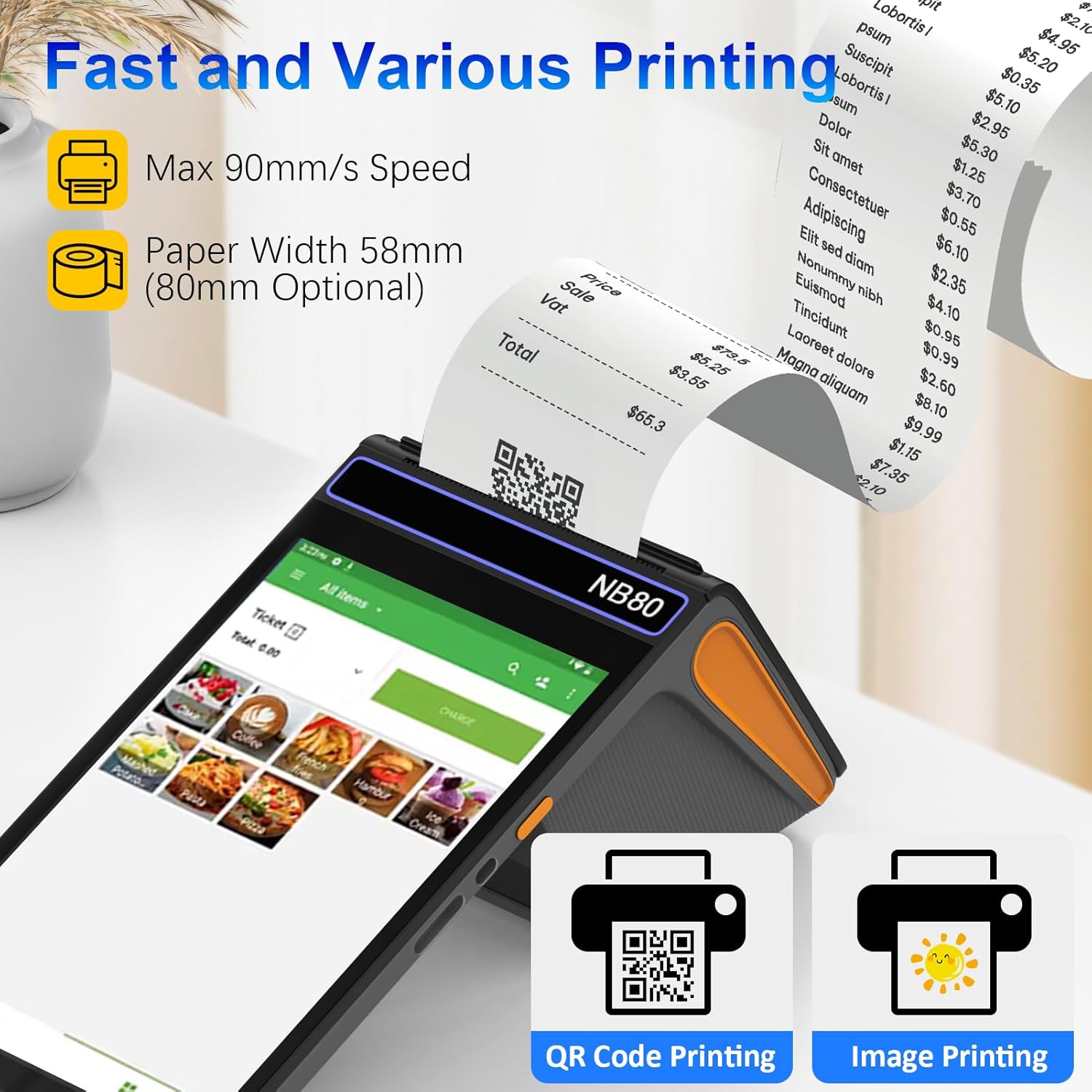
Image: The Alacrity NB80 POS Terminal actively printing a receipt, highlighting its 58mm paper width and 90mm/s printing speed.
5.3. Initial Power On and Network Connection
- Press and hold the power button located on the side of the device until the screen illuminates.
- Follow the on-screen prompts to complete the initial Android setup.
- To connect to Wi-Fi: Navigate to Settings > Network & internet > Wi-Fi, select your network, and enter the password.
- For 4G/3G/2G connectivity: Insert a compatible SIM card into the designated slot (refer to device diagram for slot location). Ensure mobile data is enabled in Settings > Network & internet > Mobile network.
6. Operating Instructions
6.1. Touch Screen Usage
The Alacrity NB80 features an 8-inch 1280*800 IPS capacitive touch screen. Interact with the device using standard Android touch gestures such as tap, swipe, pinch-to-zoom, and long-press.
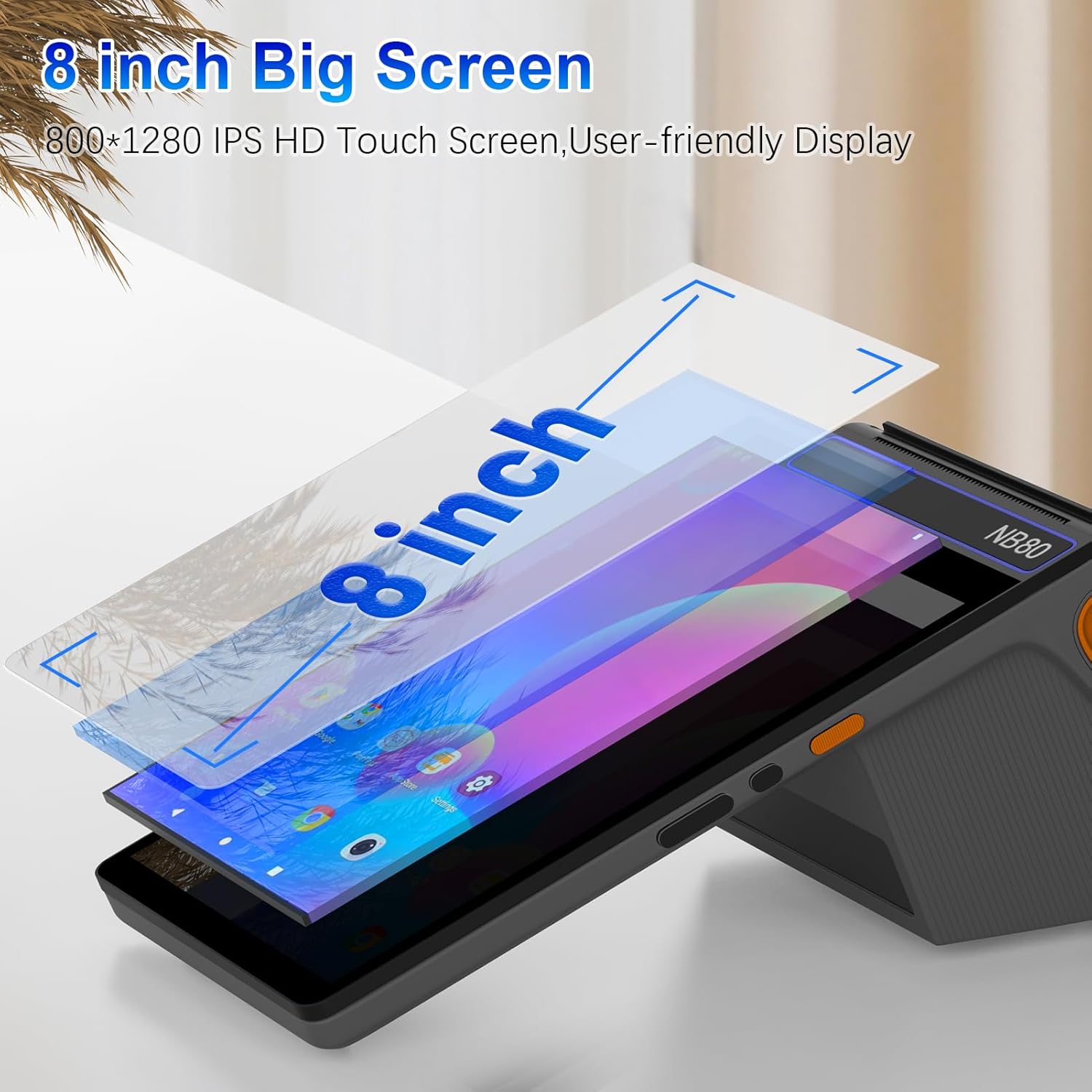
Image: A visual representation emphasizing the 8-inch size and IPS HD touch screen capabilities of the Alacrity NB80 POS Terminal.
6.2. Printing Receipts and Labels
The integrated 58mm direct thermal printer supports both receipt and label printing at a speed of up to 90mm/s. Printing functions are typically initiated through your installed POS application.
- Ensure a thermal paper roll is correctly installed.
- Within your POS software, select the print option for transactions or labels.
- The printer will automatically generate the output.
6.3. Scanning Barcodes (1D/2D)
The terminal includes an embedded 2D scan engine capable of reading barcodes from both physical packages and digital screens. It supports a wide range of 1D and 2D barcode types.
- 1D Barcodes Supported: Codabar, Code 11, Code93, MSI, Code 128, UCC/EAN-128, Code 39, EAN-8, EAN-13, UPC-A, ISBN, Industrial 25, Interleaved 25, Standard25, Matrix.
- 2D Barcodes Supported: QR, DataMatrix, PDF417, Aztec, Hanxin, Micro PDF417.
- Open the scanning function within your POS application.
- Point the scanner window at the barcode, ensuring the entire code is within the scanning area.
- The device will typically emit a beep or provide on-screen confirmation upon successful scan.

Image: The Alacrity NB80 POS Terminal demonstrating its ability to quickly identify and scan QR codes and other barcode types.
6.4. NFC Payments
The Alacrity NB80 is equipped with NFC functionality, supporting contactless payments and card reading for various card types.
- Supported Card Types: ISO/IEC 14443 Type A/B, Mifare 1.
- Inductive Distance: 0-5mm.
- Initiate an NFC payment or card reading process through your POS application.
- Instruct the customer to tap their contactless card or NFC-enabled device near the NFC reader area on the terminal.
- Hold the card steady within the inductive distance until the transaction is confirmed.

Image: A user performing a contactless payment using an NFC card on the Alacrity NB80 POS Terminal.
6.5. Software Usage
The terminal runs on Android 12 OS, allowing for flexible application development and usage. It comes with pre-installed software such as e-Boleta, POS Steward, JPOS, and Loyverse POS. For specific instructions on using these applications, please refer to the respective software documentation.
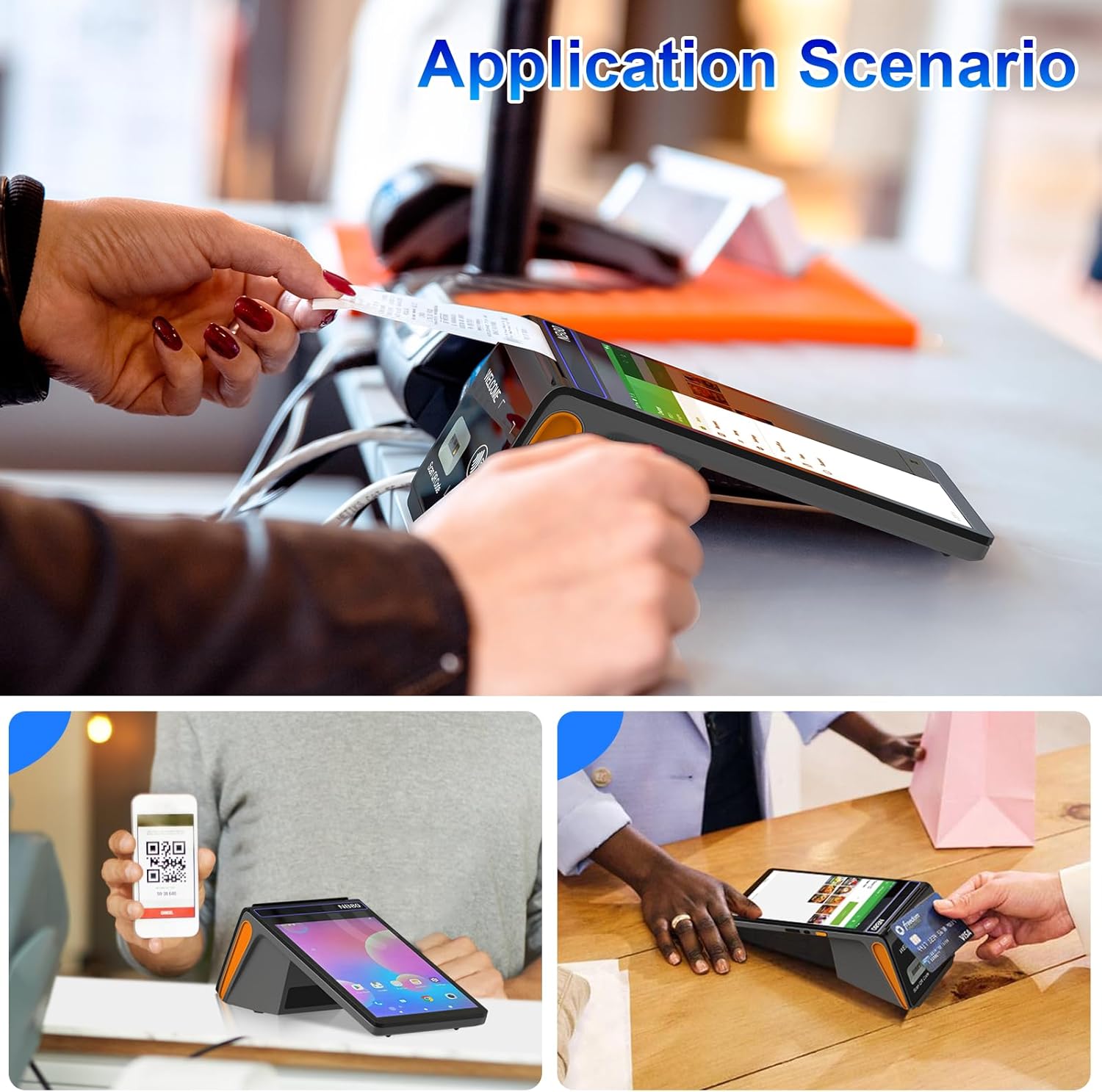
Image: Depiction of the Alacrity NB80 POS Terminal being used in different retail and service environments, demonstrating its versatility.
7. Maintenance
7.1. Cleaning
- Use a soft, dry, lint-free cloth to clean the screen and exterior of the device.
- For stubborn marks, lightly dampen the cloth with water or a screen cleaner. Avoid harsh chemicals.
- Regularly clean the printer paper exit slot and scanner window to ensure optimal performance.
7.2. Battery Care
- Charge the battery regularly, even if the device is not in frequent use, to maintain battery health.
- Avoid completely draining the battery before recharging.
- If the device will not be used for an extended period, charge it to about 50% and store it in a cool, dry place.
7.3. Printer Head Care
- The thermal printer head should be cleaned periodically to prevent print quality issues.
- Use a cotton swab lightly moistened with isopropyl alcohol to gently wipe the thermal print head.
- Allow the print head to dry completely before closing the cover and resuming operation.
8. Troubleshooting
This section addresses common issues you might encounter with your Alacrity NB80 POS Terminal.
| Issue | Possible Cause | Solution |
|---|---|---|
| Device does not power on | Low battery; Power button not pressed correctly | Charge the device for at least 30 minutes. Press and hold the power button for 5-10 seconds. |
| Printer not printing | No paper; Paper incorrectly loaded; Printer cover not closed; Printer head dirty | Check and replace paper roll. Ensure paper is loaded correctly. Close printer cover firmly. Clean printer head. |
| Barcode scanner not reading | Barcode damaged/unclear; Scanner window dirty; Incorrect scanning angle | Ensure barcode is clear. Clean scanner window. Adjust scanning angle and distance. |
| NFC not working | Card not compatible; Card not placed correctly; NFC function disabled | Ensure card is NFC compatible. Place card within 0-5mm of the reader. Check NFC settings in Android. |
| Slow performance | Too many apps running; Low storage | Close unnecessary applications. Clear cache or uninstall unused apps. Restart the device. |
9. Specifications
| Feature | Detail |
|---|---|
| Model | NB80 |
| Operating System | Android 12 |
| RAM | 3GB |
| ROM | 16GB |
| Display | 8-inch IPS Touch Screen, 1280*800 resolution |
| Printer Type | 58mm Direct Thermal Printer |
| Printing Speed | Up to 90mm/s |
| Paper Roll Diameter (Max) | 40mm |
| Barcode Scanner | 2D Scan Engine (supports 1D/2D codes) |
| NFC | ISO/IEC 14443 Type A/B, Mifare 1 (Inductive distance: 0-5mm) |
| Battery | 6400mAh Rechargeable Li-Battery |
| Battery Life | Over 30 hours (continuous working) |
| Charging Time | Approx. 6 hours (with 5V-2000mA adaptor) |
| Connectivity | WiFi, 4G/3G/2G, Bluetooth |
| Item Weight | 2.4 pounds |
| Package Dimensions | 10.08 x 5.55 x 4.76 inches |
10. Warranty and Support
For any questions or issues encountered while using your Alacrity NB80 POS Terminal, please contact our customer support. We are committed to providing assistance and will reply to your inquiries within 24 hours.
Please retain your purchase receipt for warranty purposes.


