1. Introduction
Thank you for choosing the ZIOVO Z138 10-inch Android Tablet. This manual provides essential information for setting up, operating, maintaining, and troubleshooting your device. Please read it carefully to ensure optimal performance and longevity of your tablet.
2. Product Overview
The ZIOVO Z138 is a versatile 10-inch Android tablet featuring an Octa-Core processor and the Android 14 operating system. It is designed for a wide range of uses, from entertainment to educational purposes, and comes with a durable EVA protective case.
Key Features:
- 10.1-inch HD Display (1280x800 pixels)
- Android 14 Operating System with GMS Certification
- Octa-Core Processor (1.8 GHz Allwinner)
- 20GB RAM (6GB physical + 14GB expandable virtual RAM)
- 128GB Internal Storage (ROM), expandable up to 1TB via Micro SD card
- Wi-Fi 6 (802.11a/b/g/n/ax) for fast and secure connectivity
- Bluetooth 5.0
- 6000 mAh Battery for extended use
- Dual Cameras (8MP rear, 5MP front)
- Widevine L1 Support for HD streaming on compatible platforms (excluding Netflix)
- Parental Control features and pre-installed educational apps
- Durable EVA Protective Case with adjustable stand
Tablet Components:
Familiarize yourself with the physical layout of your ZIOVO Z138 tablet.

Image: Front view of the ZIOVO Z138 tablet, showcasing its 10.1-inch display and sleek design.

Image: The ZIOVO Z138 tablet enclosed in its protective EVA case, highlighting the robust design and integrated stand.
3. Setup
3.1 Unpacking and Initial Charge
Upon opening the package, ensure all items are present:
- ZIOVO Z138 Tablet
- EVA Protective Case
- Charger (Power Adapter and USB Type-C Cable)
- Screen Protector (pre-applied or included separately)
- Instruction Booklet
- Interactive Cards (if included)
Before first use, fully charge the tablet using the provided charger. Connect the USB Type-C cable to the tablet's charging port and the power adapter to a wall outlet. The charging indicator will show the charging status.
3.2 Powering On/Off
- To Power On: Press and hold the Power button located on the side of the tablet until the ZIOVO logo appears on the screen.
- To Power Off: Press and hold the Power button until a menu appears. Select "Power off" and confirm.
- To Restart: Press and hold the Power button until a menu appears. Select "Restart" and confirm.
3.3 Initial Configuration
The first time you power on your tablet, you will be guided through an initial setup process:
- Select your preferred language.
- Connect to a Wi-Fi network. This is crucial for downloading updates and setting up your Google account.
- Sign in with your Google account or create a new one. This allows access to the Google Play Store and other Google services.
- Follow the on-screen prompts to set up security (PIN, pattern, or password) and other preferences.
3.4 Memory Expansion (Micro SD Card)
The ZIOVO Z138 supports Micro SD cards up to 1TB for additional storage.
- Locate the Micro SD card slot on the side of the tablet.
- Carefully insert the Micro SD card into the slot until it clicks into place.
- The tablet will detect the new storage. You may be prompted to format the card for optimal use with the tablet.
4. Operating Instructions
4.1 Basic Navigation
The ZIOVO Z138 uses standard Android touch gestures:
- Tap: Select an item or open an app.
- Swipe: Scroll through screens or lists.
- Pinch-to-Zoom: Zoom in or out on images and web pages.
- Long Press: Access contextual menus or move icons.
4.2 Wi-Fi Connection
To connect to a Wi-Fi network:
- Go to Settings > Network & internet > Internet.
- Turn on Wi-Fi.
- Select your desired network from the list.
- Enter the password if prompted and tap Connect.
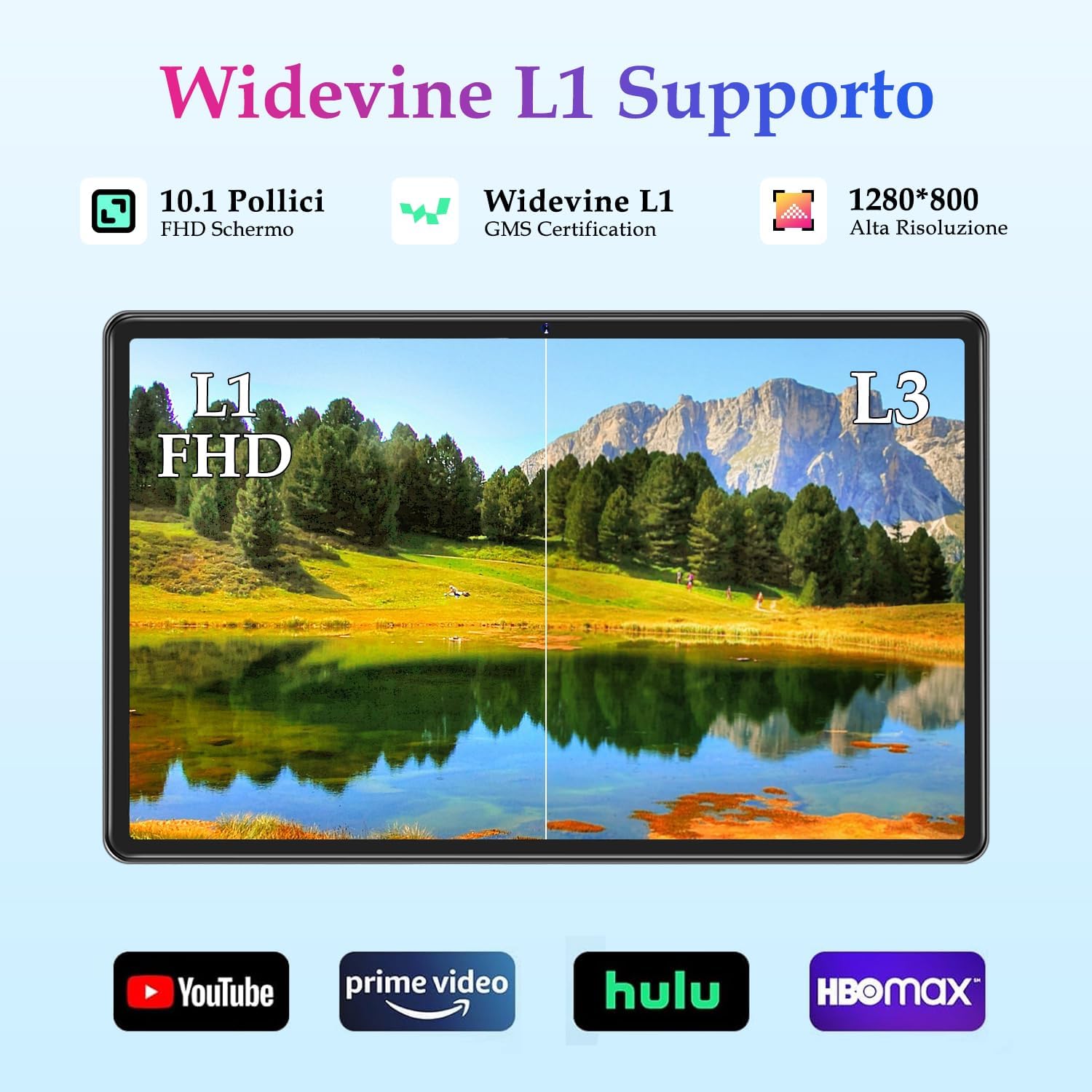
Image: Illustration of the tablet's Wi-Fi 6 capabilities, supporting both 2.4GHz and 5GHz bands for faster and more stable internet access.
4.3 Bluetooth Pairing
To pair with Bluetooth devices:
- Go to Settings > Connected devices > Connection preferences > Bluetooth.
- Turn on Bluetooth.
- Ensure the device you want to pair with is in pairing mode.
- Select the device from the list of available devices and follow any on-screen prompts to complete pairing.
4.4 App Management and Parental Controls
The tablet comes with Google Play Store for downloading apps and pre-installed educational applications like iWAWA, Kids Space, and AI Zoo. It also features robust parental control options.

Image: Screenshot of the parental control interface on the ZIOVO Z138 tablet, showing options for managing time limits, applications, and content.
To set up parental controls:
- Access the dedicated parental control application or navigate to Settings > Digital Wellbeing & parental controls.
- Set daily time limits for tablet usage.
- Manage access to specific applications and online content.
- Create multiple user accounts for children, each with customized restrictions.
- The tablet also supports an offline mode for controlled learning environments.
4.5 Multimedia and Widevine L1
The ZIOVO Z138 supports Widevine L1 certification, enabling high-definition (HD) streaming on platforms such as Disney+, Prime Video, Hulu, and HBO Max. Please note that Netflix does not support Widevine L1 on this device.
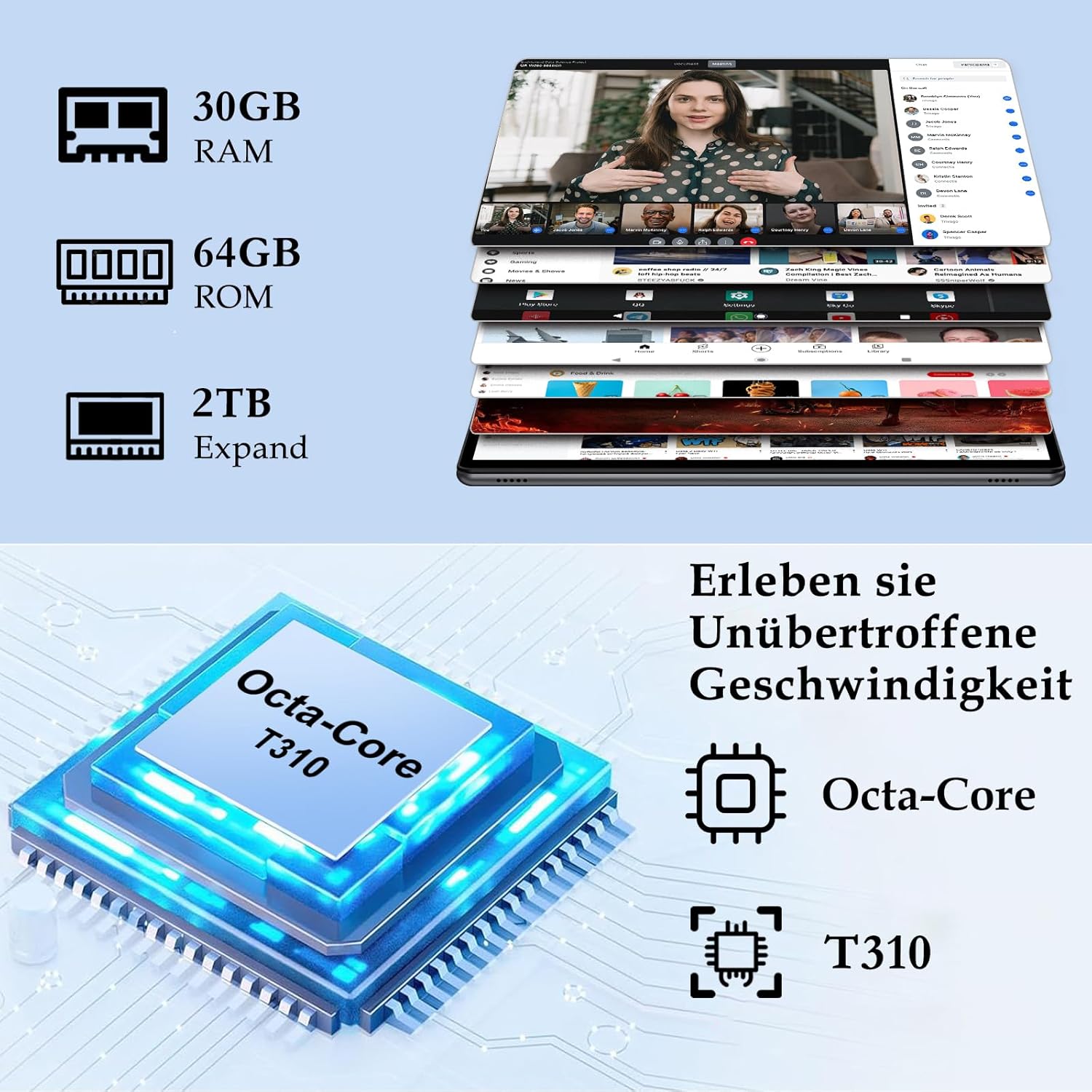
Image: Visual comparison demonstrating the superior HD streaming quality with Widevine L1 support on the ZIOVO Z138 tablet, alongside logos of supported streaming services.
4.6 Camera Usage
The tablet is equipped with an 8MP rear camera and a 5MP front camera. Open the Camera app to take photos or record videos. Tap the screen to focus and press the shutter button to capture.
4.7 Audio
The tablet features dual speakers for stereo sound and a 3.5mm headphone jack for private listening. Adjust volume using the physical volume buttons or through the system settings.
5. Maintenance
5.1 Cleaning Your Tablet
To clean the screen, use a soft, lint-free cloth specifically designed for electronics. For the tablet body and EVA case, a slightly damp cloth can be used. Avoid harsh chemicals or abrasive materials.
5.2 Software Updates
Regularly check for and install software updates to ensure your tablet has the latest features, security patches, and performance improvements. Go to Settings > System > System update.
5.3 Battery Care
To prolong battery life:
- Avoid extreme temperatures.
- Do not let the battery drain completely before recharging frequently.
- Use the original charger provided.
- Adjust screen brightness to a comfortable level.
- Close unused applications running in the background.
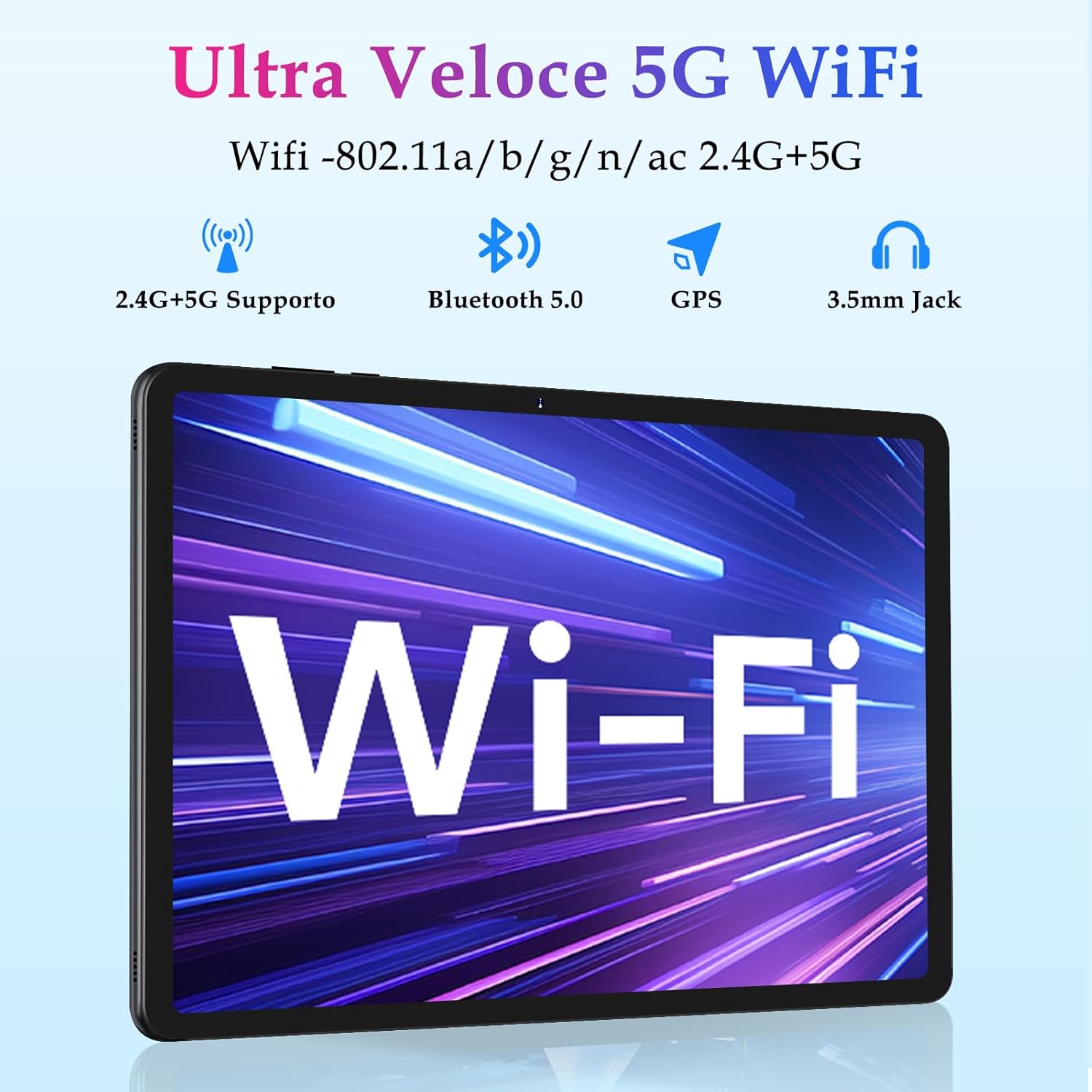
Image: Visual representation of the ZIOVO Z138 tablet's 6000 mAh battery capacity, indicating long-lasting power for various activities.
5.4 Storage Management
Periodically clear cache data from apps and delete unnecessary files to free up storage space and improve performance. Go to Settings > Storage to manage your files and apps.
6. Troubleshooting
This section addresses common issues you might encounter with your ZIOVO Z138 tablet.
| Problem | Possible Cause | Solution |
|---|---|---|
| Tablet not powering on | Low battery; system crash | Charge the tablet for at least 30 minutes. Press and hold the Power button for 10-15 seconds to force a restart. |
| Slow performance | Too many apps running; low storage; outdated software | Close background apps. Clear app cache. Check for system updates. Restart the tablet. |
| Wi-Fi connection issues | Incorrect password; router issue; tablet Wi-Fi disabled | Ensure Wi-Fi is enabled. Verify password. Restart your Wi-Fi router. Forget the network and reconnect. |
| Apps crashing or freezing | App bug; insufficient RAM; corrupted app data | Clear the app's cache and data (Settings > Apps). Reinstall the app. Ensure sufficient free RAM. |
| Screen unresponsive | Temporary software glitch | Force restart the tablet by holding the Power button for 10-15 seconds. |
7. Specifications
Detailed technical specifications for the ZIOVO Z138 tablet:
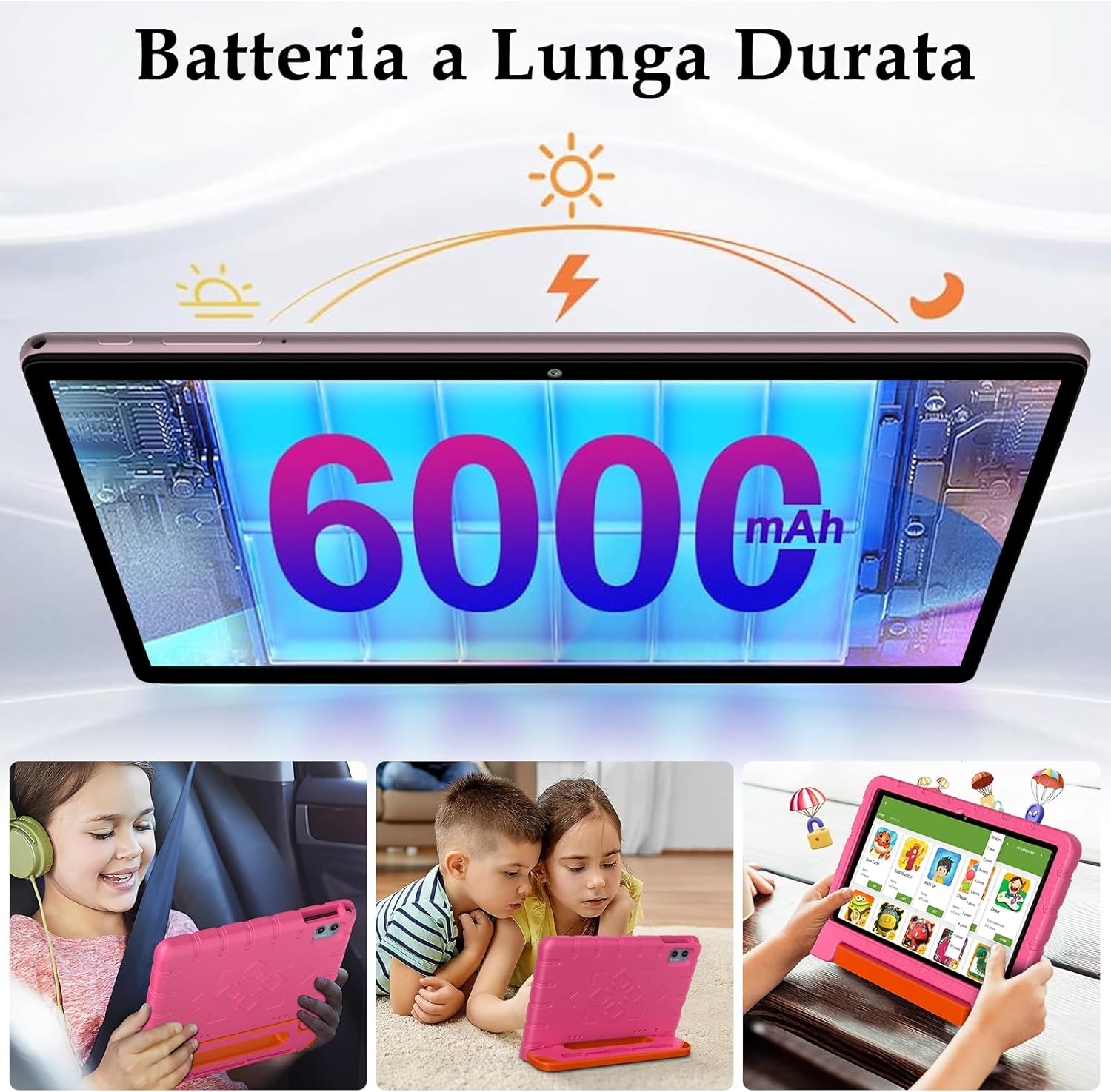
Image: Diagram illustrating the tablet's internal components, including 30GB RAM (likely 6GB physical + 24GB virtual, though product description states 20GB total), 64GB ROM (product description states 128GB), and Octa-Core T310 processor.
| Feature | Detail |
|---|---|
| Brand | ZIOVO |
| Model Number | Z138 |
| Operating System | Android 14 |
| Processor | Octa-Core (Allwinner), 1.8 GHz |
| RAM | 20 GB (6GB physical + 14GB expandable virtual RAM) |
| Internal Storage (ROM) | 128 GB |
| Expandable Storage | Up to 1 TB (Micro SD) |
| Display Size | 10.1 inches |
| Display Resolution | 1280 x 800 pixels |
| Connectivity | Wi-Fi 6 (802.11a/b/g/n/ax), Bluetooth 5.0, USB 3.0 Type-C |
| Audio Interface | 3.5 mm Audio Jack |
| Battery Capacity | 6000 mAh |
| Cameras | Rear: 8 MP, Front: 5 MP |
| Special Features | Parental Control, Widevine L1, EVA Case |
| Product Weight | 744 Grams |
| Dimensions (Package) | 27.7 x 27.2 x 6.6 cm |
8. Safety Information
Please observe the following safety guidelines:
- Do not expose the tablet to extreme temperatures, direct sunlight, or high humidity.
- Avoid dropping or subjecting the tablet to strong impacts, even with the protective case.
- Use only the charger and accessories approved by ZIOVO.
- Do not attempt to disassemble or repair the tablet yourself. This may void your warranty and cause damage.
- Keep the tablet away from water and other liquids.
- Dispose of the tablet and its battery responsibly according to local regulations.
9. Warranty & Support
For warranty information, technical support, or service inquiries, please refer to the documentation included with your purchase or visit the official ZIOVO website. Contact details for customer support can typically be found on the product packaging or the manufacturer's website.


