
NBDDIGITAL S100
NBDDIGITAL S100 48MP Digital Camera User Manual
Model: S100 (NBD-S100-WM-LY-DFGL)
1. Introduction
Thank you for purchasing the NBDDIGITAL S100 48MP Digital Camera. This manual provides detailed instructions for the safe and effective use of your camera. Please read this manual thoroughly before using the product and keep it for future reference.
The NBDDIGITAL S100 is a versatile digital camera designed for photography and vlogging, featuring 48MP resolution, 4K video recording, autofocus, 16X digital zoom, anti-shake technology, and WiFi connectivity for app control. It comes equipped with a 52mm wide-angle and macro lens, a 32GB TF card, and dual batteries.
2. Important Safety Information
To prevent damage to your camera or injury to yourself or others, please observe the following safety precautions:
- Do not disassemble, repair, or modify the camera. Unauthorized modifications may cause electric shock or malfunction.
- Keep the camera away from water and moisture. This camera is not water-resistant.
- Avoid exposing the camera to extreme temperatures, direct sunlight for prolonged periods, or high humidity.
- Use only the specified batteries and charging accessories. Incorrect use may lead to fire, explosion, or leakage.
- Keep the camera and its accessories out of reach of children and pets.
- Clean the camera body with a soft, dry cloth. For the lens, use a specialized lens cleaning cloth and solution.
- Do not point the lens directly at the sun or other strong light sources, as this may damage the camera's sensor.
3. Package Contents
Please check that all items are present in your package:
- NBDDIGITAL S100 Digital Camera Body
- 52mm Wide Angle & Macro Lens
- Rechargeable Lithium-Ion Batteries (x2)
- 32GB TF Card
- USB Charging Cable
- Camera Strap
- User Manual
4. Product Overview
Familiarize yourself with the camera's components and controls.
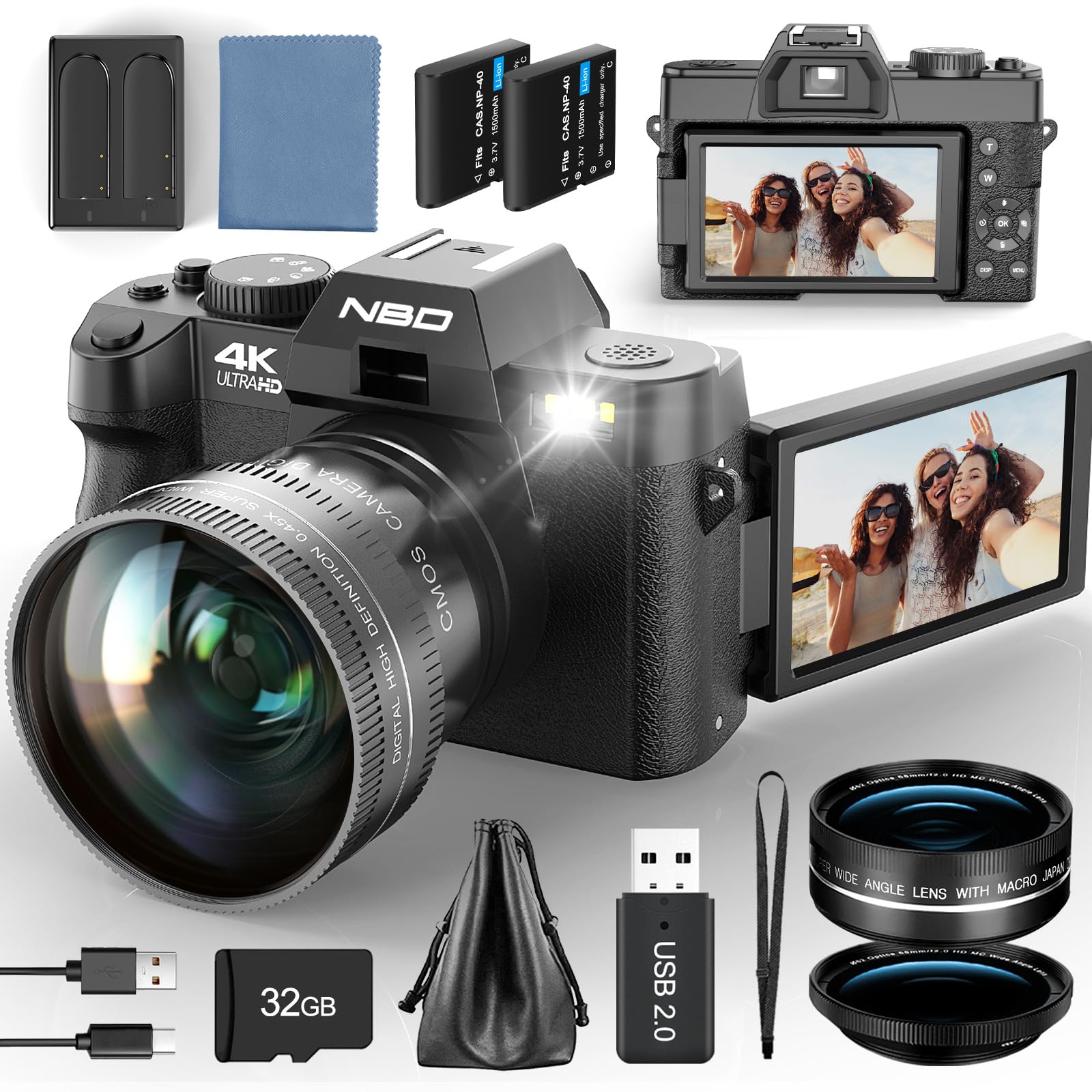
Figure 4.1: Front view of the NBDDIGITAL S100 Digital Camera with the included wide-angle lens. This image displays the lens, built-in flash (if present, though specifications state 'no flash'), and the camera body's general shape.
4.1 Front View
- Lens: The primary optical component for capturing images. The 52mm wide-angle and macro lens is detachable.
- Autofocus Assist Lamp: Emits light to assist autofocus in low-light conditions.
- Microphone: For recording audio during video capture.
4.2 Top View
- Power Button: Turns the camera on or off.
- Shutter Button: Press halfway to focus, fully to take a photo.
- Mode Dial: Selects shooting modes (e.g., Auto, Video, Scene modes).
4.3 Rear View
- LCD Display: 3-inch screen for viewing images, videos, and menu options.
- Directional Pad/Navigation Buttons: Used to navigate menus and select options.
- Menu Button: Accesses the camera's main menu.
- Playback Button: Enters playback mode to view captured photos and videos.
- Delete Button: Deletes selected photos or videos.
- Zoom Lever: Controls digital zoom in shooting mode and image magnification in playback mode.
5. Setup
5.1 Charging the Battery
- Insert one of the provided Lithium-Ion batteries into the camera's battery compartment.
- Connect the camera to a power source using the USB charging cable. The charging indicator light will illuminate.
- Once fully charged, the indicator light will change or turn off. A full charge typically takes approximately 2-3 hours.
- It is recommended to fully charge both batteries before first use.
5.2 Inserting the TF Card
The camera supports TF (MicroSD) cards up to 32GB. A 32GB TF card is included.
- Locate the TF card slot, usually on the side or bottom of the camera.
- Insert the TF card with the metal contacts facing the correct direction (refer to the diagram near the slot). Push until it clicks into place.
- To remove, gently push the card in again until it springs out.
5.3 Attaching the Lens
The camera comes with a 52mm wide-angle and macro lens. This lens typically screws onto the front of the camera's fixed lens.
- Carefully align the threads of the wide-angle/macro lens with the threads on the front of the camera's main lens.
- Gently rotate the lens clockwise until it is securely attached. Do not overtighten.
- To remove, rotate counter-clockwise.
5.4 Initial Power On
- Press and hold the Power Button until the LCD screen illuminates.
- The first time you power on, you may be prompted to set the date and time. Use the navigation buttons to adjust and confirm.
6. Operating the Camera
6.1 Basic Photography
- Select Mode: Turn the Mode Dial to the desired shooting mode (e.g., Auto, Program, Scene).
- Frame Your Shot: Use the LCD display to compose your image.
- Focus: Press the Shutter Button halfway down. The camera will automatically focus on the subject. A green frame or beep usually indicates successful focus.
- Capture: Press the Shutter Button fully down to take the picture.
6.2 Video Recording
- Select Video Mode: Turn the Mode Dial to the video camera icon.
- Start Recording: Press the Shutter Button to begin recording. A red indicator or timer will appear on the screen.
- Stop Recording: Press the Shutter Button again to stop recording.
6.3 Autofocus and Anti-Shake
- The camera features an advanced autofocus system (Phase Detection with 99 points) to ensure sharp images.
- Optical Image Stabilization (Anti-Shake) helps reduce blur caused by camera movement, especially in low light or when using zoom.
6.4 Digital Zoom
Use the Zoom Lever to digitally magnify your subject up to 16X. Note that digital zoom can reduce image quality compared to optical zoom.
6.5 WiFi & App Control
The NBDDIGITAL S100 can connect to your smartphone or tablet via WiFi for remote control and image transfer.
- Install App: Download the dedicated camera app (refer to the camera's packaging or manufacturer's website for the app name) from your device's app store.
- Activate WiFi on Camera: Go to the camera's menu, navigate to the WiFi settings, and turn WiFi on. The camera will display its network name (SSID) and password.
- Connect Device: On your smartphone/tablet, go to WiFi settings, find the camera's SSID, and connect using the provided password.
- Launch App: Open the camera app. You should now be able to control the camera remotely, view live feed, and transfer photos/videos.
7. Maintenance
7.1 Cleaning the Camera
- Camera Body: Wipe with a soft, dry cloth. For stubborn dirt, slightly dampen the cloth with water and then wipe dry. Do not use organic solvents.
- Lens: Use a lens brush to remove dust, then gently wipe with a specialized lens cleaning cloth and lens cleaning solution. Avoid touching the lens surface with your fingers.
- LCD Screen: Use a soft, lint-free cloth. For smudges, a screen cleaner designed for electronics can be used sparingly.
7.2 Battery Care
- Store batteries in a cool, dry place when not in use.
- Do not expose batteries to high temperatures or direct sunlight.
- If storing for extended periods, charge batteries to about 50% capacity.
- Dispose of depleted batteries according to local regulations.
7.3 Storage
When not in use, store the camera in a dry, dust-free environment, preferably in a camera bag or case to protect it from impacts and scratches.
8. Troubleshooting
| Problem | Possible Cause | Solution |
|---|---|---|
| Camera does not power on. | Battery is depleted or incorrectly inserted. | Charge the battery or reinsert it correctly. Ensure the battery is fully charged. |
| Cannot take photos/videos. | TF card is full, locked, or not inserted. Incorrect mode selected. | Insert a TF card, ensure it's unlocked, or delete unnecessary files. Switch to photo or video mode. |
| Images are blurry. | Lens is dirty. Camera shake. Subject too close for focus. | Clean the lens. Hold the camera steady or use a tripod. Ensure subject is within focus range. |
| WiFi connection issues. | Incorrect password. Camera WiFi not enabled. App not installed. | Verify WiFi password. Enable WiFi on camera. Install the correct app. |
| Camera freezes or malfunctions. | Temporary software glitch. | Remove the battery for a few seconds, then reinsert and restart the camera. |
9. Specifications
| Feature | Detail |
|---|---|
| Model Name | NBD-S100-WM-LY-DFGL |
| Effective Still Resolution | 48 MP |
| Video Resolution | 4K (2160p) at 30 FPS |
| Sensor Type | CMOS (1/3-inch) |
| Lens Type | 52mm Wide Angle & Macro Lens |
| Digital Zoom | 16X |
| Image Stabilization | Optical |
| Autofocus | Yes (Phase Detection, 99 points) |
| Display | 3-inch LCD |
| Connectivity | Wi-Fi |
| Storage Media | TF (MicroSD) Card, up to 32GB (32GB included) |
| Battery Type | Lithium Ion (x2 included) |
| Supported File Formats | RAW, JPEG (Fine), MP4 |
| Minimum Shutter Speed | 1/4000 seconds |
| Continuous Shooting | 5 FPS |
| Item Weight | 0.97 Kilograms |
10. Warranty and Support
For warranty information, please refer to the warranty card included with your product or visit the official NBDDIGITAL website. If you encounter any issues or require technical assistance, please contact NBDDIGITAL customer support through their official channels.
NBDDIGITAL Official Store: Visit Store
Ask a question about this manual
Ask about setup, troubleshooting, compatibility, parts, safety, or missing instructions. Manuals+ will review the question and use this page’s manual context to help answer it.